Are Google Sheets Formulas the Same as Excel? A Practical Comparison
Explore where Google Sheets and Excel formulas align and diverge, with practical mappings, scripting differences, and guidance on choosing the right tool for your workflow.


Are Google Sheets formulas the same as Excel? In many cases, yes, but there are important differences in syntax, available functions, and behavior. According to How To Sheets, most core operations like SUM, AVERAGE, and basic IF logic map directly, while newer Excel-specific features and cross-file references may require workarounds in Sheets.
Are Google Sheets Formulas the Same as Excel? Core Differences
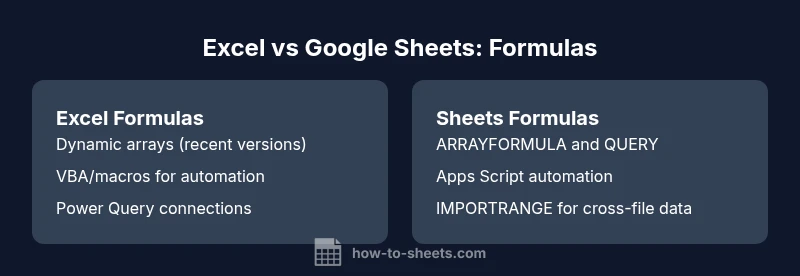
Despite sharing a common goal—calculation and data analysis—Google Sheets and Excel diverge in areas that impact day-to-day formula work. The central question are google sheets formulas the same as excel is answered by recognizing that core arithmetic and logical functions behave similarly, but each platform introduces its own ecosystem of functions, references, and automation conventions. How To Sheets notes that core operations like SUM, AVERAGE, and IF generally translate well across both tools, but Excel offers additional capabilities in dynamic arrays, advanced lookups, and macro scripting. For practitioners, this means that simple totals often translate cleanly, while more ambitious analytics may require translation layers or platform-specific adjustments. By planning a small cross-platform map, teams reduce surprises when switching environments.
Core syntax and operators
At a fundamental level, both spreadsheets start formulas with an equals sign and rely on comma-delimited arguments. In practice, most common functions like SUM, AVERAGE, IF, and VLOOKUP follow the same basic syntax across Sheets and Excel, which makes early-stage migration straightforward. The important distinctions appear when you add array results, cross-sheet references, or error handling. Sheets uses implicit arrays in many functions, while Excel relies on explicit array formulas and, in modern versions, spill ranges driven by dynamic array behavior. Understanding these variances helps avoid silent errors when moving formulas between environments. The result is a practical guideline: begin with a simple formula in the target environment and gradually introduce platform-specific enhancements as you test outcomes.
Function availability and mapping
The function catalogs overlap, but there are notable differences. Excel features like XLOOKUP, LET, and LAMBDA offer powerful, flexible logic, while Sheets emphasizes LOOKUP, INDEX/MATCH patterns, and functions such as FILTER, QUERY, and ARRAYFORMULA. A practical mapping approach is to list each target function you plan to use in both environments and substitute the nearest equivalent when a direct one does not exist. For example, common lookups map cleanly, but Excel’s XLOOKUP has no one-to-one equivalent in Sheets; you can simulate it with LOOKUP or a carefully constructed INDEX/MATCH. The How To Sheets guidance highlights keeping a living cheat sheet to speed cross-platform work.
Arrays and dynamic behavior: Sheets vs Excel
Array handling is a frequent pain point for transitioning between platforms. Excel 365 introduced dynamic arrays that spill results into adjacent cells automatically for functions like FILTER, SORT, and UNIQUE. Google Sheets handles arrays fluidly in many contexts but still relies on functions that return arrays without requiring special entry in most cases. When you design a complex calculation, map how an array would expand in Sheets and plan for a one-to-many output in Excel. This difference often dictates how you architect dashboards and reports, and it can affect how you structure formulas in shared sheets.
Cross-file references and external data
Cross-file data flow is central to multi-source analysis. Google Sheets offers cross-file data access through IMPORTRANGE and similar integrations, enabling you to pull data from other Sheets documents and keep it updated in real time with permissions. Excel relies on external workbook references and data connections that can be robust but require file paths and sometimes manual refreshes. Each approach has security and performance implications. If your workflow depends on a regularly refreshed external dataset, Sheets can offer a simpler permission model, while Excel can leverage Power Query and other data connections for richer transformation capabilities.
Date, time, and numeric precision handling
Dates and times are often the trickiest aspect of formula parity. Excel stores dates as serial numbers starting from a historical epoch, typically using the 1900 date system in many installations, which introduces subtle quirks like a leap year bug for that system. Google Sheets uses a similar numeric representation but anchors to a slightly different base, which can produce off-by-one edge cases in rare scenarios. Time zone handling and rounding rules can also diverge. If a project requires precise day counts, test edge cases and consider converting dates to a standard format before performing calculations. This discipline prevents unexpected results when sharing across platforms.
Scripting and automation: Apps Script vs VBA
Automation is a major differentiator. Excel uses Visual Basic for Applications (VBA) for macros and powerful scripting inside the desktop environment, enabling sophisticated automation and data modeling. Google Sheets relies on Google Apps Script, a JavaScript-based platform focused on cloud-based automation, triggers, and simple integration with other Google services. The environments differ in deployment model and syntax, so porting scripts often means rewriting logic for the target platform. If automation is central to your workflow, plan an independent scripting track when migrating between Sheets and Excel.
Real-time collaboration and sharing implications
One of the biggest differences is collaboration. Sheets was designed for real-time editing in the browser, with seamless sharing and concurrent access. Excel Online offers comparable capabilities but retains a legacy of offline use and more extensive local processing. For teams that rely on quick iterations and cross-device access, Google Sheets typically shines. For teams needing robust offline work, complex offline models, or deep integration with Windows-based tools, Excel remains a strong choice. The How To Sheets analysis finds that team collaboration patterns often guide platform preference more than any single formula feature.
Error handling, debugging, and common pitfalls
Error messages in both platforms can be cryptic. In Sheets and Excel, #REF!, #DIV/0!, and #N/A are common, but the meaning and debugging steps differ. Sheets emphasizes immediate feedback and shows which cell is involved, while Excel provides more granular formula auditing tools. A practical approach is to reproduce the failing scenario in both environments and progressively simplify formulas to isolate the issue. If cross-workbook references or dynamic arrays are involved, verify that references stay in scope and that access permissions for external data are consistent.
Performance considerations for large datasets
When data grows, performance becomes a real concern. Google Sheets relies on cloud processing and autosave, which can introduce latency for highly complex calculations or cross-document references. Excel, particularly on powerful hardware and with data modeling features like the Data Model, PivotTables, and Power Query, can handle large datasets with strong responsiveness. For routine analyses with moderate data volumes, both platforms perform well. If your use case involves heavy matrix operations or live dashboards, plan performance testing early in your migration.
Practical mapping guide: Common formulas and equivalents
A practical cheat sheet helps. Start with the core calculations you perform most often and map them to the closest equivalents. SUM, AVERAGE, MIN, MAX, and IF map cleanly to both environments. VLOOKUP and HLOOKUP are supported in Sheets, with LOOKUP and INDEX/MATCH offering extended flexibility. Excel’s XLOOKUP has no direct one-to-one in Sheets, but Sheets can replicate similar results with a combination of LOOKUP and array logic. For external data, Sheets uses IMPORTRANGE, while Excel relies on Power Query and external connections. Keep a living cheat sheet to speed cross-platform work.
When to prefer Google Sheets or Excel
If your team prioritizes real-time collaboration, cloud access, and cross-device editing, Google Sheets is a strong default. If you require robust offline work, advanced data modeling, complex pivots, and macro automation, Excel often delivers a deeper toolkit. A hybrid approach—Sheets for quick, collaborative analyses and Excel for advanced analytics—works well for many organizations. The How To Sheets guidance emphasizes starting with a shared baseline of formulas and gradually integrating platform-specific features as user needs evolve.
Step-by-step examples: Simple mappings
Example 1: Simple sum. In Excel and Sheets, =SUM(Sheet1!A1:A10) yields the same result, assuming sheet names and ranges exist. Example 2: Basic lookup. Both platforms support VLOOKUP with a left-to-right search pattern, while Excel’s XLOOKUP is a modern alternative. Example 3: Importing data. In Sheets, use IMPORTRANGE to pull data from another sheet; in Excel, you would use external workbook references or Power Query. These practical mappings help teams validate parity with shared test data.
Practical tips and next steps
Begin with a cross-platform cheat sheet and keep it up to date as new features roll out. Create a test workbook that mirrors key formulas in both environments to verify parity. Document edge cases, especially around arrays, date handling, and external data connections. Consider modular automation via Apps Script for Sheets and VBA for Excel, and reuse logic where possible. Stay current with platform updates to keep mappings accurate.
Comparison
| Feature | Excel formulas | Google Sheets formulas |
|---|---|---|
| Core function parity | Broad parity for basics like SUM, AVERAGE, IF; strong support for pivot and data tools | Core parity on many basics; Sheets adds robust imports and cloud-friendly functions |
| Array and dynamic behavior | Excel 365 dynamic arrays with explicit spill behavior | Sheets handles arrays fluidly with ARRAYFORMULA and built-in spill in many cases |
| Cross-file references | External workbook references and Power Query in Excel | IMPORTRANGE and cross-file imports in Sheets with live updates |
| Scripting and automation | VBA macros; strong desktop automation | Apps Script (JavaScript-based); cloud-native automation |
| Date and time handling | Excel uses 1900/1904 date systems with potential leap-year quirks | Sheets uses a slightly different epoch; edge-case handling can vary |
| Collaboration and sharing | Primarily offline-focused with strong local features | Real-time cloud collaboration, strong multi-user editing |
| Error handling and debugging | Formula auditing tools and rich debugging in Excel | Clear cell-level error signals and diverse function options in Sheets |
| Performance and limits | Large data modeling via data model and PivotTables; strong performance on high-end hardware | Cloud-backed performance with autosave; excellent for smaller to mid-size datasets |
The Good
- Broad function parity for core calculations across both platforms
- Excellent collaboration capabilities in Google Sheets
- Powerful automation options via Apps Script and VBA
- Strong external data integration options (IMPORTRANGE, Power Query)
The Bad
- Not all newer Excel features have direct Sheets equivalents
- Cross-platform parity can require translation layers and testing
- Debugging complex, cross-platform formulas can be tricky
Sheet-based collaboration generally wins for teams prioritizing real-time sharing; Excel wins for offline work and deep analytics
The How To Sheets team notes that both tools cover the core formula landscape, but your choice should align with collaboration needs and offline/advanced analytics requirements. For cross-platform workflows, start with a shared mapping and adapt as features evolve.
FAQ
Can I use the same formulas in Google Sheets and Excel?
In many cases, core formulas map cleanly (SUM, AVERAGE, IF). However, there are notable differences in advanced features, array handling, and cross-file data that require adjustments. Start with basic functions and test parity as you scale.
Core formulas often work the same, but you’ll want to test advanced features when moving between Sheets and Excel.
Which formulas differ most between Sheets and Excel?
Key differences appear in dynamic array behavior, cross-file data access, and advanced lookup features like Excel's XLOOKUP versus Sheets' LOOKUP/INDEX-MATCH combos. Mapping and testing help minimize surprises in production work.
Dynamic arrays and cross-file data access are the big differences to watch.
How should I handle array formulas when switching platforms?
Sheets relies on ARRAYFORMULA and implicit array handling, while Excel uses dynamic arrays and legacy array techniques on older versions. Plan to test array results and consider reworking multi-cell outputs to fit the target environment.
Test array results and adjust for the environment.
Is Excel better for large data sets?
Excel generally offers robust performance with large datasets, especially when using data models and Power Query. Google Sheets can handle sizable data too, but cloud-based processing may introduce latency with complex operations.
Excel often handles large datasets more consistently; Sheets is strong for online teamwork.
What’s a good strategy for cross-platform work?
Maintain a shared mapping of formulas, test key workflows in both environments, and document platform-specific quirks. Use platform-appropriate functions and keep automation modular to ease migrations.
Create a shared mapping and test thoroughly.
Can I rely on cross-file imports to keep data in sync?
Cross-file imports like IMPORTRANGE in Sheets and Power Query in Excel offer powerful data flows, but permissions and refresh behavior differ. Plan data governance and validation around these connections.
Cross-file imports are powerful but require careful governance.
The Essentials
- Map core formulas first across platforms
- Plan for platform-specific equivalents in advanced workflows
- Use cross-file imports to connect datasets
- test edge cases for dates and arrays
- Build a small cross-platform automation plan