Find Most Common Words in Google Sheets: A Practical Guide
Learn how to find the most common words in Google Sheets with step-by-step formulas, text normalization, stop words handling, and practical templates for quick word-frequency analysis.


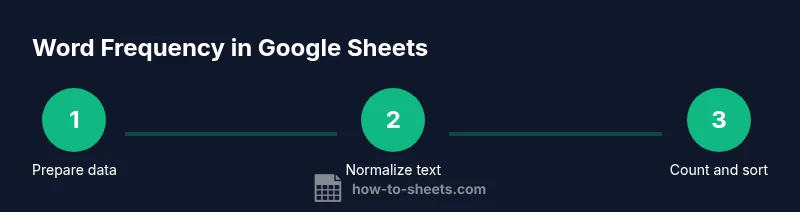
You can find the most common words in Google Sheets by normalizing text (lowercase), removing punctuation, splitting text into words, aggregating counts, and sorting results. This approach works with built-in functions like LOWER, REGEXREPLACE, SPLIT, FLATTEN, QUERY, and SORT without needing external tools. Start with a clean dataset, then follow the steps to generate a ranked word list.
Understanding Word Frequency in Google Sheets
Word frequency analysis helps you quantify which words appear most often in a text column, enabling deeper insights for writing, coding comments, customer feedback, or survey responses. In Google Sheets, you can perform this analysis with native formulas without external software. The keyword to keep in mind is the exact phrase you’re targeting: find most common words in google sheets. By normalizing case, removing punctuation, and splitting text into individual words, you create a reliable word pool you can tally. This section lays the groundwork and shows how frequency translates into actionable data in practical spreadsheets used by students, professionals, and small business owners. As you work through the steps, remember that a clean, consistent data foundation is essential for accurate results, especially when your column contains multiple sentences or entries with punctuation.
The Core Concept: From Text to Word Counts
Frequency analysis in Sheets relies on four core operations: case normalization, punctuation removal, tokenization (splitting text into words), and counting occurrences. When you combine LOWER with REGEXREPLACE to strip punctuation and then split each cell into words, you compile a comprehensive list of tokens. The results feed into a counting mechanism (such as QUERY) that aggregates duplicates and sorts by frequency. This approach is repeatable, script-free, and accessible to anyone learning how to analyze text data in Google Sheets.
Tools & Materials
- Google Sheets account(Signed in and ready to edit)
- Sample dataset with text content(A single column with phrases or sentences)
- Stop words list (optional)(Common words to ignore (e.g., the, and, is))
- Blank sheet or workspace(Optional for building a separate analysis sheet)
Steps
Estimated time: 25-40 minutes
- 1
Prepare your data
Open the dataset containing text data. Ensure there is a single column with sentences or phrases and that empty rows are minimized. Clean headers and remove any non-text entries that could skew results.
Tip: If you have multiple text columns, consider concatenating them into one before processing to simplify the workflow. - 2
Normalize text to lowercase
To ensure that 'Word' and 'word' are counted together, convert all text to lowercase using LOWER. This step prevents case differences from creating separate counts.
Tip: Apply LOWER across the entire target range to avoid partial updates. - 3
Remove punctuation
Use REGEXREPLACE to strip punctuation: REGEXREPLACE(text, "[^a-z0-9\s]", ""). This cleans text while preserving numbers when relevant.
Tip: Include digits if your content warrants counting numbers as tokens (e.g., '2024'). - 4
Split text into words
Tokenize each row by splitting on spaces: SPLIT(text, " "). Prefer TRANSPOSE or FLATTEN to create a single column listing all words from all rows.
Tip: If your data has multi-word phrases that should stay intact, skip splitting those phrases and handle them separately. - 5
Create a flat word list
Combine all words into one column with an array formula, e.g., =FLATTEN(ARRAYFORMULA(SPLIT(LOWER(REGEXREPLACE(A2:A, "[^a-z0-9\s]", "")), " "))). This produces a single column of words to count.
Tip: If FLATTEN isn’t available, use a combination of SPLIT and TRANSPOSE with a helper sheet to stack results. - 6
Count word frequencies
Count each unique word using QUERY: =QUERY(UNIQUE(words), "select Col1, count(Col1) where Col1 is not null group by Col1 order by count(Col1) desc", 0). This yields word counts sorted by frequency.
Tip: If performance is slow on large datasets, consider filtering out empty cells first or splitting the task into chunks. - 7
Remove stop words
Subtract common stop words by filtering them out, e.g., =FILTER(range, NOT(ISNUMBER(MATCH(range, stopList, 0)))). This improves signal by focusing on meaningful terms.
Tip: Keep a concise stop words list; removing too many words can distort frequency interpretation in niche datasets. - 8
Sort and review results
Sort the final frequencies and review the top terms. Validate outcomes by spot-checking raw sentences to confirm words were tokenized as expected.
Tip: Add a step to copy the top results to a new sheet for sharing or visualization.
FAQ
What is the simplest way to count word frequencies in Google Sheets?
The simplest approach uses LOWER, REGEXREPLACE, SPLIT, FLATTEN, and QUERY to build a frequency table. Normalize, tokenize, and aggregate to get a ranked list of word counts.
The simplest method is to normalize, tokenize, and count with a single set of built-in formulas.
How do I remove stop words effectively without losing important terms?
Create a stop words list and filter it out from the token list before counting. Keep the list short and relevant to your dataset to preserve meaningful words.
Use a focused stop words list and filter before counting.
Can I automate this analysis for new data entries?
Yes. Use dynamic ranges and array formulas so any new rows automatically participate in the word-frequency calculation. Consider a dedicated sheet tab for automated refresh.
Absolutely—set up dynamic ranges so new data updates the counts automatically.
What about punctuation or locale differences in text data?
Regular expressions handle punctuation, but locales can affect character classes. Adjust REGEX patterns to include locale-specific characters if needed.
Adjust your regex for locale specifics to keep words intact.
How can I visualize the results once I have word frequencies?
Copy the frequency table to a new sheet and create charts (bar or column) to visualize top words. This helps stakeholders quickly grasp the data.
Create a quick bar chart from the frequency table for visuals.
Watch Video
The Essentials
- Define a clear data source and normalize text.
- Tokenize and count words using built-in Sheets functions.
- Filter out stop words for clearer insights.
- Sort results to reveal the most frequent terms quickly.
- Validate results with a quick sample check.