Google Sheets 12 Hour Time Format: A Practical Guide
Learn how to display and work with 12-hour time in Google Sheets, including AM/PM formatting, TEXT formulas, locale considerations, and practical examples for schedules and logs.


By the end of this guide you will format times using the google sheets 12 hour time format, display AM/PM correctly, and convert between 12- and 24-hour displays. You'll learn built-in time formats, how to use TEXT for custom results, and how locale settings affect results. This quick glance prepares you for deeper steps and practical examples later in the article.
Understanding 12-Hour Time in Google Sheets
Times in Sheets are stored as fractions of a day. For example, 0.25 represents 6:00 AM, and 0.5 represents 12:00 PM. Displaying that time in a 12-hour format with AM/PM requires either a specific format string or a TEXT conversion. The google sheets 12 hour time format matters for schedules, shift plans, and timelines. According to How To Sheets, maintaining consistent 12-hour formatting reduces confusion across teams and locales. This section explains what a 12-hour time is in Sheets, how AM/PM is interpreted, and how to avoid common misinterpretations when data spans multiple days. Understanding the google sheets 12 hour time format is essential for accurate scheduling. We’ll also touch on why formatting alone does not alter the underlying numeric value and how to preserve precision for calculations.
Quick Formatting Tricks for 12-Hour Display
Most users start with built-in formatting. Select the cells with times, then go to Format > Number > Custom date and time, and enter h:mm AM/PM or hh:mm AM/PM. In many locales this will display times like 7:30 AM or 3:45 PM. If you only choose Time, you may get 24-hour output depending on locale, so prefer a custom format to guarantee AM/PM. How To Sheets notes that consistent 12-hour display improves readability in shared documents. This quick trick is often enough for most schedules, but it’s important to test edge cases like midnight.
Using the TEXT Function to Create 12-Hour Times
TEXT is a flexible way to produce a 12-hour time string from a numeric time. For example, =TEXT(A2, "h:mm AM/PM") yields 7:45 PM from a 24-hour time value. You can include seconds with =TEXT(A2, "h:mm:ss AM/PM"). If your data uses dates as well, you may combine with date parts: =TEXT(A2, "mmm d, h:mm AM/PM"). The How To Sheets team emphasizes testing with edge cases like midnight to ensure consistency across sheets and users.
Handling Locale and AM/PM Quirks
Locale settings influence how Sheets parses and displays times. Some locales default to 24-hour times, others use different indicators for AM/PM. To ensure reliable 12-hour formatting, set the spreadsheet locale to en_US (or a locale that uses AM/PM). In addition, check the language of your inputs; extra spaces or non-breaking spaces can break parsing. When you align locale, formats like h:mm AM/PM reliably reflect the intended time.
Converting Between 12-Hour and 24-Hour Formats
To convert a 12-hour time string back to a numeric time, use TIMEVALUE or convert via TEXT: =TIMEVALUE(B2) and format as HH:mm. Conversely, to display a 24-hour time as 12-hour, use =TEXT(C2, "h:mm AM/PM"). If you have durations spanning days, consider using [h]:mm to display hours beyond 24. These conversions keep data interoperable across analyses and dashboards.
Common Pitfalls and Troubleshooting
Times stored as text will not sort or arithmetic correctly; ensure numeric values. Extra spaces before AM/PM or mixed punctuation can break formulas. Mixing date values with times without proper formatting can shift results. How To Sheets suggests validating a few samples to catch locale-related issues early. If a value looks like 7:30 AM but behaves unexpectedly, check the underlying value type and reformat.
Practical Examples for Schedules, Timers, and Logs
Example 1: Shift schedule. Column A has 7:00 and 15:30; convert to 7:00 AM and 3:30 PM with =TEXT(A2, "h:mm AM/PM"). Example 2: Stopwatch-like durations. Sum times across the day: =SUM(B2:B10) and format with [h]:mm to show total hours. Example 3: Daily log. Combine date and time: =TEXT(D2, "mmm d, h:mm AM/PM") to create human-friendly timestamps. The 12-hour format shines in time-tracking and reporting.
Best Practices for Consistency and Accessibility
Adopt a single 12-hour format across the document; annotate times where needed. Create a dedicated helper column with a standard format and ensure screen reader compatibility by using explicit AM/PM text. Regular audits with a small test set help maintain consistency across large sheets. The How To Sheets team recommends documenting formatting conventions at project kickoff.
Tools & Materials
- Google Sheets access(Access via a Google account; a dedicated test sheet is recommended)
- Sample time data(Include 7:30 AM, 13:45, and edge cases like midnight)
- Locale settings reference(Set spreadsheet locale to en_US for consistent AM/PM behavior)
- Formula reference sheet(Keep a cheatsheet of TEXT formats and examples)
Steps
Estimated time: 25-35 minutes
- 1
Prepare your time data
Collect a column of time values as numeric times (not text) and ensure dates are separated if needed. This makes downstream formatting predictable and avoids misinterpretation during conversions.
Tip: Use TIMEVALUE or enter times with colon separators to ensure numeric time storage. - 2
Apply built-in 12-hour format
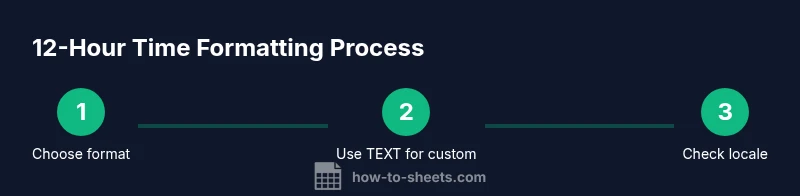
Select the time cells, open Format > Number > Custom date and time, and enter h:mm AM/PM or hh:mm AM/PM to guarantee 12-hour display with AM/PM.
Tip: Check a few sample values across midnight and noon to confirm AM/PM appears correctly. - 3
Use TEXT for custom results
If you need a string output independent of the cell’s underlying value, use =TEXT(A2, "h:mm AM/PM"). This returns a text string that won’t affect calculations.
Tip: Include seconds with =TEXT(A2, "h:mm:ss AM/PM") when precision matters. - 4
Handle locale differences
Verify the spreadsheet locale (File > Settings) and adjust to en_US if AM/PM behavior seems off. Locale may alter how times are parsed and formatted.
Tip: Locale alignment prevents surprises when sharing with teammates from different regions. - 5
Convert between formats as needed
To view 24-hour times from 12-hour values, use =TEXT(A2, "HH:mm"); to go back, use =TEXT(A2, "h:mm AM/PM").
Tip: For multi-day durations, consider [h]:mm for hours beyond 24. - 6
Validate and save
Run a quick validation check on several rows, including edge cases, then save the sheet. Document formatting rules for teammates.
Tip: Create a small test suite within the workbook to catch locale or parsing issues early.
FAQ
How do I show 12-hour time in Google Sheets?
Use a 12-hour format string like h:mm AM/PM in Custom date and time, or apply =TEXT(A2, "h:mm AM/PM"). This ensures AM/PM is visible in most locales. Always verify with edge cases such as midnight.
Use h:mm AM/PM or the TEXT function to display 12-hour times with AM/PM.
Why does my 12-hour time sometimes show as 24-hour?
If the locale or default format is set to 24-hour, you may not see AM/PM. Change the format to a 12-hour pattern (h:mm AM/PM) or set the spreadsheet locale to en_US.
Locale or format default to 24-hour can hide AM/PM; switch to a 12-hour pattern.
How can I convert a 12-hour time string to a numeric value for calculations?
Use =TIMEVALUE(text_time) to convert a 12-hour time string into a numeric time, then format as HH:mm if you need a 24-hour display. Ensure the input is a valid time string.
Convert with TIMEVALUE, then format as 24-hour if needed.
Can I include seconds in my 12-hour time format?
Yes. Use =TEXT(A2, "h:mm:ss AM/PM") to include seconds, or combine with date parts as needed. This is useful for precise schedules or logs.
You can include seconds with TEXT using h:mm:ss AM/PM.
Does changing the locale affect 12-hour formatting?
Locale can influence parsing and display rules. If AM/PM behavior differs, adjust the spreadsheet locale to a 12-hour friendly setting like en_US and verify inputs.
Locale settings can change formatting rules; adjust if needed.
How should I format durations longer than 24 hours?
Use [h]:mm to show cumulative hours beyond 24 rather than a date-wrapped value. This is especially helpful for time tracking across days.
Use [h]:mm for multi-day durations.
Watch Video
The Essentials
- Format times with AM/PM for clarity
- Use TEXT for consistent 12-hour output
- Set locale to en_US to ensure AM/PM consistency
- Test edge cases like midnight and noon
- Document formatting rules for teams