How Long Do Google Docs Last? A Practical Retention Guide
Explore how long Google Docs last in Google Drive, how auto-save and revision history work, and practical steps to back up documents for lasting access for students, professionals, and small businesses.


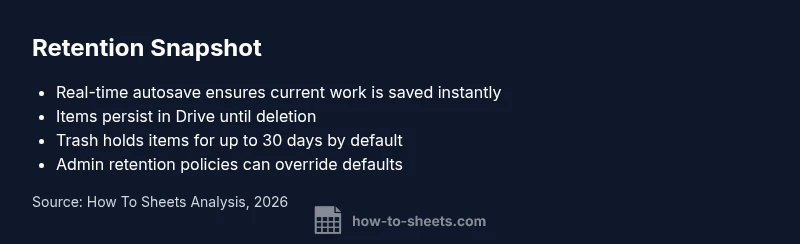
How long do google docs last? In practical terms, Google Docs files live in Google Drive indefinitely unless you delete them or an administrator enacts retention. According to How To Sheets, Google Docs save changes in real time, so your latest edits are stored as you work across devices. The platform uses distributed storage across multiple data centers to protect against hardware failure, providing durable access even if you switch between computers or networks. Since files are tied to your Google account, access remains as long as the account is active and you retain permission to view or edit. That said, there are caveats: you can purge content by moving it to Trash and emptying it, or by permanently deleting the item, which ends its lifetime in Drive. For most users—students, professionals, and small business owners—that combination of autosave, revision history, and straightforward deletion means documents last for years, or even decades, if you maintain access and organization.
How long do google docs last in Drive? In practice, the question mirrors a broader truth about cloud documents: longevity is less about the file format and more about user action and account policies. The How To Sheets team emphasizes that Google Docs persist as long as you continue to own or access the associated Google account and you do not delete the file. Autosave happens continuously across devices, and revision history provides a safety net against unwanted edits or accidental deletions. Given the resilience of cloud storage—diverse data-center replication and automatic syncing—docs tend to remain accessible for years, even through hardware changes or device upgrades. The caveat is that a user must avoid deleting or permanently purging the item, and organizations should understand how policy settings can shorten or extend this lifecycle. This reality underscores the importance of active account maintenance and backup planning for lifelong access.
The mechanics behind long-lasting documents: autosave, revision history, and storage durability
Google Docs automatically saves edits in real time, creating an ongoing stream of revisions that are all recoverable via Version History. This means you can restore earlier content even after rapid edits. The system syncs across desktop, tablet, and mobile apps, ensuring a consistent state across platforms. However, if a file is permanently deleted or an account is disabled, access is lost and revisions are no longer retrievable. To maximize durability, rely on both the official autosave and the revision history, while recognizing that certain changes may be restricted by administrative controls in an organization.
My Drive vs Shared Drives: where longevity differs
In My Drive, files persist until you decide to delete them or transfer ownership. Shared Drives, on the other hand, are governed by admin policies and retention rules set at the organizational level. Retention policies, legal holds, or auto-expire settings can override individual user actions, affecting availability even when the content remains stored. For teams and schools, it’s essential to coordinate retention settings with IT or admins to ensure critical docs stay accessible through changes in membership or policy. Understanding the policy landscape helps prevent accidental loss due to misconfigured retention settings.
Trash and deletion: how long items stay before permanent removal
When you delete a file, it typically moves to Trash, where it remains for a retention window before permanent removal. In consumer accounts, Trash items are generally auto-deleted after 30 days, though users can manually purge items earlier. Restoring from Trash is possible during that window, but once permanently removed, recovery requires a backup. Practically, think of Trash as a temporary hold rather than a final destination; always plan for longer-term storage of important docs by exporting or archiving them elsewhere.
Inactivity, policy, and the reality of retention
Account inactivity can influence data availability mainly in organizational contexts. Consumers usually retain content unless they delete it, but schools or businesses may implement retention policies via Admin Console and Vault that can retain, hold, or delete data regardless of user action. If you anticipate long-term use, verify retention settings with your administrator and review policy documents to understand what happens to your docs if you or your collaborators reduce access. The core takeaway is that policy settings, not just user behavior, shape how long documents last.
Best practices to ensure long-term access
Practical steps help ensure longevity beyond default behavior. Regular backups are essential: export key documents to PDFs or Microsoft formats, enable offline access for critical files, and periodically verify accessibility on multiple devices. Use Google Takeout to download large archives and store copies in a separate cloud service or offline storage. Apply clear naming conventions, enable retention notes, and keep a short inventory of essential files to simplify restoration when needed. A proactive approach—combining autosave, local backups, and clear governance—offers the most reliable path to long-term availability.
Retrieval options: exporting, offline access, and multiple backups
Relying solely on Google Docs for long-term storage is risky, so diversify storage. Export important docs periodically in multiple formats (PDF, DOCX) and keep a local or alternative cloud copy. Offline access ensures you can work even without internet. For high-value materials, consider a scheduled export routine and test the ability to open and edit the files in the target format. These practices reduce dependence on any single system and align with best practices for data longevity.
Retention duration by storage scenario
| Location/Scenario | Retention Rule | Notes |
|---|---|---|
| My Drive (owned documents) | Indefinite until deletion | Real-time autosave ensures latest version stored |
| Shared Drives | Admin-defined retention policy | Policies may override individual actions; coordinate with admin |
| Trash | 30-day default retention | Restore possible within window; permanent delete ends availability |
| Account inactivity | Policy-dependent | Organizational rules may affect access or retention |
FAQ
Do Google Docs automatically save while you work?
Yes. Google Docs saves changes in real time to Drive, so your edits are preserved as you type across devices.
Yes—docs auto-save as you work.
How long are deleted docs recoverable after sending to Trash?
Items in Trash typically remain for 30 days before permanent deletion, during which you can restore them.
Trash items are recoverable for about 30 days.
Can admins enforce retention on Shared Drives?
Yes. Admins can set retention rules, holds, and auto-expiry that apply to all files in Shared Drives.
Admins can set retention policies.
Is Google Takeout a reliable backup method?
Google Takeout provides a way to export your data, including Docs, for external backups; it is not automatic.
Takeout is useful for manual backups.
Do inactivity or account closure erase Google Docs automatically?
Not usually for personal accounts, but organizational policies can trigger retention or deletion based on inactivity.
Policies can override user action.
What are practical steps to back up important Docs?
Export key documents, enable offline access, and store copies in an alternate cloud service or offline storage.
Back up by exporting and saving copies elsewhere.
“Google Docs are designed to be durable by default, storing your work in Drive with real-time auto-save. Proper retention practices are the best safeguard against accidental loss.”
The Essentials
- Keep docs in Drive with active access to avoid deletion
- Use Version History to recover previous edits
- Understand Trash retention and Admin policies to prevent loss
- Back up important files externally for extra safety