Where Are Google Docs? Find and Access in Google Drive
Learn where Google Docs live, how to locate them in Google Drive, and best practices for organizing, sharing, and offline access. A practical guide for students and professionals.


Where are google docs located? Google Docs files live in Google Drive by default, not as standalone apps. To access them, open drive.google.com, sign in, and use the search bar or the Document filter. You can also access Docs from the Docs home page or the app launcher. This guide explains where to look and how to organize them.
Where Google Docs live in Drive
Google Docs are part of Google Drive and share the same storage space as your other Drive files. When you create or upload a document, it automatically appears in your Drive root (My Drive) unless you move it into a folder. If you’re coming from other Google apps, you’ll notice a visible link between Docs, Sheets, Slides, and Drive that keeps your work connected. For the question 'where are google docs', the answer is simple: they live in Drive, and Drive provides the central place to organize, search, and manage access. According to How To Sheets, a clear folder structure and consistent naming are essential to staying organized, especially when you have many documents across projects or courses. You’ll want to understand the hierarchy in Drive: My Drive holds your files, Shared with me contains items others have shared with you, and Shared drives (if you’re part of a team) keeps documents for a group. Getting familiar with these sections is the first step to efficient retrieval.
Accessing Google Docs from the Docs Home
You can access Google Docs directly from the Docs home page (docs.google.com) or from the Google Apps launcher. The Docs home shows a list of recent documents, templates, and quick shortcuts to create new files. If you already know the file name, use the search bar at the top of Drive or Docs to locate it quickly. The left navigation panel helps you switch between My Drive, Shared with me, and Shared drives. From the Docs homepage, you can open existing documents, start a new document, or convert a Word file into a Docs document. Consistency in naming aids future searches and reduces time spent scanning through lists.
Using Drive Search to Locate Docs
Drive’s search is the fastest way to locate Google Docs when you know either the title or the type. Type a keyword or phrase, then refine results by clicking the Filters button and selecting Type: Document. You can also filter by owner, modification date, or whether the file is shared with you. If you have multiple accounts, be sure to switch to the correct one before searching, as results are scoped to the active account. Practicing structured naming and keeping documents in clearly named folders makes the search even more efficient.
Filtering by Owner, Date, and Shared Status
Beyond the basic search, you can use advanced filters to narrow down results. Filter by owner to find documents created by a specific person, or by last modified date to locate recently updated files. The Shared with me view helps you track items others have shared, which is useful for collaborative projects. Remember that permissions can affect visibility; if you don’t see a doc you expect, verify you’re signed in to the right account and that you have access. A disciplined filter workflow reduces time wasted on noisy results.
Organizing with Folders and Shortcuts
Folders are your primary tool for long-term organization. Create a folder structure that mirrors projects, clients, or courses, and move relevant Docs into those folders. Use color labels and consistent naming conventions to improve scan-ability. Shortcuts are a power user feature: you can create shortcuts to frequently used Docs or folders, placing them in a stable 'Favorites' area for quick access. This approach keeps your Drive tidy and makes documents easier to locate later.
Shared Drives and Permissions
If you work in teams, Shared drives provide a team-owned space where documents live independently of any one user’s Drive. This is especially useful for ensuring access remains stable when contributors join or leave. Manage permissions carefully: assign roles such as Viewer, Commenter, Editor, or Manager, and avoid giving broad access to sensitive files. When locating Docs within Shared drives, use the drive’s specific search context to avoid mixing personal and team documents.
Offline Access and Mobile Apps
Google Docs supports offline mode, which lets you view and edit documents without an internet connection. Enable offline access in Drive settings on web and ensure the Docs mobile app is installed on
Best Practices for Organizing Your Docs
Adopt a naming convention that includes date, project, and version (e.g., 2026-01-28_ProjectX_V1). Create a folder tree that mirrors your workflow, such as Courses, Projects, Clients, and Personal. Regularly prune old or duplicate documents, and use Google Drive’s ‘Star’ or ‘Priority’ features for quick access. Regularly auditing access permissions ensures that only the right people can view or edit sensitive materials.
Common Pitfalls and How to Avoid Them
Avoid relying solely on Recent or search results that show items from other accounts. Be mindful of ownership if you collaborate with others; you may lose access if permissions change. Don’t mix personal and professional documents in a single folder. Implement a simple retention plan to archive obsolete files rather than leaving them scattered across your Drive. These habits keep Google Docs findable and secure.
Quick Keyboard Shortcuts for Docs in Drive
Familiarize yourself with keyboard tricks to speed up navigation and editing. Use Ctrl/Cmd + F to search within a document, Ctrl/Cmd + K to insert a hyperlink, and Ctrl/Cmd + S to save changes (Docs saves automatically, but shortcuts can speed workflow). Mastering a few shortcuts reduces friction when you’re locating or editing documents quickly.
Troubleshooting Missing Docs or Access Issues
If a doc disappears, first check the ‘Shared with me’ view and ensure you’re signed into the correct Google account. Look in the expected folders and verify you didn’t accidentally move or delete the file. If permissions are missing, contact the owner or your administrator to request access. Keeping a consistent naming and folder strategy minimizes these issues over time.
Best Practices Checklist for Finding Google Docs
- Use the Type: Document filter in Drive search.
- Rely on a stable folder hierarchy aligned to projects.
- Create shortcuts for frequently used Docs.
- Regularly review permissions and ownership.
- Enable offline access for remote work scenarios.
Following these practices ensures you can answer the question 'where are google docs' quickly in any situation.
Tools & Materials
- Google Account(Needed to sign in to Drive and Docs.)
- Internet connection(Stable connection for accessing Drive and Docs.)
- Web browser or Google Docs app(Chrome/Firefox/Edge or iOS/Android app.)
- Optional: Google Drive storage quota(Needed if you plan to store many large documents.)
Steps
Estimated time: 5-10 minutes
- 1
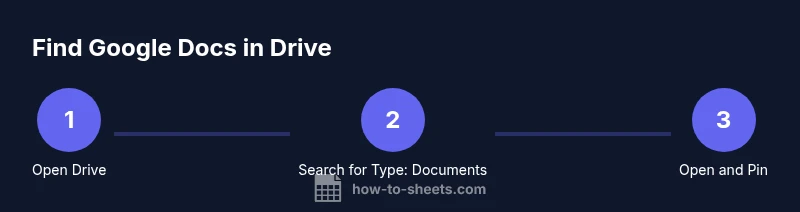
Open Google Drive
Navigate to drive.google.com and sign in with your Google account. This is the central place where Google Docs, Sheets, Slides, and other files live. Confirm you’re in the correct account if you use multiple accounts.
Tip: If prompted, enable two-factor authentication to keep your Drive secure. - 2
Search for a document
Use the search bar at the top of Drive and type keywords from the document title or content. Apply the Type filter to show only documents (Docs).
Tip: If you know part of the name, enclose it in quotes for exact matching. - 3
Filter by type
Click the Filters button and select Type: Document to narrow results to Google Docs only. Combine with owner or date filters for precision.
Tip: Save common searches as a shortcut inside Drive for future use. - 4
Open and verify
Open the document from the results to confirm it’s the one you need. Check the last-modified date and owner if there are duplicates.
Tip: Use the star/priority feature to keep important Docs handy. - 5
Organize and save
Move the doc into an appropriate folder or create a shortcut for quick access. Naming clarity helps you locate it later.
Tip: Adopt a consistent naming convention across all documents.
FAQ
What counts as a Google Doc?
A Google Doc is a document created with Google Docs and stored in Google Drive. It can be edited online and shared with others as needed.
A Google Doc is a document you create in Google Docs, saved in Drive, and shareable with others.
How do I access Google Docs offline?
Enable offline access in Google Drive settings and use the Docs app on mobile or the Drive web app. Changes sync once you’re online again.
Turn on offline access in Drive settings, then work on Docs without an internet connection.
Can I find Docs shared with me?
Yes. Use the Shared with me view in Drive to see documents others have shared with you, regardless of ownership.
Look in Shared with me to find docs others have shared with you.
How do I organize Docs in folders?
Create folders for projects, courses, or clients and move relevant Docs into them. Use clear naming to keep files navigable.
Put docs into folders with clear names to stay organized.
Why can’t I find a doc I know exists?
Check you’re signed into the correct Google account and that you’re viewing the right folder or Shared with me view.
Make sure you’re in the right account and folder.
Can I search by owner or date?
Yes. Use the advanced search options to filter by owner, last modified date, and more.
You can filter by owner and date in advanced search.
Watch Video
The Essentials
- Find Docs quickly by using Drive search and filters.
- Organize Docs in folders with consistent naming.
- Use offline mode for access when offline.
- Check Shared with me to locate documents others shared.