Inventory Tracker in Google Sheets: Step-by-Step Template
Create an inventory tracker in Google Sheets with templates, formulas, and reports. A guide for students and professionals to manage stock reorder alerts.


Create a practical inventory tracker in Google Sheets that records stock levels, items, locations, and movements, with reorder alerts and a starter dashboard. This approach uses a ready-to-use template you can tailor to your workflow, plus formulas for auto-updates and simple reporting. It works for students, professionals, and small business owners seeking a flexible, cost-effective solution.
What is an inventory tracker in Google Sheets and why use it?
An inventory tracker in Google Sheets is a structured set of columns and formulas that records every item, its quantity, location, supplier, and movement. It serves as a single source of truth for stock levels, purchase planning, and reporting. For many students, professionals, and small business owners, a well-designed sheet-based tracker offers a low-cost, flexible alternative to dedicated inventory software. According to How To Sheets, a lightweight Google Sheets approach can scale from a handful of SKUs to hundreds with careful data organization and automation. The keyword inventory tracker google sheets should be used as a framework: start with a core set of fields, then progressively enhance with validations and dashboards. The aim is to produce real-time visibility without overwhelming users with complexity. A practical template lets you monitor incoming stock, outgoing shipments, and stock on hand across multiple locations. When designed correctly, this tool reduces stockouts and overstock while keeping costs transparent. Throughout this guide, you’ll see how to customize the layout to fit your workflow, whether you’re a student, a store owner, or a project manager.
Core components of a reliable inventory tracker
A robust inventory tracker uses several interconnected components to keep data clean and actionable. The core table usually includes: Item ID or SKU, Item name, Description, Category, Location, Supplier, Unit of measure, Reorder level, Reorder quantity, and Status. A separate Transactions log captures every stock movement with Date, Type (Received or Issued), Quantity, and Reference. A small dashboard summarizes key metrics like Stock on hand, Total received, and Reorder risk. Finally, Settings hold drop-down lists for consistent categorization and a naming convention for items. Linking these pieces creates a live picture of inventory across warehouses or storefronts. In the context of inventory tracker google sheets, you’ll often implement data validation, named ranges, and simple lookup formulas to avoid manual edits. Remember to design for scale: use ranges instead of whole columns where possible, document assumptions in a hidden sheet, and plan for audit trails. As you expand, consider barcode input, supplier performance tracking, and location-based grouping to support real-world operations.
Designing a scalable template: data model and sheets layout
A scalable template begins with a clean data model and a well-organized workbook. Create separate tabs for Inventory, Transactions, Suppliers, Locations, and a Dashboard. Use consistent column headers and a shared naming convention for Item IDs. Implement data validation to enforce allowed categories, locations, and unit measures, reducing entry errors. Employ named ranges so formulas stay readable even as the sheet grows. For example, a category list can live on a Settings tab and be referenced in validation rules. A robust layout also anticipates future needs: can you track lot numbers, batch dates, or expiration dates? If yes, reserve dedicated columns and consider a separate sheet for batch tracking. Finally, establish a simple change-log or version note so teammates understand what changed and when. The goal is a template that serves a growing team without becoming a rigid, one-size-fits-all solution.
Key formulas for stock levels, reordering, and reporting
The heart of an inventory tracker is the set of formulas that turn transactions into stock health. A typical setup calculates StockOnHand per item as BeginningStock plus TotalReceived minus TotalIssued. TotalReceived can be summarized with a SUMIF across the Transactions table, while TotalIssued captures outgoing movements. Reorder points often rely on LeadTimeDemand and SafetyStock concepts, expressed as ReorderPoint = LeadTimeDemand + SafetyStock. You can flag items that drop below the reorder point with a simple IF formula combined with conditional formatting. For example, in a Dashboard sheet you might show: Stock on Hand, Reorder Point, and Days of Inventory on hand. To keep things tidy, separate calculations from the raw data and use named ranges like Transactions_Quantity and Inventory_ID so formulas are easy to audit. This approach reduces manual counting and supports quick decision-making for replenishment and planning. Remember to document each formula so new teammates can understand the logic quickly.
Building a starter template: step-by-step data entry and validation
Start by creating the Inventory sheet with essential columns: Item ID, Item Name, Category, Location, Supplier, Unit, Beginning Stock, Reorder Level, Reorder Qty. Add a Transactions sheet with Date, Item ID, Type, Quantity, and Reference. Implement data validation for Category, Location, and Type to avoid typos and inconsistent codes. Enter a small set of starter SKUs and a few sample transactions to verify calculations. Use a hidden notes column to capture assumptions like lead times or safety stock. Create a Dashboard tab with a few key metrics and sparklines to visualize trends. Finally, test the template by simulating replenishments and withdrawals to ensure stock calculations update correctly in real time. Tip: keep a changelog as you build so you can revert if a reformatted column breaks a formula. The result is a practical starter you can expand without reworking the core structure.
Automations and dashboards: turning data into insight
Automation elevates a Sheets-based inventory tracker from a static list to a living control tool. Set up conditional formatting to highlight items nearing reorder thresholds, maybe coloring them amber or red. Create simple charts to visualize stock by location or supplier, and add pivot tables for turnover analysis. Use filters and slicers to let users focus on a subset of items, such as per-category or per-location views. For real-time collaboration, enable comment threads and restrict edits to specific tabs. How To Sheets’s analysis shows that templates with validated inputs and automated totals dramatically reduce data-entry errors. To keep dashboards readable, limit the number of widgets on a single screen and animate with sparklines for a quick trend read. If you integrate barcodes, consider a scan-to-input workflow that updates the Transactions log automatically when items are scanned. This is where Google Sheets shines as a flexible, shareable platform.
Real-world examples and use cases
Retail startups use a compact Google Sheets inventory tracker to manage daily stock and supplier orders. A small crafts shop tracks materials across two locations and uses a reorder rule to prevent stockouts during peak season. A lab or workshop can monitor consumables with low-stock alerts and expiry date tracking, all within a single, shareable sheet. In educational environments, teachers maintain classroom supplies lists to automate replenishment requests. The beauty of a Sheets-based solution is how quickly it can be customized: you can add fields such as batch numbers, lot tracking, or vendor performance indices as needed. Across these scenarios, the core concepts remain the same: clear item identifiers, accurate movements, and timely alerts. If you’re unsure where to start, use a starter template from the How To Sheets library and adapt it to your context. The goal is not perfection but steady improvement that scales with your needs.
Common pitfalls and how to avoid them
Many projects fail to deliver lasting value because data isn’t kept current. Regular updates to received and issued quantities are essential; set a daily or weekly routine for entries. Duplicate Item IDs or inconsistent naming schemes create chaos—enforce unique IDs and reuse validated categories. Lack of data validation invites typos; use drop-down menus and enforced data types. A missing audit trail makes it hard to trace mistakes after a change. Finally, avoid overbuilding the tracker: start with a core set of fields and only add complexity when a real need arises. How To Sheets emphasizes starting lean and iterating, not building a perfect system at launch. Always back up your data, especially before major changes, and consider versioned copies when experimenting with calculations or layouts.
Maintenance and collaboration best practices
Keep your inventory tracker healthy with regular maintenance and clear collaboration rules. Document data definitions in a readme sheet, including every field’s purpose and unit of measure. Use consistent item IDs and a centralized supplier directory to prevent drift. Set access controls: give editors to team members who add transactions but limit structural changes to designated admins. Schedule periodic audits to reconcile sheets with physical stock, preferably weekly for fast-moving inventory and monthly for slow-moving items. Finally, create a lightweight governance policy: who can modify formulas, when to archive old records, and how to handle data imports. By following these practices, you’ll preserve accuracy and accelerate decision-making across your organization. The How To Sheets team recommends maintaining a lean template that remains adaptable while staying reliable over time.
Tools & Materials
- Google account with Google Sheets access(Needed to create and share the template)
- Inventory template file (Google Sheets)(Use a starter template or create from scratch)
- Data validation lists (category, location, supplier)(Create named ranges for drop-downs)
- Barcode scanner app (optional)(If using barcode input to reduce manual entry)
- Mobile access (optional)(For on-the-go stock updates)
Steps
Estimated time: 60-90 minutes
- 1
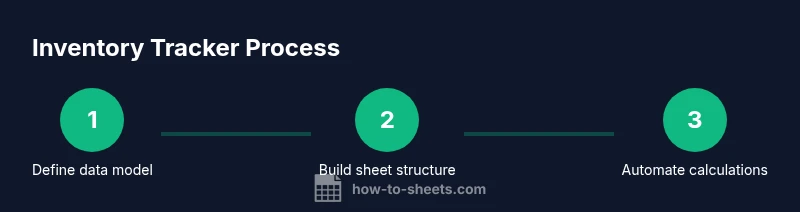
Define data model and fields
Decide which attributes matter for your stock (ID, name, category, location, supplier, unit, stock on hand, reorder level). Sketch relationships between Inventory and Transactions so stock movements can be traced.
Tip: Document field purposes and units of measure before typing. - 2
Create core sheets and headers
Set up separate tabs for Inventory, Transactions, Suppliers, Locations, and Dashboard with consistent headers. Use a named range for Item IDs to keep lookups stable as you grow.
Tip: Keep headers short and descriptive; avoid duplicate names. - 3
Set up item IDs and validation
Assign unique IDs to each item and apply data validation for categories, locations, and transaction types to prevent typos.
Tip: Use a common prefix for related items to aid sorting. - 4
Record initial stock and test transactions
Enter a small starter dataset for Beginning Stock and a few transactions (received/issued) to verify calculations.
Tip: Run a quick audit by reconciling a subset of items. - 5
Implement stock-on-hand calculations
Create a Stock On Hand field that aggregates Beginning Stock plus Received minus Issued for each item.
Tip: Keep raw transaction data separate from calculated fields. - 6
Add reorder alerts and a dashboard
Set up a Reorder Point logic and use conditional formatting to highlight low-stock items on the Dashboard.
Tip: Limit the number of widgets on the dashboard for clarity. - 7
Test workflow and refine
Simulate replenishments, withdrawals, and new items to ensure all totals update correctly in real time.
Tip: Document any assumptions you add for future audits. - 8
Prepare for sharing and governance
Set sharing permissions, define who edits formulas, and create a quick-start guide for teammates.
Tip: Publish a short changelog whenever making structural changes.
FAQ
How do I start building an inventory tracker in Google Sheets?
Begin with a simple Inventory sheet, add a Transactions log, and implement data validation. Then connect totals to stock on hand and build a basic dashboard.
Start with a basic inventory sheet, add a transactions log, and set up validation.
Can I manage suppliers, locations, and batches in the tracker?
Yes. Add dedicated tabs and fields for suppliers, locations, and batch data. Use named ranges and consistent item IDs to keep everything synchronized.
Yes—add dedicated tabs and fields with consistent IDs.
How do reorder alerts work in Google Sheets?
Set a reorder point and use a conditional format to highlight items below the threshold. Optionally include a status column to track actions.
Set a reorder point and highlight low stock automatically.
Is it safe to share the inventory tracker with teammates?
Yes, but use Google Sheets sharing settings to limit who can edit critical formulas. Encourage comments and track changes for accountability.
Share with careful permissions and monitor edits.
Can I import data from another system?
Yes, import via CSV or use IMPORTRANGE to link external data. Map the incoming columns to your template fields to avoid misalignment.
Yes, import CSV or use IMPORTRANGE to link data.
Watch Video
The Essentials
- Plan data model before building sheets
- Validate inputs to minimize errors
- Link transactions to stock levels for accuracy
- Use dashboards to drive quick decisions