Inventory Google Sheets: Practical, Step-by-Step Tracking
Learn how to build a scalable inventory system in Google Sheets with templates, data validation, and practical automation tips from How To Sheets. Practical, step-by-step guidance.


You will learn to build a scalable inventory system in Google Sheets using a clean template, data validation, and simple automation. Start by listing items, quantities, locations, and reorder levels, then add formulas for stock tracking, dynamic dashboards, and alerts. This approach suits students, professionals, and small businesses today efficiently.
Why inventory management matters
Effective inventory management in Google Sheets helps you avoid stockouts, reduce carrying costs, and improve order fulfillment. A well-structured sheet gives you a single source of truth for quantities, locations, suppliers, and reorder points. When teams consistently track stock, you can forecast demand, manage seasonal spikes, and scale operations without adding costly software. For students, professionals, and small business owners, a practical Sheets-based approach keeps learning-and-doing within reach while delivering real-time visibility into stock health.
- Improved decision-making with up-to-date data
- Reduced waste and overstock through better forecasting
- Faster audits and easier collaboration across teams
The How To Sheets team has found that starting with a clear data model and a simple template dramatically reduces setup friction and long-term maintenance effort.
Core concepts for an inventory Google Sheets template
A robust inventory template in Google Sheets usually centers on a few core concepts rather than every feature at once. At minimum, plan for: a master item list (SKU, Item Name), quantitative fields (Quantity on Hand, Reorder Point, Reorder Quantity), location data (Warehouse/Store, Aisle), and supplier details. Extend with cost, price, category, and status if needed. Separate sheets can hold the master data, transactions, and dashboards, then be linked with formulas to keep everything synchronized. Using a consistent data model makes it easier to scale, audit, and automate tasks as your needs grow.
Building blocks you need
Before you start entering data, design the framework:
- A primary data table with columns for SKU, Item Name, Category, Location, Quantity, Reorder Point, Reorder Quantity, Supplier, Cost, and Status.
- A dedicated Transactions sheet to record stock in/out movements with timestamps.
- A Dashboard sheet to summarize stock health, values, and alerts.
- Named ranges for key lists (Categories, Locations, Suppliers) to simplify formulas.
- Simple conditional formatting rules to identify low stock and overdue items.
With these blocks in place, you’ll have a scalable foundation that’s easy to extend.
Data validation and clean data entry
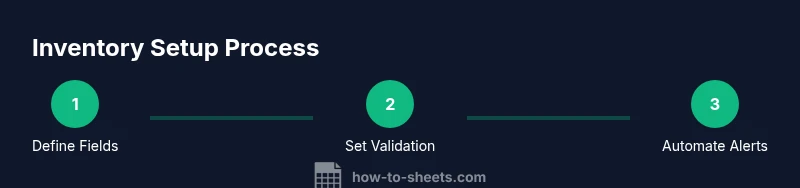
Data validation is essential to keep the master list clean and consistent. Create drop-down lists for Category, Location, and Status to prevent typos, then use numeric validation for quantities and costs. Implement a standard date format for Last Updated, and lock headers to prevent accidental edits. Regularly review and prune unused categories or locations to maintain clarity. Validation minimizes human error and makes downstream analytics more reliable.
Automating stock alerts with formulas and conditional formatting
Automation starts with simple formulas. A typical setup uses: 1) a calculated field like Stock Status = IF([Quantity] <= [Reorder Point], "LOW", "OK"), 2) a total stock value = Quantity * Cost, and 3) a reorder trigger flag. Tie these to a Dashboard with filters to show only items that require action. Conditional formatting can highlight Low stock rows in red and reorder points in amber for quick scanning. These visuals help you respond faster and plan procurement.
Templates and customization for different use cases
Template-driven design makes it easier to adapt Sheets for various needs. A small shop might track only top 50 SKUs, while a warehouse may require multiple warehouses and bin locations. Create optional sheets for Barcode IDs, Serial Numbers, or Lot Tracking if needed. For education or teams just starting out, a lean template focuses on core fields, then gradually adds advanced features like vitals dashboards, supplier performance trackers, and inventory aging analysis as you grow.
Collaboration, permissions, and data integrity
Google Sheets shines for collaboration, but you should protect crucial data. Use protected ranges for core fields, share access with appropriate permissions (view/edit), and set up a version history routine. Consider creating a separate Read Me sheet with instructions to align team members on data entry standards. Regular reviews and clear ownership reduce confusion and safeguard data integrity.
The balance between accessibility and protection is key: enable teammates to update quantities while restricting structural changes to the data model.
Common mistakes and how to avoid them
Common errors include inconsistent naming, mixed units (pieces vs. boxes), and failing to record stock movements. Avoid merging important data cells in the main table, which complicates formulas. Use absolute references where needed, maintain a single source of truth, and regularly audit your data for duplicates or missing fields. Finally, back up your sheet to an alternate location to prevent data loss from accidental edits or permission changes.
Scaling from a basic tracker to a full inventory system
As your operation grows, you can add features like multi-warehouse support, barcode integration, and automated reporting. Separate sheets for purchases, returns, and transfers help you trace stock history. Consider adding a light-weight scripting layer or add-ons for more advanced automation, while keeping a clean data model so reports and dashboards remain reliable and fast.
Tools & Materials
- Google account with access to Google Sheets(Required to create and edit sheets; ensure access permissions match team needs.)
- Inventory template (Google Sheets)(Start with a simple core template and expand over time.)
- List of categories and locations(Use separate sheets or named ranges for consistency.)
- Backup plan (Google Drive or external storage)(Important for disaster recovery; schedule regular backups.)
Steps
Estimated time: 30-45 minutes
- 1
Create a new Google Sheet and define scope
Open Google Sheets and create a new workbook dedicated to inventory. Define the scope by listing the core fields you need (SKU, Item Name, Category, Location, Quantity, Reorder Point, Reorder Quantity, Supplier, Cost, and Status). Decide whether you’ll track multiple warehouses or just a central location. Clarify who will use the sheet and how data will flow from transactions to the master list.
Tip: Set a clear data model up front and keep transactions on a separate sheet to prevent accidental edits in the master table. - 2
Add core columns for the master list
Create the primary table with headers for each core field. Ensure consistent data types (text for names, numbers for quantities, and dates for last updated). Include a unique SKU column and a status column to indicate availability.
Tip: Use consistent SKU formats (e.g., prefix + number) to simplify searching and deduplication. - 3
Set up a transactions sheet
Add a separate sheet to log stock-ins and stock-outs with fields like Date, SKU, Change (positive/negative), and Reason. Link quantities on hand back to the master list using a SUMIF or a FILTER function to reflect stock movements in real time.
Tip: Keep transaction dates in a single date format to avoid parsing errors in formulas. - 4
Implement data validation
Create drop-downs for Category and Location to enforce data integrity. Apply numeric validation to Quantity, Reorder Point, and Cost fields. This reduces entry errors and keeps dashboards accurate.
Tip: Create named ranges for your dropdown lists to simplify formula maintenance. - 5
Add stock status and essential calculations
Introduce a stock status column using a simple IF formula to flag Low stock when Quantity <= Reorder Point. Add a Total Value column (Quantity * Cost) to understand the monetary impact of current stock.
Tip: Keep formulas minimal at first; expand with more analytics once the basics are solid. - 6
Build a basic dashboard
Create a hidden or visible Dashboard sheet that aggregates key metrics: total items, total stock value, and low-stock items. Use FILTER to display only items meeting low-stock criteria and create charts to visualize trends.
Tip: Start with a simple table and add charts gradually to avoid overwhelming the sheet. - 7
Set up conditional formatting for visibility
Apply conditional formatting to highlight Low stock in red and items nearing reorder point in amber. This visual cue helps inventory managers identify actions at a glance.
Tip: Limit the number of rules per column to keep performance snappy. - 8
Configure sharing and protections
Share the sheet with teammates using appropriate permissions and protect key ranges to prevent accidental edits. Document entry standards on a Read Me sheet for consistency.
Tip: Regularly review access permissions to maintain security as teams evolve. - 9
Plan for maintenance and growth
Set a routine to audit categories, locations, and SKUs. Schedule quarterly backups and consider phased enhancements like multi-warehouse support or barcode integration as needed.
Tip: Document changes and roll out updates in a controlled manner to avoid data drift.
FAQ
What is the best way to start an inventory in Google Sheets?
Begin with a single master table containing essential fields (SKU, Item Name, Quantity, Reorder Point) and a separate transactions sheet for stock movements. Keep the data model simple and expand as you identify needs.
Start with a master list and a transactions sheet; keep it simple and expand later as you learn what you need.
How do I avoid duplicate SKUs?
Use data validation and a quick deduplication check with a conditional format rule. Regularly audit the master list for duplicates and enforce a strict SKU format.
Use validation, check for duplicates, and enforce a consistent SKU format.
Can I set automatic reorder alerts in Google Sheets?
Yes. Create a stock status formula (e.g., Low when quantity <= reorder point) and highlight it with conditional formatting. You can extend this with simple scripts or dashboards to surface low stock.
Yes. Use a stock-status formula and conditional formatting to surface low stock automatically.
How should I protect sensitive inventory data?
Limit edit access to core fields and use protected ranges for critical columns. Maintain a Read Me sheet with data-entry standards for your team.
Limit edits, use protected ranges, and provide a clear data-entry guide.
What’s improved when scaling beyond a basic tracker?
Moving from a basic tracker to a multi-sheet system enables better audits, multi-location tracking, and richer reporting, including stock aging and supplier performance.
Scaling unlocks audits, multi-location tracking, and richer reports.
Should I integrate barcode scanning with Sheets?
Barcode scanning can be added with add-ons or scripts. Start with a simple manual entry process and consider barcode support as a later enhancement.
You can add barcode support later with add-ons or scripts; start simple.
Watch Video
The Essentials
- Define a clear, consistent data model
- Use validation to minimize entry errors
- Automate stock indicators and dashboards
- Protect key data while enabling collaboration
- Scale thoughtfully with future needs in mind