Inventory Template Google Sheets: Step-by-Step Guide
Learn to build a reusable inventory template in Google Sheets with structured data, validation, and automation. This practical guide is designed for students, professionals, and small business owners.


Learn how to build a practical inventory template in Google Sheets that tracks stock levels, orders, and reorders. This guide walks you through a reusable template workflow, from data layout to validation and automation, with step-by-step actions you can implement today. It covers setup, data structures, formulas, and basic automation, making it suitable for students, professionals, and small businesses.
Why Inventory Management Matters
Inventory control is the backbone of operational efficiency. For organizations of any size, a reliable inventory template google sheets helps you see what you have, what you owe, and when to reorder. When data is centralized, teams avoid stockouts and overstock scenarios that eat into margins and delay projects. According to How To Sheets, a well-structured template reduces waste and improves forecasting by clarifying roles, data ownership, and update frequencies. In practice, you aren’t just counting items; you’re aligning purchasing, sales, and production with real-time visibility. A robust template also supports collaboration through cloud-based access, change tracking, and standardized fields, making it easier to onboard new staff and scale processes as your needs evolve.
If you’re a student managing a campus club inventory, a freelancer tracking equipment, or a small retailer, the core principle remains the same: data accuracy drives smarter decisions. The investment in a Google Sheets-based template pays off when you have a single source of truth that’s accessible from anywhere. From there, you can layer in automation, dashboards, and alerts that push critical information to the right people at the right time.
note”:null},
bodyBlocks 2 meta
How Google Sheets Templates Power Your Process
Using a template in Google Sheets unlocks collaboration, automatic cloud saves, and revision history—features that are hard to match with standalone spreadsheets. A well-designed inventory template provides a consistent data model that multiple team members can use without breaking the structure. Shared access means managers, procurement, sales, and operations can update stock levels, log new arrivals, or record transfers with confidence, knowing the formulas and data validation keep the sheet clean. You also gain portability: the same template can be replicated across departments or locations with only minor customization. For educators and students, Google Sheets templates offer an affordable, accessible way to learn inventory principles hands-on, without specialized software. The template becomes a practical teaching tool for topics like safety stock, reorder points, and ABC analysis, which you can explore as you grow.
In the digital economy, data-driven decisions rely on timely information. A Google Sheets-based inventory template gives you near real-time insight by leveraging built-in functions, conditional formatting, and lightweight automation. You can build simple dashboards that show stock levels, value on hand, or days of inventory on hand, all without leaving your spreadsheet. For teams working remotely or in different locations, this real-time visibility is a competitive advantage.
The How To Sheets team emphasizes that templates are not one-size-fits-all. Start with a foundational model and tailor it to your workflow, then iterate based on feedback and changing business needs.
note”:null} ,
bodyBlocks 3 core elements
Core Elements to Include in Your Template
An effective inventory template Google Sheets rests on a clear data model. The essential fields form the backbone of reporting, automation, and accuracy. Start with a stable item identifier (Item ID or SKU), a concise description, and a category for quick filtering. Track quantity on hand, quantity on order, and a reorder level to trigger replenishment. Price fields (unit cost and total value) help you monitor margins and stock value. Include supplier details for procurement, location data for multi-warehouse setups, and last updated timestamps to ensure freshness. Add a simple unit of measure and a location field to support picking accuracy.
To keep data clean, define data validation rules for key columns (category, unit), and set up conditional formatting to highlight low stock. A well-structured header row with named ranges makes formulas portable and easy to audit. Finally, plan for growth: include an “archived” flag to decommission obsolete items without losing historical data. This foundational structure keeps your template scalable while supporting more advanced features later on.
note”:null} ,
bodyBlocks 4 workflow
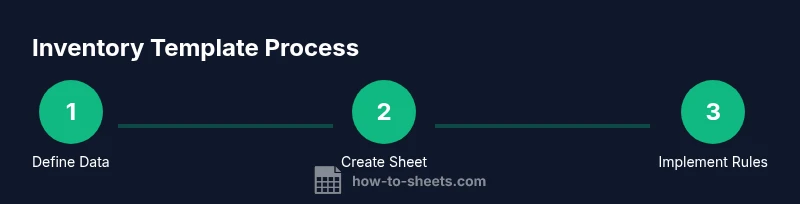
Step-By-Step: Build a Practical Inventory Template in Google Sheets (High-Level Workflow)
- Define your data schema: Decide on the core fields you’ll need (Item ID, Description, Category, Stock On Hand, Reorder Level, Supplier, Unit Cost, Location, Last Updated) and establish consistent naming. This step ensures data integrity as you scale.
- Create a new Google Sheet and set up the header row: Use the defined fields and apply consistent formatting for readability. Freeze the header row to keep context visible while scrolling.
- Populate with sample data: Enter a representative set of items to test filters, calculations, and validation rules. Use a few categories and stock levels to exercise the template’s logic.
- Add primary calculations: Implement total value per item (Quantity On Hand × Unit Cost) and a grand total. Create a simple reorder indicator using a formula like IF Stock On Hand <= Reorder Level, “REORDER”,”OK”.
- Build validation and drop-downs: Use data validation for Category and Location to prevent inconsistent entries. Consider a dropdown for Status or Supplier to maintain data consistency.
- Implement basic automation: Use conditional formatting to flag low stock and set up a calendar-based reminder via Google Apps Script for critical thresholds.
- Test, review, and iterate: Run a few end-to-end scenarios (receiving stock, fulfilling orders, and transferring items) to verify that all formulas update correctly and reports reflect changes accurately.
tip”:
note”:null} ,
block 4 Step-by-Step details
Step-By-Step: Create a Basic Template from Scratch (Detailed Steps)
Step 1: Define your data schema. Identify required fields and ensure naming consistency across the sheet. Why: a stable schema reduces rework as your template grows. Step time: 5–10 minutes. Tip: use a dedicated sheet for the data dictionary so formulas stay readable. Step 2: Set up the sheet skeleton. Create a header row with clear labels and format for readability. Why: a clean layout reduces errors during data entry. Step time: 5–10 minutes. Tip: freeze the header row to keep context as you scroll. Step 3: Add core calculations. Create a Total Value column and an Inventory Value summary. Why: this gives you immediate visibility into stock worth. Step time: 10–15 minutes. Tip: use absolute references for unit costs to avoid accidental edits. Step 4: Implement data validation. Limit Category, Location, and Supplier to predefined lists. Why: prevents inconsistent data entries. Step time: 5–10 minutes. Tip: store lists on a separate sheet to simplify updates. Step 5: Create alerts and visual cues. Add conditional formatting for low stock and a color-coding scheme for item status. Why: fast recognition of risk areas. Step time: 5 minutes. Tip: test with edge-case quantities to ensure alerts trigger correctly. Step 6: Test workflows with sample data. Simulate receiving stock, fulfilling orders, and writing back changes to the inventory. Why: validates end-to-end integrity. Step time: 15–20 minutes. Tip: document any assumptions so future users understand decisions. Step 7: Roll out and monitor. Share with teammates and set up a cadence for reviewing stock levels. Why: ongoing discipline ensures accuracy. Step time: ongoing. Tip: schedule monthly audits and track improvements.
tip”:
note”:null} ,
bodyBlocks 5 automation
Automations and Data Validation to Save Time
Data validation and automation turn a manual stock ledger into a reliable, low-maintenance system. Start with dropdowns for key categories (Category, Location, Supplier) to standardize inputs and prevent typos that complicate reporting. Conditional formatting provides quick visual cues for items that need attention—low stock, approaching expiry (if tracked), or items overdue for reordering. For more automation, connect a simple Apps Script to send email alerts when stock falls below reorder levels, or when stock on hand exceeds a predefined threshold.
Named ranges help formulas stay readable and portable as you copy templates across projects. Use VLOOKUP or XLOOKUP (where available) to pull supplier names or locations from a master list, so you don’t duplicate data across sheets. If you’re comfortable with scripts, you can add a lightweight reorder automation: when a row meets the threshold, a status column toggles to REORDER, and a separate sheet collects items requiring action for your procurement team. Keep automation modest at first to avoid introducing bugs, then expand as you gain confidence.
Security and sharing matter, too. Limit editing rights to trusted collaborators and use protected ranges for critical fields like Item ID and Unit Cost. This ensures that while your team can update quantities, the core identifiers and formulas remain intact.
note”:null} ,
bodyBlocks 6 real-world
Real-World Scenarios: Small Business, Students, and Solo Professionals
To illustrate the value of an inventory template google sheets, consider a bakery that tracks ingredients and finished goods, a university club that lends equipment, or a freelance photographer who rents gear. In each case, a common data model can be adapted with minimal changes. For the bakery, you might add fields for batch numbers and expiry dates; for the club, keep a separate location column for each storage closet; for the photographer, add a customer-facing field to track rental dates and returns. Each scenario benefits from centralized visibility: the owner knows when to reorder flour, the club manager can locate a loaned kettle quickly, and the photographer can invoice and reconcile stock efficiently.
When you design templates for different audiences, keep the core template consistent while allowing lightweight customization. This approach makes it easier to train new users and reduces the learning curve for future adoption. It also creates a repository of best practices that your team can reuse across projects.
If you’re a student, the template teaches inventory basics and budgeting concepts you can apply in capstones and internships. For professionals, it’s a starting point for more sophisticated inventory systems that integrate with ERP or e-commerce platforms. The versatility of Google Sheets makes this approach approachable for many contexts.
note”:null} ,
bodyBlocks 7 pitfalls
Common Pitfalls and How to Avoid Them
Relying on manual data entry without validation invites errors that cascade through calculations and reporting. Avoid this by enforcing dropdowns and regular data cleansing. Inconsistent naming is a frequent offender; ensure you standardize item IDs and categories from day one. Overcomplicating the template with too many fields can create confusion and reduce adoption; start lean and expand only after you’ve established a stable workflow. A frequent blind spot is neglecting version control—keep a master copy and document changes so team members always work from the correct baseline. Finally, do not skip testing: run end-to-end scenarios that mirror real operations and adjust formulas or automation based on feedback. Regular audits help catch issues early and keep the template accurate over time.
note”:null} ,
bodyBlocks 8 authority sources
Authority Sources
- Small Business Administration (SBA): Inventory management basics and templates for small businesses. https://www.sba.gov
- University Extension Resources: Inventory control concepts and practical templates. https://extension.illinois.edu
- University of Maine Extension: Data-driven approaches to inventory and stock management. https://extension.umaine.edu
- Harvard Business Review and major publications: Best practices for inventory optimization and analytics. https://hbr.org/
Tools & Materials
- Google account with Google Sheets access(Needed to create, edit, and share the inventory template.)
- Computer or tablet with internet(For editing and collaboration in real time.)
- Sample inventory data(A small dataset to test formulas and validation.)
- Optional barcode scanner(For quick item lookup during data entry.)
- Printer labels(If you plan to physical-tag items for easy scanning.)
Steps
Estimated time: 30-60 minutes for initial setup; ongoing updates as stock changes
- 1
Define data schema
Decide on core fields (Item ID, Description, Category, Stock On Hand, Reorder Level, Supplier, Unit Cost, Location, Last Updated) and establish naming conventions. Why: consistent structure enables clean formulas and scalable reporting.
Tip: Document field definitions in a separate sheet or data dictionary. - 2
Create a new Google Sheet and headers
Set up the sheet with a clearly labeled header row and apply a readable format. Why: a tidy layout prevents entry errors and makes formulas easier to audit.
Tip: Freeze the header row so it stays visible while you work. - 3
Add core calculations
Implement per-item Total Value (Quantity × Unit Cost) and a simple Inventory Value total. Why: quick financial visibility helps with budgeting and ordering decisions.
Tip: Use absolute references for Unit Cost where appropriate. - 4
Configure data validation
Create dropdown lists for Category, Location, and Supplier to avoid inconsistent entries. Why: standardization reduces downstream reconciliation work.
Tip: Keep your lists on a separate sheet for easy updates. - 5
Establish alerts and formatting
Set up conditional formatting to highlight low-stock items and create a basic alert rule for when Stock On Hand drops below Reorder Level. Why: proactive stock management.
Tip: Test thresholds with extreme values to confirm alerts trigger. - 6
Enable lightweight automation
Implement a simple Apps Script or built-in feature to notify teammates when reordering is necessary. Why: reduces manual follow-up and speeds up procurement.
Tip: Start with email alerts before moving to more complex automation. - 7
Test, share, and iterate
Run end-to-end scenarios (receiving stock, fulfilling orders, and stock adjustments) and refine formulas and validation rules. Why: ensures reliability across real workflows.
Tip: Solicit feedback from team members who will use the template daily.
FAQ
What is an inventory template in Google Sheets?
An inventory template in Google Sheets is a structured spreadsheet that tracks items, quantities, locations, and related costs. It provides a consistent data model, validation rules, and simple calculations to help manage stock levels and procurement.
An inventory template in Google Sheets is a structured tracker for items, quantities, and costs, with built-in rules to keep data clean and easy to review.
How do I start a template from scratch?
Begin with a defined data schema, create a header, add core calculations, and implement data validation. Then test with sample data and iterate based on feedback. This keeps the template lean yet scalable.
Start by defining the data fields, set up headers, add basic calculations, and validate with sample data, then improve as needed.
Can I automate alerts for low stock?
Yes. Use conditional formatting to highlight low stock and scripts or built-in automation to send notifications when stock falls below reorder thresholds.
Yes, you can set up color cues and simple notifications to alert you when stock is low.
What if my inventory has multiple locations?
Add a Location field and optionally separate sheets by location. Use filters or a pivot table to consolidate data for cross-location reporting.
Use a location field and filters to view stock across multiple sites.
How do I extend the template later?
Add new fields (expiry dates, batch numbers, etc.) and continue using the same data model. Keep the master lists in separate sheets for easy expansion.
Keep the data model stable and extend with new fields when you’re ready.
Watch Video
The Essentials
- Define a lean, scalable data schema for inventory items
- Use data validation to maintain consistency and accuracy
- Leverage simple formulas to calculate value and stock status
- Apply basic automation to reduce manual follow-ups
- Regularly audit and iterate the template for continuous improvement