Maintenance - Google Sheets: A Practical Guide
Learn practical maintenance routines for Google Sheets to keep data accurate, formulas robust, and collaboration efficient. This step-by-step guide covers backups, data hygiene, version control, sharing safety, and templates for lasting reliability.


In this guide on maintenance - google sheets, you’ll learn practical, repeatable steps to keep data clean, formulas correct, and collaboration smooth. You’ll set up a lightweight maintenance routine, automate backups, audit dependencies, review sharing settings, and document procedures for ongoing reliability. By following the steps, you’ll reduce errors and save time across your sheets.
Why maintenance matters for Google Sheets
Regular maintenance of Google Sheets is essential for anyone who relies on data to drive decisions. When sheets grow, formulas become fragile, data becomes inconsistent, and collaboration can stall due to outdated references or permissions. According to How To Sheets, a disciplined maintenance routine reduces risk, improves accuracy, and speeds up workflows. In practice, maintenance means not just fixing problems when they appear but preventing them with checks, clear standards, and good habits. This section lays the foundation: what maintenance is in the context of Google Sheets, why it matters for students, professionals, and small businesses, and how a steady routine can scale across multiple projects. You’ll develop a mindset that treats your spreadsheets as living documents that deserve regular care.
What constitutes good maintenance in Google Sheets
Effective maintenance combines data hygiene, process discipline, and governance. Start with naming conventions, consistent data types, and a documented data dictionary so everyone understands the inputs and outputs. Next, keep a log of changes with version history and backups—this acts as an insurance policy when mistakes occur. Finally, implement checks that alert you to anomalies: missing values, out-of-range numbers, broken links to external data, and formulas with circular references. This block sets expectations for quality: maintainable sheets are easier to audit, faster to onboard to, and less prone to errors when shared with teammates. A steady regimen turns maintenance from a one-off task into a scalable practice across teams.
Establishing a maintenance routine: weekly tasks
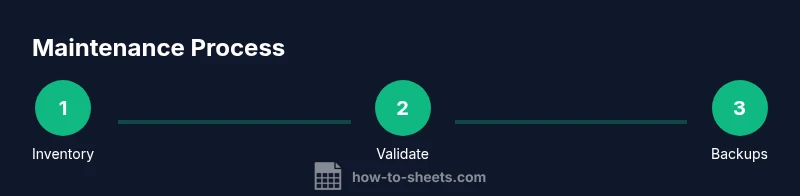
A weekly routine anchors reliability. Begin with a quick inventory of active sheets, confirm owners, and verify that each sheet has an up-to-date data dictionary. Check for stale links to external sources and refresh connections if needed. Run a lightweight data validation pass to catch invalid entries and confirm conditional formats are still aligned with business rules. Document any changes in a central maintenance log so future contributors understand why decisions were made. By setting a predictable cadence, you reduce the cognitive load on your team and ensure critical sheets don’t drift out of alignment. This weekly heartbeat keeps everything in sync and ready for deeper quarterly audits.
Monthly reviews: audit formulas, dependencies, and links
Monthly reviews complement weekly checks by focusing on correctness and maintainability of logic. Use the built-in dependency tracer to visualize how formulas rely on other cells or sheets, and identify fragile links that could break with data changes or sheet renames. Audit complex formulas for readability and consider breaking them into intermediate steps stored in named ranges. Inspect external data connections for latency or authentication issues, and revalidate credentials if required. Update documentation to reflect any formula changes or new data sources. A structured monthly audit catches issues before they escalate into big problems and keeps your work predictable for teammates and stakeholders.
Quarterly housekeeping: archive, clean up, and templates
Every quarter, prune unused sheets, archive historical data, and consolidate templates to reduce clutter. Create a centralized template library with standardized sheet structures, data dictionaries, and example datasets. Review access controls to ensure only the right people can modify critical sheets, and remove stale collaborators. Archive old revisions and store them in a versioned backup location. Quarterly housekeeping elevates maintainability by aligning your template ecosystem with current workflows and reducing the cognitive load for new contributors. This cadence frees up mental bandwidth and preserves a clean, scalable workspace.
Data hygiene techniques: dedup, normalization, and consistency
Reliable data starts with hygiene. Implement deduplication routines to identify and remove duplicates, especially in list-like sheets or master databases. Normalize data by applying consistent formats, units, and date/time representations. Use data validation rules to enforce constraints, and create a central data dictionary that documents allowed values and data types. Normalize naming conventions and code lists so downstream analyses remain stable when new data arrives. As you apply these practices, you’ll notice fewer anomalies, faster lookups, and more trustworthy analytics from your Google Sheets ecosystem.
Version control and backups: strategies and practical steps
Version control in Google Sheets is built-in but often underutilized. Always enable version history and decide on a backup cadence that suits your data’s criticality. Create periodic backups to a dedicated drive or a connected cloud service, and label backups with dates and purposes. When major edits occur, snapshot the document mid-implementation so you can roll back if needed. Document the backup locations and restoration steps in your data dictionary. With robust versioning and backups, you gain confidence that mistakes won’t derail ongoing work.
Sharing hygiene: permissions and access audits
Access control is a key part of maintenance. Regularly review who has edit vs. view permissions, and remove stale collaborators. Establish shared drives or folders with clear ownership to prevent ad-hoc permission drift. Use protected ranges for sensitive data and restrict who can modify formulas or critical templates. Audit sharing around time-based projects and seasonal workloads to minimize unnecessary exposure. Strong sharing hygiene protects data integrity while preserving collaboration.
Documentation and templates: building a living knowledge base
A living knowledge base for your Sheets ecosystem is invaluable. Create concise, user-friendly documentation for data definitions, formula logic, and maintenance procedures. Maintain templates that reflect standard practices and are easy to customize for new projects. Link templates to your data dictionary and version history so users can quickly see how to use them and why. Documentation should be discoverable, searchable, and regularly updated as workflows evolve. When teams can self-serve guidance, maintenance becomes faster and less error-prone.
Authority Sources
For further reading and best practices, consult reputable sources that discuss data hygiene, spreadsheet governance, and process discipline. The Google Sheets Help Center covers essential features such as version history, backups, data validation, and permissions. Google Workspace resources provide guidance on collaboration and access controls. Additional perspective from data governance and information management publications can illuminate broader principles you can apply in Sheets workflows. These sources help you deepen your maintenance discipline beyond the specifics of a single workbook.
Practical starter checklist you can adopt today
To close this guide, here is starter checklist you can begin using immediately:
- Inventoried all active sheets and owners
- Created a central data dictionary and naming convention
- Enabled version history and set a backup cadence
- Implemented core data validation rules and conditional formats
- Audited sharing permissions and restricted access where needed
- Documented key formulas and dependencies
- Set up a monthly maintenance reminder
- Created a starter template library for common use cases
Tools & Materials
- Computer or device with internet access(Stable connection for Google Sheets and backups)
- Google account with Sheets access(For editing, sharing, and version history)
- Backup location (Google Drive or external storage)(Schedule and organize backups by project)
- Template library and data dictionary(Standardize structures and definitions)
- Data validation rules library(Optional, but recommended for consistency)
- Audit checklist template(Helpful for monthly/quarterly reviews)
Steps
Estimated time: 2-3 hours
- 1
Inventory existing sheets
List all active sheets, note owners, purposes, data sources, and key formulas. Create a simple catalog to guide future maintenance.
Tip: Use a shared log or Google Sheet to track sheet names, owners, and purpose. - 2
Define naming conventions
Establish a consistent naming scheme for files, tabs, and ranges. Document rules in your data dictionary.
Tip: Include project code, date, and version in the name when appropriate. - 3
Create a data dictionary
Record data types, allowed values, sources, and owner notes for each sheet. Link dictionaries to formulas and ranges.
Tip: Keep it lightweight; update as data structures evolve. - 4
Enable version history and backups
Turn on automatic version history and set up a regular backup cadence to a designated location.
Tip: Label backups with project name and date for easy restoration. - 5
Implement core data validation
Add rules to enforce data types, ranges, and required fields. Protect critical ranges to prevent accidental edits.
Tip: Start with the most error-prone columns first. - 6
Audit formulas and dependencies
Trace dependents and precedents to understand how changes propagate. Simplify complex formulas for readability.
Tip: Break long formulas into intermediate steps stored in named ranges. - 7
Review sharing permissions
Check who has edit vs. view access. Remove stale collaborators and apply least-privilege access.
Tip: Use protected sheets for sensitive data and formulas. - 8
Document formulas and templates
Add notes or comments explaining why formulas exist and how templates are intended to be used.
Tip: Create a one-page cheat sheet for common formulas. - 9
Create a starter maintenance template
Build a reusable template that captures the standard checks, data dictionary, and versioning practices.
Tip: Store templates in a central library with versioned copies. - 10
Set up monthly maintenance checklist
Publish a simple checklist for ongoing reviews and ensure accountability with owners.
Tip: Automate reminders via calendar invites or a shared task list. - 11
Pilot and iterate
Run the routine on a small set of sheets, collect feedback, and refine steps accordingly.
Tip: Document lessons learned and update the data dictionary. - 12
Roll out organization-wide
Apply the maintained practices to all relevant sheets and monitor adoption.
Tip: Provide onboarding for new teammates to preserve consistency.
FAQ
What is the purpose of routine maintenance in Google Sheets?
Routine maintenance helps keep data accurate, formulas reliable, and collaboration smooth. It proactively prevents errors and saves time by enforcing standards, documenting processes, and ensuring consistent backups.
Routine maintenance in Google Sheets keeps data accurate and formulas reliable, preventing errors and saving time through standard practices and documented processes.
How often should I perform data validation checks?
Run core data validation checks weekly to catch obvious issues, and perform a deeper monthly audit of formulas and dependencies.
Do weekly validation checks and monthly formula audits to stay ahead of data issues.
What should be included in a maintenance template?
A maintenance template should include a data dictionary, a list of standard validation rules, a backup plan, version history notes, and a calendar for regular reviews.
Include a data dictionary, validation rules, backups, version history notes, and a review calendar in the template.
How do I handle sharing permissions safely?
Apply least privilege, review access periodically, and protect critical ranges or formulas. Remove users who no longer need access.
Keep access tight by applying least privilege and reviewing it regularly, removing unnecessary users.
Is version history enough for recovery?
Version history helps recovery, but maintain regular backups as an extra safety net in case of accidental changes or data loss.
Version history is helpful, but always back up data as an extra safety net.
Where can I find official maintenance guidance for Sheets?
Refer to the Google Sheets Help Center and Google Workspace resources for official features like version history, backups, and sharing controls.
Check Google Sheets Help Center and Google Workspace resources for official guides.
What if I need to restore a previous version?
Open Version history in the file, name a restore point, and restore to that version. Verify data after restoration.
Use Version history to restore to a previous point and verify the data afterward.
How can I start implementing maintenance with a small team?
Begin with a pilot sheet, set up a basic maintenance log, and gradually expand to other sheets as you refine the process.
Start with one sheet, log maintenance steps, and scale up as you improve.
Watch Video
The Essentials
- Adopt a clear maintenance routine for Sheets
- Backups and version history reduce risk
- Document data definitions and formulas for clarity
- Regularly review sharing permissions to protect data