Repairs Google Sheets: A Practical Step-by-Step Guide
Learn how to diagnose, repair, and prevent common issues in Google Sheets with a practical, step-by-step approach. Ideal for students and professionals seeking reliable fixes.


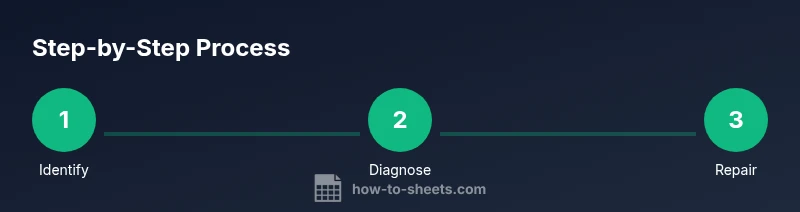
You can repair common Google Sheets issues by checking formulas, data validation, linked ranges, and external data connections. Start by identifying error types, then fix broken references, restore data validation rules, and reimport data if needed. A stepwise approach saves time and prevents recurrence. Document changes for future audits and consider version history as a fallback.
Common causes of errors in Google Sheets
Common errors in Google Sheets arise from a mix of misapplied formulas, broken references, and inconsistent data imports. According to How To Sheets, repairs google sheets often begin with a clear diagnosis and a plan. Look for the most frequent culprits: wrong cell references in formulas, stray parentheses, mixed data types, and implicit conversions that silently alter results. External data connections — like IMPORTRANGE or IMPORTXML — require permission, correct URLs, and access to the source file. When you see error indicators such as #VALUE!, #REF!, or #N/A, map them to likely root causes rather than applying generic fixes. Create a quick map of the affected range, the formulas involved, and whether other tabs pull data into the same area. This initial audit saves time later and helps you prioritize repair tasks. Finally, consider whether your issue stems from data layout changes (insertions/deletions shift references) or from a misconfigured data validation rule that blocks valid inputs.
How to diagnose and replicate issues
Diagnosing issues in Google Sheets requires a repeatable approach. Start by isolating the element that causes trouble: a single cell, a formula block, or an external data connection. Reproduce the problem in a copy of the sheet to avoid impacting the live data. Take screenshots of error messages and note the exact formula syntax. Use the built-in tools like Trace Dependents and Trace Precedents to visualize how data flows across cells. Compare a known-good version with the current sheet using Version history to identify changes that correlate with the fault. If the issue appears intermittent, test across different devices or browsers to rule out client-side rendering problems. Document every step of the diagnosis so you can repeat the process if the issue reappears.
Repair strategies: formulas, data validation, and references
Repair strategies combine targeted formula fixes with data governance practices. For formulas, verify syntax, correct cell references, and evaluate the impact of relative versus absolute references. If a range expands, convert static ranges to dynamic ones using functions like INDEX or OFFSET, or switch to named ranges for stability. When references point to another sheet or file, ensure permission scopes and sharing settings are correct. Data validation should be re-established to enforce clean inputs, and conditional formatting should be checked to avoid visual misreads. For cross-workbook links, re-authenticate connections and re-import data if necessary. A disciplined repair workflow uses a mix of debugging steps, version control, and a plan to prevent recurrence. How To Sheets analysis shows that a structured approach minimizes repeat issues and improves data trust.
Fixing broken links and external data
External data links are a common source of misalignment in repairs google sheets. Start by validating that the source URL or file path is accessible and that permissions haven’t changed. Re-authorize connectors for IMPORTRANGE, Google Analytics, or other data sources if prompted. If a source sheet has moved or been renamed, update the reference to reflect the new location. For CSV or TSV imports, verify delimiter settings and data types in each column. After reestablishing connections, force a refresh and verify that the data reloads correctly. If data persists in a stale state, consider deleting and re-adding the data range to reset the pull logic. This reduces stale values and improves reliability over time.
Handling import issues and data integrity
Imports are a frequent culprit when repairs google sheets go off track. When data isn't aligned, check column headers, data types, and the presence of blank rows that may shift interpretation. Use the Split or TEXT functions to normalize inputs, and consider converting imported data into a structured table with named ranges or a separate sheet for staging. Validate that duplicates are being filtered as intended and ensure that VLOOKUP/HLOOKUP or INDEX/MATCH lookups reference the correct keys. If you rely on date and time formats, ensure consistency across imported data by normalizing formats at the import stage. Regularly run a lightweight audit to detect anomalies early and avoid cascading errors.
Error-proofing your Sheets for future repairs
Proactive repairs google sheets include protective measures and clear governance. Add data validation rules to prevent bad inputs, lock critical cells, and use protected ranges to reduce accidental edits. Create a lightweight change log that records what was fixed, when, and by whom, so future repairs start from an informed baseline. Use Version history to snapshot major repairs before applying risky changes, and regularly export backups (CSV or Excel) for offline safety. Develop a standard operating procedure for repairs that includes a checklist, role assignments, and escalation paths. By building resilience into your sheets, you minimize downtime when issues arise.
When to escalate or seek help
Not every problem should be solved in isolation. If a repair involves complex inter-sheet dependencies, external APIs, or confidential data, consider escalating to a teammate with domain knowledge or a data governance specialist. If multiple sheets share a centralized data source and repair steps require coordinated changes, create a rollback plan and obtain buy-in from stakeholders. When in doubt, consult the version history to confirm changes before rolling them out to production. The goal is to preserve data integrity while minimizing risk to the broader workbook ecosystem.
Best practices for version history and backups
Version history is a reliable ally for repairs google sheets. Regularly name and save significant milestones before performing edits, and keep a clean change log describing the repair rationale. Export critical sheets as CSV or Excel snapshots on a routine schedule, and store backups in a shared drive with clear retention policies. Use copies of the original sheet to test fixes before applying them to the live file. By treating version history and backups as first-class governance artifacts, you preserve data integrity and reduce the burden of future repairs.
Tools & Materials
- Computer with internet access(Modern browser; access to Google Sheets)
- Google account with Sheets access(Owner or editor permissions for repair tasks)
- Backup export (CSV/Excel)(Roll back changes if needed)
- Version history access(Compare and restore previous versions)
- Formula auditing checklist(Helpful for complex sheets)
Steps
Estimated time: 45-90 minutes
- 1
Identify the error type and reproduce
Start by noting the error message or incorrect result. Try to reproduce the issue in a minimal copy of the data to avoid cascading failures. Document the exact cell range and formula involved so you can target the repair precisely.
Tip: Capture screenshots of the error and note when it occurs. - 2
Open version history and compare
Access Version history to find recent edits that may have caused the fault. Create a side-by-side comparison between the current version and a baseline that worked. Decide whether to revert a change or isolate the offending edit.
Tip: Always snapshot a backup before reverting. - 3
Audit formulas for references and syntax
Check each formula for correct operators, parentheses, and cell references. Distinguish between relative and absolute references and adjust as needed. Use the Formula Bar and the built-in auditing tools to trace precedents and dependents.
Tip: Test a corrected formula in a spare cell before applying it widely. - 4
Validate data ranges and named references
Ensure ranges cover expected data, and named ranges point to the right cells. If ranges need to grow, convert them to dynamic constructs rather than fixed endpoints. Revisit range permissions if the sheet spans multiple collaborators.
Tip: Prefer dynamic ranges like INDIRECT with defined bounds when appropriate. - 5
Fix external data connections
If the issue involves IMPORTRANGE, IMPORTDATA, or other connectors, verify URLs, permissions, and refresh settings. Re-authenticate if Google prompts for access. Test the data pull after each change.
Tip: Run a manual refresh to verify the connection is live. - 6
Apply safeguards to prevent recurrence
Add data validation, protect critical cells, and establish a change log. Consider creating a staging sheet for imports and an automated test for key calculations. Document the repair steps for future reference.
Tip: Enable a quick test that flags anomalies after edits.
FAQ
What is the first step to repair a broken formula in Google Sheets?
Begin by identifying the exact formula and the cells it references. Reproduce the error in a copy of the sheet to avoid impacting live data. Use the formula auditing tools to trace precedents and correct references.
Start by identifying the faulty formula, reproduce it in a copy, and trace references to correct errors.
How can I fix #REF! errors efficiently?
#REF! usually means a referenced cell was deleted or moved. Update the formula to point to valid cells or restore the missing cells. Confirm the fix by recalculating or re-opening the sheet.
#REF! errors indicate invalid references—update the formula or restore the missing cells and verify the calculation.
What should I do if IMPORTRANGE data fails to refresh?
Check the source URL and sharing permissions. Re-authorize the connection if prompted, and ensure the source sheet is accessible. After reauthorization, force a refresh to confirm data loads correctly.
If IMPORTRANGE isn’t refreshing, check permissions, reauthorize, and refresh to verify data returns.
How can I prevent similar issues in the future?
Implement data validation, protected ranges, and a simple change log. Use dynamic ranges for expanding data and maintain a staging sheet for imports to catch problems early.
Prevent future issues with validation, protection, and a clear change log.
Is version history a reliable repair tool?
Version history helps you compare changes and revert to a stable state. Treat it as a rollback and audit trail, not a substitute for backups. Always pair it with exported backups.
Version history is great for rollback and audit trails, but back it up with exports.
When should I escalate repairs to a specialist?
If the repair involves multiple interdependent sheets, external APIs, or sensitive data, involve a teammate with domain knowledge or a data governance expert. Plan the changes and confirm backups before proceeding.
Escalate when issues span many sheets or involve external data or sensitive information.
Watch Video
The Essentials
- Audit errors first, then fix formulas and links
- Use version history and backups before major repairs
- Shield sheets with validation and protection to prevent recurrence
- Test fixes on copies before applying to live data
- Document changes for future repairs