How to test for error in Google Sheets: a practical guide
Master a practical, step-by-step approach to test and fix errors in Google Sheets. Diagnose formulas, validate references, and create reproducible tests for reliable results.


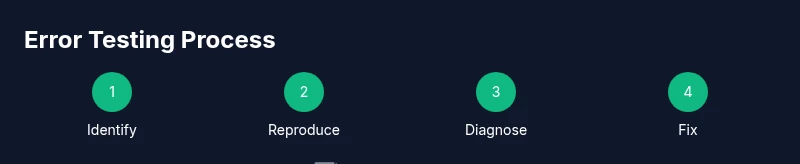
Goal: learn how to systematically test for errors in Google Sheets and fix them before they affect decisions. You’ll verify formula accuracy, ensure consistent data types, and validate external references. This guide provides a repeatable error-testing workflow using built-in tools like IFERROR, ISERROR, and data validation to minimize disruption. By the end, you'll be able to reproduce issues, isolate root causes, and implement durable fixes.
Why testing for errors in Google Sheets matters
According to How To Sheets, testing for errors in Google Sheets isn’t optional; it’s essential for reliable, scalable spreadsheets that inform decisions. When you build a workflow that regularly tests for common error sources—especially formula mistakes, broken references, and inconsistent data types—you reduce downstream impact on budgets, timelines, and stakeholder trust. A deliberate error-testing habit turns elusive, mysterious bugs into repeatable, solvable problems. In this guide, we focus on the keyword google sheets test for error and provide a practical, repeatable framework you can apply to almost any sheet. By adopting these practices, you’ll be able to reproduce issues, isolate root causes, and implement fixes that endure across revisions.
Common error types you’ll encounter
Google Sheets throws a variety of errors that can derail analyses if left unchecked. The most common are #VALUE!, #REF!, #DIV/0!, and #NAME? across typical formulas. Circular references, mismatched ranges, and stale external data (via IMPORTRANGE or external connections) can cascade into dependent cells, warping dashboards. Non-numeric data misformatted as numbers or dates, and mixed data types in mixed columns, often silently corrupt results until you review the data lineage. Recognizing these patterns early—and understanding when errors arise—helps you craft robust tests that catch problems before they metastasize.
Preparing a reproducible test dataset
Create a controlled sandbox: duplicate the workbook, maintain an original copy, and designate a dedicated test sheet with representative data. Include intentionally invalid inputs (e.g., blanks in numeric fields, zero in division formulas, invalid dates) to observe how errors surface. Use named ranges to stabilize references, and document the exact versions of formulas and data sources you’re testing. A reproducible dataset lets you compare before-and-after states with confidence and makes it easier to share bug reproductions with teammates when needed.
Building a structured test plan
A clear test plan accelerates error identification and fixes. Start with objectives: what error types you’ll verify, which formulas or references will be tested, and what a successful outcome looks like. Develop concrete test cases that simulate common scenarios: missing inputs, zero values, cross-sheet references, external data feeds, and data type mismatches. For each case, specify expected results and how you will validate them. A well-documented plan reduces guesswork and guides both beginners and power users through a repeatable process.
Using built-in error-handling functions (IFERROR, ISERROR)
Google Sheets offers practical tools to catch and handle errors without breaking downstream calculations. IFERROR lets you substitute a safe default when a formula returns an error, while ISERROR enables conditional logic to trigger diagnostics or alerts. Use these functions judiciously to isolate problems while maintaining the integrity of dashboards and reports. For example, wrap a risky formula in IFERROR to surface a fallback value, then test that the fallback activates precisely when an error occurs.
Auditing references and external data sources
External references are a frequent source of hidden errors. Test these by tracing data lineage: verify that source ranges exist, confirm that IMPORTRANGE connections are authorized, and check for broken links after sheet renames or deletions. Use INDIRECT or ADDRESS cautiously, since dynamic references can complicate testing. By auditing references, you reduce the chance of stale data propagating errors through dependent calculations.
Validating data types and formatting to prevent errors
Many errors arise from data types mismatching expectations (text in numeric fields, dates stored as text, or boolean values misinterpreted as strings). Enforce consistent data types with data validation rules, proper number formats, and explicit date formats. Regularly audit columns for outliers or inconsistent formats, which can indicate data pollution and lead to misinterpretation of results. Strong formatting discipline improves reliability and reduces test complexity.
Testing with edge cases and high-volume data
Edge cases—empty cells, large numbers, negative values, and unusual characters—often reveal resilience gaps in formulas. Simulate these scenarios using a dedicated test subset, then gradually scale to large datasets to observe performance and stability. Performance considerations matter: complex array formulas, volatile functions, and repeated cross-sheet references can slow recalculation. A staged approach helps you identify bottlenecks and adjust accordingly.
Automation and ongoing monitoring for reliability
To sustain reliability, automate routine checks where possible. Build a lightweight audit sheet that runs through your test plan on demand or on a schedule, flags errors, and logs results. Consider simple Apps Script automations or conditional formatting to highlight failed test cases. Regular refreshes of test data and versioned test plans keep error-testing aligned with evolving spreadsheets and business needs.
Authority sources
For readers seeking formal references on spreadsheet reliability and data integrity, consult established resources from government and academic institutions. These sources provide general data-validation best practices and calculation-safety guidelines that complement hands-on testing in Google Sheets. By expanding beyond the sheet itself, you can align your testing approach with broader standards and methodologies.
Next steps and ongoing learning
Once you have a solid error-testing workflow, extend it with real-world scenarios, shareable templates, and checklists. Revisit your test cases after major revisions, data source changes, or when you introduce new formulas. The goal is to keep google sheets test for error front-and-center in your data workflow, ensuring consistent, trustworthy results over time. As you iterate, remember: strong testing habits reduce risk and support faster, more confident decision-making.
Tools & Materials
- Computer with internet access(Google account signed in to access Sheets)
- Test dataset(Duplicated workbook with deliberate edge cases)
- Google Sheets copy of the original workbook(Safe workspace for experimentation)
- Named ranges(Optional for stability; recommended for testing references)
- Documentation template(To record test cases, outcomes, and fixes)
- Access to external data sources(If testing IMPORTRANGE or linked sheets)
Steps
Estimated time: 25-45 minutes
- 1
Prepare a test dataset
Create a duplicate of your workbook and add a dedicated test sheet. Populate it with representative data, including intentional errors (e.g., blanks in numeric fields, zeros in divisions, invalid dates). This establishes a controlled environment for testing.
Tip: Label test data clearly and keep the original data untouched to avoid accidental changes. - 2
Identify error targets
List the formulas, references, and data flows most likely to fail. Include cross-sheet references and external data links. This helps you focus testing efforts on high-risk areas.
Tip: Use the sheet’s formula audit features to locate complex chains quickly. - 3
Isolate a failing formula
Find a formula that triggers an error and reproduce it in a standalone cell. Remove dependencies temporarily to confirm the exact source of the failure.
Tip: Break complex formulas into simpler parts to isolate the error source. - 4
Apply error-handling basics
Wrap risky formulas with IFERROR to surface a safe fallback value. Use ISERROR or ISERR for conditional checks that trigger diagnostics.
Tip: Keep the user-facing results meaningful by choosing appropriate fallback values. - 5
Validate references and sources
Check each external reference (IMPORTRANGE, external sheets) for access, permissions, and range validity. Confirm ranges still exist after sheet edits or renames.
Tip: Document any external data expectations to simplify future testing. - 6
Test data types and formatting
Run checks for numeric, date, and text formats. Use data validation rules to enforce consistency and catch outliers early.
Tip: Consider using VALUE or TEXT functions to normalize inputs when needed. - 7
Stress-test with edge cases
Introduce edge-case inputs (very large numbers, empty cells, unusual characters) to reveal fragile logic. Observe how results adapt and where breakdowns occur.
Tip: Document observed failures with exact inputs for reproducibility. - 8
Document findings and fixes
Create a succinct log of each issue, its cause, and the applied remedy. Link test cases to the corresponding formulas and data sources.
Tip: Keep the log in a separate sheet or document for easy sharing. - 9
Re-test after changes
Run the exact test cases again after implementing fixes to verify that errors no longer occur and that results remain correct.
Tip: Use before/after snapshots to confirm impact. - 10
Automate routine checks
Set up a lightweight automation (Apps Script or conditional formatting) to flag errors when data changes. Schedule periodic reruns of your test plan.
Tip: Start small with a single trigger and expand as needed. - 11
Review and iterate
Periodic reviews ensure your tests stay aligned with evolving data sources, formulas, and business requirements.
Tip: Treat testing as an ongoing practice, not a one-off task.
FAQ
What is the first step to test for errors in Google Sheets?
Begin by creating a duplicate workbook and a dedicated test sheet that contains representative edge cases. This provides a safe space to reproduce and diagnose errors without risking the original data.
Start by duplicating your workbook and setting up a test sheet to safely reproduce errors.
How do I handle #DIV/0! errors in Sheets?
Identify the division by zero scenario and add checks that prevent the division when the denominator is zero. Use IF or IFERROR to provide a default value or a warning instead of breaking calculations.
Check for zero denominators and use IF or IFERROR to handle them gracefully.
Can IFERROR hide underlying data quality issues?
Yes, heavy use of IFERROR can mask data problems. Use it to surface errors while also documenting root causes and considering improvements to data validation and source data quality.
IFERROR can mask problems, so pair it with root-cause analysis and validation.
What should I test when using external references like IMPORTRANGE?
Test access permissions, verify the correct source ranges, and confirm all references resolve after sheet edits. Include a test case that simulates a missing source to see how your sheet responds.
Verify access, ranges, and resolution after edits when using external references.
How often should I run my error-testing workflow?
Run it after any significant sheet changes, formula updates, or data source changes. Regular checks help catch issues early and keep results trustworthy.
Run tests after large changes and on a regular schedule.
Where should I document my test results?
Maintain a dedicated testing log in a separate sheet or document with issue descriptions, causes, fixes, and timestamps. This makes audits and onboarding easier.
Keep a dedicated log of issues, causes, and fixes.
Watch Video
The Essentials
- Start with a controlled test dataset to reproduce issues.
- Use IFERROR and ISERROR to identify and surface errors.
- Audit references and data types to prevent root causes.
- Document findings and automate where possible.