Troubleshooting Google Sheets Formulas: Quick Fixes and Step-by-Step Guide
Urgent guide to troubleshoot google sheets formula errors, diagnose root causes, and apply safe, proven fixes with a practical, step-by-step workflow.


If your Google Sheets formula isn’t returning the right result, start by checking the references and separators, then test with a small sample. Common culprits include misreferenced cells, locale differences in argument separators, and mismatched data types. This guide gives you a fast, step-by-step route to diagnose and fix the issue.
Understanding why formulas fail in Google Sheets
When you dive into troubleshooting google sheets formula issues, you often start with a simple error message or a stubborn wrong result. The most common culprits are misreferenced cells, incorrect use of operators, or locale-based differences in function argument separators. In many cases, a small adjustment makes a big difference. The goal is to move from vague symptoms to a precise diagnosis, then apply a safe fix that you can reproduce. According to How To Sheets, robust debugging saves time and reduces errors when building complex Google Sheets formulas. By embracing a consistent debugging workflow, you’ll resolve issues faster and prevent repeat problems in the future.
Symptoms and quick checks
Typical symptoms include errors like #REF!, #VALUE!, #DIV/0!, or unexpectedly empty results where data should appear. Start with the simplest checks:
- Confirm the formula references the intended cells and ranges.
- Verify that you aren’t accidentally referencing a protected or hidden sheet.
- Ensure the operator logic matches the intended calculation (e.g., +, -, *, /).
- Check if data types align (numbers vs text) and that text values don’t sneak into numeric operations.
- Remember locale differences can swap comma and semicolon as argument separators, depending on your region. If you see an error, reproduce it with a tiny sample in a spare cell to isolate the behavior before applying changes to the main sheet.
Common culprits when troubleshoot google sheets formula
The most frequent causes of formula issues fall into a few categories:
- Incorrect cell references after dragging or copying formulas.
- Nested functions with mismatched parentheses or wrong argument order.
- Mismatched data types (text where numbers are expected, or vice versa).
- Array formulas interacting with standard formulas, causing unexpected spill ranges or errors.
- Circular references where a formula depends on its own result.
- Locale-based separators or function names that differ by region.
- Referencing external sheets or named ranges that no longer exist. Call out each possibility and verify with a minimal test to confirm or rule out the cause.
Diagnostic workflow: reproduce, isolate, verify
A disciplined approach helps you move from vague symptoms to precise fixes:
- Reproduce the issue in a controlled test cell using a simplified version of the formula.
- Isolate the part of the formula that causes the problem by breaking it into smaller chunks.
- Verify intermediate results with helper cells to see where the expected vs actual values diverge.
- If the error points to a specific function, test that function in isolation with known inputs.
- Confirm the fix by re-running the original scenario and ensuring the correct output appears. Document each step so you can share findings with teammates or a support resource.
Step-by-step diagnostic tests you can run now
Follow these quick tests to pinpoint the root cause:
- Check absolute vs relative references (use $ to lock rows/columns where appropriate).
- Test with a known-good data subset to see if results change.
- Replace dynamic ranges with static ranges temporarily to observe behavior.
- Use IFERROR around risky parts to identify which component causes the error.
- Validate that separators match your locale (comma vs semicolon).
- Inspect named ranges and external references for validity.
- Confirm that array formulas spill correctly and don’t overwrite adjacent data.
- Review data types and convert if necessary (VALUE, TEXT, etc.). If you still can’t pin it down, simplify the formula further and rebuild step by step to restore accuracy.
Practical fixes for the most frequent issues
Most formula problems are solved by targeted, repeatable fixes:
- Update cell ranges to reflect the intended data window, ensuring no extra blanks feed the calculation.
- Align data types by wrapping text in VALUE or by converting numbers stored as text.
- Use IFERROR to handle sporadic errors gracefully while you troubleshoot the root cause.
- Replace incorrect operators or misplaced parentheses that distort the calculation.
- For locale issues, switch between comma and semicolon in function arguments depending on regional settings.
- If using array formulas, verify the spill range doesn’t collide with data and that the formula returns an array when expected.
- Audit references to ensure all sheets, ranges, and named ranges exist and are accessible to the user. Document each fix and test again to confirm the issue is resolved.
Advanced techniques: when simple fixes fail
Some issues require more careful tactics:
- Break down multi-function formulas into helper cells to isolate the problem area.
- Use a LET function to name sub-expressions and simplify complex logic.
- Employ REGEXMATCH, REGEXREPLACE, or REGEXEXTRACT to clean or parse data before calculation.
- Consider data validation steps to ensure inputs stay consistent over time.
- For recurring issues, create a template with error-handling logic that minimizes future troubleshooting. Leverage these techniques judiciously and verify each change with clear before/after comparisons.
Prevention: best practices to avoid future formula failures
To minimize future troubleshooting time, adopt these habits:
- Build formulas in stages and test each stage before combining into a final solution.
- Use named ranges to make references clearer and less error-prone.
- Implement error handling (IFERROR) and data validation to catch anomalies early.
- Keep a change-log of formula modifications and the rationale behind them.
- Regularly audit your sheets for broken references after big imports or deletions.
- Create a short, repeatable debugging checklist so teammates can reproduce the process quickly.
When to seek help and how to document findings
If a stubborn formula resists all standard fixes, don’t hesitate to involve a teammate or How To Sheets. Prepare a concise report:
- Snapshot of the problematic formula and its inputs, plus sample data.
- Step-by-step what you tried and the observed results.
- The current expected outcome and the gap you’re trying to close.
- Any constraints (permissions, external data sources) that might affect resolution. Platform resources like version history, protected sheets, and sharing settings can complicate debugging, so include them in your notes. The more precise your documentation, the faster you’ll reach a solution.
Key takeaways: quick-reference troubleshooting playbook
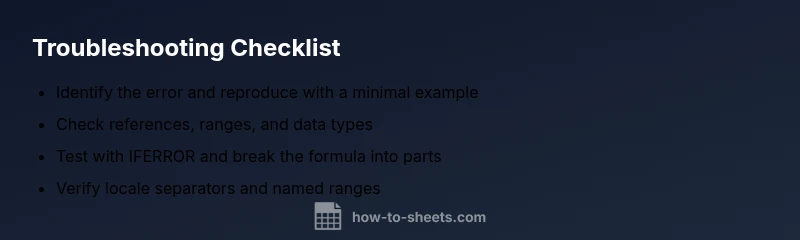
- Reproduce with a minimal example to isolate the issue.
- Break complex formulas into smaller parts for clarity.
- Check references, separators, and data types first.
- Use IFERROR and helper cells to diagnose and handle errors safely.
- Document steps and maintain a simple debugging checklist for teams.
Steps
Estimated time: 30-45 minutes
- 1
Characterize the problem
Identify the exact error message and the cells involved. Note whether it’s a single cell or a range. Create a minimal test version of the formula using dummy data to reproduce the issue.
Tip: Start with a clean sample dataset to prevent data contamination. - 2
Check references and ranges
Inspect all cell references in the formula. Verify that absolute references are correctly used and that ranges are intact. Ensure there are no accidental shifts caused by dragging.
Tip: Use the formula bar’s highlight feature to see what each reference points to. - 3
Validate data types
Confirm that numeric operations use numbers, not text. If needed, convert text to numbers or vice versa using VALUE or TEXT functions.
Tip: Avoid hard-coding numbers as strings in calculations. - 4
Test function arguments
Temporarily replace complex arguments with simple constants to confirm function behavior. Reintroduce pieces one by one to identify the failing component.
Tip: Write down each change to track what caused the change in results. - 5
Check locale and separators
Ensure you're using the correct argument separators for your locale (comma vs semicolon). Update settings if necessary.
Tip: If unsure, switch to semicolons and test again. - 6
Handle errors gracefully
Wrap the formula in IFERROR to see what error would appear without disruption. This helps pinpoint the root cause while keeping output readable.
Tip: Avoid leaving large error blocks in your sheet; use a friendly placeholder. - 7
Audit dependencies
Review any dependent cells or formulas that could influence the result. For multi-sheet work, verify linked ranges and permissions.
Tip: Document dependencies to simplify future debugging. - 8
Rebuild if necessary
If the issue persists, reconstruct the formula incrementally in a new cell or sheet to prevent legacy errors from influencing the result.
Tip: Keep a version history of the rebuilt formula for reference.
Diagnosis: Formula returns an error or unexpected result in Google Sheets
Possible Causes
- highIncorrect cell references after drag/copy
- mediumLocale-based function argument separators (comma vs semicolon)
- mediumMismatched data types or text where numbers are expected
- lowArray formula spills or conflicts with adjacent data
- lowCircular reference or external/undefined named range
Fixes
- easyReview and correct relative/absolute references; lock with $ where needed
- easyTest formula with a small, static sample to confirm behavior
- easySwitch separators to match locale or adjust regional settings
- easyWrap risky operations in IFERROR to isolate the failing component
- mediumReplace or redefine named ranges and verify external references
FAQ
What is the most common reason a Google Sheets formula shows #REF!?
Usually it means a referenced cell or range no longer exists or was deleted. Recheck the formula references and adjust to valid ranges. Restoring the original sheet or re-creating the missing range often solves the problem.
The most common reason for #REF! is that a referenced cell or range was deleted or moved, so check and fix the references.
How can I fix a #DIV/0! error quickly?
A simple approach is to wrap the calculation with IFERROR or test for zero before division. For example, use IFERROR(A/B, ""). Alternatively, check that the divisor is not 0 before performing the operation.
Use IFERROR to catch the division by zero, or check that the denominator isn’t zero before dividing.
Why do my numbers come out as text in Google Sheets?
Numbers can appear as text if the cell is formatted as text or the data includes non-breaking spaces. Use VALUE to convert text to numbers or adjust the cell format to Number. Re-entering the data after formatting also helps.
If numbers look like text, convert them with VALUE or change the cell format to ensure numeric calculations work.
What should I check first when a formula isn’t calculating correctly?
Start by verifying the exact references, data types, and the operator logic. Break the formula into parts to verify each component returns the expected result. If needed, simplify and rebuild step by step.
Check references, data types, and operators, then test each part of the formula step by step.
When should I use IFERROR in formulas?
Use IFERROR to catch errors in complex formulas during debugging or in dashboards where errors are undesirable. It helps reveal the underlying issue by masking errors with a clean placeholder until you fix the root cause.
IFERROR helps you catch and handle errors while you diagnose the root problem.
Can I rely on built-in tools in Google Sheets for debugging?
Google Sheets provides possibilities to audit dependencies and test components through helper cells and modular formulas. While not as extensive as Excel's debugger, thoughtful use of helper columns and tracing shows how data flows through a formula.
Yes, use helper cells to test parts of the formula and trace how data flows through it.
Watch Video
The Essentials
- Isolate the issue with a minimal example
- Validate references and data types first
- Use IFERROR to surface the root cause safely
- Document changes for future reliability