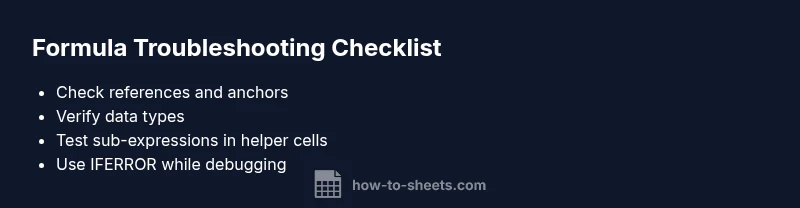
What is wrong with my Google Sheets formula? A Troubleshooting Guide
Urgent, practical steps to diagnose and fix common Google Sheets formula errors. Learn a proven diagnostic flow, practical fixes, and how to prevent future issues for students, professionals, and small business owners.


If you’re asking what is wrong with my google sheets formula, the most likely culprits are incorrect cell references, data type mismatches, or missing parentheses. Start with simple checks: verify the range uses correct absolute/relative references, ensure function names are correct, and confirm inputs match expected types. Seeing errors like #REF!, #VALUE!, or #NAME? helps pinpoint where to focus next.
Why Google Sheets formulas go wrong
Formula errors are common and often caused by simple mistakes that compound over time. The most frequent culprits include referencing the wrong cells, failing to anchor references with dollar signs, mixing numbers and text, or using incompatible functions. Locale differences can also alter list separators, so a formula that works in one language setting may fail in another. By systematically checking syntax, references, and data types, you can quickly pinpoint the issue.
In practice, start by inspecting the exact formula and the cells it references. Look for accidental spaces in function names, extra parentheses, or arguments that are not of the expected type (for example, text where a number is required). If you share a sample formula and a screenshot of the data, you’ll usually shorten the debugging cycle dramatically.
Common symptom clusters
Formulas rarely fail silently. Typical symptoms include error codes (#NAME?, #REF!, #VALUE!, #N/A), inconsistent results, or blank outputs where data should appear. A #NAME? usually means Google Sheets doesn’t recognize a function—likely a misspelling or locale issue. #VALUE! often signals a type mismatch, such as dividing text by a number. If results shift when you copy formulas down a column, watch for relative references shifting unintentionally. Recognize these signs early to target the right cause.
Quick checks before deep debugging
Before rewriting formulas, perform quick sanity checks:
- Confirm you’re editing the correct sheet and the intended range.
- Check that you’re using the right delimiter for your locale (comma vs semicolon).
- Verify data types in the inputs (text vs numbers) and avoid hidden characters.
- Ensure there are no merged cells within the referenced range.
- Look for accidental circular references and iterative calculation settings. These steps catch many issues without advanced debugging and save time.
Diagnostic flow you can follow
Use a simple symptom-to-diagnosis approach: 1) Observe the exact error or wrong output; 2) Check basic references and syntax; 3) Isolate the offending part by testing sub-expressions in separate cells; 4) Rebuild the formula piece by piece, validating each step; 5) Apply fixes and re-test with real data. This flow minimizes guesswork and speeds resolution.
Targeted fixes for frequent causes
Common fixes include: anchoring references with $ to fix ranges, ensuring data types match expected inputs, correcting function names and argument order, and avoiding mixed arrays and implicit intersections. For text-heavy inputs, wrap with TEXT() or VALUE() to coerce types. If a complex formula is dragging down performance, split it into helper cells to debug more easily.
Prevention tips for future reliability
Adopt practices that reduce future formula problems: use named ranges for stability, document formulas in adjacent cells, apply data validation to control inputs, limit ranges to avoid volatile calculations, and keep a changelog when formulas are updated. Regularly audit sheets for inconsistent data and broken references, especially after structural edits.
Advanced debugging tips for complex formulas
When formulas become deeply nested, break them into smaller parts across helper cells. Validate intermediate results to catch where the logic diverges. Use functions like IFERROR to gracefully handle errors while debugging, and consider reworking long chains with INDEX/MATCH or FILTER to simplify logic. Keeping formulas modular makes future changes safer and faster.
Steps
Estimated time: 20-40 minutes
- 1
Identify the symptom
Note the exact error message or the odd result. Write it down and capture the formula for reference. This anchors your debugging effort and saves time later.
Tip: Copy-paste the error text into a note for quick reference. - 2
Check references and syntax
Review each cell reference in the formula. Look for missing '$' signs and ensure proper function names. In many cases, simple typos trigger errors.
Tip: Use the formula bar hints to spot syntax issues. - 3
Isolate the problem piece
Break the formula into parts by temporarily placing sub-expressions in separate cells. Verify each part returns expected results before recombining.
Tip: Test with a small, known data subset. - 4
Test data types
Check if numbers are treated as numbers and text as text. Convert with VALUE() or TEXT() where appropriate to align types.
Tip: Avoid mixing numbers and text in arithmetic operations. - 5
Fix and re-test
Apply the fixes, then re-run the formula against representative data. Ensure consistency across a few rows/columns.
Tip: Use a controlled dataset to confirm reliability. - 6
Guard and document
Wrap risky formulas with IFERROR during debugging. Document logic and update any helper cells used in the process.
Tip: A documented workflow saves time on future edits. - 7
Escalate if needed
If problems persist, consult a peer or a support resource and share a sample sheet to expedite diagnosis.
Tip: Include a clear, minimal reproducible example.
Diagnosis: Formula returns an error code (#NAME?, #VALUE?, #REF!, or unexpected results)
Possible Causes
- highBroken or moved references
- highData type mismatches (text vs number)
- mediumIncorrect function syntax or argument order
- lowMerged cells within the referenced range
- lowLocale delimiter differences (comma vs semicolon)
Fixes
- easyCheck and correct cell references; use $ to lock anchors where needed
- easyEnsure inputs match expected data types; coerce with VALUE() or TEXT() as needed
- easyVerify function names, syntax, and argument order; consult the function helper in Sheets
- easyCheck for merged cells in referenced ranges; split or unmerge if necessary
- easyAdjust locale delimiters (comma/semicolon) to match your Sheets locale
FAQ
Why does my Google Sheets formula show #NAME?
A #NAME? error usually means Sheets doesn't recognize a function. Check for misspellings, missing add-ons, or locale differences in function names. Correcting these usually resolves the error quickly.
A #NAME? error means Sheets doesn't recognize a function. Check spelling and locale, then correct the function name.
What does #VALUE! mean in Google Sheets?
#VALUE! indicates a data type mismatch or inappropriate arguments in a formula. Verify you’re feeding numbers where numbers are expected and texts where text is expected, or use VALUE() to convert data types.
The #VALUE! error means a type mismatch or bad argument. Check data types and conversions.
How can I fix incorrect results from VLOOKUP?
Common causes include not sorting the first column, using approximate match unintentionally, or mismatched data types. Ensure the first column is sorted for exact match, or switch to INDEX/MATCH for more control.
VLOOKUP often misbehaves when the first column isn’t sorted or when an exact match is expected. Consider INDEX/MATCH for reliability.
What’s the difference between relative and absolute references?
Relative references shift when you copy a formula, while absolute references (with $) lock a row or column. Correct use prevents accidental misreferences as formulas move across rows and columns.
Relative references move with the formula; use $ to lock parts you want constant.
When should I use IFERROR?
IFERROR helps you control errors by returning a default value or a message. It’s useful during debugging but avoid masking serious data issues in final outputs.
IFERROR prevents crashes by returning a default value when errors occur.
Can I debug a complex formula without rewriting it?
Yes. Break the formula into parts, test each part separately, and use helper cells. This makes it easier to spot where logic diverges and reduces risk when editing.
Break the formula into parts and test each one to find where it goes wrong.
Watch Video
The Essentials
- Check references and syntax first
- Isolate parts of complex formulas
- Coerce data types when needed
- Guard with IFERROR during debugging
- Document formulas to prevent future issues