How to Check Google Sheets Formula: A Practical Guide
Learn how to check Google Sheets formulas for errors, references, and results with practical steps, tips, and examples for students and professionals alike.


To check a Google Sheets formula, verify its syntax, trace cell references, and confirm results against expectations. Use built-in error indicators, formula auditing, and test cases to isolate issues. This guide shows practical checks, common pitfalls, and quick tests you can run in any sheet to ensure your formulas return accurate results.
Why how to check google sheets formula matters
When you're turning data into decisions, a single mis-evaluated formula can mislead stakeholders. Knowing how to check google sheets formula is a foundational skill for students, professionals, and small business owners. The goal is not to memorize every function, but to verify syntax, confirm that references point to the intended cells, and ensure results match expectations. According to How To Sheets, a disciplined approach to formula verification saves time and reduces debugging toil. Start by understanding the anatomy of a formula: the leading equal sign, the function name, and the list of arguments. A well-formed formula clearly expresses the rule you want to apply, whether it computes a sum, filters a dataset, or performs a conditional check. By appreciating this structure, you can spot mismatched parentheses, incorrect separators, or stray ranges before you run into runtime errors. With this foundation, you’ll be better prepared to diagnose problems quickly and maintain reliable workbooks.
Quick checks you can perform
Begin with a quick, reproducible workflow to validate formulas:
- View the formula in the formula bar by double-clicking the cell or using the Show Formula toggle (Ctrl+`). This helps you see the exact syntax and arguments used.
- Check for common syntax mistakes: mismatched parentheses, incorrect separators (commas vs semicolons depending on locale), and incorrect range references.
- Inspect cell references for relative vs absolute behavior. If a formula should travel with copied cells, ensure you use relative references; if it must stay fixed, lock references with $ signs.
- Confirm data types match expectations. A SUM on text values, for example, will yield different results than you expect.
- Use a controlled test: copy the formula to an empty area and swap in known values to see if the result matches your expectation.
- If errors appear, read the error indicator and check the surrounding cells for upstream issues that could affect the result.
- Consider wrapping risky parts with IFERROR to capture errors during testing, without breaking downstream logic.
Verifying references and ranges
Formulas rely on ranges and references. Misalignment between a referenced range and the data layout is a common source of errors. Start by labeling ranges with names (DataRange, Thresholds) to reduce ambiguity. Check that every referenced sheet, tab, and range exists in the workbook. If you insert or delete rows/columns, verify that references automatically adjust or update them as intended. When you reference entire columns or rows, be mindful of performance; use precise ranges where possible to avoid slow recalculation.
Testing with real data and edge cases
Testing should reflect real-world usage. Create a small test dataset that mimics expected inputs, then try edge cases such as empty cells, zeros, negatives, and non-numeric values when numeric inputs are expected. For text-driven functions like VLOOKUP or MATCH, verify behavior with non-matching search terms and multiple matches. Use helper cells to isolate parts of a nested formula so you can observe intermediate results and ensure each component behaves correctly before combining them.
Debugging nested and array formulas
Nested and array formulas are powerful but harder to read. Break complex expressions into digestible parts by placing intermediate results in helper cells. Validate each inner function independently before combining them. For array formulas, verify that ranges produce the expected element-wise results and that you’re handling array outputs correctly with functions like TRANSPOSE or ARRAYFORMULA. When performance matters, limit array scopes to necessary ranges and avoid overly broad references.
Common issues and how to spot them
Being able to recognize typical errors helps you triage quickly:
- #REF!: A referenced cell or range is missing or deleted.
- #VALUE!: Incompatible data types or wrong input shape for the function.
- #DIV/0!: Division by zero or empty operands in a calculation.
- #NAME?: Misnamed function or undefined named range.
- Incorrect results after data changes: confirm whether references auto-adjust or require absolute locking.
If you see any of these, backtrace from the final value to its inputs and verify each link in the chain. A systematic backtrace is often faster than random guessing.
Using built-in tools and shortcuts
Google Sheets offers several convenience features to streamline checks:
- Show Formula (Ctrl+`): instantly switches the grid to display formulas instead of results.
- Formula bar editing: click a cell and edit directly in the formula bar to inspect each argument.
- Use named ranges and simple helper cells to test parts of a formula without altering the live data.
- Enable suggestion notes or comments to document changes and rationale for future collaborators.
- When in doubt, duplicate the sheet and run tests on the copy to avoid impacting live workbooks.
Documentation and versioning for formulas
Maintaining formulas requires documentation. Add a short note in a nearby cell or a README sheet describing what the formula does, the data it depends on, and any caveats. Use comments to capture decisions about locale-specific behavior, data in/out expectations, and any future enhancements. If you refactor, keep a changelog showing what changed and why, so teammates can follow along without re-running all tests.
Practical examples with mock data
Consider a small sales worksheet where column A contains units sold and column B contains unit price. A simple total in column C can be checked with =A2*B2. To validate, set up a few rows with known inputs (e.g., A2=3, B2=15) and confirm C2=45. For a more complex case, use a conditional total: =SUMIF(CustRange, ">=1000", AmountRange). Check edge cases by including empty rows or zero values and observe whether the formula handles them as intended. By breaking the task into these observable steps, you’ll quickly identify discrepancies and maintain reliable calculations.
Tools & Materials
- Computer or device with internet(Access to Google Sheets and your account)
- Google account with Sheets access(Needed to open and edit sheets)
- Test dataset(Sample data for validating formulas)
- Formula reference cheat-sheet(Helpful for quick syntax checks)
- Notepad or notes app(Jot down observations during testing)
- Backup copy of the sheet(Safely test changes without affecting live data)
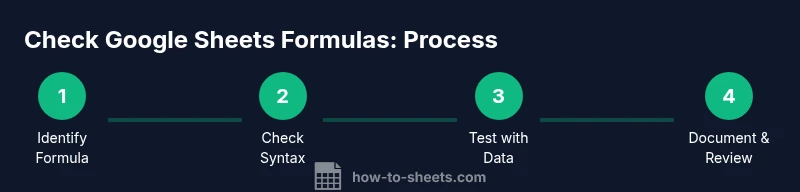
Steps
Estimated time: 25-40 minutes
- 1
Open your sheet and locate the formula
Open the Google Sheet containing the formula you want to check. Click the cell with the formula to reveal it in the formula bar, and note the exact function name and arguments used.
Tip: Use F2 to quickly edit the cell and see the full reference layout. - 2
Show the formula for a quick scan
Toggle the Show Formula view (Ctrl+`) to reveal all formulas on the sheet. This helps you spot inconsistent patterns and stray references across multiple cells.
Tip: If you see many formulas, consider applying named ranges to simplify complexity. - 3
Check syntax and function names
Verify that function names are correct and separators align with your locale. Ensure parentheses are balanced and that every argument is appropriate for the function.
Tip: Copy the formula into a blank cell and run it with a controlled set of inputs to confirm syntax correctness. - 4
Validate references and ranges
Inspect each referenced cell or range. Confirm that absolute vs. relative references align with how the formula will be copied or filled across cells.
Tip: Convert frequently used ranges to named ranges to reduce drift during edits. - 5
Test with varied inputs and edge cases
Create test rows that cover normal, boundary, and invalid inputs. Compare actual results to expected results and adjust the formula logic as needed.
Tip: Use helper cells to isolate complex parts of the formula for easier testing. - 6
Document changes and monitor outputs
Add a comment or note describing the intended behavior, inputs, and edge-case handling. When you modify the formula, update your notes and, if possible, revert tests to ensure nothing regresses.
Tip: Keep a lightweight changelog for quick reference during reviews.
FAQ
What is the quickest way to verify a formula in Google Sheets?
Double-click the cell or press F2 to edit, then check the syntax and references. Use the Show Formula toggle to confirm the exact formula shown in the grid. Finally, test with a few input values to validate the result.
Double-click the cell to edit, check the syntax, and test with inputs to verify the result.
How can I identify which cells a formula depends on?
Review the formula in the formula bar to see every referenced cell or range. Use named ranges to simplify dependencies and make the formula easier to audit. When in doubt, break the formula into parts in helper cells to observe each dependency.
Look at the formula bar for references, and use named ranges or helper cells to trace dependencies.
What should I do if a formula returns #VALUE!?
Check for data type mismatches or incompatible inputs in the referenced ranges. Convert text numbers to numeric values if needed, and ensure the function’s expected input shape matches your data. Use VALUE or N to coerce data types when appropriate.
Check data types and input shapes; convert text numbers to numeric values if needed.
Can I audit a nested formula effectively?
Yes. Break the formula into smaller parts using helper cells, validate each inner function, then reassemble. This makes complex logic easier to understand and debug. Always test with representative datasets.
Break it into parts with helper cells and validate each part step by step.
Is there a way to compare results across cells?
Yes. Use a parallel column with equivalent formulas to compare results, or wrap checks in conditional statements to flag mismatches. Consistent testing across a range helps catch anomalies early.
Use parallel formulas to compare results across cells and flag any mismatches.
Watch Video
The Essentials
- Verify syntax with the formula bar.
- Test inputs to confirm expected outputs.
- Break down complex formulas into steps.
- Document decisions and changes for collaboration.
- Use Show Formula to rapidly inspect multiple formulas.