Google Sheets Formula Parse Errors: Troubleshooting Guide
Diagnose and fix formula parse errors in Google Sheets quickly with a practical, step-by-step approach. Learn common causes, error messages, and safe debugging tips from How To Sheets.


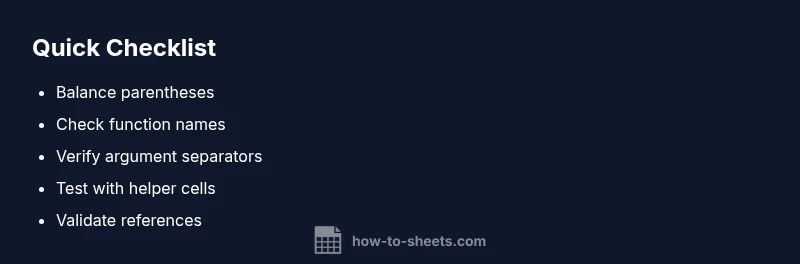
Most formula parse error google sheets happen due to mismatched parentheses, typos in function names, or incorrect argument separators. Start by balancing parentheses, correcting misspelled functions, and using the right comma/semicolon for your locale. If the error persists, test sub-expressions in a helper cell. This quick check resolves many issues without rewriting the entire formula.
Why formula parse error google sheets happens
Formula parse errors in Google Sheets pop up when the engine cannot interpret a formula as written. This often means there’s a syntax problem rather than a data issue. According to How To Sheets, the most common culprits are mismatched parentheses, misspelled function names, or using the wrong argument separators for your locale. Start by double-checking the structure: count opening and closing parentheses, confirm you haven’t left out a comma between arguments, and verify that quoted strings are correctly delimited. In urgent scenarios, you can copy the formula into a plain text editor to inspect every character visually, then paste it back. If you recently pasted a long formula, look for any invisible characters that might have sneaked in from another source. Fixing these small details often resolves the parse error without changing the data in your sheet.
Understanding Google Sheets parse error messages
Parse errors in Google Sheets typically surface with messages like “Parse error: Could not parse formula” or a generic “Formula parse error.” These messages pinpoint that Sheets cannot interpret part of your expression. They don’t always name the exact token causing trouble, so you’ll need to inspect the formula closely. Look for obvious issues first (balanced parentheses, correct function names). If the error appears after a recent edit, compare the working and non-working versions to spot the divergence. Remember that a parse error usually signals syntax, not a data problem, so the corrective focus should be on structure and language rules rather than values. By systematically interpreting the message, you’ll narrow the culprit quickly and regain momentum.
Locale and separator pitfalls
Regional settings dramatically affect how formulas are written. In many locales, arguments are separated by semicolons instead of commas. A formula written for a comma-delimited locale will throw a parse error in a semicolon-only environment, and vice versa. If you see a persistent parse error after writing a correct-looking formula, verify your locale settings in Google Sheets (File > Settings). Adjust the separator rule or rewrite the formula to use the semicolon as the delimiter where required. Also ensure any list with ranges like A1:A10 uses the correct range syntax for your grid. Small locale mismatches are a common, easily fixed cause of repeated parse errors that waste valuable time.
Syntax and function-name mistakes
Many parse errors come from simple typos in function names or incorrect syntax around function arguments. Common mistakes include IMproper spelling of a function (e.g., SUMIF spelled as SUMIFD), missing or extra commas between arguments, and failing to provide a required argument. When editing, it’s easy to accidentally remove a bracket or misplace a closing parenthesis, which immediately triggers a parse error. To avoid this, write formulas in stages, test with smaller sub-expressions, and use the function picker to insert the exact syntax. If Sheets flags the error near a particular token, start there and verify that token’s role, type, and punctuation.
Punctuation, quotes, and string literals
Strings inside formulas must be enclosed in quotes, and any quote characters inside the string must be escaped or represented correctly. Misplaced quotes or unescaped internal quotes often break a formula with a parse error. Similarly, ensure that special characters inside strings don’t inadvertently end the string. If you’re nesting another function inside a string, consider building that portion in a separate cell first to verify the value being concatenated or compared. By carefully managing quotes and escaping, you’ll eliminate a large class of parse errors.
Checking references, ranges, and named ranges
Invalid references or misnamed ranges trigger parse errors or incorrect results. Verify that cell references exist (e.g., A1, B2) and that named ranges are defined and scoped correctly. If you’ve dragged a formula across cells, make sure relative references adjust as intended, or lock them with $ where needed. When referencing multiple ranges, ensure each range is valid and separated by the correct operator or function syntax. In complex formulas, test each referenced range independently to confirm it contains the expected data type and values.
Step-by-step debugging with helper cells
Break down long formulas into logical components using helper cells. Start by placing each sub-expression into its own cell and verify the individual result. Then, gradually combine the verified components, testing after each join. If a particular sub-expression consistently returns an error, you’ve likely found the root cause. This approach minimizes guesswork and provides a clear path to a fix. Use named ranges for clarity and easier auditing as you rebuild the complete formula.
Prevention and best practices to avoid parse errors
To prevent future issues, adopt a systematic workflow: write formulas in small increments, comment your logic with clear naming, and test with representative data. Always enable the formula bar to review formulas quickly, and use helper cells to validate portions of complex expressions. Maintain consistent formatting (indents and line breaks) to improve readability, and store critical formulas in a dedicated sheet or template. Keeping a local copy of complex formulas also helps avoid re-creation errors when copying between files.
When to seek professional help and how to document a fix
If parse errors persist after a thorough self-audit, it’s time to seek guidance. Document the exact formula, the data context, and the error message you receive. Share a simplified example in a support thread or with a colleague to get a second pair of eyes. In urgent business scenarios, consult a data specialist or Google Sheets expert to audit your approach and verify your data integrity. Always note what you changed and why, so you can revert if needed.
Steps
Estimated time: 25-40 minutes
- 1
Open the formula and inspect syntax
Review the exact text of the formula as written in the cell. Look for obvious issues like missing parentheses, stray characters, or an incomplete function. If you recently edited it, compare with a known-good version.
Tip: Copy the formula to a plain text editor to reveal hidden characters. - 2
Balance parentheses and arguments
Count opening and closing parentheses to ensure every one has a match. Verify that each function call has the proper number of arguments and correct separators.
Tip: Use the editor’s highlight or color-coding to spot mismatches quickly. - 3
Verify function names and separators
Make sure every function name is spelled correctly and that you’re using the right argument separator for your locale (comma or semicolon).
Tip: If in doubt, reinsert the function using Sheets’ built-in insert function. - 4
Check quotes and string literals
Ensure all strings are enclosed in quotes and that any quotes within strings are escaped or doubled. Missing or extra quotes are a frequent cause of parse errors.
Tip: Test string literals in a simple formula first. - 5
Validate references and ranges
Confirm that all cell references and named ranges exist and are correctly scoped. Watch for unintended absolute/relative references.
Tip: Use F4 to toggle absolute references while editing. - 6
Test sub-expressions with helper cells
Break the formula into smaller parts by placing sub-expressions in separate cells, verifying each part before rebuilding the full formula.
Tip: This prevents cascading errors across a long formula. - 7
Rebuild the formula and re-test
Once all parts are verified, reassemble the full formula and test with different data inputs to ensure consistent behavior.
Tip: Document changes for future reference.
Diagnosis: Formula returns a parse error or an unexpected result that prevents evaluation
Possible Causes
- highMismatched or missing parentheses
- highMisspelled function name or incorrect syntax
- mediumIncorrect argument separators for locale (comma vs semicolon)
- mediumUnescaped quotes or malformed string literals
- lowInvalid cell references or named ranges
Fixes
- easyBalance opening/closing parentheses and ensure each function has the right arguments
- easyDouble-check function names and exact syntax using the function helper
- easySet argument separators to match your locale (comma or semicolon as appropriate)
- mediumEnsure strings are properly quoted and escaped within the formula
- easyValidate all references and named ranges for existence and scope
FAQ
What is a formula parse error in Google Sheets?
A formula parse error occurs when Sheets cannot interpret your formula due to syntax problems, typos, or improper separators. It prevents evaluation and returns an error. Identify the exact token causing trouble by inspecting the formula step by step.
A parse error means Google Sheets can’t understand your formula because of syntax mistakes. Check parentheses, names, and separators, and test pieces of the formula.
Why do I see errors like #NAME? or #VALUE? after editing a formula?
These errors usually point to a misspelled function, missing add-ons, or incorrect argument types. Ensure the function name is correct and that each argument is appropriate for the function. If the issue follows a recent edit, revert or compare with a known-good version.
#NAME? means Sheets doesn’t recognize a function or named range, while #VALUE? often signals a type mismatch or bad argument. Double-check names and argument types.
How can locale settings cause parse errors?
Locale determines whether arguments are separated by commas or semicolons. If you write a formula for one convention in a sheet using another, Sheets will throw a parse error. Check File > Settings to confirm your locale and switch separators accordingly.
Locale settings decide if commas or semicolons separate arguments. If your sheet uses a different convention, adjust it in settings.
What’s a quick way to fix a missing parenthesis?
Count the opening and closing parentheses and ensure every function has a corresponding closing bracket. A common trick is to rewrite the formula in smaller parts or use an editor that highlights matching parentheses.
Look for an unclosed parenthesis, then add the missing one and re-test piece by piece.
Should I rewrite long formulas line-by-line?
Yes. Break long formulas into smaller parts using helper cells to isolate sections. This makes it easier to identify where the parse error originates and keeps data safe during debugging.
Yes. Break it into smaller parts to find the fault quickly.
When should I seek professional help?
If you’re stuck after a thorough self-check and the formula impacts critical data, consult a specialist. Bring a minimal reproducible example and the exact error message to avoid back-and-forth and speed up the fix.
If doubts persist after trying, don’t hesitate to get expert help with a clean example.
Watch Video
The Essentials
- Check syntax and matching parentheses first
- Verify function names and locale-specific separators
- Test sub-expressions with helper cells
- Adopt consistent naming and formatting practices