Why Google Sheets Isn't Showing Formula Results (Troubleshooting Guide)
Urgent, step-by-step troubleshooting for why Google Sheets isn't showing formula results. Diagnose errors, adjust calculation settings, fix syntax and data types, and prevent recurrence with practical tips.


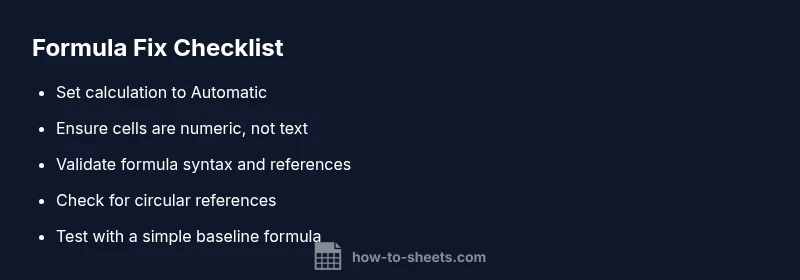
Most likely, Google Sheets isn't showing formula results due to calculation settings, text formatting, or a simple syntax issue. Quick fixes: switch calculation to automatic, verify the cell is numeric (not text), and ensure no stray apostrophes, leading spaces, or circular references. If this doesn’t fix it, follow the diagnostic flow below.
Understanding the symptom: what not seeing results means in Google Sheets
When a formula should return a value but instead shows a blank cell or an unexpected result, you’re facing a display/calculation issue. This is common and usually solvable with a few targeted checks. According to How To Sheets, many formula-display problems start with calculation settings or simple formatting mistakes. The urgency isn’t about data loss but about stale outputs in dashboards, budgets, or schedules. By methodically verifying calculation mode, data types, and syntax, you can restore reliable results quickly for students, professionals, and small business owners who depend on accurate sheets every day.
In practice, you’ll see this across many scenarios: a SUM that returns nothing, an IF that prints text instead of a numeric result, or a VLOOKUP that yields #N/A instead of the expected value. Treat these as signals to a missing recalculation or a subtle misconfiguration. This guide is designed to help you move from symptom to solid solution with minimal disruption to your workflow.
blockReferenceNote():null
Common culprits behind missing formula results
- Calculation mode: If Google Sheets is set to manual calculation, formulas won’t auto-recalculate. This is the most frequent cause of stale results.
- Cell formatted as text: When a numeric formula result is stored as text, the formula will appear as text rather than as a value, so you don’t see the calculated result.
- Incorrect syntax: Missing parentheses, mismatched quotes, or stray characters prevent calculation entirely.
- Referencing issues: Formulas pointing to empty, hidden, or renamed sheets can produce blank or wrong results.
- Circular references: Formulas that reference themselves or create a loop can halt calculation altogether.
- Locale and separators: Different locales use different decimal separators, which can lead to misinterpretation of formulas.
- Protected ranges: Protected cells can block edits and prevent recalculation from triggering.
How To Sheets found that the majority of issues are tied to calculation settings and formatting rather than complex bugs, so starting there is usually fastest.
blockReferenceNote():null
Quick diagnostic checklist you can run in minutes
- Verify Calculation: Open File > Settings > Calculation and confirm Automatic is selected.
- Check cell format: Select the cell with the formula and choose Format > Number to verify it isn’t set to Text.
- Inspect the formula: Click the formula bar, retype any missing symbols, and ensure quotes and parentheses are balanced.
- Review references: Ensure all referenced cells exist and aren’t within a protected or hidden range.
- Look for errors: If you see error codes like #REF!, #VALUE!, or #NAME?, address the message directly to fix the root cause.
- Test with a simple formula: Try a basic calculation like =1+1 in a fresh cell to confirm recalc works in the sheet.
- Check for circular references: If Sheets highlights a loop, identify the cycle and break it by removing the self-referencing part.
Following this checklist typically reveals the problem without heavy debugging, keeping your workflow moving.
blockReferenceNote():null
How to interpret formula results versus errors
Sometimes a formula returns a value that isn’t what you expected, and other times you’ll see a concrete error. Distinguish between a blank result and a zero or a mislabeled output by checking the cell formatting and the exact text of any error message. If a baseline test like =A1+1 works in a new cell, the issue is likely with the original formula’s references or logic. When an error appears, read the error type as a diagnostic clue:
- #REF! indicates a broken reference
- #VALUE! points to wrong data types
- #NAME? means Sheets can’t recognize a function or named range
This interpretation helps you decide whether you should adjust references, correct syntax, or reformat cells for numeric results.
blockReferenceNote():null
Step-by-step fixes for the most common cause
- Switch calculation to Automatic: Go to File > Settings > Calculation and select Automatic, then press Enter or click OK. This ensures all formulas recalculate when you edit.
- Convert text to numbers: If a cell shows a number as text (e.g., "123"), use the VALUE function or multiply by 1 to coerce it (e.g., =A2*1) and ensure the cell format is Number.
- Correct syntax and references: Carefully verify parentheses, quotes, and operator order. If a reference points to a renamed sheet or deleted range, update it.
- Remove circular references: Identify the loop and rewrite the formula to avoid self-reference or iterative loops.
- Clear formatting anomalies: Apply a clean Number format to the entire range involved in the formula to prevent text-like behavior.
- Re-enter the formula in a fresh cell: Copy the logic to a new, clean cell to confirm the issue is not caused by the original cell’s state.
Estimated total time: 15-25 minutes
tipPrompts():null
Special cases: text numbers, locale, and cell formats
Locale settings can cause decimal separators and thousands separators to differ, affecting how formulas parse numbers. If you see 1,234 vs 1.234 confusion, adjust the spreadsheet locale under File > Settings for your team or project. Also review the user-entered data: numbers stored as text will not participate in numeric operations unless converted. For dates and times, ensure consistent formats across inputs to avoid miscalculations.
Practical tips:
- Use the VALUE function to convert text numbers to numeric values.
- Normalize date formats before performing date calculations.
- Avoid mixing text-formatted numbers with true numbers in calculations.
When in doubt, test each component (data, references, formatting) separately to isolate the root cause.
blockReferenceNote():null
Prevention: best practices to keep formulas reliable
- Set documents to Automatic calculation by default and re-check after major edits.
- Use consistent data types in input ranges and avoid mixing text with numbers.
- Regularly audit formulas with a simple test formula to confirm recalculation is functioning.
- Protect only what’s necessary; avoid over-protecting cells that contain formulas.
- Document your formulas with comments or a separate sheet to facilitate future debugging.
- Build modular formulas where possible and test each module independently.
Following these practices minimizes future issues and keeps your Google Sheets outputs trustworthy.
Steps
Estimated time: 15-25 minutes
- 1
Check calculation mode
Open File > Settings > Calculation and ensure Automatic is selected. If you’re forced to Manual, switch it to Automatic and press Enter to trigger a sheet-wide recalc.
Tip: After changing the setting, edit a cell briefly and press Enter to verify immediate recalculation. - 2
Verify cell formatting
Select the cells involved in the formula and confirm they’re not formatted as Text. If they are, switch to Number or Automatic and re-enter the formula.
Tip: Format consistency is key; mixing Text and Number formats often hides results. - 3
Validate formula syntax
Inspect the formula for balanced parentheses, correct quotes, and proper operators. If you copied from elsewhere, retype the formula to avoid hidden characters.
Tip: A common trap is a stray apostrophe at the start of the formula. - 4
Check cell references
Ensure all referenced cells or ranges exist and are accessible. If a sheet or cell was renamed, update the references accordingly.
Tip: Use the formula bar to step through each reference with F2 to edit inline. - 5
Test with a simple formula
Enter a baseline calculation in a new cell, such as =A1+1 or =2+2, to confirm calculation is functioning. If the simple test works, the issue is likely in the original formula.
Tip: If the simple test fails, the problem is your environment rather than the specific formula. - 6
Address circular references
Look for formulas that reference themselves or create a loop. Break the cycle by reworking the logic or using an alternative calculation path.
Tip: Avoid chaining multiple formulas that depend on each other’s outputs.
Diagnosis: Formulas show blank or incorrect results after editing or opening the sheet
Possible Causes
- highManual calculation mode
- mediumCell formatted as text or wrong data type
- lowCircular references or broken references
Fixes
- easyChange calculation mode to automatic in File > Settings > Calculation
- easySet the cell format to Automatic/Number and re-enter the formula
- mediumIdentify and fix iterative formulas or references causing a loop
FAQ
Why is my Google Sheets formula showing a blank cell?
Common causes include manual calculation mode, text formatting, or a misreferenced cell. Start by switching to Automatic calculation, ensuring numeric formatting, and validating references. If the issue persists, test with a simple formula to isolate the problem.
A blank result is usually due to calculation mode or formatting issues. Try switching to Automatic calculation and confirm the cells are numeric and correctly referenced.
How can I fix a formula that returns the wrong value?
Review each reference in the formula, confirm data types match (numbers vs text), and verify the locale settings. Break complex formulas into smaller parts to test each component separately.
Check each reference and data type, then test smaller parts of the formula to locate where the wrong value originates.
What does it mean when I see #VALUE! or #REF! in Google Sheets?
#VALUE! means a data type mismatch; #REF! means a reference to an invalid cell. Check the referenced cells, ensure correct data types, and correct any broken references.
If you see #VALUE! or #REF!, inspect data types and referential integrity in the formula.
How do I enable automatic calculation in Google Sheets?
Go to File > Settings > Calculation and select Automatic. This ensures all formulas recalculate when inputs change.
Turn on Automatic calculation in the settings to keep formulas up-to-date automatically.
Can circular references cause formulas to fail silently?
Yes. Circular references can halt calculation or produce unpredictable results. Identify and remove the loop or restructure the formula to break the cycle.
Circular references can stop recalculation. Remove or restructure the loop to fix.
Why would a simple test formula work but the real formula doesn’t?
If a basic formula works but the original does not, the issue is likely with references, data types, or nested function logic. Break down the formula into parts to isolate the failing component.
If the simple test works but the real formula doesn’t, check references and data types in chunks.
Watch Video
The Essentials
- Enable Automatic calculation to ensure recalc occurs
- Ensure cells are numeric, not text-formatted
- Check references and break circular loops
- Test with simple formulas to confirm core functionality