Pivot Tables Google Sheets vs Excel: A Practical Comparison
A thorough, data-driven comparison of pivot tables in Google Sheets and Excel, covering features, performance, collaboration, and best-use scenarios for students, professionals, and small businesses.


What Pivot Tables Do in Google Sheets and Excel
Pivot tables are a fundamental tool for turning raw data into digestible summaries. In both Google Sheets and Microsoft Excel, they let you re-orient data, aggregate measures like sums and counts, and drill down into categories to spot trends. For many teams, pivot tables reduce hours of manual reporting to a few clicks. According to How To Sheets, the core idea remains the same across platforms: extract meaningful patterns from data without altering the source tables. The real-world difference comes from how you interact with the data model, how you refresh results, and how you share insights with teammates. In practice, this means you should assess your workflow—do you rely on real-time collaboration, offline access, or advanced modeling capabilities? The answer often guides the pivot-table choice between Google Sheets and Excel, shaping how you collect, summarize, and present data to stakeholders.
Core Differences at a Glance
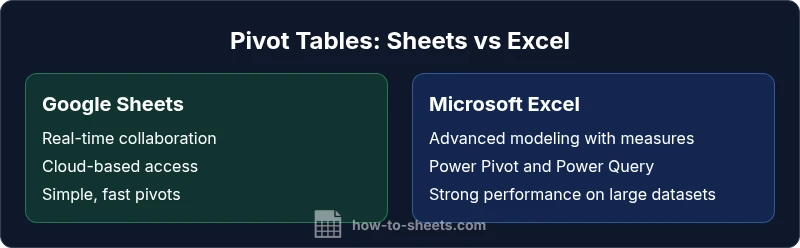
When comparing pivot tables between Google Sheets and Excel, several high-level differences stand out. Google Sheets excels in collaborative environments, with seamless multi-user editing and cloud-based storage. Excel offers a deeper data modeling toolset, including more powerful calculated fields and data connections, especially in its desktop version. The user experience also diverges: Sheets emphasizes accessibility and simplicity for quick analyses, while Excel prioritizes control, performance on large datasets, and offline capabilities. For teams that need to iterate with others in real time, Google Sheets can be a clear winner. For analysts dealing with complex models and large data volumes, Excel’s more sophisticated features and performance advantages often win out. How To Sheets analysis shows that most day-to-day pivot-table tasks are well-supported in both platforms, but the choice depends on scale, collaboration needs, and whether you require offline access or advanced ETL-like workflows.
Data Modeling and Calculated Fields
Pivot tables rely on a data model: the source data, the fields you drag into rows and columns, and the calculations that summarize values. Google Sheets offers straightforward calculated fields and a familiar interface for basic aggregations. Excel expands this canvas with calculated fields, measures, and advanced functions that integrate with Power Pivot and Power Query for enhanced data modeling. If your work involves multi-step calculations, time-intelligent aggregations, or world-class data modeling, Excel provides more knobs to tune. In Sheets, you still get robust grouping and sum/average calculations, but you may need to rely on sheet-level formulas for more complex analytics. This distinction matters when you expect pivot-table complexity to grow over time and when you want to maintain a single source of truth across reports.
Performance, Data Size, and Reliability
Performance is a practical concern with pivot tables, especially as data grows. Google Sheets handles moderate datasets well in a real-time collaborative context, but has historically shown sensitivity to very large datasets or complex multi-level pivot configurations. Excel tends to perform more predictably with large data volumes on a capable machine, thanks to its desktop architecture and optimized processing engines. If your data sits in cloud storage and analysts share the workbook widely, Sheets can be faster for light to moderate analyses. For heavy analytics pipelines that require heavy data wrangling, Excel’s performance tends to be more reliable and scalable, particularly when using features like data models and Power Pivot.
Collaboration, Sharing, and Governance
Collaboration is where Sheets shines. Multiple users can view and edit pivot tables concurrently, with live updates and minimal version conflicts. Excel online narrows the gap but often lacks some advanced features or performance parity with the desktop version. Governance considerations—such as access control, audit trails, and compliance—vary by platform: Google Drive permissions are straightforward for teams already in the Google ecosystem, while Excel’s share-and-collaborate workflows tie into Microsoft 365 governance and on-premises options. If your organization prioritizes transparent collaboration and quick dissemination of insights, Sheets makes that workflow smoother. If your team requires formal governance, version control, and offline workflows, Excel edges ahead.
Features, Ecosystem, and Automation
Beyond core pivot-table capabilities, both platforms offer extensions and automation options. Google Sheets supports add-ons, Apps Script, and integration with Google's data ecosystem, which helps automate recurring pivot-table tasks and push dashboards into other Google services. Excel shines with a broader ecosystem of data tools, including Power Pivot, Power Query, and rich integration with SQL Server, SharePoint, and Power BI. The choice often hinges on whether you value a robust automation ecosystem (Sheets/Apps Script) or a deeper desktop-modelling toolset (Excel/Power tools). Importantly, both platforms support basic scripting and automation, so you can tailor pivot-table workflows to your team’s processes.
Practical Examples: Budgeting, Sales Analysis, and Inventory
Consider a consulting firm tracking client budgets and quarterly sales. A Google Sheets pivot table could summarize spend by department, month, and project, updating in real time as new invoices arrive. A sales team might use Excel pivot tables to analyze quarterly win rates across regions, combined with a calculated field for gross margin. Inventory managers could leverage Excel’s data-model capabilities to relate stock levels to supplier lead times and reorder points using measures and relationships. Across these examples, the value of pivot tables lies in turning raw data into decision-ready insights, while the choice of Sheets vs Excel shapes how you gather, refresh, and share those insights with stakeholders.
Choosing the Right Tool: A Decision Framework
To decide between Google Sheets and Excel for pivot tables, map your priorities. If collaboration, cloud access, and rapid sharing are paramount, Sheets often wins. If your work relies on advanced modeling, offline access, and handling large datasets with consistent performance, Excel is typically the better fit. A practical framework is to assess: 1) data volume and complexity, 2) offline vs online requirements, 3) governance and version control needs, and 4) whether you need an integrated data-modeling workflow or a simple, fast-summary tool. In many organizations, a hybrid approach—using Sheets for lightweight, shared dashboards and Excel for in-depth analytics—delivers the best of both worlds.