Where is Google Sheets Trash? A Practical Guide to Recovery
Learn where the trash is when using Google Sheets, how to recover deleted files, and how version history helps you restore lost data. A practical, step-by-step guide from How To Sheets.


Where is google sheets trash? There isn’t a dedicated Trash inside Google Sheets. Deleted content lives in Google Drive Trash, and you can recover entire Google Sheets files from there. For changes inside a sheet, use Version History to revert to a previous state. This quick guide points you to the two primary recovery paths: Drive Trash for files and Version History for in-file changes.
Where to find Google Sheets trash
If you’re asking where is google sheets trash, the short answer is: there isn’t a dedicated Trash inside the Google Sheets UI. Google Sheets is a component of Google Drive, and all deletions of files or folders occur in Drive’s Trash. Inside a spreadsheet, you can delete or hide individual tabs, but those actions don’t create a separate Sheets trash bin. The safe workflow is to inspect Drive Trash for deleted files and to use the Spreadsheet’s version history to recover earlier content. According to How To Sheets, knowing where to look first saves time and reduces frustration when data appears to vanish. In practice, you’ll usually recover content by checking Drive Trash or by using the built-in version history, rather than hunting for a “Sheets Trash” menu. The user journey often begins with a quick search in Drive, then moves to version history if you’re trying to roll back changes within a file. The rest of this guide expands on these options, with practical steps and clear caveats.
About the two recovery paths you’ll use
There are two distinct recovery avenues: Drive Trash for deleted files and Upstream Version History for changes made inside a sheet. Drive Trash is where Google stores files you or others have deleted from Drive. Version History, available inside Google Sheets, lets you restore the entire workbook or revert to earlier snippet states without exporting or re-uploading anything. Understanding the distinction helps you choose the right method quickly, which is especially helpful when you’re under time pressure or attempting to recover a critical document.
In short, if a Google Sheets file disappeared from Drive, check Drive Trash first. If content inside the sheet vanished, don’t panic—you can usually restore it via Version History. How To Sheets emphasizes this separation because it clarifies why some data seems “lost” even though the file is still present: it’s a change inside the file, not the file itself.
How to approach recovery with a clear plan
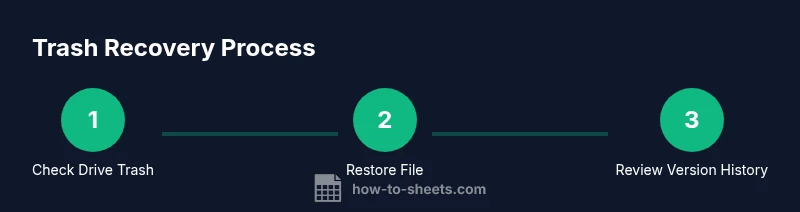
Start with a quick check: Is the file in Drive Trash? If yes, restore it to its original location. If not, open the file (if accessible) and inspect Version History for the version that contains the missing data. If you’re collaborating, inform teammates about what happened and decide on a backup strategy moving forward. This flow minimizes data loss and keeps your Google Sheets environment reliable.
As you proceed, keep in mind that the ‘Trash’ concept in Google Drive is separate from the content inside a Google Sheet. This distinction explains why you might find the file again in Trash but still see missing tabs when the file is opened. How To Sheets recommends using both tools in tandem: restore the file when it’s been deleted from Drive, or use Version History to recover specific changes within a file.
Tools & Materials
- Internet connection(Stable connection recommended for real-time Drive access)
- Google account(Access to the Drive and Sheets associated with the file)
- Device with a web browser(Desktop or mobile with Google Drive access)
- Patience for loading versions(Version history retrieval can take a moment for large files)
Steps
Estimated time: 15-25 minutes
- 1
Open Google Drive
Launch drive.google.com and sign in with the account that owns the file. This is your starting point for any recovery that involves Drive Trash.
Tip: If you can’t see items, ensure you’re in the correct Drive ( personal vs. shared drives ) and refresh the page. - 2
Open Trash (Drive)
In the left sidebar, click Trash to view deleted items. If Trash isn’t visible, switch to a view that shows all sections or use the search bar with keywords like the file name.
Tip: Use the search box with the file name and date range to narrow results quickly. - 3
Restore the deleted file
Right-click the Google Sheets file you want to recover and choose Restore. The file returns to its original location in Drive.
Tip: If you restored a file and can’t find it, refresh Drive and re-check the location that previously hosted the file. - 4
Open the restored file and check Version History
Open the file, go to File > Version history > See version history. Review versions to identify a state that contains the missing data.
Tip: Name versions when you reach helpful milestones to simplify future recoveries. - 5
Restore a previous version inside Sheets
If the missing data is inside the sheet, select the version that contains it and click Restore this version. This step leaves current data intact while adding the older state back.
Tip: After restoring, consider saving a copy for extra protection. - 6
If the file isn’t in Trash or Version history helps only partially
Check other accounts or shared drives, and reach out to collaborators who might have a local copy or a backup. If backups exist, import from them to a new file.
Tip: Establish an ongoing backup plan to avoid similar losses in the future.
FAQ
Is there a Trash folder inside Google Sheets for individual tabs?
No. Google Sheets does not have a separate Trash for tabs. Recovery for tab-level changes relies on Version History, while file-level deletions use Drive Trash.
Google Sheets doesn’t have its own trash for tabs. You recover changes with version history, or you recover the file from Drive Trash.
How do I restore a deleted Google Sheets file from Drive Trash?
Go to drive.google.com, open Trash, locate the file, right-click it, and choose Restore. The file returns to its original location in Drive.
Open Drive Trash, find the file, and restore it to its original folder.
Can I recover a tab that I deleted inside a Google Sheet?
Yes. Open the sheet, choose File > Version history > See version history, locate a version with the tab, and restore that version or the specific sheet within.
You can restore a sheet tab by using Version history to revert to a version that includes it.
What if the file isn’t in Trash and version history doesn’t help?
You may need to check other accounts or backups. If a backup exists, import it into a new Google Sheet. Consider setting up automatic backups for critical files.
If Trash and version history don’t help, look for backups or other accounts that may hold copies.
How can I prevent future data loss in Google Sheets?
Regularly save important versions, create backups, and limit irreversible actions by using Copy and protected ranges. Communicate with collaborators about changes.
Create backups and name versions so you can restore quickly if needed.
How long does Google Drive keep items in Trash?
Drive Trash retention and deletion timing can vary. It’s best to act promptly and not rely on a long shelf life for deleted items.
Items in Drive Trash may be removed after some time, so recover promptly.
Watch Video
The Essentials
- Know the two recovery paths: Drive Trash for files, Version History for inside-file changes.
- Always check Drive Trash first when a Google Sheets file disappears.
- Use Version History to recover tabs or data inside a sheet without losing newer edits.
- Establish a backup routine to reduce risk of permanent loss.