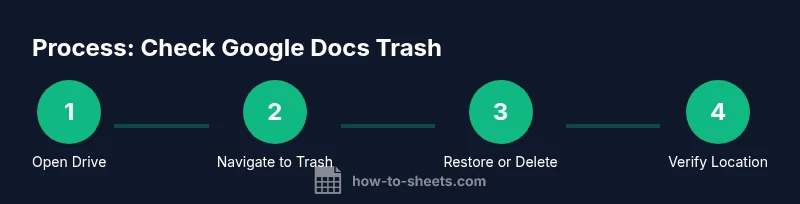
How to Check Your Google Docs Trash
Learn how to check your Google Docs trash, recover deleted files, and securely manage deletions with a step-by-step guide for students, professionals, and small teams.


how to check your google docs trash: open Google Drive and go to Trash. Review deleted documents, spreadsheets, and drawings, then restore items or permanently delete them. This quick guide covers locating the trash, retention rules, how to restore across devices, and best practices for avoiding accidental data loss for teams and individuals.
Why Check Google Docs Trash Matters
According to How To Sheets, the Trash in Google Drive acts as a safety net for recently deleted items from Google Docs, Sheets, Slides, and Drive itself. Accidents happen: you might delete a document, spreadsheet, or drawing and realize your mistake minutes later. The Trash (also called Recycle in some contexts) stores these files for a grace period, giving you a recoverable window. In this section, we’ll explain why checking Trash is a critical habit for students, professionals, and small business owners who rely on Google Workspace daily. We’ll also differentiate Trash from the archive or previous versions, clarifying what can and cannot be recovered, and under what conditions access might be restricted by ownership or sharing settings. By the end, you’ll know where Trash lives, what it contains, and how to act quickly to minimize data loss.
Locating the Trash in Google Drive
To check your trash, start by opening Google Drive in a web browser. Look at the left-hand navigation panel for the Trash item (sometimes labeled as Recycle in certain locales or older interfaces). If you’re using the Google Docs mobile app, tap the menu (three horizontal lines) and select Trash from the list. Trash shows items from Docs, Sheets, Slides, and other Drive content. You can switch views to see items by type or by date. If you rely on shared folders, note that Trash items left by others may appear under their ownership and permissions; you may need to request access to restore them.
Understanding Trash Retention and Variants
Trash retention is designed to give you a window to recover items you deleted by mistake. Items stay in Trash until you permanently delete them or until Google Drive purges the Trash after a retention window, which can vary by account type and ownership. Shared drives (formerly Team Drives) have their own retention behavior, and administrators can influence whether Trash contents are recoverable. If you’ve emptied the Trash or if an item has already been permanently removed, recovery is no longer possible. Always verify the item name, owner, and last modification date before restoring to ensure you’re pulling the correct file back into your active workspace.
How to Restore Deleted Items
Open Trash in Google Drive, locate the item you want to recover, and right-click (or use the More options menu) to select Restore. The file will return to its original location or the location you last accessed in Drive. If you’re using the mobile app, press and hold the item to reveal the Restore option. For items stored in shared drives, ensure you have restore permissions; if the item was created by someone else, you may need their permission to restore it to your drive. After restoring, double-check the destination folder to confirm the file is where you expect it.
How to Permanently Delete Trash Items
Permanently deleting removes the item from Trash so it cannot be recovered. On the web, select the item(s) and choose Delete forever or Empty Trash to remove all items. In the mobile app, select one or more items and choose Delete forever from the actions menu. Before permanent deletion, consider whether you might need the file in the future or if a backup copy exists in another location such as Backups, Takeout exports, or a shared drive. If you’re unsure, leave the item in Trash temporarily and continue to review.
Best Practices to Prevent Data Loss
- Regularly review Trash, especially after batch deletions or project milestones.
- Use Takeout or export copies of critical documents to local or cloud storage as a backup.
- Create a simple retention policy for your team so that Trash isn’t a mystery when someone leaves a project.
- Teach teammates to use the “Rename” or “Move to a safer folder” approach for files that aren’t yet ready to delete.
- Enable File Activity tracking in Google Drive to monitor who deletes what and when, helping you locate items quickly if needed.
Troubleshooting Common Scenarios
If you can’t find a recently deleted file in Trash, try these steps: verify you’re logged into the correct Google account, check Trash from a desktop browser (not all mobile app caches show everything), and search Drive for the file name in case it was moved rather than deleted. If permissions are restricting access, contact the file owner or your admin to clarify ownership. For persistent issues, consult Google’s Drive Help with specific error messages to get targeted guidance.
AUTHORITY SOURCES
For official guidance on Trash behavior and recovery, see Google Drive Help: https://support.google.com/drive/answer/2424368?hl=en. Additional context on Gmail/Docs integration and retention policies can be found on the Google Docs Editors Help site: https://support.google.com/docs/answer/75958?hl=en. Always verify with your organization’s administrator if you’re using a corporate Google Workspace account, as retention and access controls can vary by policy.
Tools & Materials
- Web browser (Chrome recommended)(Ensure it’s up to date and allows cookies/JavaScript)
- Active Google account access(Logged in to the Drive you use for Docs)
- Stable internet connection(Broadband or reliable mobile data)
- Google Drive URL (drive.google.com)(Direct access to Drive Trash)
- Optional: Google Drive mobile app(Check Trash on mobile when desktop isn’t available)
- Backup copy (optional)(Keep essential files in a separate safe location)
Steps
Estimated time: 8-15 minutes
- 1
Open Google Drive
Launch your browser, sign into your Google account, and navigate to drive.google.com. Make sure you’re in the correct account and workspace. This ensures you’re viewing the Trash for the right projects.
Tip: If you manage multiple accounts, use an incognito window to avoid cross-account confusion. - 2
Access Trash
In the left navigation panel, click Trash. If you don’t see Trash, switch views or enable it in the settings by showing hidden items. On mobile, open the menu and select Trash.
Tip: On some accounts, Trash may be labeled as Recycle. - 3
Review Deleted Items
Scan the list of deleted documents, sheets, and slides. Use the search bar within Trash to find a specific filename or type. Pay attention to the owners and last modified dates to identify the correct file.
Tip: Use the search filters to narrow by type (Docs, Sheets, Slides). Time-box your review to avoid missing items. - 4
Restore Desired Item
Right-click an item and choose Restore, or open the item and select Restore. The file returns to its original location. In mobile, long-press to reveal Restore.
Tip: If you don’t see Restore, you may not have permission to move the file back to its original folder. - 5
Permanently Delete When Ready
Select item(s) and choose Delete forever or Empty Trash to permanently remove. Confirm if prompted to avoid accidental deletion.
Tip: Only permanently delete items you’re sure you won’t need again. Consider exporting important items before permanent deletion. - 6
Verify and Organize
After restoration, verify file location and sharing settings. Move items into structured folders to prevent future unintentional deletions.
Tip: Create a simple naming convention to distinguish between drafts, final versions, and archived items.
FAQ
Where is the Google Docs trash located?
The Trash is found in Google Drive’s left-hand panel under Trash. Google Docs items deleted from Docs, Sheets, and Slides typically land here. On mobile, use the Drive app’s menu to access Trash.
Trash is in Google Drive, under Trash, accessible from both desktop and mobile apps.
Can I recover items after permanently deleting them?
No. Permanently deleted items are removed from Trash and cannot be recovered through normal means. If you suspect a critical loss, check backups or export copies where possible.
Once you permanently delete, recovery isn’t possible through standard tools.
Does Trash retention differ for shared drives?
Yes. Shared drives have separate retention and permissions policies. An item deleted from a shared drive may require an admin’s permission to restore, depending on ownership and settings.
Shared drives use separate rules; you may need admin help to recover items.
How do I check Trash on mobile?
Open the Google Drive app, tap the menu, and select Trash. From there, you can restore or permanently delete items just like on desktop, though the steps are optimized for touch.
Use the Drive app menu to access Trash and recover files on mobile.
What if I can’t find a deleted file in Trash?
If the file isn’t in Trash, it may have been permanently deleted earlier or moved to another location. Try searching Drive, checking 'Shared with me', and reviewing recent activity to locate it.
If not in Trash, search Drive and review activity to locate it.
Watch Video
The Essentials
- Check Trash routinely to recover recent deletions.
- Restore before Empty Trash to avoid permanent loss.
- Verify ownership and destination folders post-restore.
- Use backups for critical files to reduce risk.