How to Recover Deleted Google Sheets: A Practical Step-by-Step Guide
Learn practical steps to recover a deleted Google Sheets file from Google Drive, including Trash recovery, version history, admin tools, and prevention tips to protect your data.


You can recover a deleted Google Sheets file by checking Google Drive Trash and restoring from there, or by using Version History if the file remains accessible. If the file isn’t in Trash, search by name and review activity; in workspace environments, admins may restore from Vault or backups. These steps work for most individuals and teams.
Why recoverability matters in Google Sheets
Losing a Google Sheets document can disrupt class assignments, client reports, or budgeting work, especially when hours of data entry are on the line. Fortunately, Google Drive and Google Sheets provide several safety nets designed to recover lost information with minimal friction. By understanding where deleted files go and how version history works, you can reclaim most sheets without starting from scratch. This section lays the foundation for a calm, methodical recovery approach, so you can act quickly and preserve your data integrity. You’ll see how Trash, recent activity, and version control interact to reduce data loss, and you’ll learn practical habits to prevent future incidents.
Quick checks before diving in
Before you launch a formal recovery, run through a quick triage to save time. First, search your Google Drive (including Shared drives if you have access) for the file name. Sometimes the sheet exists in another folder or is simply misnamed. Next, open the Google Drive Trash and review items in there; many deleted sheets are easily restored. If you relied on offline mode or synced folders, verify those locations too. Finally, confirm your permissions: if you’re not the owner, your access to restore may depend on the owner or admin policies. By doing these quick checks, you’ll narrow where the file lives and whether a restore is immediately possible.
Recover from Google Drive Trash: a clear path back
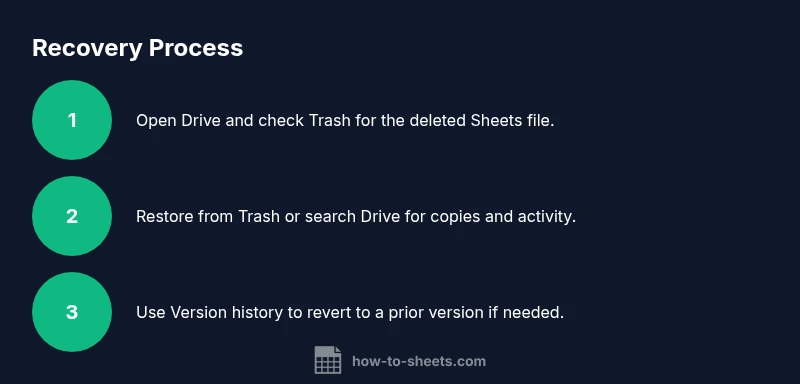
The most straightforward recovery path is the Google Drive Trash. Items stay here until permanently removed (either by you or by an admin, depending on workspace settings). To recover, open Trash, locate the deleted Google Sheets file, right-click (or click the three-dot menu) and choose Restore. The file will reappear in its original location, and you can reopen it as if nothing happened. If you don’t see the item, try adjusting the Trash view to show older items or search within Trash by partial name or file type (Google Sheets). If restoration fails, move to the next recovery options, such as recent activity or version history.
Using Google Sheets version history to reclaim content
Version history captures edits to a live sheet, and restoring to a prior version can recover content even if the top-level file was altered. In Google Sheets, go to File > Version history > See version history. Browse by date and author to identify a version that contains your missing data, then select Restore this version. This action preserves the current state while bringing back the earlier content. Note that version history applies to existing files; if the sheet was permanently deleted, you’ll need to recover the file first from Trash or admin backups before the version history becomes relevant.
Workspace admins: admin tools and backups for recovery
If you’re on a Google Workspace account, recovery options extend beyond a single user’s Trash. Admins can often restore deleted files from the Admin Console or from Vault backups if those features are enabled. If you’re an admin, check the Drive and Docs settings for retention policies and device backups, and consult Vault or the admin recovery catalog to locate a deleted Sheets file. If you’re not an admin, contact your IT administrator with the file name and approximate deletion time to request a restore. Admin recovery can resolve cases where users themselves cannot access or restore the document.
How to prevent future losses: practical habits
Recovery is simpler when prevention is in place. Enable and review file versioning regularly, encourage naming conventions to reduce misplacement, and consider setting up folder structures that minimize accidental deletions. Enable offline access on key sheets so you can work even if you’re temporarily disconnected, and create regular backups to a dedicated folder or external drive. Finally, keep a short runbook for deletion mistakes so teammates know exactly how to recover quickly.
Troubleshooting common recovery scenarios
If you still can’t locate the deleted Google Sheets, consider whether the file was owned by someone else, moved to a different Drive or Shared Drive, or deleted a long time ago. In such cases, re-check the owner’s Trash and activity logs, examine recent shares, and request a recovery from the owner or admin. For files that were removed due to policy changes, Vault-backed backups or admin restoration are your best bet. If you run into permission prompts, verify your role and request elevated access if necessary.
Real-world example walkthrough: a typical recovery scenario
A student accidentally deletes a class roster in Google Sheets. They first check Trash and find the file in the Trash, restore it to its original folder, and immediately review the latest version in case recent edits are present. When the roster isn’t in Trash, they search Drive, check the Activity panel to identify where the file last appeared, and then open Version history to revert to the last correct version. Finally, they implement a backup routine and share the roster in a shared drive to prevent future losses.
Tools & Materials
- Google Drive access (web or app)(Needed to access Trash and file restoration)
- File name or description(Helps in searching Drive/Trash)
- A web browser or mobile app(For interface access)
- Admin access or contact information (Workspace users)(Required if admin restore is needed)
- Internet connection(Stable connection preferred)
Steps
Estimated time: 15-30 minutes
- 1
Open Google Drive and locate Trash
Navigate to drive.google.com and select Trash (or Bin). Look for the deleted Google Sheets file by name, type, or date. This first action often recovers the file without further steps.
Tip: If Trash isn’t visible, switch to a different Drive view or check Shared drives. - 2
Restore from Trash when found
Right-click the target Sheets file and choose Restore, or select Restore from the menu. The file reappears in its original location and is ready to open.
Tip: Verify the original location to ensure you’re opening the right copy. - 3
Search Drive if not found in Trash
Use the search bar with keywords from the file name and filter by File Type: Google Sheets. Scan Recent activity to identify if the file was moved or renamed.
Tip: Use partial names or file extensions to cast a wider net. - 4
Check Version history in Google Sheets
If the file is recovered or exists, go to File > Version history > See version history. Review dates to restore a previous working version if needed.
Tip: Restore a version only after confirming it contains the desired data. - 5
Consult Admin or Vault if still missing
If you’re in a Workspace environment and the file isn’t found, contact your administrator or check Vault backups. They can restore from retained copies or audit logs to locate the deleted file.
Tip: Provide exact file name, last known location, and deletion date to speed recovery. - 6
Set up a recovery plan to prevent future loss
Create a backup routine, enable offline access on key sheets, and establish a clear folder structure with restricted delete permissions to minimize accidental loss.
Tip: Regular backups reduce downtime and data loss risk.
FAQ
Can I recover a Google Sheets file after it’s permanently deleted?
If a file is permanently deleted, recovery depends on domain policies and administrator backups. Check with your admin and Vault if available; otherwise, recovery may not be possible.
If it’s permanently deleted, recovery may require admin backups; contact your admin for possible options.
How long does Google Drive keep deleted files?
Items stay in Trash until they are permanently removed or restored. The exact retention can depend on workspace settings and ownership; act quickly to maximize chances of recovery.
Trash holds items until they are permanently deleted or restored by you or an admin.
What should I do if I’m not the file owner but need recovery?
Ask the file owner or an admin to restore the file or grant you appropriate access. You can also review the file’s activity to understand what happened and plan next steps.
Ask the owner or admin to restore the file or grant access; check activity to confirm details.
Does Google Vault help in recovering deleted Sheets?
If Vault is enabled for your domain, admins can restore deleted items from Vault backups. Check with your administrator to see if Vault has retained the file you need.
Vault backups may allow admins to restore deleted items if enabled for your domain.
What can I do to prevent future deletions?
Use clear naming conventions, organize folders, enable version history, and set up regular backups for critical sheets. Limit delete permissions on sensitive folders when possible.
Create a simple backup routine and limit delete permissions to reduce future losses.
If I can’t find the file, who should I contact?
Start with the file owner, then your IT admin if you’re in a workspace. Provide file name, approximate deletion time, and last known location to speed up the search.
Contact the file owner or admin with details to speed up recovery.
Watch Video
The Essentials
- Check Trash first for quick recovery
- Use Google Sheets version history to restore content
- Workspace admins can help recover from Vault/backups
- Prevent losses with backups and clear file management