How to Check Google Sheets History: A Step-by-Step Guide
Learn how to check google sheets history to track edits, identify contributors, and restore data. This guide covers version history across web and mobile, permissions, and best auditing practices.


Learn how to check google sheets history and see who changed what and when. This comprehensive guide covers built-in version history, cell-level edits, and restore options across web and mobile. You’ll enable version history, access previous versions, compare changes side-by-side, and recover lost data with confidence. It also explains when to rely on revisions and how to export audit trails.
Understanding Google Sheets history and what it tracks
Google Sheets history focuses on version-level information: who edited the sheet, when those edits occurred, and what content changed between versions. It does not expose every keystroke, but it preserves a timeline of snapshots that you can review, revert to, or compare. Named versions act as bookmarks for major milestones (e.g., “Budget Q2 2026”) so you can jump back quickly. This history is valuable for accountability, especially in collaborative projects with students, professionals, and small business owners who rely on precise audit trails to verify data integrity.
As you work, remember that access to history depends on your permissions. Editors and owners can view and restore versions, while viewers may have restricted visibility. Always ensure you have the appropriate access level before attempting to audit a sheet. In practice, treating version history as part of your data governance toolkit helps prevent data loss and accelerates collaboration.
Accessing Version History on desktop and mobile
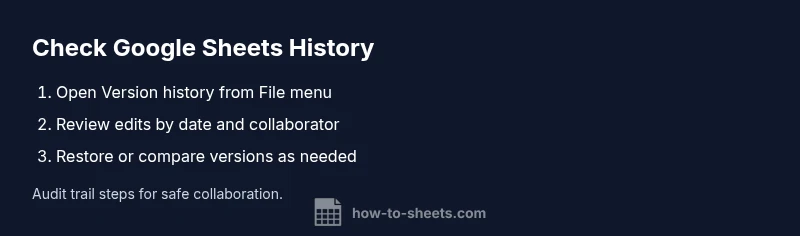
To access Version History on desktop, open the target Google Sheet and go to File > Version history > See version history. A side panel lists versions by date, with the latest edits at the top. Click any timestamp to load that version’s content and review changes. You can scroll the history to observe the evolution of the document and identify when specific edits were made.
On mobile devices, open the sheet, tap the menu (three vertical dots or the File icon), and select Version history (or See version history). The experience mirrors the desktop view, but with touch-friendly controls. For teams using shared drives or restricted permissions, verify you’re logged into the correct account to ensure you’re viewing the intended sheet.
Reviewing edits, comparing versions, and restoring data
When you load a past version, Sheets highlights the content as it appeared at that moment. Review who edited each section and compare that version to the current state to understand the scope of changes. If a previous version is desirable, click Restore to make it the new current version. This action creates a new version that captures the restoration moment, preserving the historical trail.
If you want to compare changes more closely, open two versions in separate browser tabs and review changes side-by-side. For larger datasets, focus on key areas like formulas, filters, and critical data points. Remember to document why you restored a version to maintain a clear audit trail for stakeholders.
Best practices, permissions, and caveats for auditing Sheets
Establish governance by naming important versions and encouraging teammates to add notes in the version history description. Limit access to sensitive sheets when possible and rely on Google Drive sharing settings to control who can view or edit. Use named versions to pin milestones (e.g., monthly budgets, quarterly forecasts) so retrieval is fast and unambiguous.
Be mindful of potential limitations: history visibility depends on permissions, and older records rely on ongoing access to the file. If you routinely require detailed audit trails, consider exporting version histories or maintaining a separate changelog document linked to the sheet. Proactive governance helps teams stay aligned and minimize mis-edits.
Troubleshooting common issues and practical tips
If you don’t see expected history, verify you are signed into the correct Google account and that you have the necessary permissions. In some cases, changes by collaborators outside your domain may not appear if access is restricted. For better traceability, establish a practice of adding comments in cells or using Named Versions for major edits. Regularly review history during team handoffs or project transitions to ensure continuity across periods of activity.
Tools & Materials
- Computer or mobile device with internet(Stable connection; use Chrome/Edge for desktop, Google Sheets app for mobile.)
- Google account with sheet access(Ensure you have editing or viewing permissions.)
- Target Google Sheet(Open the exact sheet you need to audit.)
- Notes/document editor(Optional: keep a manual audit log or comments.)
Steps
Estimated time: 15-25 minutes
- 1
Open the target sheet
Open the Google Sheet you want to audit and prepare it for review by ensuring you are logged in to the correct Google account. This step sets the foundation for accurate history viewing.
Tip: Verify the account and sheet ownership to avoid cross-account confusion. - 2
Access version history on desktop
Go to File > Version history > See version history. A panel will list versions by date. Click a timestamp to load that version and inspect changes.
Tip: Use the date filters to narrow down changes to the timeframe you care about. - 3
Access version history on mobile
In the Sheets mobile app, open the sheet, then access the menu and choose Version history. The interface mirrors the desktop layout for viewing edits.
Tip: Mobile views are touch-friendly; switch to landscape mode if reading long lists. - 4
Review and compare versions
Review who edited what and when by comparing the current version with past snapshots. You can open two versions in separate tabs to compare side-by-side.
Tip: Focus on critical cells or areas where data integrity is essential. - 5
Restore or pin a version
If a past version is preferable, click Restore to make it current. This creates a new version while preserving history. For milestones, consider Named Versions.
Tip: Document why you restored to maintain a clear audit trail. - 6
Document findings and governance
Summarize key edits, decisions, and any follow-up actions in a separate log or comments within the sheet to improve future audits.
Tip: Encourage teammates to add notes when making significant edits.
FAQ
What is included in Google Sheets history?
Version history records edits with timestamps and editors, allowing you to view past states of a sheet. It helps track changes and maintain accountability.
Version history shows edits with dates and who made them, so you can review past states of your sheet.
How do I see who edited a sheet?
Open the version history panel to see a list of edits and the users who made them. You can click on a version to view its content.
Open version history to see who edited the sheet and when those edits happened.
Can I restore a previous version?
Yes. In the version history view, choose a past version and click Restore to make it the current version. This action adds to the history trail.
Yes. You can restore a previous version to make it current again.
Is history available on mobile?
Yes. The Google Sheets mobile app includes access to version history, allowing you to review and restore edits on the go.
Version history is available in the mobile app as well.
Are there any limits to how long history is kept?
History retention depends on permissions and the sheet’s sharing settings. In general, you can access past versions as long as you maintain access to the sheet.
Access depends on permissions and sharing settings; there isn’t a fixed cutoff disclosed publicly.
Watch Video
The Essentials
- Review edits with timestamps to identify changes.
- Use Named Versions for milestone checkpoints.
- Restore creates a new version, preserving the history trail.
- Maintain governance with permissions and documented notes.