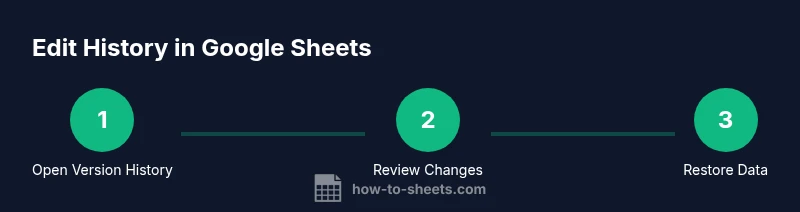
Google Sheets Edit History: View, Compare, and Restore Revisions
Learn how to access Google Sheets edit history, compare past versions, and restore data with a clear, step-by-step guide for students, professionals, and teams.


You will learn how to view Google Sheets edit history, compare older versions, and restore earlier data without losing current work. This guide covers Version History access, identifying who made changes, and practical steps for safe collaboration. According to How To Sheets, these practices help students, professionals, and teams audit edits efficiently.
What is Google Sheets Edit History?
Google Sheets edit history, also known as Version History, is an automatic log of changes made to a spreadsheet over time. It records who made edits, when they were made, and what cells were affected. This feature is particularly valuable in collaborative settings where many people contribute to a single sheet. The history is maintained in the cloud and is accessible to anyone with viewing or editing permissions on the file. By default, Google Sheets saves versions at frequent intervals, and you can name specific versions to mark important milestones. Understanding how to read this log helps you pinpoint when a mistake occurred, recover lost data, and track progress across a project. For students, professionals, and small teams, Version History acts as an audit trail, reducing miscommunication and enabling accountability. How To Sheets analysis shows that teams benefit from an audit trail for collaborative work.
Where to Find Version History in Google Sheets
Version History is your built-in audit trail. To access it, open the target spreadsheet and use the menu: File > Version history > See version history. A panel appears on the right side with a timeline of versions, each marked with a date, time, and the user who made changes. Click any version to review the sheet as it existed at that moment. The interface highlights edits with subtle color cues and shows a list of changes, including which cells were altered. You can name important versions to make them easier to locate later, such as “Milestone 1 – Budget Template” or “Q2 Draft.” For teams, this makes it straightforward to track progress and accountability across collaborators.
How to Compare Versions Effectively
Comparing versions helps you understand the evolution of a sheet. In the Version History panel, select two different versions to view their differences in context. The system will often highlight changed cells as you switch between versions, making it clear what was added, removed, or modified. Use the timestamps to orient yourself and look for recurring edits around critical dates or milestones. If you need a side-by-side comparison, copy the relevant cells from one version into a new sheet and compare them against another version. This approach prevents accidental overwrites and preserves a clean audit trail for reviews.
Restoring a Previous Version Safely
Restoring a prior version can undo multiple edits in one go. Before proceeding, create a copy of the current sheet to preserve your latest work. In the Version History panel, choose the version you want to restore and click “Restore this version” (or duplicate the version’s contents into a new sheet if you want to keep both states). After restoring, verify that all required data is intact and that any formulas still function as expected. If the restoration affects collaborators, communicate the change and update project documentation accordingly.
Best Practices for Collaborative Editing
In collaborative editing, clear governance around edits prevents confusion. Name key versions to reflect milestones or decisions, and add brief notes in an adjacent log so teammates understand the context of changes. Encourage teammates to review edits together in a quick session, especially before major deadlines. How To Sheets recommends using Version History as a regular part of your workflow, not just in crisis moments, to maintain an accurate record of decisions and data changes. This habit improves accountability and reduces rework when teams regroup after breaks.
Advanced Tips: Scripting Edits and Logs
For power users, Google Apps Script can complement Google Sheets edit history by logging edits to a separate log sheet or external system. You can create triggers that capture when edits occur and store metadata like timestamp, user email, and cells modified. While Version History provides a visual audit trail, script-based logs give you programmable access for reporting and compliance. Use these techniques to build an automated audit workflow that aligns with organizational policies while preserving the built-in history for quick visual checks.
Privacy, Security, and Awareness
Edit history is accessible to anyone with access to the file, so permissions are important. Limit file access to authorized users, especially for sensitive workbooks, and regularly review who can edit. When sharing, consider assigning view-only permissions to external partners and reserve editing rights for trusted teammates. Remember that version labels and notes should avoid exposing sensitive data; instead, use neutral, descriptive names that convey the stage of the work without revealing private details.
Getting Started: Quick Checklist
- Open the spreadsheet and navigate to Version History.
- Review recent changes and identify who edited what.
- Name key milestones to simplify future searches.
- Create a safe copy before restoring any version.
- Document edits in a separate log for accountability.
- Consider scripting edits for automated auditing when needed. The How To Sheets team recommends starting with Version History on a test sheet to build familiarity and confidence.
Tools & Materials
- Google Account(Any account with access to the Sheet (personal or organizational).)
- Google Sheets access(Use a modern browser; ensure you are signed in.)
- Stable internet connection(Editing history requires online access for real-time versioning.)
- Backup plan(Optional: keep a local copy of critical sheets before major edits.)
- Notes/documentation tool(Use a side log to capture reasons for edits and milestones.)
Steps
Estimated time: 15-25 minutes
- 1
Open the spreadsheet and access Version History
Open the target sheet, then go to the menu: File → Version history → See version history. This opens a panel with a timeline of versions on the right.
Tip: Name notable versions early to simplify later searches. - 2
Identify the changes you need to track
Review the latest versions and observe who edited which cells. Look for timestamp precision and user labels to anchor your audit.
Tip: Use the version list to quickly jump to high-impact edits. - 3
Select a version to inspect
Click a version in the panel to load the sheet state from that moment. Take time to review the data, formulas, and formatting as they appeared.
Tip: Keep a separate note if you intend to revert later. - 4
Compare two versions
Switch between versions to observe differences. The system highlights edits to help you see what changed and when.
Tip: For significant decisions, capture both versions in a side-by-side copy. - 5
Restore a previous version
If you decide a past state is preferable, choose that version and select Restore. Prefer duplicating the current sheet first.
Tip: Always verify results after restoration to ensure formulas and references still work. - 6
Create and name a milestone version
When a meaningful state is reached, name the version (e.g., 'Milestone Q2 Completed') to simplify future audits.
Tip: Names should be concise and descriptive for quick identification. - 7
Share responsibility and permissions
Limit who can edit and who can review the history. Use view-only access for external collaborators when possible.
Tip: Document roles in a shared team log for accountability. - 8
Log edits externally for compliance
If required, export a log of major edits to a separate sheet or external tool for auditing and compliance purposes.
Tip: Automate routine logs with Apps Script where appropriate. - 9
Review and iterate
Periodically audit the history to ensure the workflow remains efficient and that critical milestones are clearly documented.
Tip: Treat edit history as an ongoing governance practice, not a one-off task.
FAQ
What is Google Sheets edit history?
Google Sheets edit history (Version History) records changes, who made them, and when. It provides a recoverable trail for audit and collaboration.
Google Sheets edit history records changes and who made them, helping you review or revert edits when needed.
Can I access edit history on mobile devices?
Yes, you can access Version History from the mobile browser by opening the sheet and using the menu to locate Version History, though the interface may be less feature-rich than the desktop version.
You can view history on mobile through the menu, but some features are easier on desktop.
Who can view the edit history in a shared sheet?
Anyone with access to the file can view the version history. Permissions depend on whether the sheet is shared with view or edit rights.
Anyone with access to the sheet can view its version history, depending on their permission level.
Can I revert a single cell change via version history?
Version History allows restoring the entire sheet state from a chosen version. To revert a single cell, restore the version to a copy of the sheet and manually copy the desired cell back.
You can revert a version and then copy the specific cell back if needed.
How far back does Google Sheets version history go?
Version History logs changes over time and stores multiple versions, but the exact depth can vary depending on activity and file settings.
The history stores multiple versions over time, but the depth depends on activity and storage.
Is edit history available in all Google Workspace plans?
Edit history is available to users with access to the file, regardless of plan, but some Workspace features may enhance collaboration and audit options.
Edit history is available to anyone with access to the file, though Workspace features can broaden collaboration options.
Watch Video
The Essentials
- Identify edits quickly using Version History.
- Name milestones to simplify future searches.
- Always duplicate before restoring a version.
- Document edits for accountability and compliance.