Google Sheets Edit History: See Who Edited and When
Learn how to see who edited a Google Sheet using revision history and the Activity dashboard. This educational guide covers access, interpretation, limitations, and best practices for auditing edits in team projects.


Yes. You can see who edited a Google Sheet by inspecting the page’s revision history and, where available, the Activity dashboard. These tools reveal editors, their changes, and timestamps. To access them, open the sheet, choose File > Version history > See version history, and review the entries. This helps with accountability and collaborative audits.
Can google sheets can you see who has edited
Yes—depending on your access level, you can see who edited a Google Sheet and when the changes occurred. The phrase google sheets can you see who has edited appears often in forums, and the practical answer is: use Google Sheets' built-in revision history and, on Workspace accounts, the Activity dashboard. This article walks you through where to find each record, what it shows, and how to interpret it for audits and collaboration.
Revision history vs activity dashboard: what to use and when
In Google Sheets, revision history (also called Version history) records every edit and who made it. The Activity dashboard provides a high-level view of collaboration activity for a file, including who has opened or commented, with privacy controls. The two tools serve different needs: revision history is granular; Activity dashboard is high-level. For teams, understanding the distinction is essential for compliance and audit trails, and it helps you decide which tool to rely on in a given situation. According to How To Sheets, most users start with revision history for a detailed edit log, then use the Activity dashboard for quick checks during reviews.
Accessing Version History step-by-step
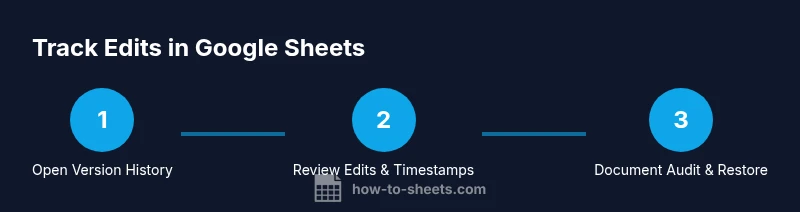
To see detailed edits, open the sheet, then go to File > Version history > See version history. You can click any dated snapshot to compare it with the current version. The changes are shown with editor initials or names in color-coded markers. Use the right-hand pane to navigate times and editors, and click Restore this version if you need to revert. If you don’t see a specific edit, try reloading the page or checking a different browser; sometimes permissions or cache can affect visibility.
Interpreting edits: who changed what and when
Version history presents a timeline of edits with who made them and when. Each change is grouped into a version, with a list of edits you can expand. You’ll see added, edited, or deleted content and the editor’s name or initials, along with a timestamp. When comparing versions, Google Sheets highlights exact cells that changed, enabling precise audits—useful for cross-checking formulas, data entries, and formatting. In some cases, you may restore a prior version if the current state contains errors or unwanted changes.
Activity dashboard: quick snapshot of collaboration (Workspace only)
The Activity dashboard offers a concise picture of who has interacted with a file (opens, comments, shares) over a selected period. Access requires Google Workspace and appropriate sharing permissions. While it doesn’t replace revision history for granular edits, it’s valuable for high-level oversight, especially in large organizations with many editors. Note that privacy settings can limit visibility, and admins may control what activity data is shown to different users.
Real-world scenarios and practical use cases
Imagine a shared budget sheet used by a small team. You can quickly identify who updated numbers last, what cells changed, and whether formulas were adjusted. In project tracking, revision history helps verify that milestone dates were updated by the assigned owner. In a classroom, teachers can review edits to group assignments to ensure fairness and accuracy. For each scenario, pair revision history with periodic reviews of the Activity dashboard to maintain accountability without overwhelming viewers with data.
Limitations and privacy considerations
Although revision history reveals edits, it may not show anonymous edits if editors use generic accounts or if access is misconfigured. Personal Google accounts and some consumer-grade plans may limit visibility compared to Google Workspace. The Activity dashboard is subject to privacy controls, so not every user will see every action. Always follow your organization’s privacy rules when auditing edits, and avoid sharing sensitive history outside appropriate channels.
Troubleshooting: when edits aren’t visible and what to do next
If you don’t see expected edits, try the following: confirm that you have edit access, refresh the page, disable browser extensions that block UI features, and check the sheet’s Version history from a different device. If revisions seem missing, it may be due to a temporary sync issue or permission changes. As a fallback, export a copy to review changes offline, then re-share the sheet with the appropriate permissions.
Practical checklist for teams
- Define roles and permissions: who can edit, comment, and view history.
- Schedule regular reviews of revision history during audits.
- Combine version history with the Activity dashboard for complete insight.
- Document notable edits in a changelog to ease future reviews.
- Train new contributors on how to access history and interpret changes.
Tools & Materials
- Google account with edit access(Must have edit rights to the sheet to view revision history)
- Web browser with internet access(Chrome, Edge, or Firefox recommended for best compatibility)
- Stable internet connection(Minimize sync delays during history review)
- Optional: admin access for Activity dashboard(Workspace admins may control visibility and data)
- Notepad or digital note tool(For recording notable edits or decisions)
Steps
Estimated time: 5-12 minutes
- 1
Open the target sheet
Navigate to the Google Sheet you want to audit and ensure you have editing rights. Verifying access upfront prevents permission-related confusion later.
Tip: If you don’t see the edit history, confirm you’re logged into the correct account. - 2
Open Version history
From the menu, select File > Version history > See version history to access the granular log of edits.
Tip: Use keyboard shortcuts (Ctrl/Cmd + Alt + Shift + H) if your browser supports them for speed. - 3
Choose a version snapshot
In the right panel, click a date/time to view that version and compare it with the current sheet.
Tip: Look for the editor color and timestamp to identify who made changes. - 4
Review the edits
Examine added, edited, or deleted content highlighted between versions. Note which cells were affected and by whom.
Tip: Use the compare feature to see precise cell-by-cell changes. - 5
Restore if necessary
If the current version contains errors, restore a prior version with Restore this version. Ensure you have consensus before reverting.
Tip: Restoring creates a new version entry; document the reason in your changelog. - 6
Check Activity dashboard (Workspace)
For a high-level view, access the Activity dashboard to see who opened or commented on the sheet.
Tip: Remember privacy controls may limit data visibility for some users. - 7
Document findings
Summarize key edits and decisions in a shared log and communicate results to stakeholders.
Tip: Keep a running changelog to facilitate future audits.
FAQ
Who can see the edit history in Google Sheets?
Editors and owners can see revision history; viewers cannot see it unless they have edit access. Access depends on sheet permissions and organizational policy.
Editors and owners can see edits in revision history; viewers can’t unless they have edit access.
How do I access revision history in Google Sheets?
Open the sheet, go to File > Version history > See version history, then click a date to view changes and compare versions.
Open your sheet, select Version history to view edits over time.
Can I see edits in real time or only historical changes?
Edits are recorded as they occur. The revision history shows past versions, while real-time changes appear as they happen in the sheet.
Edits happen in real time, but revision history tracks past versions for audits.
Is the Activity dashboard available to all Google accounts?
The Activity dashboard is available on certain Google Workspace plans and may be restricted by admin settings. It’s not universal across all personal accounts.
The Activity dashboard is for select Workspace plans and admin settings.
What if I can’t see the history or it shows outdated data?
Verify you have edit access, refresh the page, and try another browser. Changes may be restricted by permissions or sync issues.
If you can’t see history, check access and refresh; it might be a permissions or sync issue.
Can I export or share the edit history for auditors?
Google Sheets doesn’t export a separate edit log, but you can export the sheet or snapshots of versions. For rigorous audits, combine revision history with documented changes in a changelog.
There isn’t a standalone export log; use version snapshots and a changelog instead.
Watch Video
The Essentials
- Check revision history for exact edits
- Use Activity dashboard for quick collaboration insights
- Permissions determine what history you can see
- Combine tools for thorough audits
- Document notable edits in a changelog