How to See Edit History in Google Sheets: A Step-by-Step Guide
Learn how to view edit history in Google Sheets, review revisions by date and editor, compare changes, and restore prior versions. Includes per-cell history where available and practical tips for collaborative work.


By the end, you will be able to see edit history in Google Sheets. You’ll access global version history via File > Version history, review changes by date and editor, and, where available, inspect per-cell edits. You’ll learn to compare revisions and restore a previous version when needed. This is essential for tracking collaboration and preventing data loss in shared spreadsheets.
What qualifies as edit history in Google Sheets
Edit history in Google Sheets comprises two main concepts: global version history and per-cell edits. Global version history shows a timeline of document-wide changes, who made them, and when. This is invaluable for auditing large changes across a workbook, such as formula updates, data imports, or structural edits. Per-cell edits, when available, offer a more granular view, letting you see how specific cells evolved over time. The How To Sheets team emphasizes that understanding both views helps you pinpoint exact moments of modification, restore correct states, and communicate clearly with teammates. In practice, you’ll use version history to reconstruct a document’s trajectory, while per-cell history helps when a single cell’s value or formula needs verification. Remember that access to full version history may depend on your Google Workspace plan and sharing permissions, so ensure you have editing rights for the sheet you’re investigating.
Where to find version history in Google Sheets
The most common way to access edits is through the global version history. In Google Sheets, this lives under the File menu. Navigate to File > Version history > See version history. A panel on the right side lists versions by date, time, and the user who made changes. Hover over or click a version to preview changes in the main sheet. The version history provides a chronological audit trail and allows you to identify key edits without scrolling through the entire document. If you are collaborating with others, this feature is especially helpful for tracking who touched what and when. It’s a fundamental capability for maintaining data integrity across shared spreadsheets, and it aligns with best practices recommended by the How To Sheets team.
How to view version history step-by-step
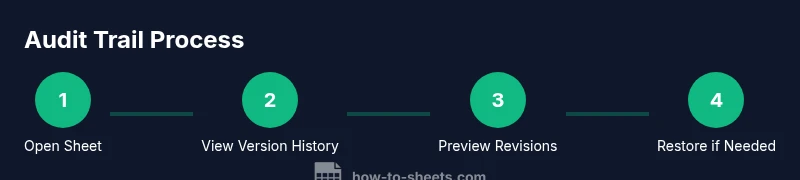
- Open the Google Sheet you want to inspect and sign in if required. 2) Click File in the top menu, then select Version history > See version history. 3) In the right-hand panel, browse revisions by date and editor. 4) Click a revision to preview changes highlighted in the sheet. 5) Use the Compare or Restore options to align the sheet with a prior state, if needed. 6) Repeat for other dates or editors to build a complete understanding of the document’s evolution. This process is a core skill for ensuring accuracy in collaborative workloads and is supported by standard Google Sheets features. 7) If the sheet supports per-cell history, you can right-click a cell and choose Show edit history to drill down into cell-level edits for that moment in time.
How to view per-cell edit history (if available)
Per-cell edit history is not always visible in every Google Sheets environment. When available, you can often access it by selecting a cell, right-clicking, and choosing Show edit history or a similar option. The per-cell view highlights changes made to that particular cell across revisions, including who modified it and when. This granular visibility complements the global revision trail and is especially helpful when you need to audit results in cells containing critical data, such as formulas or values used in dashboards. If you do not see a per-cell history option, rely on the comprehensive version history to piece together cell-level changes from broader revisions.
How to compare revisions and restore a previous version
Version history lets you compare differences between revisions and restore a previous version of the entire workbook. To compare, select a revision and use the interface to view changes side-by-side with the current state. When you’re confident about a prior state, choose Restore this version to revert the document. Note that restoring a version replaces the current workbook state, so consider leaving a copy or note for teammates if you’re conducting a repair or rollback. This capability is a powerful safeguard for collaborative projects, aligning with data governance practices promoted by How To Sheets.
Practical tips for collaborative sheets
- Regularly name or caption significant revisions to improve traceability. - Use version history to investigate discrepancies before merging data from multiple contributors. - When working with sensitive data, review access and sharing settings to ensure history is visible to the right people. - If you rely on per-cell history, ensure your workspace plan supports the feature, as some environments may limit granular histories. - Keep a short log in a separate sheet or document noting major edits and rationales for future reference.
Limitations and troubleshooting
Version history can be vast, and older revisions may be harder to locate as edits accumulate. If you don’t see expected versions, check that you’re viewing the correct sheet or workbook and confirm you have edit access. In some cases, the per-cell edit history might not be available due to account type or specific sharing configurations. When in doubt, consult Google Sheets help resources or the How To Sheets guidance for best practices in version control and collaborative workflows.
Real-world example: audit trail in a team project sheet
In a shared marketing dashboard, version history helps the team track updates to KPIs, formulas, and data imports. By reviewing dates and editors, the team can confirm who adjusted a key metric period or corrected a data source. If a wrong value slipped in, the team can locate the revision containing the erroneous data, compare it to the correct version, and restore or manually adjust as needed. This approach reduces confusion and protects data integrity in fast-paced collaborative environments.
Tools & Materials
- Google account with access to the Sheet(Essential for viewing version history and restoring versions)
- A web browser(Chrome/Edge/Firefox etc., with internet access)
- A stable internet connection(Needed to load version history features reliably)
- A plan with version history access(Some enterprise features may vary by workspace)
Steps
Estimated time: 15-25 minutes
- 1
Open the target Google Sheet
Navigate to the spreadsheet you want to audit and ensure you are signed in with an account that has editing or viewing rights. This prepares you to access the version history and inspect past revisions.
Tip: If you’re collaborating with others, consider temporarily making a copy for testing edits to avoid affecting the live document. - 2
Access the global version history
Click the File menu, choose Version history, then select See version history. A panel on the right shows revisions with timestamps and editor names, letting you scan changes across the workbook.
Tip: Use the date range filter in the history panel to focus on a specific period when the issue occurred. - 3
Preview and compare revisions
Click different revisions to preview how the sheet looked at those moments. The interface often highlights added or removed content, making it easier to spot changes.
Tip: Take note of the editor and time to locate the responsible contributor quickly. - 4
Restore a previous version if needed
If you determine a prior version is correct, select Restore this version to revert the entire workbook to that state. Confirm your action before proceeding to avoid accidental data loss.
Tip: Consider saving a copy of the current version before restoring, so you can revert back if necessary. - 5
Check per-cell history (if available)
If the per-cell history feature is accessible, select a cell and view its individual edit history to verify who changed what and when. This helps in pinpointing the source of particular data changes.
Tip: Per-cell history availability may vary by account type and sheet settings. - 6
Document findings and communicate changes
Summarize the changes you observed, including dates, editors, and the rationale for restorations or edits. Share the audit notes with teammates to maintain transparency.
Tip: Keep a running log or changelog to streamline future audits.
FAQ
What is the difference between edit history and version history in Google Sheets?
Version history provides a chronological list of workbook-wide changes. Edit history, when available for cells, focuses on changes to a specific cell. Both help track who changed what and when, but per-cell details may be limited by account type.
Version history shows workbook-wide changes, while per-cell edits offer cell-level details where available.
Can I see per-cell edits for all users?
Per-cell edit history is not always available for every sheet or plan. If shown, you can view changes to individual cells, but access may depend on your Google Workspace configuration and sheet permissions.
Per-cell edits aren’t always visible; it depends on your workspace and permissions.
How do I restore a previous version without losing data?
To revert, open version history and choose Restore this version. This replaces the current state with the selected one. For safety, make a copy of the current version first or export a snapshot before restoration.
You can restore a previous version, but consider making a backup first.
How far back does Google Sheets version history go?
Version history typically stores multiple revisions over time, but the available range can vary by account type and sheet activity. If needed, you can scroll through revisions to locate earlier states.
Revisions are stored over time, but the depth depends on account type and activity.
Is per-cell history available in all plans?
Per-cell edit history is not guaranteed in all plans. Availability often depends on the workspace configuration and the specific Google Sheets environment you are using.
Per-cell history isn't guaranteed on all plans.
Can I export the edit history for reporting?
Google Sheets does not provide a direct export of the entire edit history. You can, however, capture a version by restoring to a known state or taking notes from the version history and sharing them with stakeholders.
There isn't a built-in export, but you can document edits from the history manually.
Watch Video
The Essentials
- Identify revisions by date and editor using version history.
- Use per-cell history when available for granular audits.
- Restoring versions is powerful but should be done with caution.
- Document changes to maintain a clear audit trail.