Track Changes in Google Sheets: A Practical Guide
Master how to track changes in Google Sheets using version history, suggestions, and comments. Learn step-by-step workflows for teams, students, and small businesses to audit edits and protect data.


In this guide you’ll learn how to track changes in Google Sheets using built-in version history, suggestions, and comments. You’ll discover how to view past edits, restore important versions, and monitor changes made by collaborators. The steps cover team workflows, safeguards, and practical tips. This quick-start overview will help you audit edits and keep data integrity across projects.
What tracking changes in Google Sheets means
Tracking changes in Google Sheets refers to the ability to see who modified which cells and when, as well as capturing proposed edits and comments. Built-in tools like Version History let you inspect past states of a spreadsheet, while collaboration features such as Suggestions and Comments enable teams to propose changes without directly overwriting data. Understanding these capabilities is essential for auditing, accountability, and maintaining data integrity across projects. In practice, you’ll use version names, timestamps, and user attribution to reconstruct decision-making and identify when errors were introduced.
Why track changes matters for teams
In collaborative environments, multiple people may edit a sheet simultaneously. Without a clear audit trail, it's easy to lose track of who changed what, why, and when. Tracking changes reduces risk by allowing you to revert mistakes, review collective input, and assign responsibility. How To Sheets analysis shows that teams that actively manage versions report fewer miscommunications and faster onboarding for new collaborators. Practical benefits include easier compliance, better change logs for audits, and improved confidence in shared data.
Core features: Version history, suggestions, and comments
Google Sheets combines several features to track changes. Version History shows a chronological list of saved versions with timestamps and user names; you can open any version to compare it with current data. The Suggestions mode lets contributors propose edits that aren’t immediately committed, making it easy to discuss changes before accepting them. Comments provide context and can be threaded for ongoing discussions. When used together, these tools create a transparent, collaborative workflow that helps teams review edits efficiently and maintain data integrity over time.
Accessing version history and named versions
To access version history, go to File > Version history > See version history. In the right-hand panel you’ll see a timeline of saved versions with dates and user names. Click any version to view its contents alongside the current sheet, and use Compare changes to highlight what differs. You can name an important version by selecting the version and choosing Url/Name this version, making it easier to reference during audits. To revert, click Restore this version; the sheet will reflect that state, while the current version remains retrievable in history.
Working with Suggestions vs Direct Edits
Understanding the difference between direct edits and suggestions is crucial for clean collaboration. In Suggestions mode, edits appear as proposed changes rather than immediate edits, so teammates can review and accept or reject them. Direct edits modify the sheet immediately. Encourage teammates to use Suggestions for proposals on budgets, timelines, or data validation, and reserve direct edits for final approvals in trusted cells. This approach keeps a clear audit trail of proposed changes and decisions.
Live collaboration: comments, notifications, and email rules
Comments let you add context to specific cells or ranges and can be threaded for discussion. Use @mentions to notify teammates and keep conversations centralized. Turn on notification rules (Tools > Notification rules) to receive emails when edits occur or when changes are made to a sheet. These features help maintain visibility, especially when teams work across time zones. Regularly reviewing comments alongside version history ensures nothing slips through the cracks.
Protecting ranges and auditing changes
Protected ranges restrict who can edit particular cells or areas of a sheet, preventing accidental or unauthorized changes. Combine protection with version history naming to create a clear record of when and why restrictions were applied. For more advanced auditing, you can use Google Apps Script to append edits to a separate log sheet, providing a custom, centralized capture of user activity. This is especially useful for compliance or regulated projects.
Practical workflow examples for small teams and students
Example 1: A marketing team maintains a shared budget sheet. Team members propose edits via Suggestions, name milestone versions for major budget approvals, and use protected ranges for the final numbers. Example 2: A student group tracks project milestones in a single sheet. Contributors add comments, assign responsibility, and review past edits through Version History before submitting a final version. These workflows illustrate how tracking changes keeps projects transparent and auditable.
Authority sources
- Official Google Docs Editors Help: See version history and recover past versions (support.google.com/docs).
- National Institute of Standards and Technology (NIST): Data integrity and auditing practices (nist.gov).
- U.S. Department of Education resources and guidelines (ed.gov).
These sources provide foundational principles for versioning, auditing, and collaborative workflows that apply across Google Sheets usage.
Tools & Materials
- Computer or laptop with internet access(Prefer a modern browser (Chrome recommended) for best compatibility with Google Sheets.)
- Google account with Sheets access(Use a standard Google account or a workspace account with edit privileges on the target sheet.)
- Target Google Sheet(Ensure you have at least viewing rights; editing rights preferred for full tracking features.)
- Mobile device with Google Sheets app (optional)(Useful for on-the-go review but some features are limited on mobile.)
- Note-taking tool or document(Capture decisions or important version names outside Sheets for quick reference.)
Steps
Estimated time: 15-25 minutes
- 1
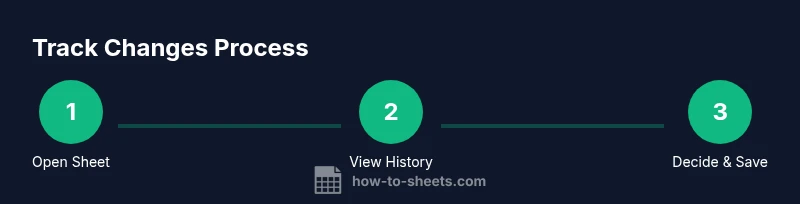
Open the target Google Sheet
Sign in to your Google account and open the sheet you want to track. Verify you have the necessary access to view history and propose edits if needed.
Tip: If you don’t see editing options, request access or switch to a shared drive where you have permissions. - 2
Access Version History
Go to the menu bar and select File > Version history > See version history. The panel will slide in from the right with a chronological list of versions.
Tip: For quick access, you can also use the keyboard shortcut Ctrl/Cmd + Alt + Shift + H on some setups. - 3
Browse past versions
In the version history pane, click any timestamp to open a side-by-side comparison with the current sheet. The changes may be highlighted for quick review.
Tip: Name notable versions to make future audits faster. - 4
Restore a version when needed
If you identify a previous state as the correct one, click Restore this version. This action replaces the current sheet with the chosen version while preserving the history.
Tip: Consider duplicating the current sheet first if you want to preserve a snapshot before restoring. - 5
Use named versions for milestones
Select a version and choose Name this version to label it (e.g., ‘Budget Q2 approved’). This helps you quickly locate key states during audits.
Tip: Document the rationale in the sheet’s comments or an accompanying log. - 6
Switch to Suggestions mode for edits
Toggle to Suggestions mode (top-right pencil icon) to propose edits without applying them directly. Reviewers can accept or reject proposals.
Tip: Encourage teammates to use suggestions for any non-final edits. - 7
Leverage comments for context
Use Add Comment to explain edits or decisions and tag teammates with @mentions to route attention.
Tip: Threaded comments help keep discussions organized around specific cells. - 8
Set up notifications
Configure Change Notifications (Tools > Notification rules) to receive emails when edits occur. Choose frequency to avoid overload.
Tip: Pair with comments for a robust audit trail that goes beyond version history. - 9
Protect ranges to control edits
Define protected ranges or sheets to restrict edits to authorized users, reducing accidental or intentional changes.
Tip: Document protections in a shared log to help new collaborators understand restrictions.
FAQ
Where is version history located in Google Sheets?
Version history is accessed via File > Version history > See version history. The panel shows timestamps, users, and a side-by-side view to review past edits.
Open the version history from the File menu to review who changed what and when.
Can I restore an earlier version without losing current edits?
Yes. Restoring a previous version reverts the sheet to that state, but the current version remains in the history for reference. You can restore again if needed.
You can restore a past version, and your current state stays accessible in the history.
How can I see who changed specific cells?
Version history shows who made edits and when. For precise cell-level details, compare versions and review the highlighted changes.
Version history lists the editor and timestamp for edits; use that to identify changes.
Is there a way to log changes automatically?
Out of the box, Sheets doesn’t provide a standalone automatic log. You can supplement with Apps Script to capture edits to a log sheet, or use version history in combination with comments.
You can create an automated log with Apps Script if you need more detail.
Can I track changes on mobile devices?
Most version history and basic editing features are available on the Google Sheets mobile app, but some advanced auditing features are better on desktop.
Mobile apps support core edits and history viewing, but desktop has more auditing options.
How do I track edits to a specific range?
You can restrict edits with Protected ranges and review versions for changes around that area. For granular tracking, combine with comments and an Apps Script log.
Use protected ranges and comments to focus on specific areas and track changes there.
Watch Video
The Essentials
- View and compare past versions to track edits.
- Use suggestions and comments to propose changes clearly.
- Name milestone versions for fast reference.
- Protect ranges to control future edits.
- Enable change notifications for timely updates.