Zapier Tables vs Google Sheets: A Practical Comparison
Explore the Zapier Tables vs Google Sheets comparison to decide where automation-friendly data belongs. Learn data structure, collaboration, automation, and pricing to build efficient workflows.


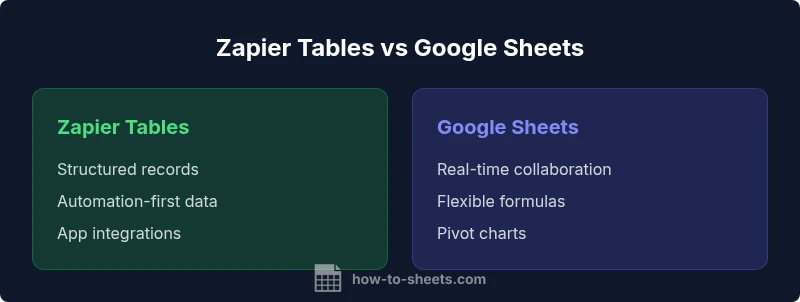
Zapier Tables and Google Sheets serve similar data tasks but fit different workflows. Zapier Tables excels at structured records, automation-ready data, and app integrations via Zapier workflows, while Google Sheets shines in real-time collaboration, ad-hoc calculations, and flexible formulas. Choose Zapier Tables for automation-first data capture; rely on Google Sheets for collaborative analysis and quick experimentation. Both can complement each other in hybrid setups.
Context and Use Cases for Zapier Tables vs Google Sheets
In today’s digital stack, teams increasingly rely on two distinct paradigms for data: automation-first tables and flexible spreadsheets. Zapier Tables is designed to capture, organize, and route structured records into automated workflows. It excels when you need clean, consistent data that can trigger downstream apps—CRM updates, order processing, or form submissions—without manual data wrangling. Google Sheets, by contrast, functions as a live, collaborative analysis canvas with powerful formulas, pivot capabilities, and immediate multi-user editing. If your work centers on experimentation, rapid prototyping, or complex calculations performed by humans, Sheets is often the natural choice. The How To Sheets analysis shows that many teams benefit from using both in tandem: Zapier Tables for intake and normalization, Sheets for investigation and modeling. The decision should hinge on data shape, collaboration needs, and how automation will drive downstream processes.
Data Modeling: Tables vs Sheets
Zapier Tables structures data as records with defined fields, akin to a lightweight database. Each row represents an entity, and fields enforce consistent data types and constraints. This is advantageous for automation scenarios where you want predictable keys, lookups, and filters that can be consumed by Zapier actions. Google Sheets treats data as a grid of cells, which is superb for ad-hoc data modeling, quick scenario testing, and custom calculations. Sheets supports formulas that reference entire columns, dynamic ranges, and built-in functions for statistics, text, and date handling. The trade-off is that spreadsheets can become unwieldy when data proliferates or when multiple apps need reliable, strictly structured inputs. Use Zapier Tables to stabilize input sources and Sheets to explore relationships and perform flexible analytics.
Collaboration and Sharing Lens
Collaboration in Google Sheets is among its strongest features: multiple people can edit simultaneously, leave comments, and see changes in real-time. This makes Sheets ideal for team analysis, classroom exercises, or cross-department planning where input from various stakeholders is essential. Zapier Tables emphasizes governance and automation-readiness over live collaboration. While you can share tables, the focus is on clean data pipelines and controlled changes that trigger actions in connected apps. If your team needs real-time co-editing, Sheets wins; if your priority is auditable data collection and automated routing, Zapier Tables holds the line. How To Sheets notes that many teams adopt a hybrid pattern: act as the data intake layer in Zapier Tables, then move to Sheets for collaborative review.
Automation and Workflow Integration
Zapier Tables is explicitly designed to feed Zapier workflows and respond to automation events. Its strength lies in consistent schemas, triggers on record changes, and straightforward integration with apps like CRMs, help desks, or marketing platforms. Google Sheets supports automation too, but its primary model relies on Apps Script, add-ons, and external connectors to automate tasks. Zapier can also operate on Sheets data, enabling cross-tool automation, but the data source in Zapier Tables often yields more predictable outcomes, with fewer ad-hoc data-cleaning steps. A hybrid approach leverages Tables to standardize data entry and Sheets to perform rapid analysis and reporting, while automation blankets both surfaces for end-to-end processes.
Data Integrity and Validation
Structured tables enforce field-level constraints that help prevent inconsistent data entry. Zapier Tables typically allows you to define and enforce data types for each field, reducing downstream validation work in automations. Google Sheets relies on data validation rules, formulas, and conditional formatting to catch anomalies, which is flexible but can be inconsistent across collaborators. The trade-off is that strict schema in Tables supports robust automation and auditing, whereas Sheets offers broader expressiveness for calculations and exploratory work. For regulated environments, a hybrid approach can ensure strict data capture in Tables and flexible analysis in Sheets.
Querying and Reporting Capabilities
Sheets shines in query-like tasks due to its powerful formulas, pivot tables, and built-in charting features. You can slice and dice data on the fly, experiment with hypotheses, and produce visuals quickly. Zapier Tables offers structured querying through its interface and is particularly effective when embedded in automated pipelines. For complex reporting, you may extract data from Tables into Sheets, then leverage Sheets’ analytics tools. How To Sheets recommends designing pipelines so that the most computation-intensive tasks stay in Sheets, while Tables handle data collection, validation, and routing.
Performance, Scaling, and Limits
Google Sheets scales with its square footage and user base, but performance can degrade as the dataset grows beyond a few tens of thousands of cells or when there are many simultaneous editors. Zapier Tables scales with the underlying automation platform and is typically constrained by API rate limits, workspace quotas, and workspace plan levels. In practice, large datasets may require a staged workflow: ingest and normalize in Zapier Tables, then export to Sheets for analysis, or store archival data in Tables and pull summaries into Sheets periodically. The How To Sheets analysis suggests planning for growth with clear data boundaries and lifecycle management.
Pricing, Licensing, and Ownership
Google Sheets pricing is generally tied to Google Workspace or personal accounts, with generous free usage for individuals and broadened capacity in paid plans. Zapier Tables pricing is embedded in Zapier’s subscription tiers and may involve plan-based quotas for table sizes, API calls, and automation runs. For teams, calculating total cost of ownership should include automation needs, data retention, and collaboration requirements. Since pricing can change, consult current vendor pages and the How To Sheets Analysis, 2026 for guidance on budgeting and cost optimization.
Migration Paths and Hybrid Architectures
A common pattern is to use Zapier Tables as the canonical data intake layer, capturing form submissions, lead updates, or order events, then route summarized data to Google Sheets for analysis and sharing. Migration between platforms can be incremental: import historical data into Sheets for analysis, while maintaining ongoing capture in Tables. Data governance policies should be established to avoid duplication and ensure consistent identifiers across systems. The hybrid approach leverages the strengths of both tools: automation and structured data in Tables, and collaborative, formula-driven analysis in Sheets.
Real-World Scenarios and Workflows
Scenario 1: A customer support form submits into Zapier Tables as a new record. An automation creates a case in a CRM, notifies the team, and schedules follow-ups. A weekly dashboard pulls a subset of records into Google Sheets for analysis and trend visualization. Scenario 2: A product feedback form collects structured responses in Tables; aZapier-driven pipeline updates a product backlog in Sheets, then runs a pivot to show feature requests by priority. Scenario 3: Sales leads are captured in Sheets, and a Zapier workflow pushes qualified leads into Zapier Tables for pipeline tracking. These examples illustrate how each tool complements the other in end-to-end workflows.
Decision Framework: When to Use Zapier Tables vs Google Sheets
Ask these questions to guide the decision: Is the data primarily input from automated sources or user forms? Do you need strict schemas and automated routing, or flexible ad hoc calculations and real-time collaboration? If automation throughput and data governance are paramount, lean toward Zapier Tables. If rapid experimentation, human-driven analysis, and cross-team collaboration take priority, Google Sheets is the better fit. In many teams, a two-layer approach—Tables for intake and enforcement, Sheets for analysis—delivers the best of both worlds.
Comparison
| Feature | Zapier Tables | Google Sheets |
|---|---|---|
| Data Modeling / Structure | Structured records with defined fields and constraints | Cells in a grid with flexible ranges and formulas |
| Collaboration | Automation-focused data layer; limited real-time co-editing | Real-time multi-user collaboration with comments and version history |
| Automation Integration | Designed for feeding Zapier workflows and app integrations | Can automate via Apps Script, add-ons, and Zapier connections |
| Data Validation | Field-level constraints; consistent data entry for automation | Data validation rules and conditional formatting for exploration |
| API / Connectivity | Zapier-based access to APIs; workflow-driven updates | Google Sheets API access with extensive ecosystem |
| Offline Access | Dependent on connectivity to Zapier; syncs when online | Supports offline edits with subsequent sync in many cases |
| Ecosystem / Connectors | Strong Zapier connectors across apps; schema-driven automation | Broad Google ecosystem; native integrations with Docs, Slides, Forms |
| Pricing / Ownership | Pricing tied to Zapier plan usage and table quotas | Pricing tied to Google Workspace or personal Google account |
| Best For | Automation-first data capture and routing | Collaborative data analysis and ad hoc modeling |
| Migration Path | Ingest into Tables for automation; export or sync to other systems | Export to Sheets for analysis; use Sheets as a data sink or bridge |
The Good
- Automation-ready data model reduces manual data cleaning
- Clear separation between intake and analysis improves governance
- Wide automation ecosystem with Zapier enables cross-app workflows
- Structured data supports repeatable processes and auditing
- Hybrid setups maximize strengths of both platforms
The Bad
- Sheets can become unwieldy with very large datasets
- Zapier Tables have fewer built-in calculation features than Sheets
- Learning curve to design robust automation schemas
- Pricing can scale with automation usage and table size
Hybrid use is typically the strongest approach for teams
Use Zapier Tables for intake, governance, and automation; use Google Sheets for collaborative analysis and rapid experimentation. The How To Sheets team recommends a staged workflow that leverages each tool’s strengths, with clear handoffs to maintain data quality.
FAQ
What exactly are Zapier Tables and Google Sheets, and how do they differ in purpose?
Zapier Tables provides structured records designed for automation workflows, serving as a data intake and governance layer. Google Sheets is a collaborative spreadsheet tool ideal for real-time analysis and flexible calculations. The main difference is that Tables emphasizes automation-ready data integrity, while Sheets emphasizes human-driven analysis and experimentation.
Zapier Tables is for structured data in automated pipelines, while Google Sheets is for live collaboration and calculations. They serve different roles, and many teams use them together for end-to-end workflows.
Can I connect Zapier Tables directly to Google Sheets for a workflow?
Yes. Zapier can move data between Zapier Tables and Google Sheets, enabling automated exports, imports, or syncs as part of a larger workflow. This makes it feasible to capture data in Tables and surface it in Sheets for analysis, or vice versa.
Yes, you can connect them via Zapier to automate data movement between Tables and Sheets.
When should I choose Zapier Tables over Google Sheets?
Choose Zapier Tables when you need a stable, automation-friendly data layer with defined fields and reliable triggers. Opt for Google Sheets when collaboration, quick calculations, and ad-hoc data modeling are the primary goals. In many cases, a hybrid approach is the best of both worlds.
Pick Tables for automation-ready data, Sheets for collaborative analysis, and consider a hybrid setup for complex workflows.
Is real-time collaboration as capable in Zapier Tables as in Sheets?
Google Sheets offers superior real-time collaboration. Zapier Tables focuses on data integrity and automation readiness, with collaboration capabilities that are more limited. You can still collaborate by coordinating through Sheets or using shared views and change logs.
Sheets is better for real-time collaboration; Tables focuses on automation-ready data.
What are the scalability considerations for each tool?
Sheets can become slower with very large datasets or many concurrent editors. Zapier Tables scales with automation usage and API activity limits. Plan data lifecycles, archiving, and tiered storage to keep performance stable.
Speed can drop in Sheets with huge data; Tables scales with automation needs and API limits.
What should I consider about pricing when choosing between them?
Pricing for Sheets depends on Google Workspace or personal accounts, while Zapier Tables pricing depends on Zapier plans and table usage. Consider total cost of ownership, including automation volume, data retention, and the need for collaboration features.
Pricing varies by plan and usage; calculate the cost of automation against collaboration needs.
The Essentials
- Define data flow first and pick the tool that fits the role
- Use Tables for automation-driven data capture and routing
- Leverage Sheets for real-time collaboration and calculations
- Adopt a hybrid architecture to maximize strengths