Smartsheet vs Google Sheets: A Practical Comparison for Teams
A thorough, analytical comparison of Smartsheet and Google Sheets, covering structure, collaboration, automation, templates, pricing, security, migration, and use-case scenarios to help teams choose the right tool.


Smartsheet and Google Sheets serve different needs: Smartsheet excels in structured work management with tasks, timelines, and workflows, while Google Sheets emphasizes real-time collaboration and rapid data editing in a familiar spreadsheet interface. For teams evaluating cost, scalability, and integration, this comparison highlights where each tool wins, common gaps, and practical guidance for choosing the right platform. How To Sheets provides practical, step-by-step insights to help you decide.
Why this comparison matters for teams
In today’s fast-moving workplaces, teams juggle projects, data, and decisions in different tools. Smartsheet is designed for structured work management with tasks, timelines, and automated workflows, while Google Sheets emphasizes real-time collaboration and fast data editing in a familiar spreadsheet interface. According to How To Sheets, the choice often comes down to how teams prefer to structure work versus how they prefer to collaborate. If your team runs projects with dependencies, milestones, and resource planning, Smartsheet may reduce manual handoffs. If your team needs flexible ad-hoc analysis and instant sharing, Google Sheets can keep costs and friction low. The How To Sheets team emphasizes that the best decision aligns with your workflow shape, data maturity, and user skill level.
Core differences at a glance
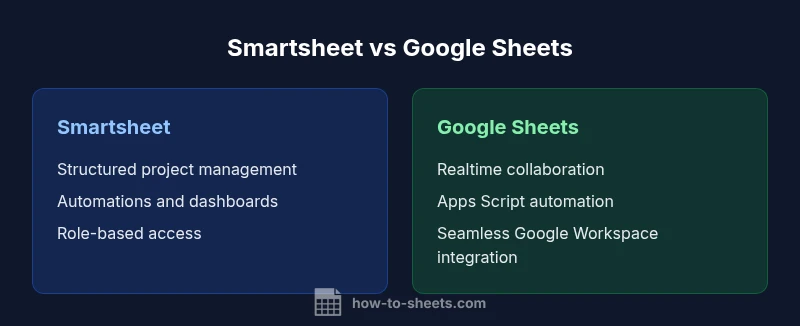
Two key differentiators dominate the Smartsheet vs Google Sheets decision: structure vs flexibility and governance vs speed. Smartsheet provides a project-centric grid with evidence of dependencies, Gantt-style timelines, and built-in forms for data capture; it also ships with a workflow engine to automate processes. Google Sheets offers a familiar spreadsheet canvas with live collaboration, lightweight scripting via Apps Script, and seamless integration with other Google Workspace apps. Pricing, scalability, and support models also diverge: Smartsheet uses a paid license with enterprise features, while Google Sheets is typically included with a Google account or Workspace plan. When deciding, map your required features to these profiles and consider how much change management your team can absorb.
Data structure and flexibility
Smartsheet uses a more rigid but powerful data structure designed for project data: sheets, reports, and dashboards that centralize tables, calendars, and resource fields. This makes it easier to enforce consistent data practices and generate rollups. Google Sheets treats data as a flat grid that can be reshaped freely; while less constrained, it relies on users to set up separate sheets or ranges for different data types. Both platforms handle attachments, comments, and version history, but Smartsheet's defers to a managed project framework while Sheets emphasizes quick data exploration. For teams that require standard templates and cross-project reporting, Smartsheet often provides a clearer default model; for teams that want rapid experimentation and cross-functional ad hoc analysis, Google Sheets is more forgiving.
Collaboration and access controls
Real-time collaboration is a core strength of Google Sheets, with simultaneous edits and instant commenting across users. Smartsheet supports collaboration as well, but its strength lies in controlled access, approval workflows, and role-based permissions that align with enterprise governance. In practice, you can share sheets with internal teammates, external partners, or stakeholders, and enforce approvals for critical changes. Both tools log activity, but Smartsheet's controls are suited for regulated environments where audit trails and process ownership matter more than raw speed.
Automation, workflows, and integrations
Smartsheet includes a visual workflow engine to model automations like alerts, assignments, and status changes triggered by field updates. Google Sheets leverages Apps Script and native integrations to automate tasks, but it often requires more custom scripting and maintenance. Both platforms connect to external apps; Smartsheet tends to shine in formal project pipelines and resource planning, while Sheets pairs well with data-heavy workflows and cross-app automation within Google Workspace. For teams that want out-of-the-box process automation, Smartsheet may offer a more guided experience; for teams comfortable coding or using lightweight automations, Google Sheets plus Apps Script can be very flexible.
Templates, form capabilities, and reporting
Smartsheet ships with a library of project-centric templates and robust form capabilities for data collection, along with dashboards that consolidate metrics. Google Sheets has a broad ecosystem of templates and the ability to create simple data capture forms via Google Forms, which feed into Sheets. Reporting in Smartsheet aggregates across sheets and projects; in Google Sheets, reporting often requires building separate dashboards or using add-ons. If your reporting needs center on project controls and standardized data capture, Smartsheet has the edge; for flexible, spreadsheet-based reporting, Sheets remains highly capable.
Pricing models and total cost of ownership
Pricing models influence total cost of ownership more than list prices alone. Smartsheet typically uses per-user or per-seat licensing with tiers that unlock advanced governance, automation, and support features; the cost scales with user count and required enterprise capabilities. Google Sheets largely comes at no additional per-user license beyond Google Workspace, making it attractive for small teams or budget-conscious groups. However, as teams grow and automation needs expand, total costs can shift toward cloud storage, add-ons, and support. How To Sheets analyses emphasize balancing upfront licensing with ongoing maintenance and user onboarding when comparing these two tools.
Security, governance, and compliance considerations
Security models differ between Smartsheet and Google Sheets. Smartsheet offers enterprise-grade security controls, delegated administration, and centralized governance options suitable for regulated industries. Google Sheets inherits Google Workspace security, including data encryption in transit and at rest, strong identity management, and admin controls. For organizations handling sensitive information, compare how each platform supports data residency, audit logs, and access reviews. Consider your compliance requirements, such as industry standards and internal policies, as a decision filter.
Migration and interoperability with Excel
Excel compatibility is a practical concern for many teams. Smartsheet provides import/export capabilities and can map Excel columns to its own fields, which helps preserve structure during migration; you may need to rework formulas and data validation rules. Google Sheets also supports Excel imports and exports, and it often preserves basic formulas, but advanced Excel features may require adjustments. For ongoing interoperability, evaluate how you will maintain data integrity, version history, and automation across platforms. In practice, run pilot migrations and document mappings to reduce friction.
Use-case scenarios: when to choose Smartsheet
Choose Smartsheet when your work involves multi-step projects with dependencies, critical approvals, and formalized governance. It is well suited to product launches, event planning, and cross-functional programs where role-based access and dashboards are valuable. If you are standardizing workflows, ensuring accountability, and need structured reporting across many projects, Smartsheet often fits best.
Use-case scenarios: when to choose Google Sheets
Choose Google Sheets when teams require lightweight collaboration, rapid iteration, and seamless integration with other Google apps. It is ideal for ad hoc data analysis, shared budgets, student projects, or teams that just need a familiar spreadsheet interface with minimal setup. For fast collaboration without heavy project controls, Sheets is a strong default.
Practical decision checklist
Use this checklist to decide:
- Define your primary workflow needs: structured project work vs flexible data analysis.
- List required automation features and whether a visual workflow builder matters.
- Assess collaboration needs, external sharing, and governance requirements.
- Consider the extent of Excel interoperability and form capabilities.
- Evaluate total cost, onboarding time, and vendor support.
- Run a 2-week proof-of-concept with a small team to observe adoption and pain points.
- Refer to trusted guides, including How To Sheets, to align your decision with practical steps.
Comparison
| Feature | Smartsheet | Google Sheets |
|---|---|---|
| Collaboration and sharing | Smartsheet supports controlled access, approvals, and role-based permissions aligned with enterprise governance. | Google Sheets enables real-time, concurrent editing with simple sharing across teams. |
| Automation capabilities | Smartsheet offers a visual workflow engine for alerts, assignments, and status changes. | Google Sheets relies on Apps Script and native integrations for automation, often requiring scripting. |
| Data structure and reporting | Smartsheet uses a project-centric model with dashboards and reports across projects. | Google Sheets uses a flexible grid with ad hoc reporting using formulas and charts. |
| Forms and templates | Smartsheet provides built-in forms and template libraries for project workflows. | Google Sheets integrates with Google Forms for data capture and feeds into Sheets. |
| Pricing model | Smartsheet uses per-user licensing with enterprise tiers and governance features. | Google Sheets is bundled with Google Workspace; pricing scales with user numbers and plan. |
| Excel interoperability | Smartsheet supports Excel imports/exports with field mapping for migration. | Google Sheets supports Excel import/export; some advanced features may require adjustments. |
| Security and governance | Smartsheet offers enterprise-grade controls and audit capabilities. | Google Sheets leverages Google Workspace security and admin controls. |
The Good
- Strong project governance and workflow automation in Smartsheet
- Superior real-time collaboration and simplicity in Google Sheets
- Better Excel interoperability with Smartsheet for migrations
- Cost-effective option for small teams with Google Sheets
The Bad
- Smartsheet can be more expensive and complex for small teams
- Google Sheets may lack enterprise-grade governance and advanced project features
- Migration between platforms can require careful mapping and validation
Smartsheet is the better choice for enterprise-grade, structured project management; Google Sheets is optimal for lightweight, collaborative data work.
For organizations needing formal workflows and governance, Smartsheet shines. For teams prioritizing fast collaboration and flexible analysis, Google Sheets delivers the lowest friction. The How To Sheets team recommends weighing workflow maturity and onboarding capacity to decide.
FAQ
Which tool is better for project management, Smartsheet or Google Sheets?
Smartsheet generally offers more built-in project management features, such as dependencies, dashboards, and approvals. Google Sheets excels at lightweight collaboration and data exploration, but it lacks some enterprise project controls by default.
Smartsheet is typically stronger for project management, while Google Sheets is best for quick, collaborative data work.
Can multiple people work on a sheet at the same time?
Yes, both platforms support real-time collaboration, but Google Sheets is particularly strong for simultaneous editing and live comments across many users. Smartsheet also supports concurrent access with governance features.
Both support real-time edits; Sheets handles simultaneous edits especially well.
Can Smartsheet import from Google Sheets or Excel?
Smartsheet can import from Excel and CSV formats and map fields during migration. Google Sheets can import Excel files, but some complex formulas may require adjustments after import.
You can import data from Sheets or Excel, but expect some adjustments for complex formulas.
Is offline access supported for these tools?
Google Sheets offers offline access through Google Drive. Smartsheet’s offline capabilities are more limited and typically require online access for full functionality.
Sheets supports offline use; Smartsheet’s offline options are more limited.
How should I think about pricing and scaling?
Smartsheet pricing scales with users and enterprise features, which can be costly for large teams. Google Sheets is cheaper upfront, with Workspace-based pricing, but automation add-ons and storage costs can add up as teams grow.
Smartsheet costs more as you scale; Sheets is cheaper to start, with possible add-ons later.
Which tool is easier to learn for new users?
Google Sheets offers a low-friction entry with a familiar interface for users who know spreadsheets. Smartsheet has a steeper learning curve due to its project-centric features and governance options.
Sheets is easier to pick up; Smartsheet takes more training to leverage its features.
The Essentials
- Map workflows to each tool's strengths
- Prioritize governance vs speed in your decision
- Assess collaboration and automation needs before buying
- Consider Excel interoperability during migration planning
- Run a short pilot to validate the fit