Difference Between Google Sheets and Smartsheet: A Practical Comparison
Understand the key differences between Google Sheets and Smartsheet, including structure, collaboration, automation, and best-use scenarios for individuals and teams.


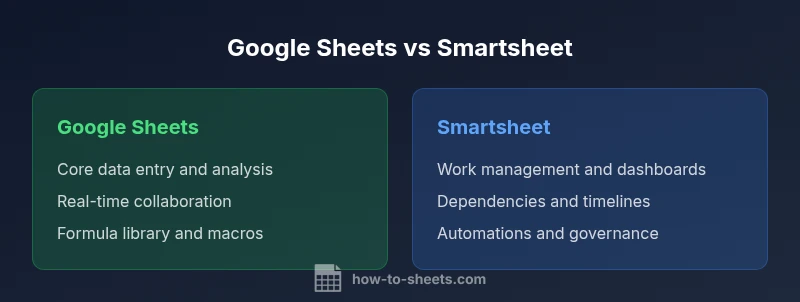
Difference between Google Sheets and Smartsheet is not just price, but core use: Google Sheets is a cloud-based spreadsheet focused on data entry, formulas, and real-time collaboration, while Smartsheet is a work-management platform that layers project tracking, automation, and dashboards on top of tabular data. For teams prioritizing analysis and lightweight collaboration, Sheets excels; for teams needing task dependencies, governance, and scalable automation, Smartsheet often fits better.
Understanding the difference in scope: data-centric spreadsheets vs work management
In many conversations about the difference between google sheets and smartsheet, the core distinction is not about formatting or speed alone. It is about what each platform is fundamentally designed to do. Google Sheets excels as a flexible, cloud-based spreadsheet that supports data entry, complex formulas, and real-time collaboration across devices. Smartsheet, by contrast, is built as a work-management platform. It combines tabular data with project tracking, resource views, Gantt-like timelines, and automated workflows. When you frame the decision around your primary objective—data analysis and sharing versus end-to-end work execution—the contrast becomes clearer. This first layer of distinction helps teams map requirements to capabilities rather than chasing feature lists in a vacuum.
Product scope and platform philosophy
Google Sheets is part of the Google Workspace suite and emphasizes lightweight, universally accessible spreadsheets. Its philosophy centers on collaboration, compatibility, and rapid sharing. Smartsheet positions itself as a work execution layer: a platform designed to support initiative planning, task sequencing, and governance at scale. While both systems store tabular information, Smartsheet adds layers of dependency structures, assignment and workload tracking, and a broader emphasis on dashboards and executive reporting. For an organization deciding between these tools, aligning philosophy with operational needs is often the decisive step.
Data modeling and structure
Google Sheets uses a straightforward grid where cells store numbers, text, and formulas. You can create relational-looking data using VLOOKUP, XLOOKUP (where available), and modern array formulas, but relationships are implicit and user-defined. Smartsheet uses a skew of “sheets” that support rows, attachments, forms, and dependencies. This makes it easier to model workflows, set predecessor-successor relationships, and drive automatic updates across linked sheets. If your data needs strict process modeling or cross-project dependencies, Smartsheet’s structure can reduce manual orchestration.
Collaboration and real-time editing
Both platforms enable real-time collaboration, but the experience differs. Google Sheets emphasizes simultaneous editing, comment threads, and built-in version history that integrates with Google Drive and Chat. Smartsheet focuses more on project-centric collaboration: assigning tasks, attaching documents to items, and updating statuses visible to stakeholders via dashboards. If your team collaborates mostly on data tables, Sheets may deliver a smoother experience; if collaboration centers on tasks, timelines, and accountability, Smartsheet provides more context for each row.
Automation, rules, and workflows
Automation in Google Sheets is possible through Apps Script, add-ons, and built-in macros, enabling custom functions, triggers, and simple workflows. Smartsheet offers a broader automation engine right out of the box: automated alerts, reminders, status changes, and cross-sheet workflows designed to support complex processes. For teams that require little custom coding and rely on standard workflows, Smartsheet can reduce development time. If you are comfortable writing small scripts, Google Sheets still offers flexibility without a paywall barrier.
Reporting, dashboards, and visibility
Google Sheets provides charts, pivot tables, and basic dashboards. It excels at ad hoc analysis and sharing data when the audience primarily needs raw numbers. Smartsheet emphasizes governance-grade reporting: dashboards that pull data from multiple sheets, roll-ups, and executive visibility across programs. For organizations needing a single pane of glass for projects, Smartsheet’s built-in dashboards align stakeholders and leadership more effectively.
Integrations, APIs, and extensibility
Both platforms offer integrations, but Smartsheet’s API and connectors are tailored toward enterprise workflows, including form-based data capture and integration with enterprise systems. Google Sheets integrates deeply with the Google ecosystem and thousands of third-party add-ons, making it easy to extend with custom functions or connect to non-G Suite tools. If you require deep enterprise-system integration and automated data flows, Smartsheet has advantages; for simple data enrichment and rapid tool chaining, Sheets shines.
Security, governance, and compliance
Security considerations include access control, data encryption, and governance capabilities. Google Sheets benefits from Google's security model and multi-layered protections, plus easy data sharing controls within Workspace. Smartsheet offers enterprise-grade governance features, including granular permissions, audit trails, and compliance configurations. The choice often depends on regulatory requirements, organizational policies, and the desired level of centralized control over data and workflows.
Pricing and licensing considerations
Pricing and licensing influence the overall value equation. Google Sheets starts with a free tier for individuals and an affordable path when bundled with Google Workspace for teams and organizations. Smartsheet typically follows a subscription model with per-user or per-seat pricing, plus potential discounts for larger teams. The important distinction is the cost of ownership: Sheets often requires fewer specialized licenses, while Smartsheet can deliver more built-in workflow capabilities but at a higher ongoing cost. Consider total cost of ownership across users, collaborators, and the volume of automation.
Migration paths and interoperability
If you already use Google Sheets and Smartsheet in parallel, plan how data will move between systems. Google Sheets supports straightforward CSV exports and imports, while Smartsheet provides its own data import pathways and row/column mapping tools. Expect some feature gaps when moving advanced automation or formulas between platforms, so outline a phased migration plan. For most teams, a hybrid approach—storing raw data in Sheets and pushing actionable items to Smartsheet—strikes a balance between familiarity and process discipline.
Practical decision framework for teams
Start with a decision framework that matches your core task to the platform’s strengths. If your primary need is flexible data analysis, fast sharing, and a low barrier to entry, Google Sheets is a strong default. If you require project management, dependencies, dashboards, and structured workflows at scale, Smartsheet is worth the investment. Use a pilot with a representative dataset and a couple of real projects to compare outcomes. The answer will hinge on workflow complexity, governance needs, and budget constraints.
Common pitfalls and mitigation strategies
Common pitfalls include treating Sheets solely as a project-management tool or underestimating the learning curve for Smartsheet’s dashboards and automation. Conversely, assuming Smartsheet will replace all data analysis needs without a data governance plan can lead to underutilized features. Mitigate by mapping use cases to platform strengths, defining governance policies early, and training users on the key workflows that matter most to your team.
Comparison
| Feature | Google Sheets | Smartsheet |
|---|---|---|
| Core purpose | General-purpose spreadsheet for data entry and analysis | Work-management platform with task tracking and automation |
| Data model | Cells with formulas; relationships are implicit | Rows/columns with dependencies and cross-sheet relationships |
| Automation out of the box | Apps Script, add-ons, basic macros | Built-in automation for alerts, workflows, and reminders |
| Collaboration focus | Real-time editing and sharing for data | Stakeholder visibility and task-level collaboration |
| Project management features | Limited; relies on manual processes and formulas | Gantt-like timelines, dependencies, dashboards, and reports |
| Dashboards and reporting | Charts and basic dashboards for data insights | Advanced dashboards and program-level reporting |
| Integrations | Google Workspace integration; broad third-party connectors | Enterprise connectors and API access for workflows |
| Security and governance | Google's security model and drive-sharing controls | Granular permissions and audit trails for governance |
| Pricing approach | Free basic tier; paidWorkspace-based tiers | Subscription-based, per-user or per-seat licensing |
| Migration considerations | CSV import/export; easy data transfers | Cross-sheet workflows; potential feature gaps during migration |
The Good
- Low barrier to entry with Google Sheets and broad collaboration
- Google Sheets integrates with the Google Workspace ecosystem
- Smartsheet offers strong project management and visibility
- Flexible automation and dashboards in Smartsheet
- Cross-platform accessibility and cloud-based workflows
The Bad
- Sheets lacks built-in project management features (dependencies, Gantt charts) and complex workflows
- Smartsheet can be more expensive and has steeper learning curve
- Sheets can become unwieldy with very large datasets or complex data modeling
- Smartsheet requires a subscription and can be less familiar for simple data analysis
Sheets for data-centric work; Smartsheet for project management and governance
If you primarily manipulate data and collaborate on spreadsheets, start with Google Sheets. If you need project tracking, dashboards, and scalable workflows, Smartsheet is the better fit. The How To Sheets team supports a careful, needs-based choice.
FAQ
What is the main difference between Google Sheets and Smartsheet?
Google Sheets is a cloud-based spreadsheet optimized for data entry and collaboration. Smartsheet is a work-management platform designed for task tracking, automation, and dashboards.
Google Sheets is great for data tasks; Smartsheet is built for work management with tasks and dashboards.
Who should use Google Sheets?
Individuals and small teams focusing on data analysis, simple reports, and lightweight collaboration should start with Google Sheets. It’s easy to share and edit in real time.
Great for individuals or teams doing data work with quick sharing.
Who should use Smartsheet?
Organizations that need project planning, dependencies, and governance across multiple teams benefit from Smartsheet’s work management features and dashboards.
Best for teams needing project control and visibility.
Can I migrate data between Sheets and Smartsheet?
Yes, you can migrate data via CSV exports/imports and Smartsheet data import tools. Expect some workflows and formulas to require adaptation.
You can move data between them, but some features won’t map directly.
Is Smartsheet more secure than Google Sheets?
Both offer strong security features, with Smartsheet providing enterprise-grade governance options. The choice depends on regulatory needs and organizational policies.
Both are secure; Smartsheet offers strong governance features for enterprises.
The Essentials
- Assess your primary use case before choosing
- Sheets excels at data manipulation and quick sharing
- Smartsheet shines with project management and dashboards
- Consider total cost of ownership and training needs
- Pilot both tools with real-world tasks