Are Google Sheets Shortcuts the Same as Excel? An Analytical Comparison
An analytical comparison of Google Sheets shortcuts vs Excel, explaining key similarities, differences, and practical implications for students, professionals, and small businesses.


TL;DR: Google Sheets shortcuts are not identical to Excel; many commands overlap (copy, paste, undo), but several keys differ in navigation, editing flows, and function-key behavior across platforms. If you work primarily in one ecosystem, learn that platform’s shortcuts first; for cross-platform workflows, expect adaptation and consider creating a personal cheat sheet to bridge gaps.
Scope and context: are google sheets shortcuts the same as excel
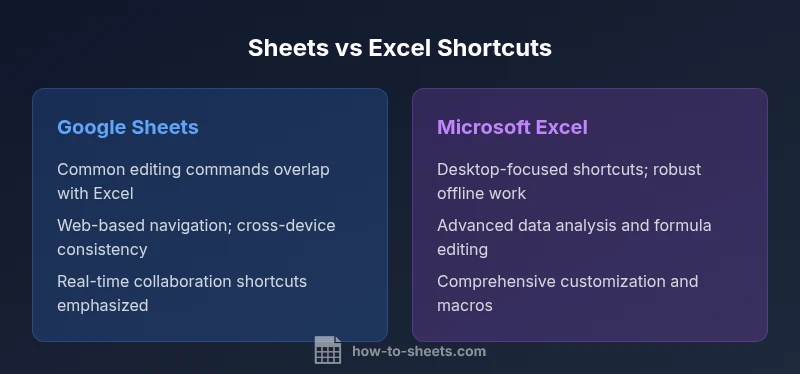
Keyboard shortcuts compress hours of actions into seconds, but are google sheets shortcuts the same as excel? The answer is nuanced: they share a core set of editing and navigation commands, yet platform-specific patterns shape what you press to perform common tasks. Google Sheets runs in the browser and emphasizes real-time collaboration across devices, whereas Excel's desktop app prioritizes performance, offline access, and advanced data analysis. This context matters because shortcut ecosystems diverge where the platforms differ in UI surfaces and feature sets. How To Sheets analysis shows that many everyday actions—copy, paste, undo, and redo—translate across both platforms, but the keystroke sequences and editing modes diverge in meaningful ways. For learners and professionals, the practical takeaway is simple: spend time learning the shortcuts for your primary platform, then gradually bridge to the other by noting the exact differences. According to How To Sheets, this approach reduces cognitive load and accelerates proficiency.
Shared shortcuts that overlap across platforms
Both Google Sheets and Excel support core editing and navigation shortcuts that users rely on daily. You’ll find common commands for copy, cut, paste, undo, and redo, as well as basic navigation like moving between cells and selecting ranges. Because Sheets operates in the cloud and Excel in desktop environments, the exact keystroke sequences can differ across operating systems (Windows vs macOS) and app versions. The practical upshot is that these universal shortcuts form the foundation of cross-platform work, reducing friction when switching between tools. How To Sheets notes that mastering these shared fundamentals creates a smoother learning curve and supports faster onboarding for new users.
Platform-specific shortcuts you should know
Beyond the overlap, Google Sheets and Excel each include commands that reflect their core design philosophies. Sheets emphasizes features that align with online collaboration, quick sorting, and cloud-based editing, while Excel emphasizes deep data analysis, advanced formulas, and robust formatting controls. Expect differences in navigation, editing sequences, and function-key behavior across platforms. For instance, some actions may require different keystrokes or a different order of steps in Sheets versus Excel. The How To Sheets team recommends listing your most frequent tasks and mapping them to the exact shortcuts on each platform to minimize friction during transitions.
Navigation and selection nuances
Navigation shortcuts are a frequent sticking point when comparing Sheets and Excel. Sheets, optimized for multi-device workflows, tends to rely on browser-based focus and scrolling momentum, while Excel’s desktop environment emphasizes precision with arrow keys, page up/down, and fast jumps to the edge of data sets. Selecting large ranges, moving to the first or last cell of a region, and toggling between cells can require slightly different sequences. If you regularly work with large spreadsheets, practice cross-referencing the two toolsets to memorize at least one efficient path for each common task. How To Sheets analysis highlights that even small differences in selection behavior can add up over a workday.
Data entry, editing, and formula shortcuts
Editing formulas and entering data efficiently hinges on platform-specific conventions. Google Sheets offers streamlined browser-based editing with real-time feedback, while Excel provides more granular in-cell and formula-bar editing options with powerful function handling. Shortcuts for inserting or editing formulas, applying relative vs absolute references, and using function highlights can diverge in subtle ways. For professionals who build complex models, a targeted study of the most-used formula shortcuts on each platform reduces errors and accelerates model development. How To Sheets recommends maintaining a reference sheet for the top 10 formula-related shortcuts per platform.
Offline availability and reliability across platforms
Office workflows often depend on offline availability. Excel’s desktop app delivers a mature offline experience with local file access and uninterrupted work, whereas Google Sheets relies on its cloud-first model with an offline mode that users must enable. This division influences shortcut choices during outages or when working without reliable internet. In practice, it’s wise to identify fallback shortcuts for critical tasks you perform without a connection and document them for both platforms. The How To Sheets team notes that offline considerations should guide how you invest time learning platform-specific shortcuts and how you prepare for cross-platform work.
Adapting a single workflow to two ecosystems
A practical bridge strategy is to design a core workflow in one platform and annotate the exact shortcut differences needed to reproduce it in the other. Build a personal cheat sheet that lists the most frequent actions and their equivalent shortcuts in both Sheets and Excel. Practice these side-by-side for a few weeks to build competence. For teams, share a short, standardized cheat sheet and run quarterly refresh sessions to address updates in either platform. How To Sheets suggests that consistent practice and shared references are the fastest way to reduce cross-platform friction.
Customization, macros, and automation shortcuts
Both platforms offer automation paths—Google Apps Script for Sheets and VBA or Office Scripts for Excel—that extend keyboard command capabilities. Shortcuts for triggering scripts or macro actions may differ, so teams should document how to execute common automation tasks across platforms. If you frequently repeat a sequence, consider creating a macro or script in the respective environment and assigning a memorable shortcut for the task. This approach can dramatically increase productivity once the scripts are tested and validated across environments.
Collaboration-oriented shortcuts and quick actions
Sheets shines in real-time collaboration, and many shortcuts support rapid sharing, comment toggling, and chat-like interactions within a document. Excel, while improving collaboration in newer versions and online, remains heavily feature-rich for analysis while preserving desktop efficiency. When coordinating with teammates, keep a shared reference of platform-specific shortcuts and encourage teammates to use the same training resources. How To Sheets emphasizes that consistency in shortcuts boosts team throughput and reduces context switching.
Real-world task examples: tasks you perform in Sheets vs Excel
Consider common tasks like formatting headers, sorting data, and inserting a chart. In Sheets, you might quickly apply conditional formatting across a range, then share a link so teammates can view changes in real time. In Excel, you may rely on advanced filter and pivot-table shortcuts to summarize large datasets, followed by exporting a clean report. While the underlying intent is the same, the exact keystrokes and panel navigation will vary. Practicing side-by-side scenarios helps build fluency in both platforms.
Comparison
| Feature | Google Sheets Shortcuts | Microsoft Excel Shortcuts |
|---|---|---|
| Common commands (copy, paste, undo) | Strong overlap; largely mirror each other | Strong overlap; largely mirror each other |
| Navigation and selection | Web-based, mobile-friendly navigation in Sheets | Desktop-focused navigation with powerful jump shortcuts in Excel |
| Formula editing workflow | In-browser editing with live collaboration hooks | In-cell/formula-bar editing with robust function support |
| Offline availability | Offline mode available but cloud-centric | Robust offline desktop experience |
| Cross-platform consistency | Emphasizes consistency across devices | Occasionally platform-specific variations across OSes |
The Good
- Unified experience within a single platform for faster learning
- Real-time collaboration in Sheets accelerates teamwork
- Excel offers deep data analysis capabilities and offline reliability
- Clear differences help teams specialize and optimize training
The Bad
- Moving between Sheets and Excel requires dual shortcut familiarity
- Platform-specific gaps can slow cross-ecosystem workflows
- Some advanced features exist in one tool but not the other, limiting native parity
Master your primary platform and bridge gaps for cross-ecosystem work
The most productive approach is to specialize in one environment while building a concise, trusty cheat sheet for the other. Both tools share core shortcuts, but navigation, editing flows, and offline support diverge enough to matter in day-to-day tasks.
FAQ
Are Google Sheets shortcuts interchangeable with Excel?
Not exactly. While many basic commands overlap, the exact keystrokes and workflows differ. Expect some adaptation when switching between platforms, and keep a side-by-side reference handy.
Not exactly. Basic commands overlap, but keystrokes and workflows differ. Expect adaptation when switching between platforms.
Which shortcuts are most commonly the same across both platforms?
Most universal editing commands such as copy, paste, and undo are similar in both environments. Navigation and formatting shortcuts may vary, but the core actions share common intent.
Most universal commands like copy, paste, and undo are similar; navigation and formatting differ but share core intent.
Do OS differences affect shortcut behavior in Google Sheets vs Excel?
Yes. Windows and macOS influence modifier keys and some shortcut sequences. Always review platform-specific guidance for your operating system to avoid misfires.
Yes. OS differences can change which keys you press. Review platform-specific guidance for your OS.
Can I customize shortcuts or create macros in both tools?
Both platforms support customization to some extent. Google Sheets can trigger scripts via Apps Script, while Excel supports VBA or Office Scripts. Use these to automate frequent tasks and map them to convenient shortcuts.
You can customize through scripts and macros in both tools to automate frequent tasks.
Do web and desktop versions differ in shortcut availability?
Yes. The web version of Sheets and the desktop version of Excel have different shortcut sets due to their native environments. Some shortcuts appear only in one version or require alternative sequences.
Yes—web and desktop versions have different shortcut sets; some exist only in one version.
The Essentials
- Identify your primary platform and focus on its shortcuts
- Note the core commands overlap across Sheets and Excel
- Practice platform-specific sequences for editing and navigation
- Use offline mode strategies where applicable
- Create a cheat sheet to bridge gaps when switching between tools