Do Google Sheets and Excel Work the Same? A Practical Side-by-Side Comparison
A practical, analytical comparison of Google Sheets vs Excel, detailing compatibility, feature gaps, workflows, and when to choose each tool for students, professionals, and small businesses.


Google Sheets and Excel share core spreadsheet capabilities, but they do not work the same in all scenarios. This comparison helps you decide which tool fits your workflow, especially for collaboration, automation, and data modeling. According to How To Sheets, the two platforms align on many formulas yet diverge on offline access, macro support, and performance at scale. For teams and projects, choosing the right tool matters for efficiency.
do google sheets and excel work the same for core formulas
Do google sheets and excel work the same for core formulas? In practice, many basic functions such as SUM, AVERAGE, MIN, and MAX map directly between platforms, so everyday calculations feel familiar. However, the syntax and extension libraries differ. Users will notice that some formula names are equivalent but with different arguments, and some advanced functions exist on one platform before the other. The How To Sheets team notes that, while the basics line up, you should expect occasional quirks when migrating complex sheets. This nuance is important for anyone evaluating whether to standardize on one tool or maintain parallel workbooks across environments. The answer, in short, is: there is a strong overlap, but the gaps matter depending on your use case.
Collaboration models: real-time editing vs. desktop workflows
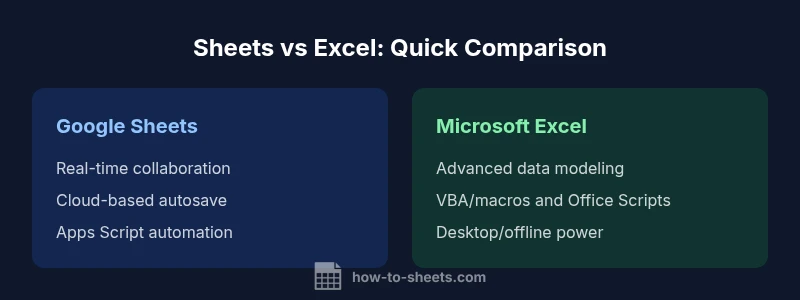
Real-time collaboration is a hallmark of Google Sheets, built into the cloud-native experience. Multiple users can edit a sheet simultaneously with live updates and automated version history. Excel, historically desktop-centric, now offers real-time collaboration in its online and hybrid Office 365 editions, but the experience can differ by plan and network conditions. If your team relies on rapid co-authoring and cloud accessibility, Sheets provides a smoother shared workflow. If your team will sometimes operate offline or needs deep desktop analytics, Excel’s offline capabilities remain a strong point. According to How To Sheets analysis, choosing between cloud-first collaboration and offline productivity often determines platform preference in teams with distributed members.
User interface and workflow nuances
The user interface (UI) of Google Sheets emphasizes simplicity and rapid navigation, with a minimal learning curve for new users and tight integration with other Google products. Excel’s UI is more feature-dense, with a broader toolkit for power users, including advanced data modeling and robust formatting options. For routine lists and lightweight dashboards, Sheets streamlines the workflow; for intricate financial models and large data analyses, Excel’s richer feature set may reduce the need for external tools. In practice, users report a trade-off between speed (Sheets) and depth (Excel). This distinction matters when you consider onboarding, training costs, and long-term maintenance of workbooks.
Formulas, functions, and cross-compatibility
A core question is how formulas map across platforms. Many common functions exist on both sides, but there are notable differences in advanced functions, error handling, and array behavior. For example, Sheets uses Array formulas and specific array handling that can differ from Excel’s approach to dynamic arrays and spill behavior. The result is that formulas that work in Sheets may require adjustment when ported to Excel, and vice versa. The practical implication is that teams should plan for a validation phase when migrating complex models, including test cases for edge scenarios and data types. This is where a well-documented function index and consistent naming conventions pay off. Do google sheets and excel work the same? Not perfectly; plan for a mapping exercise with real datasets.
Macros and automation: Apps Script vs VBA
Automation elevates productivity, but scripting ecosystems differ substantially. Google Sheets uses Apps Script (JavaScript-based) for custom functions, macros, and automation. Excel relies on VBA and, in newer iterations, JavaScript-based Office Scripts for the web. These ecosystems are not directly compatible, which means porting scripts between platforms requires rewriting logic and adapting APIs. For teams that require automation across cloud platforms, a hybrid approach can work well: keep common automation in Apps Script for Sheets and use Office Scripts or VBA for Excel, then maintain separate but parallel automation layers. This divergence is a key factor in long-term maintainability and cost of ownership.
Data modeling, charts, and visualization
Both platforms support charts, pivot tables, and data visualization, but their capabilities differ in depth and performance. Excel has mature data modeling features, including advanced pivot tables and Power Query-like ingestion pipelines that handle large datasets efficiently. Google Sheets offers an approachable set of charts and basic pivoting, with strong integration to data sources via functions and add-ons. If your job requires sophisticated BI workflows or offline, enterprise-grade data modeling, Excel often outperforms Sheets. Conversely, for quick dashboards and collaborative reporting, Sheets excels with real-time data sharing and cloud-based access.
Import/export, compatibility, and migration
Migrating between Sheets and Excel is common in multi-tool environments. Both platforms support importing and exporting XLSX, CSV, and other formats, but fidelity can vary. Sheets often preserves formulas only when supported by the receiving format, while some advanced Excel features may not translate perfectly. Planning a migration involves auditing formulas, data validation rules, named ranges, and scripts. In practice, you should prepare a migration plan with sample files, run-side-by-side validation, and establish a rollback strategy if critical errors surface during transfer. For teams with ongoing cross-platform needs, this is a non-trivial but solvable process.
Performance, scalability, and platform availability
Performance is influenced by dataset size, network conditions, and device capabilities. Google Sheets shines with lighter, cloud-based workloads and seamless cross-device access, while Excel handles heavier local datasets with more robust processing power on desktops. When working with very large datasets, users often observe smoother updates and faster navigation in Excel on a high-end machine, whereas Sheets may require optimization (e.g., fewer volatile formulas, simpler arrays). Platform availability matters too: Sheets works across devices with a Google account, while Excel necessitates an Office 365 subscription or a licensed desktop installation. The practical takeaway is to size expectations to your typical workbook scale and whether you require offline capability.
Security, sharing, and governance
Both platforms offer robust sharing controls, audit trails, and access permissions, but their default security models differ. Google Sheets emphasizes cloud-based collaboration with granular sharing options and activity history. Excel strengthens governance through workbooks stored in SharePoint or OneDrive with centralized administrator policies. For sensitive data, consider organizational requirements, such as data residency, version control, and conditional access rules. In both ecosystems, establishing standardized templates, naming conventions, and access policies reduces risk and improves compliance. The How To Sheets team highlights that consistent governance models are essential when using both tools in tandem.
Comparison
| Feature | Google Sheets | Microsoft Excel |
|---|---|---|
| Platform and collaboration | Cloud-first with real-time multi-user editing | Desktop-first with optional online collaboration |
| Formula compatibility | Broad overlap with basic functions; differences in advanced formulas | Extensive function library with robust data modeling |
| Scripting and automation | Apps Script (JavaScript-based); browser/mobile ready | VBA/macros; Office Scripts on the web |
| Data size and performance | Optimized for cloud datasets; scalable within limits | Handles large datasets locally with strong performance |
| File formats and migration | Seamless import/export with XLSX/CSV; some feature gaps on migration | Solid XLSX/CSV support; complex formatting may migrate imperfectly |
| Offline access | Partial offline support via cached data and offline mode | Full offline access on desktop installations |
| Pricing and access | Free with a Google account; cloud-based | Licensed desktop/app-based; subscription options |
| Security and governance | Built-in sharing controls and version history | Enterprise-grade governance via SharePoint/OneDrive |
The Good
- Strong real-time collaboration and cloud access
- Low barrier to entry and fast onboarding
- Integrated with other cloud tools and templates
- Cross-device compatibility for Sheets; robust offline options for Excel
The Bad
- Gaps in feature parity can slow cross-platform projects
- Scripting ecosystems are not directly portable
- Managing large, complex models across platforms increases risk
- Licensing and hosting considerations can affect cost
Sheets for collaboration; Excel for advanced modeling
If your work centers on teamwork and cloud access, Sheets is often the better fit. For heavy analytics and offline data processing, Excel has the edge. A hybrid approach using both tools can be optimal for many teams.
FAQ
Do Google Sheets and Excel use the same formulas?
Both support many of the same basic functions, but advanced formulas and array behavior can differ. Expect some adjustments when porting complex formulas between Sheets and Excel.
Yes, they share many basics, but be prepared for differences in advanced functions when moving between them.
Can I open Excel files in Google Sheets without losing data?
Excel files (.xlsx) can be opened in Google Sheets with most formulas preserved, but some advanced formatting or macros may not transfer perfectly.
You can open Excel files in Google Sheets, but some features might not translate exactly.
Do Apps Script and VBA work the same way?
Apps Script is JavaScript-based and designed for Sheets, while VBA is a different language used in Excel. They are not directly compatible, so cross-platform automation typically requires rewriting scripts.
Apps Script uses JavaScript; VBA is different. You’ll rewrite automation when moving between platforms.
Which tool is better for team collaboration?
Google Sheets excels in real-time collaboration and cloud access, while Excel Online offers collaboration in a more feature-rich desktop ecosystem.
Sheets wins for real-time cloud collaboration; Excel Online is solid for teams relying on desktop features.
What are the limits when working with large datasets?
Excel generally handles larger local datasets more robustly, while Sheets remains strong for cloud-based workflows with collaborative access. Plan for performance considerations as datasets grow.
Excel handles large data locally; Sheets is excellent for cloud-based collaboration with scalable workflows.
Can I use both tools in a hybrid workflow?
Yes. Many teams maintain sheets in Sheets for collaboration and migrate select datasets to Excel for advanced analysis, using careful data exchange and validation.
Absolutely—use Sheets for collaboration and Excel for deep analysis when needed.
The Essentials
- Assess collaboration needs before choosing a platform
- Expect gap areas in cross-platform formula usage
- Plan for migration with validation checks
- Leverage scripting ecosystems but anticipate required rewrites
- Hybrid workflows can leverage strengths of both tools