Are Google Sheets and Excel the Same? A Practical Look
This comparison shows how google sheets and excel are same on basics like formulas, but differ in collaboration, offline use, macros, and data handling. Find which fits online teams or advanced data tasks.


According to How To Sheets, the question 'google sheets and excel are same' is a common misconception. The answer is nuanced: both tools share core formulas and data handling, but they differ in collaboration, offline access, automation, and advanced features. This guide outlines where they align and where they diverge to help you pick the right tool for your workflow.
Introduction: The Question Behind the Comparison
The phrase google sheets and excel are same is a frequent starting point for many students, professionals, and small business owners evaluating spreadsheet tools. In reality, both products aim to help you organize data, build calculations, and present results, but they differ in philosophy, ecosystem, and capabilities. According to How To Sheets, understanding these nuances is essential for choosing the right tool for a given task. This article uses a practical, evidence-based approach to highlight where Sheets and Excel align and where they diverge, so you can make a decision that fits your daily work. We’ll cover collaboration, offline access, formula parity, automation, data capacity, and interoperability with other apps. The goal is not to declare one winner, but to map out scenarios where each option shines.
Core Functionality: Shared Ground and Shared Limits
Both Google Sheets and Microsoft Excel offer a broad set of core spreadsheet features: a grid of cells, built-in functions, charts, sorting and filtering, named ranges, and conditional formatting. At a high level, common tasks like SUM, AVERAGE, VLOOKUP (or XLOOKUP in Excel), and basic charting behave similarly across both platforms. This shared foundation means a lot of day-to-day work translates smoothly between Sheets and Excel. How To Sheets analysis shows that most business users perform budgeting, reporting, and data exploration effectively in either tool when tasks stay within standard ranges. However, there are subtle differences in how each platform implements these capabilities, which can affect reliability and ease of use when your work grows more complex.
Collaboration, Sharing, and Real-Time Editing
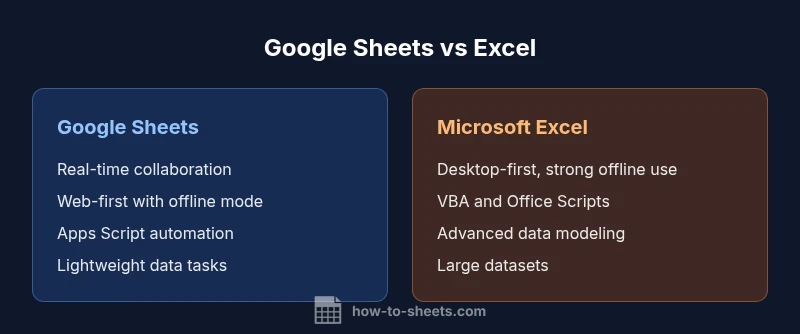
One of the most visible differences between google sheets and excel are their collaboration models. Google Sheets is designed from the ground up for online collaboration, with real-time editing, immediate updates, and easy sharing through links and permissions. In contrast, Excel’s collaboration strengths come from the cloud-enabled Office 365/OneDrive ecosystem, which supports co-authoring but can feel more distributed between desktop and web experiences. For teams that rely on simultaneous edits and fast iteration, Sheets often feels more seamless. For organizations that require strict version control and multi-user workflows with heavy data, Excel’s collaboration can still meet needs, but may require more management of file versions. The How To Sheets team notes that the choice often hinges on whether your workflow is predominantly online or spans offline desktop work.
Offline Access and Desktop Reliability
Offline access is a key difference. Google Sheets offers offline editing when enabled in settings, syncing changes once an internet connection is restored. This model works well for light to moderate tasks but can introduce occasional sync delays for very large spreadsheets or complex scripts. Excel, especially the desktop version, is typically superior for robust offline use, large datasets, and complex macros, because it has a mature local computation engine and file format. If you travel often or have limited connectivity, Excel’s offline reliability can be a decisive advantage. Still, Google Sheets offline is continually improving, and many teams successfully blend online and offline work as part of a hybrid workflow. The How To Sheets analysis highlights these practical implications for users who must operate without constant connectivity.
Formulas, Functions, and Parity Across Platforms
Many standard formulas exist in both tools, including SUM, AVERAGE, IF, and logical operators. Yet parity ends there: some functions have different names or behave differently, and there are unique capabilities in each environment. Excel’s function library is large, with powerful lookup, statistical, and data analysis options, plus features like array formulas and new dynamic array functions. Google Sheets focuses on simplicity and collaboration-friendly functions, with strong integration to Google Apps Script for automation. In practice, you’ll find many common tasks translate well, but advanced modeling, linear programming, and heavy data transformation often reveal gaps. How To Sheets emphasizes building a task-by-task checklist to map your formulas and ensure consistent results across platforms.
Automation and Scripting: Apps Script vs VBA/Office Scripts
Automation differentiates the two products. Google Sheets uses Apps Script (JavaScript-based) to customize behavior, automate workflows, and connect to other Google services. Excel offers VBA for macro-style automation and, in modern iterations, Office Scripts (JavaScript) for web-based automation. If you routinely automate repetitive analysis, your choice may hinge on your familiarity with scripting languages and your ecosystem. Apps Script is tightly integrated with Google Workspace, while Office Scripts aligns with the broader Microsoft 365 environment. For teams invested in Google Workspace, Sheets + Apps Script can be extremely productive; for those deep in Windows-based workflows, Excel with VBA or Office Scripts may be more natural.
Data Capacity, Performance, and Modeling Strengths
Both tools handle typical business datasets effectively, but they diverge on scale and performance. Excel has historically excelled at large-scale data modeling, pivot tables, and complex data analysis within a robust desktop environment. Google Sheets excels in lightweight to moderate data tasks, quick prototyping, and sharing results widely. When datasets grow large or when you require advanced data modeling, Excel often provides a smoother experience, while Sheets may become slower or require more optimization. The How To Sheets team suggests evaluating your typical dataset size, calculated fields, and pivot table needs to determine which platform scales with your workflow.
File Formats, Import/Export, and Interoperability
Interoperability matters for teams moving between Google Drive and Microsoft 365. Google Sheets saves in its native online format but can export to Excel (.xlsx) or PDF, preserving layout to a reasonable degree. Excel’s native format (.xlsx) is widely compatible, and it offers robust import/export options across desktop and web. When collaborating with others who rely on different tools, understanding export options, compatibility flags, and feature parity limits is essential to avoid surprises. The How To Sheets team highlights that a careful file conversion plan reduces the risk of lost formulas and formatting during a move across platforms.
Use-Case Scenarios: When to Choose Sheets or Excel
Choosing between google sheets and excel are same in some contexts? The better decision depends on your workflow and constraints. For online teams that prioritize collaboration, instant sharing, and cross-device access, Google Sheets is often the pragmatic choice. For heavy data modeling, offline reliability, and advanced analytics, Microsoft Excel tends to be preferred. If your organization uses Google Workspace intensively, Sheets benefits from seamless integration with Drive, Docs, and Forms. If your work is anchored in Windows and Office ecosystems, Excel offers a familiar suite of features and performance advantages. In many cases, teams use both tools for complementary tasks: Sheets for quick data gathering and brainstorming, Excel for deep analysis and reporting.
Practical Guidance: Migrating and Hybrid Workflows
A practical approach to choosing between sheets and excel is to design a hybrid workflow: draft and collect data in Sheets for collaboration, then export to Excel for advanced analysis or archival purposes. Establish clear guidelines for when to convert files, how to preserve formulas, and how to manage version history. Consider building templates that translate well across platforms and creating a small automation script to reconcile differences in functions or ranges. This careful planning minimizes friction when switching between tools. The How To Sheets guidance emphasizes starting with a pilot project to validate parity and identify edge cases before a full migration.
Pitfalls to Avoid and How to Resolve Them
Jumping between Sheets and Excel without a plan can lead to lost formulas or misinterpreted data formats. Some common pitfalls include mismatched function support, formatting discrepancies in charts, and differences in how each tool handles arrays and lookup operations. To mitigate these issues, maintain a documented mapping of critical formulas, use export/import tests, and rely on cloud-based templates that preserve structure. When you encounter a feature gap, look for equivalent workflows or consider using Apps Script or Office Scripts to bridge the gap. The How To Sheets team recommends documenting decisions and testing critical reports in both environments to ensure consistent results.
Comparison
| Feature | Google Sheets | Microsoft Excel |
|---|---|---|
| Real-time collaboration | Strong real-time collaboration in Google Sheets; multi-user editing with visible cursors | Co-authoring available via OneDrive with web/desktop balance |
| Offline access | Offline editing via Chrome offline cache (requires setup) | Robust offline desktop experience; web offline varied |
| Formula parity | Common core functions shared; some differences in advanced functions | Extensive function library with VBA and advanced data tools |
| Automation | Apps Script for automation and integration with Google services | VBA and Office Scripts offer powerful scripting options |
| Scripting languages | JavaScript-based Apps Script | VBA (plus Office Scripts for web) |
| Data capacity | Well-suited for typical datasets in collaborative work | Strong performance with large datasets and complex models |
| File formats | Native Google Sheets format; exports to Excel supported | Native Excel format; wide interoperability |
| Pricing | Free with Google account; paid storage via Workspace plans | Office licensed per device or per user; Office 365 subscription |
The Good
- Strong cloud-based collaboration and sharing
- Easy access from any device with web or mobile apps
- Tight integration with other productivity tools (Google Workspace)
- Low upfront cost for individuals and teams
The Bad
- Excel often handles large data sets more robustly
- Feature parity gaps can slow migration or cross-platform work
- Offline reliability may vary for Sheets in some scenarios
- Automation ecosystems differ (Apps Script vs VBA/Office Scripts)
Neither is universally 'the best'—choose based on your ecosystem and task load
Google Sheets shines in collaboration and accessibility; Excel dominates in offline work and advanced analytics. Use Sheets for teamwork in the cloud and Excel for heavy data modeling or Windows-focused workflows.
FAQ
Are Google Sheets and Excel fundamentally different, or do they share core features?
They share core spreadsheet concepts such as cells, formulas, and charts, but they differ in advanced features, scripting, and ecosystem integrations. The parity means most everyday tasks translate, yet edge cases require tool-specific workarounds.
They share the basics like formulas and charts, but advanced features and scripting differ between Sheets and Excel.
Which is better for real-time collaboration?
Google Sheets excels at real-time collaboration due to its cloud-first design, while Excel’s collaboration strengths come from the cloud-enabled Office 365/OneDrive ecosystem, which supports co-authoring but can feel more distributed between desktop and web experiences. For teams prioritizing constant online collaboration, Sheets often performs best.
Sheets usually wins for real-time collaboration, though Excel's cloud version also supports co-authoring.
Can you move files between Google Sheets and Excel without losing formulas?
Exporting from Sheets to Excel and vice versa is possible, but some formulas and formatting may not transfer perfectly. Always test critical sheets after export and consider using templates to minimize drift.
Yes, but expect some formula or formatting differences after transfer.
Do both tools support macros or automation, and how do they compare?
Excel relies on VBA and Office Scripts, while Sheets uses Apps Script. Both offer automation, but the languages and libraries differ, so cross-platform automation requires adaptation.
Both support automation, but you’ll use different languages—Apps Script in Sheets and VBA/Office Scripts in Excel.
What about performance with large datasets?
Excel generally handles very large datasets and complex models with less slow-down than Sheets. Sheets remains strong for collaborative, lighter datasets, but may slow with heavy operations.
Excel tends to perform better on large data; Sheets is great for collaboration with smaller datasets.
Is there a recommended path for organizations using both tools?
A practical path is to start with Sheets for data gathering and sharing, then export to Excel for deep analysis. Establish templates and clear workflows to minimize conversion friction.
Use Sheets for gathering and sharing, export to Excel for deep analysis.
The Essentials
- Identify your primary workflow: collaboration vs offline modeling
- Test critical formulas and exports across both tools
- Leverage hybrid templates to bridge gaps
- Plan migration with pilot projects and clear rollback options