Do Google Sheets Formulas Work in Excel? A Practical Guide
Explore how Google Sheets formulas translate to Excel, identify compatible functions, note gaps, and learn practical steps to ensure cross-platform accuracy.


Do Google Sheets formulas work in Excel? In short, most core formulas translate across both platforms, but there are important gaps. Arithmetic, lookup, and many text functions tend to map directly, while Google-only features and some array behaviors require rewriting. This guide explains what translates, what doesn’t, and practical steps to adapt Sheets formulas for Excel without losing accuracy.
Do Google Sheets Formulas Work in Excel? Core Idea
The short answer to the question "do google sheets formulas work in excel" is not a binary yes or no. While many core formulas—such as arithmetic operations, basic reference functions, and common text operations—transfer across both platforms, several Google Sheets-only features and some advanced array behaviors do not have a one-to-one Excel counterpart. According to How To Sheets analysis, there is a meaningful overlap in routine formulas, but planners should expect and map key gaps before large migrations. In practice, teams often start with a compatibility audit: list critical formulas, identify non-native functions, and draft conversion paths. The goal is to maintain accuracy while minimizing manual rewrites and testing time.
Core Overlaps: Functions That Translate Across Both Apps
If you are asking what translates well when moving from Google Sheets to Excel, you’ll find many core functions map cleanly. Functions such as SUM, AVERAGE, MIN, MAX, IF, AND, OR, VLOOKUP, INDEX, and MATCH are foundational in both environments. Text-functions like LEFT, RIGHT, MID, CONCAT, and TEXTJOIN also have direct or near-direct equivalents. For simple datasets, this overlap means you can often port most of your logic with minimal edits. However, the exact syntax (comma vs locale-specific separators) and the handling of array results may still differ, so testing is essential. The How To Sheets team notes that careful mapping of these core operations is the fastest route to a successful cross-platform transition.
Notable Gaps: Functions and Features That Don’t Translate Directly
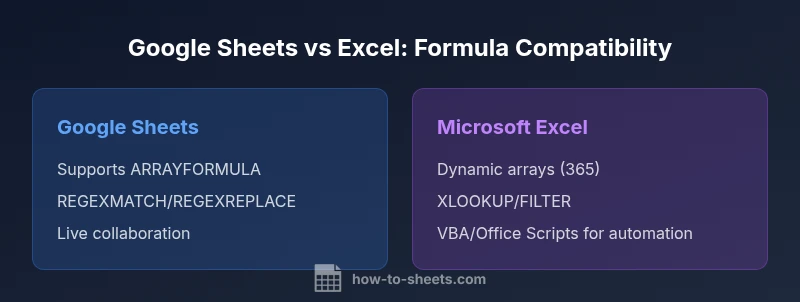
Not every Google Sheets function has a direct Excel equivalent. Google Sheets has REGEXMATCH, REGEXREPLACE, REGEXEXTRACT, and the broader REGEX-based text utilities that Excel does not replicate natively in most versions. Although Excel 365 has rich text-manipulation functions, the specific regex-based workflow requires workarounds or VBA/Office Scripts. Additionally, some Sheets-only features like ARRAYFORMULA and certain array behaviors differ from Excel’s approach to dynamic arrays and spill ranges. Other notable gaps include unique Google Sheets functions like GOOGLETRANSLATE or IMPORTXML, which have no straightforward Excel counterparts. When migrating, prioritize identifying non-native functions and plan replacements using Excel-native alternatives such as TEXTSPLIT, FILTER, and XLOOKUP in modern Excel.
How to Convert Google Sheets Formulas for Excel
Conversion begins with a function-by-function audit. List every formula used and tag non-native items. For each non-native function, identify an Excel equivalent or a combination of functions that reproduces the behavior. Adjust syntax to match Excel’s separators and regional settings (comma vs semicolon). Where array behavior differs, rewrite with dynamic arrays (Excel’s SEQUENCE, FILTER, SORT, UNIQUE) or helper columns. Consider replacing Google-specific lookups with XLOOKUP (or VLOOKUP/INDEX+MATCH) in Excel, and adopt TEXTSPLIT or TEXTAFTER/TEXTBEFORE where applicable. Finally, test the resulting workbook across both platforms to catch subtle edge cases, especially around error propagation and conditional formatting.
Arrays, Ranges, and Locale Nuances
Arrays are powerful in both ecosystems but operate slightly differently. Google Sheets’ array handling and the omnipresent ARRAYFORMULA pattern can simplify complex ranges, whereas Excel relies on spill-enabled dynamic arrays introduced in recent versions. Locale differences—such as separators (comma vs semicolon) and decimal symbols—can trip up migrated formulas if workbook locales don’t align with your destination environment. A best practice is to standardize on a single locale for cross-platform workbooks or to audit locale-sensitive formulas during the migration sprint. This attention to detail helps avoid subtle errors that crops up only in Excel or only in Sheets.
Practical Mapping: Examples You Can Try
Take a straightforward Sheets formula like =IF(A2>100, SUM(B2:B10), AVERAGE(C2:C10)). In Excel, you can preserve the same logic with =IF(A2>100, SUM(B2:B10), AVERAGE(C2:C10))—the same structure works, but ensure separators match your locale. For regex-based text extraction in Sheets, convert to a combination of MID/SEARCH or TEXTAFTER/TEXTBEFORE with helper functions in Excel 365. A more complex case includes array results, where Sheets uses ARRAYFORMULA for expansion; in Excel, your approach should leverage dynamic arrays so the result spills automatically. Each migration step should be tested with a sample data subset before full deployment.
Best Practices for Cross-Platform Workflows
- Maintain a compatibility checklist: mark which formulas are native to both platforms and which require rewriting.
- Prefer Excel-native equivalents for long-term maintenance (XLOOKUP, FILTER, TEXTSPLIT) instead of route-through formulas.
- Use named ranges and consistent references to minimize breakages when sheets move between apps.
- Document edge cases and tests to support future migrations or audits.
- Maintain version control for critical sheets used in cross-platform workflows. This discipline reduces friction during upgrades or policy changes.
When to Use Each Platform: Decision Guidelines
If your team relies heavily on real-time collaboration and Google-specific features, Google Sheets remains a strong choice, with formulas that translate well for many use cases. If your priority is advanced data analysis, standalone Excel workbooks with heavy pivot tables, or integration with desktop software, Excel’s broader data toolset and native compatibility with many business processes often win out. The practical takeaway is to treat Sheets formulas as blueprints for Excel equivalents, then validate each formula in the target app to ensure consistent results.
Staying Cross-Platform Ready: Quick Checklists
- Audit all core formulas and list non-native ones.
- Map non-native functions to Excel equivalents.
- Normalize locale settings across workbooks.
- Validate a sample dataset in Excel before full migration.
- Create a cross-platform test plan, including edge cases and error handling.
Comparison
| Feature | Google Sheets | Microsoft Excel |
|---|---|---|
| Core formula compatibility | High | High |
| Regex and advanced text | Yes (REGEXMATCH/REGEXREPLACE) | No native REGEX in Excel |
| Array handling / dynamic arrays | Extensive array support via ARRAYFORMULA | Dynamic arrays in modern Excel (365) |
| Scripting and automation | Apps Script integrations | Office Scripts and VBA equivalents |
| Error handling & debugging | Similar error experiences; some differences in error types | Similar but with Excel-specific error handling |
| Locale/separator behavior | Locale-aware separators; Sheets often use comma | Locale differences may require semicolon separators |
The Good
- Many core formulas translate directly, speeding migration
- Common logic patterns are reusable across platforms
- Excel’s advanced data tools complement Sheets workflows
- Relatively small pilot migrations reduce risk
The Bad
- Some Google-specific functions have no direct Excel equivalent
- Regex and advanced text features require workarounds
- Locale and array behavior can cause subtle errors
- Migration may require rewriting dashboards and charts
Excel can handle most Google Sheets formulas with careful mapping, but expect gaps for Google-specific features.
For simple sheets, compatibility is high if you map functions to Excel equivalents and test thoroughly. For complex Sheets-specific logic, plan for rewrite work and validation across both apps. The How To Sheets team recommends a structured migration approach with explicit caveats and testing.
FAQ
Do all Google Sheets formulas work in Excel?
Not all; core functions translate, some gaps exist for Google-only features and regex-based text operations. Mapping to Excel equivalents and testing across platforms is essential.
Most basics transfer, but expect gaps for Google-only features; test before migrating.
Which Excel functions map to Google Sheets formulas?
Many basic functions map directly (SUM, IF, VLOOKUP, INDEX, MATCH). Newer Excel functions like XLOOKUP, FILTER, and TEXTSPLIT often serve as modern equivalents for common Sheets patterns.
A lot of the basics map well; use Excel’s newer functions for cleaner migrations.
How do you convert a Google Sheets ARRAYFORMULA to Excel?
In Excel, use dynamic arrays and spill formulas (eg, SEQUENCE, FILTER, UNIQUE) to replicate the behavior. Non-spilling patterns may require helper columns.
Use Excel’s dynamic arrays to replicate Sheets patterns.
Are there Google Sheets features Excel cannot replicate?
Yes—certain Google-specific features and some regex-based text workflows don’t have direct equivalents in Excel and require rethinking the approach or using scripts.
Some Google features don’t have direct Excel equivalents; plan workarounds.
What are best practices for cross-platform spreadsheets?
Document every difference, map functions to Excel equivalents, standardize locales, and test with representative data. Maintain a compatibility checklist and review edge cases before deployment.
Keep a checklist and test across apps before going live.
How reliable is cross-platform formula migration?
Reliability depends on the complexity of formulas and the extent of Google-specific features. Start with a small pilot migration and scale after confirming results match.
Test with a pilot migration to gauge reliability.
The Essentials
- Test critical formulas in the target app first
- Prioritize Excel equivalents like XLOOKUP and FILTER
- Be mindful of regex and array differences
- Standardize locale settings across workbooks
- Document differences to ease future migrations