Is Google Sheets Compatible with Excel? A Practical Comparison
Analyze how Google Sheets and Excel align on file formats, formulas, macros, and collaboration. This in-depth comparison helps you plan cross‑platform workflows and avoid surprises when exchanging spreadsheets.


Google Sheets and Excel are partially compatible. You can open and save Excel workbooks in Google Sheets, and many formulas carry over, but some features like VBA macros and advanced functions may not translate exactly. For most day-to-day work, you’ll perform minor adjustments, especially around charts, pivot tables, and data validation.
Is Google Sheets compatible with Excel? A practical overview
When you ask is google sheets compatible with excel, the short answer is that both tools cover many common spreadsheet tasks, but they are not identical in every detail. According to How To Sheets, real-world cross‑platform work hinges on how you handle file formats, formulas, and automation capabilities. In this section, we’ll map the key compatibility factors you’ll encounter when exchanging files between Sheets and Excel: formats, formulas, macros, charts and pivots, data validation, and collaboration. The goal is to help students, professionals, and small business owners design workflows that minimize reformatting and preserve core calculations. Expect some adjustments in chart styling and advanced features, but most everyday spreadsheets transfer with minimal disruption.
File formats and data interchange: the practical boundaries
A major determinant of cross‑platform compatibility is how each app reads and exports file formats. Google Sheets supports importing and exporting Excel files and common interchange formats like CSV. Excel, in turn, supports its native workbook formats and a broad set of interoperability options. In practice, you can open an Excel workbook in Sheets and then re‑export it as an Excel file if you need to share back. The caveat is that some cell values, formatting, and complex data types may require manual tweaks after the file is opened in the other program. This is where careful testing and a clearly documented interchange plan pay dividends. From a workflow perspective, consider keeping a data-only sheet in CSV for clean, lossless transfers when possible.
Formulas and functions: parity and gaps
Both platforms cover the fundamentals—SUM, AVERAGE, IF, VLOOKUP, and INDEX/MATCH are common ground—but several functions differ in availability, names, and argument behavior. When moving from Excel to Sheets, expect some functions to have slightly different syntax or to require alternative approaches. Conversely, moving from Sheets to Excel may expose Excel‑specific capabilities that Sheets cannot replicate natively. A practical tip is to start with widely supported functions for critical calculations and gradually migrate advanced formulas to a cross‑compatible design. This reduces the risk of silent errors after transfer and keeps your workbook robust across environments.
Macros and automation: Apps Script vs VBA
Automation is a core differentiator. Excel’s VBA environment enables deep customization and robust macro automation, while Google Sheets relies on Apps Script for scripting and automation. Macros created in Excel do not run in Sheets, and vice versa, so you’ll typically rewrite automation when moving between platforms. If automation is essential for your team, plan a modular approach: isolate business logic into scripts that can be rewritten in Apps Script or Office Script, depending on the destination. This approach minimizes maintenance costs and keeps your automation portable across environments.
Charts, pivots, and data visualization: cross‑platform differences
Charts and pivot tables translate well between Sheets and Excel, but the exact options and defaults can vary. Simple charts often render identically, while advanced chart types or pivot configurations may require tweaks after transfer. When you rely on highly customized charts, expect some reformatting and recalibration to achieve the same visual outcome. Pivot tables in particular can differ in fields, layout options, and refresh behavior, so plan a re‑check step after moving a workbook. Keeping a reference sheet that documents the original chart settings helps you reproduce the visuals across platforms.
Data validation and conditional formatting: gaps to watch
Both tools support data validation rules and conditional formatting, yet not all rule nuances translate perfectly. Simple validation like restricting input to a list tends to migrate cleanly, while complex custom formulas and dynamic ranges may require adjustments. Likewise, conditional formatting logic can shift when moving between Sheets and Excel, especially with features like color scales and icon sets. A best practice is to validate a sample dataset after transfer and compare critical visual cues side by side to ensure the rules behave as intended.
Collaboration, offline use, and platform parity
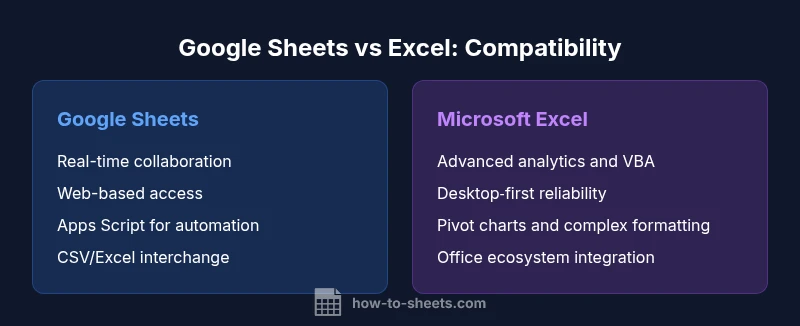
Sheets shines in real‑time collaboration and cloud access, making it attractive for distributed teams. Excel provides strong desktop capabilities with robust offline use and integration with OneDrive for cloud collaboration. When cross‑working, ensure you have a clear versioning plan and a reliable interchange format to minimize conflicts. If offline access is important, you may rely on the desktop versions and then synchronize when you’re back online.
In summary, cross‑platform compatibility is feasible for everyday worksheets, but advanced features require planning, testing, and occasionally re‑implementation. As you evaluate your workflows, keep the scope focused on the core calculations and essential data structures, then gradually expand to shared automation and visuals.
Practical interoperability: a stepwise workflow for teams
A pragmatic approach to cross‑platform work begins with a simple interchange protocol. Start by exporting to a universal format like CSV for data tables, then move to a workbook in the target application. Maintain a side-by-side version of formulas in both environments and annotate any differences in a change log. Where automation is concerned, outline the tasks that must run in Sheets and those requiring Excel, and implement the scripts progressively. Finally, establish a routine for validating critical outputs in the destination environment, so stakeholders always see consistent results across platforms.
When to favor one platform over the other based on compatibility needs
If your primary requirement is collaboration and cross‑device access, Google Sheets is often the superior choice, given its seamless cloud sync and concurrent editing. If you rely on heavy macro automation, sophisticated data modeling, or enterprise‑grade charting, Excel still provides a stronger foundation for those advanced needs. The decision should be guided by the specific features your team uses most and how often you need to interchange files with users on the other platform. A balanced strategy often combines Sheets for day‑to‑day collaboration and Excel for advanced analysis when the workload justifies it.
Comparison
| Feature | Google Sheets | Microsoft Excel |
|---|---|---|
| File formats and interchange | Supports importing/exporting Excel files and CSV; smooth interop for routine sheets | Native support for Excel formats; strong interoperability within the Office ecosystem |
| Macros and automation | Apps Script for automation; VBA not supported | VBA macros; Office Scripts in newer environments; strong automation in desktop apps |
| Formulas and functions parity | Wide set of common functions; some Excel-only functions differ | Extensive function library; seamless compatibility with Excel equivalents |
| Pivot tables and charts | Pivot tables and charts available; some options differ | Pivot tables and charts robust; advanced options more extensive in Excel |
| Collaboration and cloud access | Real-time collaboration; cloud-first workflow | Strong collaboration via OneDrive; desktop‑first capabilities |
| Offline support | Offline mode via browser; syncing when online | Desktop app offline use; optional cloud sync |
| Performance with large datasets | Efficient for typical datasets and shared work | Handles large datasets well; performance depends on system resources |
The Good
- Strong real-time collaboration and cloud access
- Easy to share and edit across devices
- Cost-effective for individuals and teams
- Simple to start and learn for new users
The Bad
- Feature gaps in advanced analytics and VBA support
- Some formula and chart differences require rework
- Pivot table behavior can differ between platforms
- Prefixing and formatting can drift after transfer
Google Sheets is highly suitable for cross‑platform collaboration; Excel is preferred for advanced features.
Choose Sheets when teamwork and online accessibility matter most. Opt for Excel when you need deep analytics, VBA automation, or enterprise‑grade charting.
FAQ
Can Google Sheets open Excel files without losing data?
Yes, Sheets can open Excel workbooks and preserve many data elements, but some formulas, macros, and formatting may not transfer perfectly. Always verify critical calculations after import and keep a backup.
Yes, you can open Excel files in Sheets, but you should verify critical formulas and formatting after import.
Do Excel macros run in Google Sheets?
No. Excel VBA macros do not run in Sheets. You’ll typically need to rewrite automation in Apps Script to achieve similar results when moving workloads.
No, VBA macros won’t run in Sheets; you’ll rewrite automation in Apps Script.
Are pivot tables and charts fully compatible across both tools?
Pivot tables and charts exist in both, but their options and defaults differ. Plan to re-create or adjust advanced visuals when transferring between Sheets and Excel.
Pivot tables and charts aren’t identical across platforms; expect some adjustments.
What workflow helps with cross-platform spreadsheets?
Maintain a core set of simple, portable formulas, test interchange in both apps, and document any differences. Use common formats like Excel‑friendly exports and data‑only CSV when possible.
Keep formulas simple, test in both apps, and document differences.
Can I work offline and still access cross-platform features?
Google Sheets supports offline work through the browser, with changes syncing when online. Excel offline is possible via the desktop app; cross-platform edits require synchronization when you re‑connect.
Offline work is supported in Sheets and Excel, but syncing matters when moving between platforms.
What format should I save when transferring between Sheets and Excel?
Export from Sheets as .xlsx when sharing with Excel, and import into Sheets when needed. Keep a data-only CSV version for lossless data interchange when appropriate.
Export to .xlsx for Excel transfers; use CSV for data-only interchange.
Is there a clear winner for cross-platform compatibility?
Not a single winner. Sheets excels at collaboration and cloud workflows, while Excel dominates advanced analytics and macro automation. Your Decision should align with team needs and workflow priorities.
There isn’t a universal winner; pick based on your team’s priorities.
How can I ensure data integrity when exchanging files?
Use versioned exports, validate core formulas after each transfer, and keep change logs. Establish a standard interchange format and a documented checklist for every file handoff.
Use versioning and validation checks to protect data integrity during transfers.
The Essentials
- Test critical formulas after cross‑platform transfer
- Export to .xlsx for Excel compatibility
- Use Apps Script for Sheets automation over VBA
- Rely on real-time collaboration as Sheets strength
- Be mindful of feature gaps in charts and pivot tables