Are Google Sheets and Excel Interchangeable? A Practical Comparison
Explore whether Google Sheets and Excel are interchangeable. This analytical comparison covers compatibility, features, collaboration, automation, and practical migration tips.


Are Google Sheets and Excel interchangeable? Not entirely. Both cover core spreadsheet tasks, but they differ in collaboration, offline access, scripting, and data handling. This quick comparison highlights where interchangeability holds and where you should plan for format-specific workflows, so teams can choose wisely based on needs.
are google sheets and excel interchangeable — a practical reality
In the modern office, the question are google sheets and excel interchangeable? is often asked, but the answer is nuanced. According to How To Sheets, teams move quickly between platforms when required, yet subtle differences in features can complicate day-to-day tasks. This section begins by acknowledging that both tools share core spreadsheet capabilities like arithmetic operations, cell references, and basic data validation. However, the way they implement these capabilities—and their broader ecosystems—diverge in meaningful ways. Decision-makers should map their workflow to the strengths of each platform and plan for gaps during transitions.
Are google sheets and excel interchangeable? The short answer is: partially true, but not perfectly seamless. The gaps tend to appear in scripting, data modeling, and cross-platform features that affect repeatable processes, complex analyses, or enterprise-scale work. This is not a trivial distinction; it shapes how teams prepare, test, and validate work when moving between environments. Throughout this analysis, we’ll use concrete criteria to weigh interchangeability against real-world business needs and project constraints, while keeping the focus on practical outcomes rather than vendor hype.
File formats and cross-compatibility
File formats act as the first barrier to true interchangeability. Google Sheets saves natively in its cloud-based format but can export to Excel (.xlsx) or CSV for compatibility with Excel, Access, and other tools. Excel, on the other hand, saves primarily as .xlsx but can be opened in Google Sheets with on-the-fly conversion. The core task is straightforward—move data and formulas between formats—but the devil is in the details. Formulas with function-specific syntax, conditional formatting rules, and embedded charts often require manual verification after conversion. How To Sheets emphasizes creating a migration plan that includes a thorough review of critical outputs, side-by-side result comparisons, and a controlled testing protocol to identify and fix discrepancies before going live in production environments.
Formulas and functions: parity and gaps
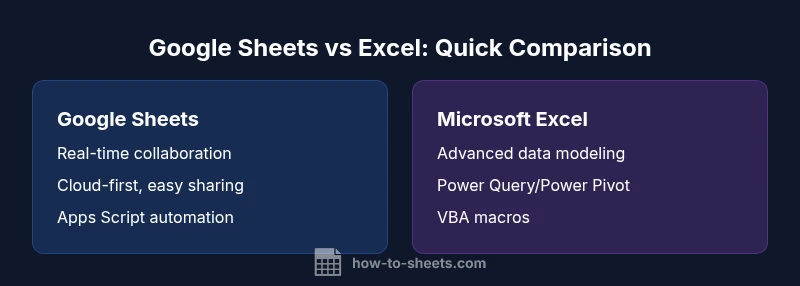
A central test for interchangeability lies in formulas and functions. Both platforms share many standard operations (SUM, AVERAGE, IF) and some cross-platform functions, yet there are notable divergences in advanced functions, array handling, and lookup options. Google Sheets has unique functions like FILTER, QUERY, and ARRAYFORMULA that enable powerful, dynamic sheet construction, while Excel offers robust data modeling capabilities (Power Pivot), a broader set of analytics functions, and mature array behavior via legacy and modern functions. Practically, basic calculations travel smoothly, but transfer of complex formulas or custom calculations demands careful verification, retesting, and often reworking logic to fit the target platform’s syntax and capabilities.
Macros and automation: scripting differences
Automation is a major determinant of interchangeability. Excel’s VBA has a long-standing macro ecosystem, enabling advanced automation, user forms, and large-scale data procedures. Google Sheets relies on Apps Script (JavaScript-based) for automation, which is powerful but differs fundamentally from VBA in language, object model, and deployment. Cross-platform macro portability is limited; a macro that runs in Excel usually needs rewriting to function in Sheets, and vice versa. For teams migrating between tools, this means documenting bespoke automation, prioritizing reusable logic, and budgeting time for script rewrites and testing in the target environment.
Collaboration, sharing, and workflow
Google Sheets excels in real-time collaboration: simultaneous editing, automatic saving, and straightforward sharing through links and permissions. Excel has improved with co-authoring in Office 365, but the experience can be less fluid with large files or offline workflows. Cross-platform collaboration often introduces latency, versioning quirks, and conflicts that require reconciliation steps. If your primary need is multi-user collaboration with minimal friction, Sheets offers a more native cloud-first experience. For enterprise teams already entrenched in Microsoft ecosystems, Excel’s collaboration is improving but may still require governance to avoid conflicts.
Data capacity, performance, and data modeling
Data modeling and performance considerations matter when selecting a platform for large or complex datasets. Excel provides mature data modeling tools (Power Pivot, Power Query) and strong performance for large local datasets in desktop environments. Google Sheets performs well for day-to-day tasks and moderate datasets, with the advantage of automatic sharing and cloud-based access. When your work involves heavy data transformation, multi-step pipelines, or offline analysis, Excel commonly handles these scenarios more robustly. Google Sheets is increasingly capable but may require careful planning around data volume and performance expectations.
Desktop vs cloud: offline and accessibility
The cloud-first design of Google Sheets means access from any internet-connected device, with seamless syncing and minimal setup. Desktop Excel offers a more mature offline experience with a feature-rich desktop application, which can be crucial for environments with inconsistent connectivity or strict data governance. Many teams operate in a hybrid mode: Sheets for collaborative planning and lightweight analysis, and Excel for intensive modeling and offline calculations. Understanding these trade-offs helps teams design workflows that minimize friction during transitions between platforms.
Import/export and migration best practices
Practical interchangeability hinges on reliable import/export workflows. Start with a data map: identify critical formulas, charts, macros, and data validation rules that could degrade during conversion. Create a pilot project that migrates a representative workbook, then compare outputs line-by-line. Keep a change log of discrepancies and adjust as needed. Use clean data with minimal formatting, recalculate formulas, and re-create visuals in the destination tool. For teams operating in both ecosystems, establishing a repeatable migration template—comprising data schemas, validation rules, and automation scripts—reduces risk and accelerates onboarding.
Industry use cases: who benefits from each
Different use cases favor different environments. Educational settings and startups with heavy collaboration needs often lean toward Google Sheets for its accessibility, collaborative features, and low cost. Finance teams, data analysts, and researchers with complex modeling requirements frequently favor Excel for its advanced data tools, offline reliability, and extensive scripting options. Small businesses that require both collaboration and robust data processing can adopt a hybrid approach: use Sheets for planning and light analysis, then archive or export to Excel for detailed modeling and reporting. Understanding these use cases informs when interchangeability is a feature or a limitation rather than a blanket assumption.
Practical migration checklist
To minimize friction when moving between Google Sheets and Excel, follow a structured checklist. Start by defining the scope: which files, features, and automation must migrate? Next, inventory all formulas, macros, charts, and data connections, and rate their criticality. Then, perform a pilot migration; adjust for syntax differences and test outputs against trusted baselines. Establish validation steps: spot-check results, run regression tests on key workflows, and confirm data integrity. Finally, document the migration plan, assign ownership, and schedule post-migration reviews to capture lessons learned and adjust governance for future moves. This disciplined approach helps teams achieve smoother interoperability and fewer surprises.
Summary of the practical takeaways
The practical takeaway is that are google sheets and excel interchangeable only up to a point: core data and basic formulas travel reasonably well, while advanced automation, data modeling, and offline workflows require careful adaptation. A deliberate, test-driven migration plan reduces risk and ensures continuity. For many teams, adopting a hybrid approach—Sheets for collaboration and Excel for heavy analysis—offers the best of both worlds if managed with governance and clear migration standards.
Comparison
| Feature | Google Sheets | Microsoft Excel |
|---|---|---|
| File format compatibility | Exports to Excel (.xlsx) or CSV; native Google Sheets format | Natively uses .xlsx; imports/exports to Google Sheets possible with conversion |
| Real-time collaboration | Excellent cloud-based simultaneous editing | Co-authoring in Office 365; improving but can vary with file size |
| Automation and scripting | Apps Script supports custom automation and add-ons | VBA macros; robust ecosystem; cross-file portability varies |
| Offline access | Strong offline support via browsers and mobile apps | Full offline desktop experience; cloud optional |
| Data modeling and analytics | Lightweight data tasks; integrates with Data Studio/BigQuery | Advanced data tools (Power Query, Power Pivot); powerful modeling |
| Performance and capacity | Great for small to medium tasks; performance tied to internet | Handles large datasets more reliably; desktop performance benefits |
| Platform and pricing | Free entry with Google account; cloud-focused | Part of Microsoft 365 or standalone licenses; desktop-first options |
| Best for | Collaboration-heavy, cloud-first teams | Power users needing offline access and advanced analytics |
The Good
- Sheets shines in collaboration and accessibility across devices
- Zero software install for basic use; real-time saves automatically
- Excel offers advanced data modeling and VBA/macros support
- Strong ecosystem of templates, add-ons, and integrations
- Cross-platform import/export reduces friction for teams
The Bad
- Parity gaps in formulas and functions can cause migration issues
- Macros and automation differ (Apps Script vs VBA), reducing portability
- Large datasets may stress Sheets; Excel often handles them more robustly
- Formatting may change during cross-platform conversions
Not fully interchangeable; use Sheets for collaboration and Excel for advanced analysis
Are Google Sheets and Excel interchangeable? They share core capabilities, but scripting, data modeling, and offline features create meaningful differences. The How To Sheets team recommends a hybrid approach when possible, plus a formal migration plan for any cross-platform work.
FAQ
Can I use Google Sheets and Excel interchangeably for basic formulas and calculations?
Both tools handle basic arithmetic and common functions well, but exact syntax can differ. Plan to validate essential formulas after migrating and adjust as needed.
For basic formulas, both do fine, but verify syntax and results after moving.
Do Excel macros work in Google Sheets without changes?
No. Excel uses VBA macros, while Google Sheets relies on Apps Script. You’ll typically need to rewrite macros when moving between platforms.
Macros don’t transfer directly; rework them for the target tool.
Is real-time collaboration as seamless in Excel as in Google Sheets?
Google Sheets offers near-native real-time collaboration. Excel supports co-authoring in Office 365, but the experience can be less fluid with large files or offline usage.
Sheets is built for live collaboration; Excel is catching up, but not identical.
Can I open Excel files in Google Sheets without losing formatting?
Yes, but conversion may alter formatting and some features. Always verify critical visuals and calculations after import.
Import is possible, but expect some formatting shifts.
What’s the best approach to migrate from Sheets to Excel?
Plan in stages: inventory formulas/macros, perform pilot migrations, test outputs, and document changes. Validate results with side-by-side checks.
Migrate in steps and verify results.
Are there scenarios where both tools are equally suitable?
Yes—for simple budgets, task lists, and basic data collection, both tools offer comparable functionality.
For simple tasks, either tool works well.
The Essentials
- Assess your primary need: collaboration vs advanced data tools
- Expect gaps in functions and macros when moving between tools
- Prefer Sheets for lightweight tasks and quick sharing
- Prefer Excel for offline work and complex modeling
- Plan a structured migration workflow to minimize surprises