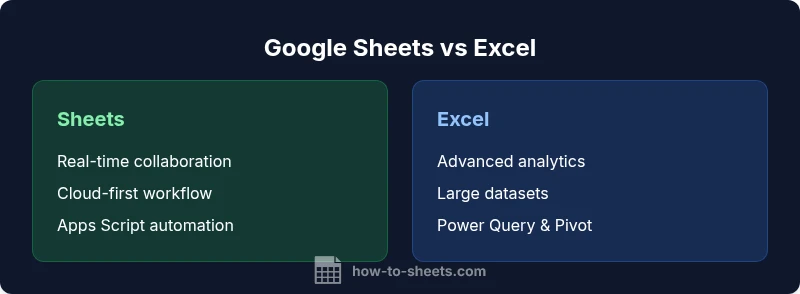
Can You Use Google Sheets Instead of Excel? A Practical Comparison
Explore whether Google Sheets can replace Excel for your workflow. This analytical comparison covers collaboration, features, offline use, data handling, and migration guidance to help you decide.


Yes. In many everyday scenarios, Google Sheets can replace Excel, especially when collaboration, cloud access, and quick sharing are priorities. For heavy data modeling, offline work, or advanced analytics, Excel typically offers more depth. This comparison helps you decide which tool fits your workflow best.
Can You Use Google Sheets Instead of Excel? A Practical Overview
The question many teams ask is whether Google Sheets can replace Excel for day-to-day tasks. The short answer is: it depends on your use case, data volume, and need for offline access. According to How To Sheets, many groups start with Sheets to quickly prototype workflows, then migrate parts of their process to Excel when scale and advanced analytics become critical. For students, professionals, and small business owners, Sheets often offers faster onboarding, built-in collaboration, and seamless access from any device with an internet connection. In this section we lay out the practical boundaries and identify where Sheets shines as a replacement and where Excel remains indispensable for power users.
Core Capabilities: Data Capacity, Formulas, and Automation
Both Google Sheets and Microsoft Excel are powerful spreadsheet tools, but their core capabilities diverge in important ways. Google Sheets supports up to 10 million cells per spreadsheet, which is ample for many budgeting templates, class rosters, or project trackers. Excel, by contrast, supports up to 1,048,576 rows by 16,384 columns per sheet, a scale that matters for large data warehouses and complex analytics. Functionally, Sheets covers the standard suite of formulas and also offers dynamic array-like capabilities and the QUERY function to reshape data, while Excel has a deeper, more mature feature set for data modeling, including Power Query for data ingestion and Power Pivot for analytics. Apps Script lets you automate tasks in Sheets, while Excel relies on VBA and Office Scripts for automation. When you need cross-organization automation inside a single cloud workspace, Sheets often wins on speed and simplicity; for deep analytics, Excel’s ecosystem has longer-running capabilities and more specialized add-ins.
Real-Time Collaboration and Sharing
One of Google Sheets' strongest advantages is real-time collaboration. Multiple users can edit the same sheet simultaneously, with live cursors and immediate updates reflected for all editors. Version history is robust and easy to audit, and sharing is managed through Google Drive permissions, making it simple to grant view or edit access to teammates, contractors, or clients. Excel has made significant improvements with Excel for the web and Office 365 collaboration, but the experience can be more nuanced when multiple people work on large offline files. If your team relies on quick, cloud-based collaboration across geographies, Sheets generally offers a smoother workflow. For highly controlled environments with strict versioning or heavy offline usage, Excel’s controlled sharing and enterprise governance can be advantageous.
Offline Access and Mobility
Google Sheets offers offline mode, which enables editing on devices even without an internet connection, provided you set up offline access in advance. This is crucial for fieldwork or travel where connectivity is sporadic. You’ll still need a Google account and a browser with offline permissions, and some features require re-sync once you reconnect. Excel excels (pun intended) in offline scenarios too, especially on desktops where you have full local access to large workbooks without cloud latency. The decision often comes down to how often you operate offline and whether your workflow relies on cloud-based collaboration or on-premises data processing. For teams that value seamless cloud-first operations, Sheets’ offline mode is a strong but secondary support; for users who work offline frequently, Excel remains a reliable default.
Automation, Scripting, and Extensibility
Automation capabilities shape how quickly you can scale your processes. Google Sheets uses Apps Script, a JavaScript-based platform that runs in Google’s cloud and integrates seamlessly with other Google Workspace apps. This makes automating repetitive tasks, building custom functions, or connecting Sheets to Gmail, Forms, or Calendar straightforward. Excel leverages VBA in its desktop ecosystem and offers Office Scripts for the web, providing parallel capabilities with a different development experience. For teams already embedded in Google Workspace, Apps Script often delivers faster ROI due to tighter integration. If your automation needs are heavy, particularly for complex data transformations or enterprise-scale workflows, Excel’s mature ecosystem and Power Query/Power Pivot options may deliver deeper analytics.
Data Analysis and Reporting
Pivot tables and charts are foundational for data analysis in both platforms. Google Sheets offers solid pivot functionality and charting options, plus advanced features like FILTER, QUERY, and IMPORTRANGE for cross-sheet data integration. Excel remains the standard bearer for advanced analytics, with more sophisticated pivot table capabilities, power add-ins, and models that scale to very large datasets. If your work involves routine dashboards, Sheets can meet most needs—especially with shared datasets and live dashboards. For organizations that perform heavy data modeling, forecasting, or statistical analysis on large data volumes, Excel’s toolset provides a more expansive analytical playground.
Migration Considerations: When to Choose Sheets or Excel
Deciding which tool to use often hinges on your current environment and future goals. If your team relies on Google Workspace, your data frequently needs to be shared externally, or you want a cloud-first approach with real-time collaboration, Sheets is a natural fit. If your organization relies on Windows-based software, handles large data models, or requires advanced analytics and heavy automation, Excel remains the platform of choice. A practical approach is to start in Sheets for lightweight projects and early collaboration, then move to Excel when data volumes exceed Sheets’ comfortable comfort zone or when specific Excel-only features (e.g., certain data-modeling tools) become necessary. Consider also a hybrid workflow where initial data capture and prototyping occur in Sheets, followed by data export and analysis in Excel.
Migration Tips and Templates
To migrate from Sheets to Excel, export your Sheets workbook as an Excel (.xlsx) file and review any formula differences. Most standard functions translate well, but some Google-specific functions like QUERY will require rework into Excel equivalents such as FILTER or Power Query steps. Templates can ease this transition: build a shared data dictionary, set up consistent data validation rules, and create cross-workbook references with named ranges. For teams with ongoing collaboration, maintain a live connection to your source data where possible, using tools like IMPORT or external data connections. How To Sheets offers practical templates and step-by-step guides to help you structure this migration smoothly, with attention to preserving data integrity and formulas across platforms.
Decision Framework: Scenarios and Guidelines
Scenario 1: Small team with heavy collaboration and remote work — start with Google Sheets to capitalize on real-time editing and cloud access. Scenario 2: Data-rich analytics and offline modeling — begin in Excel and adopt Sheets for sharing. Scenario 3: Cross-organization reporting with external partners — Sheets can serve as the lightweight collaboration layer, with Excel handling deep analysis behind the scenes. In all cases, establish governance around data sources, versioning, and change-control. Use standardized templates and naming conventions to ensure consistency. The decision should be revisited regularly as your data, workflows, and collaboration needs evolve. The How To Sheets team recommends piloting both platforms in parallel for a defined period to determine the best fit for your organization.
Comparison
| Feature | Google Sheets | Microsoft Excel |
|---|---|---|
| Collaboration & real-time editing | Excellent cloud-based collaboration with simultaneous editing | Office 365 collaboration improving but can vary by deployment |
| Data capacity | Up to 10,000,000 cells per spreadsheet | 1,048,576 rows x 16,384 columns per sheet |
| Formulas & functions | Broad parity with Google-specific functions (QUERY, FILTER) | Rich function set with Power Pivot, Power Query, XLOOKUP |
| Automation & scripting | Apps Script (JavaScript-based), cloud-centric | VBA and Office Scripts with on-prem/online options |
| Add-ons / ecosystem | Google Workspace add-ons, Google Apps Script libraries | Extensive Excel add-ins and VBA ecosystem |
| Offline access | Strong offline support via Chrome/Edge and offline mode | Excellent offline capability in desktop app |
| Pricing / access | Free with Google account; paid for extra Workspace features | Licensing via Office 365 or standalone licenses |
| Best for | Collaborative, cloud-first workflows | Power users needing deep analytics and modeling |
The Good
- Strong collaboration and cloud access reduce version conflicts
- Low barrier to entry with free access for basic use
- Seamless integration with other Google Workspace apps
- Accessible from any device with internet connectivity
- Continuous updates and cloud-based features
The Bad
- Performance can degrade with very large datasets in Sheets
- Excel's advanced analytics and modeling tools remain superior for complex work
- Offline functionality in Sheets requires setup and can lag for large files
- Compatibility of some advanced formulas across platforms may vary
Sheets is the pragmatic choice for collaboration-first work; Excel remains essential for data-heavy analytics
If your team prioritizes real-time collaboration and cloud access, Sheets is likely the better fit. If you require advanced analytics, large datasets, or sophisticated modeling, Excel wins in those areas.
FAQ
Can you import Excel files into Google Sheets without losing data?
Yes. You can import .xlsx/.xls files into Google Sheets and convert them. Some advanced formulas or formatting may need adjustments after import. Always verify data integrity and formulas post-import.
Yes, you can import Excel files into Sheets, but you should check formulas and formatting after the import to ensure accuracy.
Is Google Sheets truly offline-capable, and how does that work?
Google Sheets supports offline editing when enabled in your browser. You’ll need to set offline mode ahead of time, and changes will sync when you reconnect to the internet. Some features require an active connection, so plan accordingly.
Sheets can work offline after you enable it in your browser, and edits sync when you're back online.
Do Google Sheets formulas differ significantly from Excel formulas?
Many core functions are similar, but there are differences in syntax and unique functions (e.g., QUERY vs. Power Query). Migrating formulas may require translation, but most common tasks map across platforms.
Most common formulas map across, but some function names and capabilities differ between Sheets and Excel.
Can I automate tasks in Google Sheets?
Yes. Apps Script provides a JavaScript-based automation layer in Sheets. It’s great for custom workflows, triggers, and connecting Sheets with other Google Workspace apps. Excel also supports automation, mainly via VBA and Office Scripts.
Yes—use Apps Script in Sheets for automation; Excel offers VBA and Office Scripts as alternatives.
Which is better for budgeting or lightweight data projects?
For budgeting and light data tasks, Google Sheets offers quick setup, collaboration, and sharing. If you need more advanced analytics or very large datasets, Excel might be preferable.
Great for budgeting and light data tasks; Excel is better for more complex analytics.
What about security and privacy when using Sheets vs Excel?
Security depends on your deployment. Sheets benefits from Google Workspace security controls and granular sharing, while Excel's security relies on Microsoft 365 policies and local file management. Use proper access controls in both ecosystems.
Security depends on your environment; both platforms offer strong controls if configured correctly.
The Essentials
- Prioritize Sheets for collaboration and cloud workflows
- Opt for Excel when data scale and advanced analytics matter
- Plan a hybrid approach: prototype in Sheets, finalize in Excel when needed
- Leverage templates to maintain consistency across platforms
- Set governance for data sources and version control