Count If Cell Contains Text Google Sheets: A Practical Guide
Learn methods to count cells containing text in Google Sheets. This practical guide covers COUNTIF, ISTEXT, REGEXMATCH, and real-world examples.


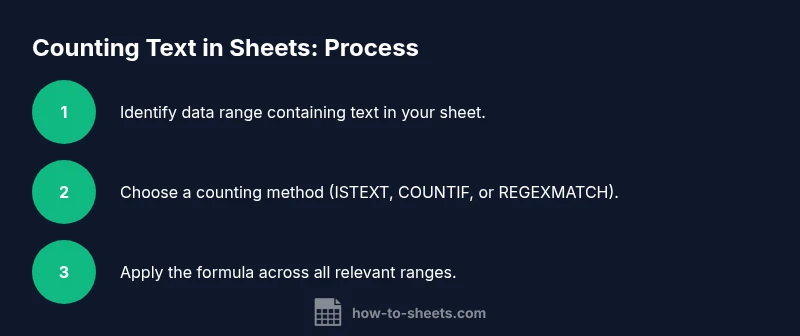
Goal: count how many cells in a range contain text in Google Sheets. You can achieve this with simple wildcards or exact text checks, then validate with a text-focused approach to avoid counting numbers. In practice, three reliable methods cover most datasets: COUNTIF with a wildcard, ISTEXT with SUMPRODUCT, and REGEXMATCH for pattern-based counting.
Why counting cells that contain text matters in Google Sheets
Counting cells with text helps you understand data quality and supports downstream tasks like filtering, labeling, and reporting. When you work with datasets from forms, logs, or lists, knowing how many cells actually contain text lets you spot blanks and non-text entries quickly. According to How To Sheets, mastering this count empowers you to clean data and build reliable summaries with minimal fuss. The keyword count if cell contains text google sheets captures the exact task many users search for, and this guide will walk you through reliable methods, from simple wildcards to robust text-detection formulas.
Core concepts: text, numbers, blanks, and how Sheets treats them
In Google Sheets, a cell can hold text (strings of characters) or numbers (numeric data). Blanks are truly empty, but some cells may display as blank due to formulas returning an empty string ("") or spaces. For counting purposes, a cell is considered as containing text if it holds alphabetic or non-numeric characters. Understanding these definitions helps you choose the right function. Using the keyword count if cell contains text google sheets as you plan your worksheet ensures you’re targeting the correct data type. This section also distinguishes between text data that is user-entered vs. text stored as numbers (e.g., "123" as text).
Examples: A1 contains "Apple" (text), B1 contains 123 (number), C1 contains "123" (text).
Basic method: COUNTIF with a wildcard
The COUNTIF function with a wildcard is a common starting point for counting cells that contain text. The formula =COUNTIF(A2:A100, "*") counts all non-empty cells in the range, which includes cells with text and cells with numbers that are formatted as text. If you want to count only cells that truly contain text, you should use a more precise approach: =SUMPRODUCT(--ISTEXT(A2:A100)). The wildcard method is quick and readable, but it can overcount when numbers are stored as text or when there are non-visible characters.
Precision with ISTEXT and SUMPRODUCT
ISTEXT reliably detects text data type in each cell. When combined with SUMPRODUCT, you get a precise count of text cells: =SUMPRODUCT(--ISTEXT(A2:A100)). The double unary (--) converts the TRUE/FALSE results into 1s and 0s for summation. This method excludes numbers and blank cells, giving you a true text-count. If you’re working with a multi-column dataset, you can concatenate ranges: =SUMPRODUCT(--ISTEXT({A2:A100; B2:B100; C2:C100})). This preserves accuracy while counting across columns.
Regex method: REGEXMATCH for text-based checks
REGEXMATCH can detect the presence of alphabetic characters, symbols, or specific patterns. A robust pattern like "[A-Za-z]" catches any cell that contains at least one letter. The formula =SUMPRODUCT(--REGEXMATCH(A2:A100, "[A-Za-z]")) counts cells containing letters. This approach is particularly useful when you want to count cells that contain text regardless of formatting (e.g., text in cells with leading/trailing spaces). Use more specific patterns if you need to count only letters or exclude symbols.
Counting across multiple columns and dynamic ranges
When your data spans multiple columns, you can extend the approach without emitting verbose formulas. One reliable pattern is to combine ranges with an array and apply ISTEXT or REGEXMATCH across the combined set:
- To count text across columns A:C: =SUMPRODUCT(--ISTEXT({A2:A100; B2:B100; C2:C100}))
- Or using REGEXMATCH across the same multi-column range: =SUMPRODUCT(--REGEXMATCH({A2:A100; B2:B100; C2:C100}, "[A-Za-z]"))
These constructions keep formulas readable and scalable as your sheet grows.
Practical example: dataset and formulas
Consider a dataset with names in A2:A60 and notes in B2:B60, some cells containing numbers or blanks. To count only text cells in column A, use =SUMPRODUCT(--ISTEXT(A2:A60)). To count text across both columns, use =SUMPRODUCT(--ISTEXT({A2:A60; B2:B60})). If you want to catch any alphabetic text across both columns, substitute ISTEXT with REGEXMATCH and an appropriate pattern. These examples illustrate how your counting logic adapts to real-world data structures.
Pitfalls and edge cases you should know
Text-counting formulas can be misled by cells that look blank but contain spaces or formulas returning "". The COUNTIF wildcard approach may count such cells, whereas ISTEXT correctly excludes numbers. Leading/trailing spaces or non-breaking spaces can affect REGEXMATCH results; trim data with TRIM if needed. Always test your formulas on a small sample before applying to large datasets to avoid surprises in your results.
Performance, maintenance, and best practices
For very large ranges, prefer explicit, narrow ranges over entire columns to keep calculations fast. Document the method you chose and why, so future editors understand the logic. If your dataset changes shape regularly, use named ranges or dynamic references (e.g., defined names that adjust with new data) to keep formulas robust. Finally, consider combining multiple approaches: use ISTEXT for precision and REGEXMATCH for pattern-based checks when you need flexibility.
Tools & Materials
- Google Sheets document (existing or new)(Prepare a dataset with mixed text, numbers, and blanks for testing formulas.)
- Test data range (e.g., A2:A100, B2:B100)(Use multiple columns to demonstrate cross-range counting.)
- Formulas reference cheat sheet(Helpful for quick access to COUNTIF, ISTEXT, and REGEXMATCH syntaxes.)
- Internet-connected device(Access to Google Sheets and online documentation.)
Steps
Estimated time: 15-25 minutes
- 1
Identify the data range
Scan your sheet to locate the columns you want to analyze. Note the exact ranges (for example A2:A100 or A2:C100) and whether headers exist. This ensures formulas don’t miscount header cells or blanks.
Tip: Use named ranges if your data layout changes often. - 2
Choose your counting approach
Decide whether you need a quick count (COUNTIF with a wildcard) or a precise text-only count (ISTEXT with SUMPRODUCT). Consider REGEXMATCH if you want to count text with specific patterns.
Tip: ISTEXT is more precise for text-only data than COUNTIF('*'). - 3
Implement the single-column formula
For text-only count in A2:A100, use =SUMPRODUCT(--ISTEXT(A2:A100)). For a general non-empty count, use =COUNTIF(A2:A100, "*").
Tip: Test with a mix of text, numbers, and blanks to confirm results. - 4
Extend to multiple columns
To count across columns A:C, use =SUMPRODUCT(--ISTEXT({A2:A100; B2:B100; C2:C100})). The braces create a single stacked range for evaluation.
Tip: Alternative: =SUMPRODUCT(--REGEXMATCH({A2:A100; B2:B100; C2:C100}, "[A-Za-z]")) for pattern-based counting. - 5
Validate with tests
Create a small test set where you know exactly how many cells contain text. Compare results from different methods to ensure consistency.
Tip: Pay attention to cells with spaces or formulas returning empty strings. - 6
Document and share your logic
Add a note or a separate sheet describing which method you used and why. This helps maintainers understand the counting approach during audits or reviews.
Tip: Use comments on cells to annotate the rationale.
FAQ
What counts as text in Google Sheets?
Text in Google Sheets refers to character strings stored as text data. Pure numbers are not text unless they are stored as text, for example with a leading apostrophe or formatted as text. Leading/trailing spaces can affect text detection, so consider using TRIM if needed.
Text means the characters in a cell are treated as a string. Numbers aren’t text unless you’ve stored them as text.
Which formulas count text in Sheets?
Common options include =SUMPRODUCT(--ISTEXT(range)) for a precise text count, =COUNTIF(range, "*") for a quick non-empty count, and =SUMPRODUCT(--REGEXMATCH(range, "[A-Za-z]")) for alphabetic pattern checks. Each method has trade-offs depending on data structure.
Use ISTEXT with SUMPRODUCT for precision, or REGEXMATCH for pattern-based counting across ranges.
Does COUNTIF('*') count blanks?
COUNTIF with a wildcard counts non-empty cells, which can include cells containing spaces or formulas that return a non-empty result. It may overcount in datasets with invisible characters.
COUNTIF('*') counts non-empty cells, which can include spaces or empty-string tricks.
How can I count text across multiple ranges?
Concatenate ranges with braces, then apply ISTEXT or REGEXMATCH: =SUMPRODUCT(--ISTEXT({A2:A100; B2:B100; C2:C100})). This treats multiple columns as one dataset for counting.
Combine the ranges with braces and apply ISTEXT or REGEXMATCH.
How do I count alphabetic text only?
Use a regex pattern like "[A-Za-z]" with REGEXMATCH: =SUMPRODUCT(--REGEXMATCH(range, "[A-Za-z]")) to count cells containing letters only, ignoring digits unless combined with other patterns.
REGEXMATCH with [A-Za-z] counts cells containing letters.
Is there a difference between text and text-formatted numbers?
Yes. Text-formatted numbers are counted as text by ISTEXT, while numeric values are not. Convert such cells to real numbers or to true text consistently if you want uniform results.
Text-formatted numbers are treated as text; real numbers are not.
Watch Video
The Essentials
- Understand text vs. non-text data in Sheets.
- Use ISTEXT with SUMPRODUCT for precise text counts.
- Use COUNTIF('*') for quick non-empty counts with caveats.
- Leverage REGEXMATCH for flexible pattern-based counting.