counta vs count google sheets: A Practical Comparison
Analytical comparison of COUNTA and COUNT in Google Sheets, with practical usage patterns, common pitfalls, and step-by-step examples to help you pick the right function for mixed data.


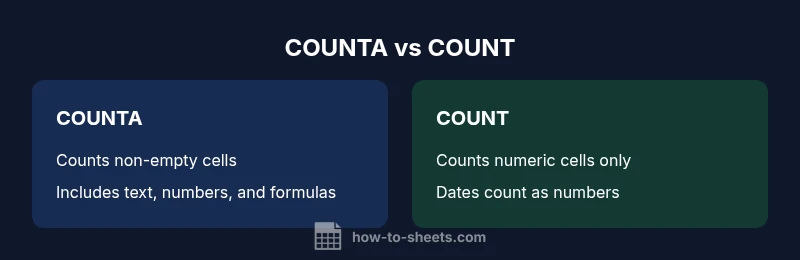
For most Sheets users, COUNT and COUNTA serve different counting needs. COUNTA counts non-empty cells, including text and formulas with values, while COUNT tallies only numeric entries (dates count as numbers). Choose COUNTA for data presence and COUNT for numeric frequency. In practice, you’ll often pair both in analyses to validate datasets and uncover data quality issues.
Overview: The Count Functions in Google Sheets
The phrase counta vs count google sheets frames the central distinction between COUNTA and COUNT in Google Sheets. COUNTA counts non-empty cells across a given range, counting anything with content, including text, numbers, booleans, and even the result of a formula. COUNT, by contrast, tallies only numeric entries. Dates count as numbers because Sheets stores them as numeric serial values. Understanding this distinction is essential for accurate data quality metrics, especially when you prepare dashboards, run tallies, or perform data validation.
According to How To Sheets, the best practice is to choose the function that matches your measurement goal rather than relying on a single default. In practice, you’ll often pair both: COUNTA to gauge presence of data, COUNT to quantify numeric entries, and then cross-check with auxiliary functions like COUNTIF or COUNTA to filter conditions.
When COUNTA Counts Non-Empty Cells
COUNTA is designed to count all cells in a range that contain any content; this includes numbers, text, dates, booleans, and the result of a formula. It also counts cells with formulas that return an empty string? In Sheets, cells with "" still count as non-empty, so COUNTA may include them. This makes COUNTA ideal for measuring data completeness across dashboards, forms, and import feeds. However, if a dataset contains placeholders like blanks created by formula, COUNTA will still count those cells as non-empty, which can lead to inflated counts if you expected truly empty cells. To mitigate, pair COUNTA with other tests that verify content type, such as LEN or ISTEXT. In practical terms, you’ll typically use COUNTA to identify how many cells hold some data, then refine with COUNT or other numeric-aware functions to analyze numeric portions of the dataset.
When COUNT Counts Numeric Cells
COUNT focuses on numeric content only; non-numeric data including text, blanks, or logical values are ignored. This makes COUNT perfect for frequency analysis of numbers, such as sales amounts, scores, or time-based metrics. Deep dive into edge cases: dates stored as numeric serials will be counted; cells with numbers stored as text (like '123') will not. Using VALUE to coerce text numbers into numeric form can help; or use COUNTIF to count numeric values that meet criteria. In mixed datasets, COUNT helps you understand the numeric backbone without interference from textual data.
Common Pitfalls and Misconceptions
Several subtle issues can skew your understanding when you compare COUNTA and COUNT. First, blanks vs. empty strings: a truly blank cell is different from a formula that returns an empty string, yet COUNTA might treat the latter as non-empty. Second, data type heterogeneity matters: a column with both numbers and text will yield different results depending on which function you use. Third, date handling can surprise newcomers: dates are stored as numbers in Sheets, so COUNT often counts them as numeric entries. Finally, dynamic datasets (where formulas generate blanks) can cause counts to drift over time, so periodic checks with supplemental functions (like COUNTBLANK or ISTEXT) are recommended.
Practical Examples: Step-by-Step Scenarios
Scenario 1: Counting non-empty responses in a form export. If column A contains responses and some cells are blank, =COUNTA(A2:A100) gives you the number of responses, including cells with formulas returning non-empty values. This is useful for a quick data presence metric. Scenario 2: Counting numeric values in a dataset. If you’re tallying sales amounts or scores in column B, use =COUNT(B2:B100) to ensure only numeric entries are included. Scenario 3: Mixed data with dates. If column C contains dates, =COUNT(C2:C100) will include these dates as numeric values, which can be helpful for time-based analytics. Scenario 4: Handling text numbers. If a column contains the strings "100" and 100, COUNT will count only the numeric 100 while COUNTA will count both. Close the gap with VALUE to coerce text numbers when needed.
To implement these in practice, you often combine COUNTA and COUNT with filters or conditional formulas. For example, you can use =COUNTA(A2:A100) and =COUNT(A2:A100) side-by-side to compare data presence against numeric entries, then add a COUNTIF to check for specific values or ranges. This multi-faceted approach is common in dashboards and data-cleaning workflows.
Performance Considerations and Best Practices
Both COUNTA and COUNT are lightweight functions and perform well on moderate ranges. However, performance can degrade if you apply them to very large or dynamic ranges (thousands of rows with many formulas). A best practice is to fix ranges to fixed segments (e.g., A2:A1000) rather than entire columns (A:A) when possible, especially in large spreadsheets. For repeated checks, consider using named ranges or helper columns to store intermediate counts, reducing repeatedly evaluating the same formulas. When data updates, refresh dashboards by re-calculating only the necessary parts using array formulas or targeted ranges. Finally, always validate counts with a secondary check (e.g., combining with COUNTA/COUNTIF) to ensure consistency across your data model.
Advanced Tip: Handling Empty Strings and Formulas
Comparison
| Feature | COUNTA | COUNT |
|---|---|---|
| Purpose | Counts non-empty cells (text, numbers, formulas) | Counts numeric cells only |
| Blank handling | Counts cells with data, including empty strings from formulas | Ignores non-numeric data; blanks are counted only if truly empty |
| Data type handling | Treats any content as non-empty (including logicals, errors) | Treats only numeric content as counts; dates counted as numbers |
| Common misuse | Counts cells that appear blank if a formula returns "" | Misses non-numeric entries when you need overall presence |
| Best for | Measuring data presence across mixed data types | Quantifying numeric values or performing numeric analysis |
| Example formulas | =COUNTA(A2:A100) | =COUNT(A2:A100) |
The Good
- Simple and fast counts for data presence
- Clear distinction between data presence and numeric totals
- Useful for dashboards and validation checks
- Pairs well with other functions like COUNTIF and COUNTA
The Bad
- COUNTA can overcount due to empty-string results from formulas
- COUNT ignores numeric-looking text and dates stored as text
- Both counts can be misleading if data types aren’t standardized
- Requires careful interpretation when ranges include mixed data types
Use COUNTA when you need to measure data presence in a range; use COUNT to quantify numeric values. For mixed datasets, rely on COUNTA for a presence metric and use COUNT for numeric frequency, often side-by-side with filters or COUNTIF.
COUNTA and COUNT serve different counting intents. The right choice depends on whether your goal is to gauge presence or count numeric entries. In practice, combining both functions provides robust insight into data quality and composition.
FAQ
What is the core difference between COUNTA and COUNT?
COUNTA counts non-empty cells, including text and results from formulas, while COUNT tallies only numeric entries. Dates count as numbers in COUNT. This distinction affects data validation and dashboard accuracy.
COUNTA counts any cell with content, while COUNT counts only numbers.
Does COUNTA count empty strings?
Yes. In Google Sheets, an empty string produced by a formula is considered non-empty, so COUNTA will count it. If you need to ignore such cells, use a combination of LEN or ISTEXT to filter.
Yes, COUNTA counts cells that look empty if a formula returns an empty string.
How can I count numeric values while ignoring text in a mixed column?
Use =COUNT(range) to count numeric cells. If you also need to ensure text numbers are counted, you may convert them with VALUE or use a combination like =SUMPRODUCT(--ISNUMBER(range)).
Use COUNT for numbers, or convert text numbers with VALUE if needed.
Do dates get counted by COUNT?
Dates are stored as numeric serial values in Sheets, so COUNT typically counts dates as numbers. If you want to treat dates as dates, use additional functions to format or filter by date criteria.
Yes, dates usually count as numbers for COUNT.
What should I do when I need both data presence and numeric totals?
Place both functions side-by-side (COUNTA and COUNT) to compare presence against numeric totals. You can supplement with COUNTIF to apply conditions and get richer insights.
Use both COUNTA and COUNT together for a fuller picture.
The Essentials
- Count data presence with COUNTA for mixed datasets
- Use COUNT for numeric-only analyses
- Beware of empty strings produced by formulas in COUNTA
- Combine COUNTA/COUNT with COUNTIF for nuanced conditions