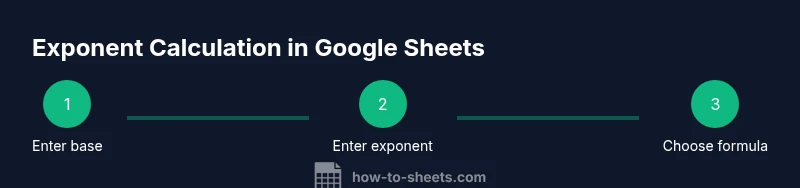
Exponent in Google Sheets: A Practical Guide
Learn how to perform exponent calculations in Google Sheets using the caret operator and the POWER function, with practical examples, tips for accuracy, and troubleshooting guidance for common mistakes.


According to How To Sheets, exponent calculations in Google Sheets are straightforward with the caret operator (^) or the POWER function. This quick guide will show you how to enter bases and exponents, compare methods, and handle common gotchas. Ready to master exponent calculations in Sheets with clear, repeatable steps.
Understanding exponent in google sheets
An exponent expresses how many times a base is multiplied by itself. In Google Sheets, you can calculate exponents using either the caret operator (^) or the POWER function. The exponent in google sheets is a foundational concept for growth models, compound interest projections, and data normalization. This section grounds you in the basics: what an exponent means, how the base and exponent interact, and common shorthand you’ll see in sheets formulas. For example, the expression =2^4 evaluates to 16, and =POWER(2,4) also yields 16. You can extend this to decimals and negative exponents to see how results shift as inputs change. Keep in mind that the caret operator has higher precedence than addition or multiplication, so parentheses are essential when combining operations:
=(3+1)^2 evaluates to 16, not 9+4.
Methods to compute exponents: caret vs POWER
Google Sheets supports two primary ways to raise a number to a power. The caret operator, written as ^, lets you write formulas like =A2^B2 where A2 is the base and B2 is the exponent. The POWER function uses a clear syntax: =POWER(base, exponent), which is helpful for readability and when you want to ensure explicit argument separation. Both methods work with integers, decimals, and even negative exponents. If either argument isn’t numeric, Sheets will return an error. When combining with other operations, use parentheses to preserve order of operations, for example: =(A1+B1)^C1.
Practical examples: simple exponents
Here are common, copy-paste-ready examples you can try:
=2^3returns 8.=POWER(2, 3)returns 8.- If A2 contains 5 and B2 contains 2,
=A2^B2returns 25. - The exponent can be fractional:
=POWER(4, 1.5)returns 8.
For large datasets, you can drag formulas down to apply the same exponent rule to many rows, ensuring consistent results across your analysis.
Handling negative exponents and fractions
Negative exponents produce fractional results. For example, =2^-3 equals 1/8, which is 0.125. The same applies with POWER: =POWER(2, -3) also equals 0.125. You can also use exponents to model diminishing growth: =A1^(-B1) if A1 is a base growth factor and B1 is the decay rate. Remember that parentheses matter when combining with other operations, such as =(3+1)^(-2) to apply the exponent to the whole sum.
Common mistakes and how to avoid them
The most frequent errors happen when users mix text with numbers or forget the leading '=' in a formula. If a value is stored as text, 2 might be treated as a string, causing ^ or POWER operations to fail. Convert text to numbers with VALUE() or by multiplying by 1, e.g., =VALUE(A1)^B1 or =A1*1^B1.
Another pitfall is missing parentheses in complex expressions. For instance, =A1^B1+C1 computes as (A1^B1) + C1. To raise the sum, write =(A1+B1)^C1. Finally, be mindful of overflow for very large exponents; results can become extremely large or return #NUM!.
Real-world use cases: data analysis and modeling
Exponent calculations power a wide range of tasks in data analysis. Use ^ or POWER to model compound growth, where a value grows by a rate over time: =Principal*(1+Rate)^Time. In forecasting, exponentiation helps simulate scenarios with different growth rates, while scaling data in analytics charts benefits from precise exponent results. For datasets that require normalization, exponents can standardize distributions or transform skewed data into a more linear form. Exponents also appear in scientific computations, where precise base-exponent pairs yield important results for trend analysis.
Advanced tips: combining exponents with other functions
You can combine exponent operations with other functions to unlock deeper insights. For example, =EXP(LN(2)*3) equals 2^3 (both yield 8) and demonstrates the identity a^b = EXP(LN(a)*b). You can compute logarithms and exponents together: =LOG(1000, 10) gives 3, and you can then transform results with an exponent to explore nonlinear relationships. The square root is a special case of exponentiation (x^0.5), so =POWER(A1, 0.5) is equivalent to =SQRT(A1) if A1 is non-negative. If you need to apply exponents across an entire column, consider ARRAYFORMULA with an appropriate range, e.g., =ARRAYFORMULA(A1:A10^B1).
Performance considerations and compatibility
Exponent calculations in Google Sheets are efficient for typical datasets and scale well when formula logic is kept simple. Both ^ and POWER are supported in Excel, which helps when exporting or sharing files between Google Sheets and Excel. If you work with very large exponents or extensive arrays, monitor your sheet’s recalculation time and consider breaking complex formulas into smaller steps. In terms of reliability, explicit numeric inputs reduce errors, and documenting formulas improves maintainability across teams.
Tools & Materials
- Google account with access to Google Sheets(Needed to create and edit spreadsheets.)
- Computer or device with internet access(Required to access Google Sheets online.)
- A sample spreadsheet or dataset(Use blanks for practice or create a small dataset.)
- Notes or a notebook for formulas(Helpful for documenting steps and findings.)
Steps
Estimated time: 15-25 minutes
- 1
Open Google Sheets and create a new sheet
Navigate to sheets.google.com and start a new blank spreadsheet to practice exponent calculations. This gives you a clean workspace free of existing data that could interfere with formulas.
Tip: Use a dedicated practice tab to avoid overwriting real data. - 2
Enter base numbers and exponents
In separate cells, input the base (e.g., 5) and the exponent (e.g., 3). Keeping base and exponent in adjacent cells makes copying and modifying formulas effortless.
Tip: Label columns as Base and Exponent for clarity. - 3
Apply the caret operator
In a third cell, enter a formula using the caret operator like `=A2^B2`. Press Enter to see the result. This is the quickest way to compute simple exponents.
Tip: If A2 or B2 contains text, convert with VALUE(A2) or VALUE(B2). - 4
Use the POWER function
In another cell, try `=POWER(A2,B2)` to compare with the caret method. Both approaches should yield the same result when inputs are numeric.
Tip: POWER is often clearer for readability in larger formulas. - 5
Test with decimals and negatives
Experiment with `=POWER(4,0.5)` and `=POWER(2,-3)` to see roots and reciprocals. This reinforces how exponents handle fractional and negative values.
Tip: Remember that negative exponents invert the base. - 6
Combine with operations
Wrap exponents in larger expressions, e.g., `=(A2+B2)^C2` or `=EXP(LN(A2)*C2)` to verify flexibility.
Tip: Use parentheses to ensure correct order of operations. - 7
Copy, fill, and validate
Drag formulas down to apply to a range and verify several results against manual calculations or a calculator to ensure accuracy.
Tip: Use Absolute references ($A$2) if you copy across columns. - 8
Document and share
Add short notes in the sheet or a README tab describing the exponent methods used. This helps teammates understand and reuse your formulas.
Tip: Include both caret and POWER examples for completeness.
FAQ
What is exponent in google sheets?
An exponent raises a base to a power. In Sheets, you can use the caret operator (^) or the POWER function to compute exponents.
An exponent in Google Sheets raises a base to a power using either ^ or POWER.
How do I raise numbers to a power in Google Sheets?
Use the syntax base^exponent, for example =A1^B1, or the function =POWER(base, exponent). Both methods return numeric results when inputs are numeric.
Raise numbers to a power with base^exponent or POWER(base, exponent).
Can I use exponents with cell references?
Yes. You can reference cells for both the base and exponent, e.g., =A2^B2 or =POWER(A2, B2). This makes sheets dynamic and easy to update.
Yes, you can use cell references for both base and exponent.
What happens with negative exponents?
Negative exponents produce fractions. For example, =2^-3 equals 1/8 or 0.125, and =POWER(2,-3) yields the same result.
Negative exponents create a reciprocal, like two raised to minus three equals one eighth.
Is POWER more accurate than the caret operator?
Both yield identical results for numeric inputs. POWER is often clearer in formulas, which can aid readability and reduce mistakes.
POWER or the caret operator give the same results for numeric inputs.
How do I exponent with decimals in google sheets?
Exponents can be decimal values, e.g., =POWER(4, 0.5) yields 2, and =A1^0.25 computes the fourth root. Ensure inputs are numeric for valid results.
You can raise numbers to fractional powers, like 4 to the 0.5 power.
Watch Video
The Essentials
- Use ^ for quick exponents in Sheets
- POWER(base, exponent) improves readability
- Ensure inputs are numeric to avoid errors
- Negative exponents yield fractions or reciprocals
- Test small cases to validate formulas