Add Text After a Google Sheets Formula: Step-by-Step
Learn to append text to formula results in Google Sheets using &, CONCAT, or TEXTJOIN. This step-by-step guide covers real-world examples, pitfalls, and best practices for students, professionals, and small businesses.


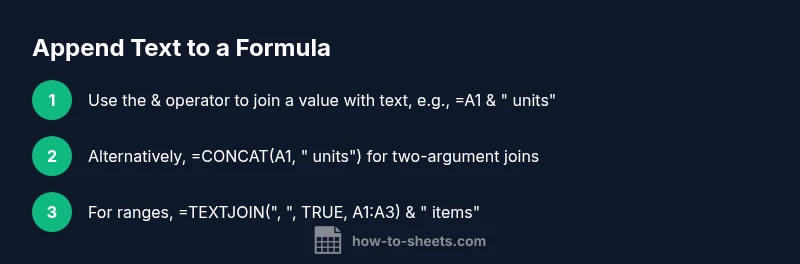
To add text after a formula in Google Sheets, append the text with an ampersand or use CONCAT. Step 1: place an ampersand and enclose the text in quotes (e.g., =A1 & \" units\"). Step 2: or use CONCAT(A1, \" units\"). Step 3: for multiple items, use TEXTJOIN with a delimiter. This keeps the numeric result while displaying the extra text.
Core concept: why text after a formula matters
In many spreadsheets, you need to display a value with contextual text, such as a unit or label, without altering the underlying numeric result. Adding text after a formula helps keep calculations intact while presenting data in a user-friendly way. The key is to perform the calculation as usual and then convert or combine the result with text to form a readable string. This approach is common in dashboards, reports, and shared templates where clarity matters for teammates and stakeholders. When done correctly, your sheet remains computationally accurate and visually informative.
Remember: the operation you choose (concatenation with &, CONCAT, or TEXTJOIN) determines how Google Sheets treats the result — typically as text for display, while the numeric value remains the same for further calculations.
The main techniques: & vs CONCAT vs TEXTJOIN
There are three primary ways to attach text to a formula result in Google Sheets:
- The ampersand operator (&): Simple and fast for single values. Example: =A2 & " units". This converts the numeric result to text for display, but it’s ideal for straightforward needs.
- CONCAT(): Use when you want explicit two-argument joins. Example: =CONCAT(A2, " units"). Note that CONCAT only accepts two arguments, so you must nest or combine more if needed.
- TEXTJOIN(): Best for multiple cell ranges or when you need a delimiter. Example: =TEXTJOIN(", ", TRUE, A2:A4) & " items". This preserves the array’s readability while appending text at the end.
Choosing between these methods depends on readability, whether you’re joining more than two items, and whether you’re combining ranges. For most quick tasks, &, and CONCAT suffice; TEXTJOIN shines in multi-cell or ranged scenarios.
Practical examples: simple appends
Consider a value in A1 representing a quantity. You want to display a unit alongside it without changing the value used in calculations. Common approaches include:
- Simple: =A1 & " units" -> displays 42 units when A1 is 42.
- Numeric formatting then text: =TEXT(A1, "0") & " units" -> ensures a specific numeric format before appending the unit.
- Date-aware text: =TEXT(TODAY(), "yyyy-mm-dd") & " report date" -> demonstrates how to combine text with formatted dates.
These examples show how to preserve the underlying numeric value for calculations while presenting a friendly label in the same cell.
Working with dynamic text from other cells
If you want the appended text to depend on other cells, reference them directly in the concatenation:
- =A2 & " units (confirmed)" if B2 = "Yes"; else =A2 & " units (pending)" when B2 = "No".
- Use IF to choose the label: =A3 & IF(B3 = "Yes", " - approved", " - not approved").
Dynamic labeling helps you keep data-driven contexts visible without introducing new columns solely for text prompts.
Handling dates and numbers gracefully
Dates and numbers often require specific formatting before appending text. Use TEXT to format numbers (e.g., =TEXT(A4, "0.00") & " USD") or dates (e.g., =TEXT(B4, "mmm d, yyyy") & " created"). This ensures consistent presentation, avoids locale issues, and keeps the final string human-readable.
When building dashboards, consider a consistent pattern like: =TEXT(value, "#,##0.00") & " units" or =TEXT(date, "yyyy-MM-dd") & " - dated".
Common pitfalls and fixes
- Pitfall: Leaving trailing spaces that misalign with text. Fix: trim inputs with TRIM() where needed: =TRIM(A1) & " units".
- Pitfall: Accidentally converting a numeric field to text, breaking further math. Fix: Keep core calculations separate; only the display cell uses concatenation, or wrap the result in VALUE() if you need numeric form again.
- Pitfall: Overusing quotes or nesting too many CONCAT calls. Fix: Prefer &, which is easier to read; use TEXTJOIN for ranges.
- Pitfall: Different regional settings affect decimal separators. Fix: Use TEXT() with explicit format strings to ensure consistent display.
Tips for readability and maintenance
- Use a consistent suffix (e.g., " units", " items") across the sheet for uniformity.
- Keep the display formulas in dedicated helper columns if the logic grows complex.
- Document your approach in a separate sheet or comments so teammates understand why text is appended.
- For reports, consider turning the final display cell into a pure text cell to avoid altering numeric data used by other formulas.
Quick reference cheat sheet
- Basic: =A1 & " units"
- Two-argument join: =CONCAT(A1, " units")
- Range join: =TEXTJOIN(", ", TRUE, A1:A3) & " items"
- Formatted text: =TEXT(A1, "0.00") & " USD"
- Date labels: =TEXT(DATEVALUE("2026-01-01"), "mmm d, yyyy") & " created"
Advanced scenarios: array formulas and conditional text
When dealing with arrays, you can wrap the array result with TEXTJOIN or use an array-enabled function combined with TEXT:
- =ARRAYFORMULA(TEXT(A2:A6, "0.0") & " units") to apply a consistent format across a range.
- Combine with IF to add conditional text for entire ranges: =ARRAYFORMULA(IF(A2:A6>0, A2:A6 & " units", ""))
These approaches extend the basic idea to larger datasets and more complex labeling schemes.
When to avoid text after formula
Avoid text after a formula when the cell is intended solely for numeric calculations or when downstream formulas rely on numeric types. If you must display both values, consider using a separate column for display text or using a helper column to convert to text only for display, preserving numeric values for calculations.
Tools & Materials
- Google Sheets account(Open a sheet with an existing formula or test data)
- Web browser (Chrome/Edge/Firefox)(Ensure JavaScript is enabled for Sheets)
- Keyboard and mouse(Comfortable for editing formulas)
- Sample dataset or template(Helpful for practice scenarios)
- Notes app or document(Record observations and patterns)
Steps
Estimated time: 25-40 minutes
- 1
Identify the target cell and formula
Open your Google Sheet and locate the cell whose result you want to display with extra text. Confirm whether the formula returns a number or a date, and note any dependencies it has on other cells.
Tip: Start with a simple example like =A1 to validate the approach before adding text. - 2
Choose a text-append method
Decide between the ampersand operator, CONCAT, or TEXTJOIN based on the data layout. For a single cell, & is usually the fastest; for ranges, TEXTJOIN is more scalable.
Tip: For readability, prefer & for simple concatenations. - 3
Implement a simple append
Test a straightforward example such as =A1 & " units". Verify the result displays as expected while the underlying numeric value remains available for calculations elsewhere.
Tip: If you see an error, check for mismatched quotes or stray spaces. - 4
Format numbers or dates when needed
If you require specific formatting, wrap the numeric part with TEXT, then append the text (e.g., =TEXT(A1, "0.00") & " USD"). This preserves the format in the display string.
Tip: Use precise format codes to avoid locale-driven surprises. - 5
Extend to ranges or multiple items
When dealing with ranges, consider TEXTJOIN to combine values into a single string, then append your label (e.g., =TEXTJOIN(", ", TRUE, A1:A3) & " items").
Tip: Include a delimiter that suits your report style. - 6
Validate across scenarios
Test blank cells, negative numbers, and mixed data types to ensure the display remains correct in all cases. Add IF checks if necessary to handle special cases.
Tip: Document edge cases so future users know how the formula behaves.
FAQ
Can I add text after a formula without changing the result type?
Yes. Using & or CONCAT appends text for display, while the underlying value can still be used in calculations. If you need to preserve a numeric type, keep the calculation in a separate cell and reference its result for display.
Yes. You can append text with either the ampersand operator or CONCAT; the numeric value remains usable in other formulas if you keep the calculations separate.
Can I append text to a date or time value?
Yes. Format the date with TEXT before concatenating, e.g., =TEXT(A1, \"yyyy-MM-dd\") & \" date\". This keeps the date readable while showing the extra label.
Absolutely. Use TEXT to format the date, then append your text for a clear display.
What is the difference between & and CONCAT?
The & operator is the simplest way to join text for most cases. CONCAT joins two arguments only, which makes it less flexible for combining multiple items without nesting.
Ampersand is usually easier; CONCAT is limited to two arguments unless you nest it.
Is there a limit to how long the appended text can be?
There is no explicit limit on the length of appended text in a formula, but very long strings can reduce readability. For large blocks of text, consider placing the text in a separate cell and referencing it.
No fixed limit, but keep readability in mind; use separate cells for long descriptions if needed.
How to handle empty source cells when appending text?
Use IF or IFNA to guard the append, e.g., =IF(A1="", "", A1 & " units"). This prevents producing strings like " units" from blanks.
Guard with IF to avoid showing stray text when the source is blank.
How can I append text to an array result?
Use TEXTJOIN inside an ARRAYFORMULA to apply the same append operation to multiple cells, e.g., =ARRAYFORMULA(TEXTJOIN(", ", TRUE, A1:A3) & " items").
Apply the same approach to arrays using TEXTJOIN with ARRAYFORMULA.
Watch Video
The Essentials
- Use & for simple text appends to keep formulas readable.
- TEXTJOIN is ideal for ranges or multiple values.
- Format numbers with TEXT for consistent display.
- Test with blanks and edge cases to avoid surprises.
- Document your approach for team collaboration.