Google Sheets Text Instead of Formula: A Practical Guide
Learn practical methods to display literal text in Google Sheets instead of executing formulas, with step-by-step instructions, pitfalls, and best practices for students, professionals, and small business owners.


Learn how to display literal text in Google Sheets instead of executing a formula. You can prefix the entry with an apostrophe, set the cell format to Plain Text, or use FORMULA() to reveal an existing formula as text. This quick answer covers when to apply each method, practical examples, and caveats.
Why text instead of formula matters
In Google Sheets, the ability to show text instead of a live formula is a surprisingly common need for students, professionals, and small business owners who share worksheets as templates or audit trails. When collaborators view a sheet, they may need to see the written instruction or example text rather than the evaluated result. This is especially true in documentation, teaching templates, or risk dashboards where misinterpretation of a formula could cause mistakes. Understanding how to display text instead of a formula helps preserve clarity and intent. According to How To Sheets analysis, teams that clearly separate data inputs from instructions experience fewer errors and quicker onboarding. This is a practical skill for anyone who uses Sheets to organize projects, budgets, or workflows. The key is knowing which technique to use in which scenario—apostrophes, plain text formatting, or the FORMULA function to capture a formula as text. Implementing these approaches consistently improves readability and reduces surprises during reviews.
When you might want to display text (use cases)
There are several legitimate scenarios where showing text rather than the evaluated formula makes sense. You might be distributing a template that shows example formulas as text for learners, or sharing a бюджет tracking sheet where instructions appear beside cells. Teams often need to present a “how to” layout, where the formula itself is shown for reference rather than calculated. Another case is auditing, where you want to verify that a formula exists in a cell without triggering its calculation in a public-facing view. In all these situations, the ability to toggle text visibility helps maintain a clean, understandable workbook. This approach aligns with practical guidance from How To Sheets, which emphasizes clarity and collaboration in Google Sheets projects.
How to display text instead of formula in Google Sheets
You can display text in three primary ways, depending on your exact goal and workflow:
- Prefix with an apostrophe to treat input as plain text. This prevents the formula from running and shows exactly what you type, including the leading equals sign if present. For example, entering '=SUM(A1:A5) forces Sheets to display exactly that string.
- Set the cell format to Plain Text. This ensures future edits in that cell are treated as text rather than formulas. It’s especially useful when you’re converting a whole column of formulas to text for documentation or sharing.
- Use the FORMULA() function to fetch the formula from another cell as text, including the leading equals sign. For example, =FORMULA(A1) returns "=SUM(A1:A5)" as text, which is useful for teaching and audits. Each method serves a different purpose—choose the one that best matches your workflow.
Using apostrophes: showing text starting with =
A common technique is to start your entry with a single quote (apostrophe). The apostrophe is not displayed in the cell after you press Enter, but it prevents the engine from treating the rest as a formula. This is handy when you want to show a literal formula in a teaching sheet or template. Note that the apostrophe only affects the current cell; if you copy and paste elsewhere, you may need to reapply as needed.
Plain text formatting: bulk conversions
If you have many cells containing formulas that you want to convert to text, Plain Text formatting is the fastest path. Select the range, change the number formatting to Plain Text, and then re-enter values as text or paste your content with the apostrophe approach. This method preserves the text as written and prevents surprises when sharing with others who may misuse the formulas. It’s especially useful for distributing reference sheets or SOPs that include example formulas.
Using FORMULA() to display a formula as text
The FORMULA() function retrieves the exact formula from a given cell as text. This is invaluable when you need to show the formula’s syntax during training or in documentation without altering the source data. Example: =FORMULA(A1) returns "=SUM(B1:B10)" as text. Be mindful that FORMULA() itself is a read-only reference—if the source formula changes, the text output updates accordingly, which is often desirable in dynamic templates.
Practical examples: turning formulas into text in real work
Real-world worksheets often require a mix of functional output and displayed formulas. Example 1: in a budget template, you want to display the exact formula used in a cell to explain its logic. Example 2: in a student worksheet, you provide a practice sheet where the formulas are shown as text alongside the result column. By combining apostrophes, Plain Text formatting, and FORMULA(), you can tailor the display to each cell’s role. This flexibility makes Google Sheets a powerful tool for both calculation and instruction.
Tools & Materials
- Google account with access to Google Sheets(Needed to create, edit, and share sheets.)
- Sample dataset or workbook(A test file to demonstrate text-vs-formula scenarios.)
- Text editor or notes app(Useful for drafting instructions to accompany the sheet.)
- Internet connection(Required to access Sheets and FORMULA() reference.)
- Apostrophe key or keyboard(For quickly prefixing text entries as plain text.)
Steps
Estimated time: 20-30 minutes
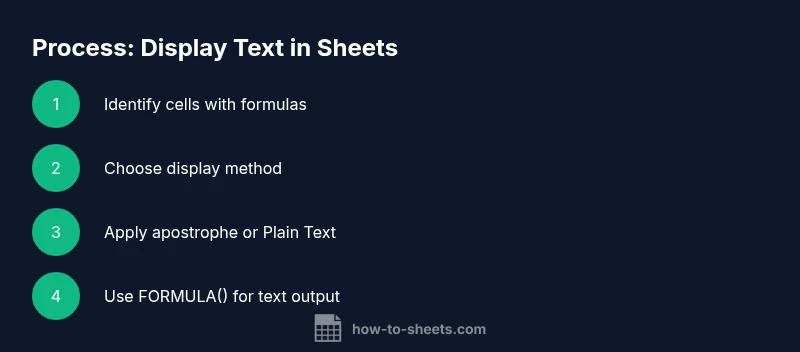
- 1
Identify formula cells
Scan the worksheet to locate cells that currently use formulas and note which ones should display as text for teaching or documentation. This step builds the foundation for choosing the right method.
Tip: Use Find formulas (Ctrl/Cmd + F and search for '=') to quickly locate formula cells. - 2
Choose the display method
Decide whether you want to show the formula as text in-place (apostrophe or Plain Text) or pull the formula text from another cell (FORMULA()). Each method serves different collaboration needs.
Tip: For teaching sheets, FORMULA() is ideal; for templates, plain text is often cleaner. - 3
Apply apostrophe prefix
Edit the target cells and prefix the input with a single quote to force text display. The apostrophe is invisible in the final cell view.
Tip: If your data includes an actual leading apostrophe, it may display differently—clear it first. - 4
Set Plain Text formatting
Select the range and change number formatting to Plain Text, then re-enter or paste text to maintain the display as text.
Tip: Plain Text formatting remains effective even when copying to other apps, avoiding unintended formula execution. - 5
Use FORMULA() for text output
In adjacent cells, enter =FORMULA(targetCell) to display the source formula as text, preserving the original formula for reference.
Tip: Remember FORMULA() returns text; it won’t convert the target formula to text itself. - 6
Validate and document
Review your sheet to ensure each cell shows the intended text or formula snippet, and add inline documentation or a legend explaining which cells are text copies and why.
Tip: Add a legend to improve onboarding for collaborators.
FAQ
How can I show a formula exactly as text in a single cell?
Use an apostrophe before the formula (e.g., '=SUM(A1:A5)') or format the cell as Plain Text before entering the formula. Both methods prevent execution and display the literal string.
Use an apostrophe or Plain Text format to display the formula as text in a cell.
What does FORMULA(A1) do in Google Sheets?
FORMULA(A1) returns the exact formula used in cell A1 as text, including the leading equals sign. It is useful for teaching or documenting the exact logic of a cell.
FORMULA(A1) shows the actual formula in A1 as text.
Will changing a cell to Plain Text stop it from updating if I edit the formula elsewhere?
Yes. When a cell is Plain Text, it won’t update like a formula would, so it remains a fixed string. Use this for static templates or instructional content.
Plain Text cells don’t update automatically like formulas; they stay as written.
Can I convert an entire column of formulas to text at once?
Yes, use Plain Text formatting on the column and re-enter or paste the content as text. You can also prefix entries with an apostrophe in bulk if needed.
You can bulk-convert by formatting as Plain Text and re-entering or pasting the values.
Are there any pitfalls when displaying text instead of formula in shared sheets?
Displaying text can prevent dynamic updates and data-driven visuals in dashboards. Ensure you have a clear legend so collaborators understand which cells are text and why.
Be mindful that text display hides live calculations that dashboards rely on.
Is FORMULA() supported in all Google Sheets environments (web, mobile)?
FORMULA() is generally supported across standard Google Sheets environments, but behavior can vary with mobile apps. Verify on your primary device when sharing with mobile users.
FORMULA() works in most environments, but test on mobile if your team uses it.
Watch Video
The Essentials
- Show formulas as text using apostrophes or Plain Text formatting
- Use FORMULA() to display a formula as text for training sheets
- Choose method based on collaboration needs and future updates
- Document changes so teammates understand why text appears instead of calculation