How to Treat Labels as Text in Google Sheets
Learn how to treat labels as text in Google Sheets to prevent date and number auto-conversions, using Plain Text formatting, apostrophe prefixes, and TO_TEXT-based methods for stable charts, filters, and exports.


To treat labels as text in Google Sheets, convert the labels to text using one of three reliable methods: format the cells as Plain Text, prefix labels with an apostrophe ('), or use the TEXT function to coerc e values to text. These approaches prevent auto-recognition (dates or numbers) and ensure labels stay text in charts, filters, and formulas.
Why Treat Labels as Text in Google Sheets
Labels in Google Sheets can sometimes be misinterpreted by the spreadsheet engine, especially when data contains numbers, dates, or leading zeros. If a label like 1/2 or 00123 is treated as a date or number, it damages the readability of dashboards, charts, and exports. Treating labels as text ensures consistency across data visualizations, filters, and downstream processes. The How To Sheets team has found that many beginners overlook this step, leading to subtle errors in reports and dashboards. By intentionally treating labels as text, you preserve the exact representation of each item, making collaboration easier and outcomes more predictable. This is particularly important for students organizing class codes, professionals tracking product SKUs, and small business owners managing client lists. Implementing text formatting early reduces the need for later cleanup and keeps your datasets clean and audit-friendly.
In practice, you’ll often apply these techniques to label columns, legend entries in charts, and category labels in pivot tables. The core idea is that the text representation should be stable, unambiguous, and resistant to automatic reformatting that spreadsheets often apply during edits, imports, or exports. We’ll walk through methods, examples, and caveats so you can choose the approach that best fits your workflow and data governance standards.
When you commit to treating labels as text, you’ll notice smoother data exports, more reliable chart axes, and fewer surprises when collaborators add new data. This aligns with best practices for data management and ensures the integrity of your Google Sheets-based dashboards. As you adopt these methods, consider documenting the rule in your team’s template or workbook so new users apply the same standard from day one.
noteList”:[]},
bodyBlocks2-3?
Tools & Materials
- Google account with access to Google Sheets(Ensure you have edit permissions for the target workbook.)
- Sample dataset with labels (text mixed with numbers/dates)(Use a representative sheet to test methods before applying broadly.)
- Plain Text formatting knowledge in Sheets UI(You will access Format > Number > Plain Text.)
- Apostrophe entry capability(You can prefix a label with a single quote (') to force text.)
- TO_TEXT or CONCAT technique for conversion(Optional helper methods for converting existing data to text.)
Steps
Estimated time: 15-25 minutes
- 1
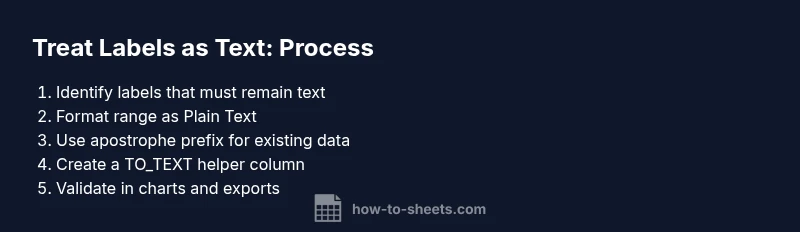
Identify labels that must remain text
Survey your dataset and mark labels that would lose meaning if converted to numbers or dates (e.g., SKUs, category names, codes). This upfront step prevents accidental reformatting later.
Tip: Create a quick column of labels that should stay text, so you know what to format. - 2
Format the target range as Plain Text
Select the range containing the labels, then go to Format > Number > Plain Text. Applying this format ensures new entries are treated as text and prevents automatic data type changes.
Tip: Apply to the entire label column to maintain consistency across entries. - 3
Use an apostrophe to force text on existing labels
If you already have data, prefix each label with a single quote ('). The apostrophe is not visible in the cell after you press Enter, but it signals Sheets to treat the content as text.
Tip: Use Find and Replace to add apostrophes quickly for large ranges. - 4
Create a text-only helper column with TO_TEXT
In a new column, use =TO_TEXT(A2) to convert values to text without altering the original data. Copy-paste values back if you want to replace the originals.
Tip: TO_TEXT preserves the literal characters, including leading zeros. - 5
Validate with a simple test scenario
Change a label to a numeric or date-like value to verify that the text format prevents changes. Verify in charts, filters, and exports that the label remains text.
Tip: Keep a small test set to confirm behavior before full rollout. - 6
Apply consistently in charts and pivots
Redefine chart axis, legend, and pivot table labels to ensure they reference text-form labels, preventing axis auto-scaling or label drift.
Tip: If needed, re-create charts after applying text formatting for reliability. - 7
Document the rule for team use
Add a brief note in your workbook template explaining why labels are treated as text and which methods to use. This helps teammates apply the same standard.
Tip: Attach a short README in the sheet or template. - 8
Review and iterate
Periodically review new labels to ensure they follow the text rule, especially when importing data from external sources.
Tip: Set a reminder to audit new datasets once a quarter.
FAQ
Why might a label like 1/2 be changed in Sheets, and how does treating it as text help?
Dates or numbers are often auto-detected by Sheets, turning 1/2 into a date. Treating it as text prevents this, preserving the intended label for dashboards, charts, and exports.
Dates can sneak into labels, but treating them as text keeps the labels exact for dashboards and exports.
What is the simplest way to start treating labels as text?
The easiest start is to format the label column as Plain Text. Then re-enter data or convert with a helper column using TO_TEXT.
Start by making the column Plain Text, then convert if needed.
Can I revert text-form labels back to auto formatting later?
Yes. Remove the Plain Text format or delete the apostrophes and Sheets will resume its default behavior for new entries.
You can revert by changing the format back to automatic.
Is TO_TEXT the best method for existing data?
TO_TEXT is a reliable way to convert existing values to text without changing the underlying characters. Use a helper column and paste values when done.
TO_TEXT is a safe option for existing data.
How does treating labels as text affect charts and pivots?
Text labels remain stable in charts and pivots, preventing misalignment or axis scaling caused by numeric interpretation.
Texts stay stable, so charts and pivots don’t misinterpret labels.
What about leading zeros in labels?
Leading zeros are preserved when values are text. If you need them in calculations later, keep a parallel numeric column for calculations only.
Leading zeros stay intact when treated as text.
Watch Video
The Essentials
- Format labels as Plain Text to prevent auto-conversions
- Use apostrophes to force text without visible markers
- TO_TEXT or CONCAT can convert existing data safely
- Validate changes with charts/filters to ensure consistency
- Document the rule for team-wide consistency