Google Sheets Join vs TextJoin: A Practical Comparison
Compare Google Sheets' JOIN and TEXTJOIN functions with clear use cases, syntax, and examples to help students and professionals choose the right tool for concatenation tasks.


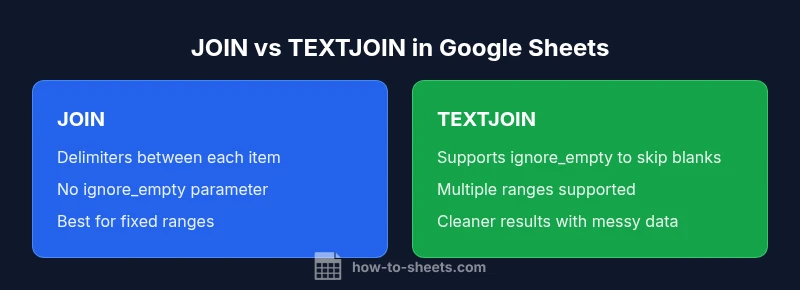
For most joining tasks in Google Sheets, TEXTJOIN is the more versatile choice because it can concatenate ranges with a single delimiter and ignore blanks when requested. JOIN remains useful for simple, fixed-range joins where you want predictable delimiter placement between non-empty items. In practice, TEXTJOIN often reduces extra logic and post-processing, making it the go-to for messy data.
Context and Scope: The Role of JOIN and TEXTJOIN in Google Sheets
When you work with lists in Google Sheets, you’ll often need to combine values from multiple cells into a single text string. The two functions most relevant for this task are JOIN and TEXTJOIN. The keyword to keep in mind is concatenation with a delimiter. JOIN takes a delimiter and one or more text arguments and stitches them together. TEXTJOIN does the same but adds a crucial capability: an ignore_empty parameter that lets you skip blanks. In the context of a modern spreadsheet workflow, understanding when to reach for JOIN versus TEXTJOIN can save time and improve readability. According to How To Sheets, choosing the right function hinges on data cleanliness, the number of input ranges, and how you want blanks to appear in the final result. This article uses the keyword google sheets join vs textjoin to anchor our comparisons and provide practical, step-by-step guidance for students, professionals, and small business owners.
Core Differences: How JOIN and TEXTJOIN Work Under the Hood
The core distinction is simple but impactful. JOIN(delimiter, text1, [text2, ...]) concatenates each argument separated by the delimiter. It does not provide a built-in way to ignore empty cells; blanks simply appear as separators between items. TEXTJOIN(delimiter, ignore_empty, text1, [text2, ...]) adds a boolean ignore_empty. If ignore_empty is TRUE, empty cells are skipped, and no extra delimiter is produced for blanks. If FALSE, blanks are preserved as empty slots, which can lead to consecutive delimiters or trailing delimiters depending on the data.
Both functions can accept ranges, arrays, and individual text arguments, but TEXTJOIN’s ignore_empty option makes it easier to clean up outputs when your data contains blanks. This distinction becomes crucial when you are consolidating data from form responses, inventory lists, or mixed data sources where blanks are common. The practical takeaway is: use TEXTJOIN when blanks should be ignored, and use JOIN when you want to preserve every value, including empties, within a fixed range.
Practical Examples: When to Use JOIN vs TEXTJOIN
Example 1 – Simple fixed range with JOIN:
=JOIN(", ", A2, A3, A4)
This returns a string like "Apple, Banana, Cherry" assuming A2:A4 contain fruit names and none are blank. If any of the cells are blank, you’ll get separators that reflect those blanks, producing something like "Apple, , Cherry" if A3 is empty. This is sometimes desirable when you need explicit placeholders, but more often you’ll want to avoid empty slots.
Example 2 – TEXTJOIN with ignore_empty:
=TEXTJOIN(", ", TRUE, A2:A10)
Here, any blank cells within A2:A10 are ignored, and the result contains only the non-empty items separated by the delimiter. This is especially handy for lists imported from surveys or user submissions where blanks are common.
Example 3 – TEXTJOIN with multiple ranges:
=TEXTJOIN(", ", TRUE, A2:A10, B2:B10, C2:C10)
TEXTJOIN can combine several ranges in one formula, which is a major productivity boost when building a long, joined string from scattered data. You don’t need to create an intermediate helper column to squeeze out blanks; the single formula handles it all.
Edge Cases: Handling Blanks, Delimiters, and Data Types
Blanks are the most common edge case. JOIN will show empty positions as gaps in the joined string, which can produce double delimiters or trailing separators. TEXTJOIN with ignore_empty=TRUE eliminates those gaps, resulting in a cleaner string. Delimiter choices matter: a comma, semicolon, or custom text can dramatically affect readability, so pick something intuitive for your audience.
Data type handling matters too. Both functions coerce numbers, dates, and booleans to text when concatenated. If you need strict formatting (for example, dates in a specific format), perform an explicit TEXT() conversion on the inputs before joining.
Locale differences can influence how formulas are parsed (comma vs semicolon separators). Most users in English-speaking locales will rely on commas, but it’s worth testing formulas in your specific environment to ensure correct parsing.
Performance Considerations: Efficiency and Readability
In typical spreadsheets with hundreds to a few thousand rows, the performance difference between JOIN and TEXTJOIN is negligible. The real impact comes from the structure of your data and the length of the resulting string. TEXTJOIN often yields simpler formulas when you’re aggregating many cells across multiple ranges because it eliminates the need for auxiliary FILTER or IF logic to skip blanks. That simplicity translates into easier maintenance and fewer errors over time.
When working with very large ranges (tens of thousands of cells), consider whether you truly need a single consolidated string or if a staged approach (building chunks then joining chunks) would be more maintainable. Remember that concatenated strings become larger as you include more items, potentially affecting downstream usage in dashboards or reports.
Common Mistakes and Best Practices
- Mistake: assuming JOIN ignores blanks. Always verify how blanks affect your output; consider TEXTJOIN with ignore_empty for cleaner results.
- Mistake: mixing ranges and arrays without consistent lengths. TEXTJOIN handles multiple ranges but ensure each range aligns with your intent to avoid misaligned results.
- Best practice: favor TEXTJOIN for any scenario with potential blanks. It reduces the need for ancillary formulas and yields predictable formatting.
- Best practice: document the delimiter choice and ignore_empty setting in shared sheets so teammates understand the output expectations.
- Best practice: test formulas with representative data before deploying in dashboards to prevent unexpected delimiters or missing values.
Advanced Techniques: TEXTJOIN with IF, FILTER, and SPLIT
TEXTJOIN shines when combined with FILTER or IF to include only items meeting criteria. For example, to join only non-blank values from a filtered dataset:
=TEXTJOIN(", ", TRUE, FILTER(A2:A100, B2:B100="Yes"))
Another powerful pattern is using TEXTJOIN with SPLIT for dynamic lists. You can join items into a single string, then SPLIT the string in downstream cells for display. This can be useful when building compact summaries for reports or dashboards. Keep in mind that these techniques can affect performance if used on very large datasets, so profile your sheet as you grow.
How to Convert an Existing JOIN-based Workflow to TEXTJOIN
If you have an existing JOIN-based workflow and want to migrate to TEXTJOIN, start by identifying the source ranges and whether blanks should be ignored. Replace JOIN with TEXTJOIN, add the ignore_empty parameter, and, if needed, wrap your ranges in FILTER to exclude undesired entries. For example, convert =JOIN(", ", A2:A10) to =TEXTJOIN(", ", TRUE, A2:A10). If your data contains blanks that you want to skip, this simple change often yields cleaner results with fewer intermediate steps.
Best Practices and Quick Reference for Everyday Sheets
- Use TEXTJOIN as the default when joining data from multiple ranges with possible blanks.
- Prefer a simple delimiter that enhances readability for end users.
- Always test with real data to validate behavior and ensure there are no unexpected empty slots.
- Consider documenting your approach in the sheet’s description or a readme tab to aid future collaborators.
Quick Reference: Syntax Summary and Examples
- JOIN(delimiter, text1, [text2, ...]): Simple concatenation that preserves blanks as separators. Useful for fixed-range tasks where you want exact spacing between items.
- TEXTJOIN(delimiter, ignore_empty, text1, [text2, ...]): Flexible concatenation that can skip blanks when ignore_empty is TRUE. Ideal for messy data with many empty cells across multiple ranges.
- Examples:
- =JOIN(", ", A2:A4)
- =TEXTJOIN(", ", TRUE, A2:A10)
- =TEXTJOIN(" - ", TRUE, A2:A4, B2:B4)
Comparison
| Feature | JOIN | TEXTJOIN |
|---|---|---|
| Delimiter handling | Delimiters placed between all items, including blanks | Can skip blanks with ignore_empty=TRUE |
| Blank handling | Includes empty segments when an element is blank | Skips blanks when ignore_empty=TRUE |
| Range support | Accepts ranges/arrays; simple use with fixed inputs | Accepts multiple ranges and text arguments |
| Ease of use | Straightforward for small fixed inputs | Often simpler for multi-range joins due to a single function |
| Best use case | Fixed or small lists with predictable blanks | Joining multiple ranges with blanks handled cleanly |
| Return type and readability | Plain joins with possible blanks | Cleaner outputs when blanks exist; easier maintenance |
The Good
- TEXTJOIN reduces need for extra filtering by ignoring blanks
- Handles multi-range joins cleanly
- Simplifies complex concatenations with a single formula
- Produces cleaner results when blanks exist
The Bad
- JOIN can be more predictable for fixed ranges and simpler to read in short formulas
- TEXTJOIN requires learning the ignore_empty parameter
- If you need explicit empty slots, TEXTJOIN with ignore_empty=FALSE may be less desirable
TEXTJOIN is generally the better default for most data-concatenation tasks in Google Sheets.
TEXTJOIN handles blanks more gracefully and supports multiple ranges with a single formula. Use JOIN only when you need fixed-range concatenation without extra logic, or when you require explicit empty slots.
FAQ
What is the main difference between JOIN and TEXTJOIN in Google Sheets?
JOIN concatenates items with a delimiter, including blanks. TEXTJOIN adds ignore_empty to skip blanks, producing cleaner results when data contains empty cells.
JOIN adds delimiters between all items, including blanks. TEXTJOIN can skip blanks with ignore_empty to produce a cleaner string.
Can JOIN skip blanks?
JOIN has no built-in ignore_empty option. Blanks will appear as empty slots between delimiters in the output.
JOIN can’t skip blanks; it will show empty sections between joined items.
How do I combine multiple ranges with TEXTJOIN?
TextJoin accepts multiple ranges as separate arguments. Example: =TEXTJOIN(", ", TRUE, A2:A10, B2:B10).
You can join multiple ranges by listing them in TEXTJOIN with ignore_empty set to TRUE.
Is TEXTJOIN available in all Google Sheets locales?
TEXTJOIN is a standard function in Google Sheets and is generally available across locales; however, verify delimiter syntax for your locale.
TEXTJOIN is widely available, but locale differences can affect how you enter delimiters.
When should I not use TEXTJOIN?
If you need to preserve exact empty slots or prefer a very simple, single-range join, JOIN might be more appropriate.
If you need empty slots kept, or a super simple join, use JOIN.
The Essentials
- Prefer TEXTJOIN for multi-range joins with blanks
- Use ignore_empty=TRUE to suppress blanks
- Choose JOIN for simple fixed-range concatenation
- Test formulas with real data to confirm delimiter behavior
- Prioritize readability and maintainability in shared sheets