concat vs concatenate google sheets: a practical comparison
A detailed analysis of concat vs concatenate google sheets, with practical examples, usage guidance, and best practices for clean, scalable spreadsheets. Learn when to use each function and how they fit into broader text-joining strategies.


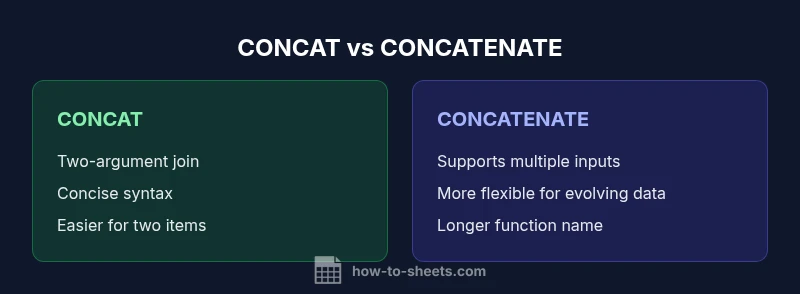
In Google Sheets, concat and concatenate are two text-joining functions used to assemble strings. CONCAT is the concise two-argument option, while CONCATENATE accepts multiple values in one formula. For simple joins, CONCAT keeps formulas short; for longer joins, CONCATENATE offers broader input capability. Neither inserts separators by default—use TEXTJOIN with a delimiter if you need one.
Context and Basic Terms
In Google Sheets, concat vs concatenate google sheets refers to two text-joining functions that help you combine values into a single string. CONCAT is the concise two-argument option, while CONCATENATE accepts multiple values in a single formula. The How To Sheets team emphasizes understanding the practical differences to reduce confusion in real-world spreadsheets. When deciding which to use, consider how many pieces you need to join, readability, and potential future changes to the sheet. This article from How To Sheets uses practical examples to illustrate when a simple two-item join is preferable versus when a longer list of inputs benefits from a single function. The distinction matters for teams aiming to keep formulas readable and maintainable over time.
The Core Difference: Arguments and Syntax
The most fundamental distinction between CONCAT and CONCATENATE is how many inputs they accept and how you write them. CONCAT is designed for a compact two-argument pattern: CONCAT(value1, value2). CONCATENATE, while still straightforward, accepts multiple values in a single call (value1, value2, value3, ...). For users migrating from older documentation or Excel versions, CONCATENATE often feels more flexible because you can group several pieces without nesting. In practice, the choice mostly comes down to formula length and future-proofing: if you know you’ll join only two items, CONCAT keeps the sheet cleaner; if you foresee adding more parts, CONCATENATE offers fewer edits later. From a practical standpoint, keeping a consistent choice across a project reduces cognitive load for collaborators. How To Sheets insights emphasize consistency as a driver of maintainability.
Practical Example: Using CONCAT
A common simple join is combining a first name and last name with a space using CONCAT. In practice, you describe the goal rather than listing exact syntax when teaching newcomers: concatenate A2 and B2 with a space in between. If A2 or B2 contains a number, Google Sheets coerces it to text. This approach is ideal for quick labels, identifiers, or short descriptors in dashboards and data-entry sheets. There is also a common alternative: using the ampersand operator to achieve the same result in many workflows. The concise CONCAT version reduces formula length, which helps when many rows share the same pattern. This aligns with best practices in data-facing templates.
Practical Example: Using CONCATENATE
For scenarios that require more parts in a single join, CONCATENATE can be extended beyond two items. A typical case is assembling a city-state-zip code identifier by listing multiple components and including explicit separators within arguments. This illustrates the flexibility of CONCATENATE for longer strings. While the function name is longer, the ability to keep all inputs in one call can improve readability for editors who prefer a single, self-contained formula. In a team setting, clear documentation helps ensure everyone uses the same approach.
Delimiters and Separator Use (TEXTJOIN vs the others)
If you frequently need a delimiter between joined parts, TEXTJOIN is the better choice. TEXTJOIN(delimiter, ignore_empty, value1, [value2, ...]) can insert a comma, space, or other separator automatically. This is particularly helpful for concatenating many cells into a single line for labels or CSV-ready strings. The takeaway is: use CONCAT or CONCATENATE for simple joins; switch to TEXTJOIN when building longer strings with consistent separators. A practical tip is to reserve TEXTJOIN for multi-part joins and otherwise keep your approach consistent with your team's guidelines.
Error Handling and Data Types
Both CONCAT and CONCATENATE coerce non-text values into text when joining. This means numbers become strings and booleans turn into their textual representations. If you need precise formatting (for example, currency, dates, or leading zeros), format the individual components first or use TEXT on components before joining. This awareness helps prevent downstream calculation errors and preserves data integrity in reports. From a quality-control perspective, define a standard formatting step before concatenation in your templates.
Performance and Readability Considerations
Short, two-argument CONCAT formulas tend to be easier to scan and audit in large workbooks. CONCATENATE can become lengthy if many inputs are needed, which can reduce readability. When many editors contribute to a sheet, simplicity often wins: concise formulas reduce cognitive load and make maintenance easier. In dashboards or scorecards with dozens of repeated patterns, choose the approach that minimizes changes across cells. This is a practical consideration for teams aiming for scalable sheet architecture.
When to Prefer CONCAT Over CONCATENATE (and vice versa)
For clean, two-item joins, CONCAT is usually the best option. If your data structure might evolve to include more components, CONCATENATE minimizes future edits by allowing several inputs in one spot. Consider future users who will maintain the sheet; choosing the simpler form now can reduce confusion later. Always test formulas with edge cases like blank cells, numeric values, and text with spaces. How To Sheets guidance suggests adopting a single, documented default in project templates to avoid inconsistent usage.
Compatibility Across Google Sheets and Excel
Both CONCAT and CONCATENATE exist in Google Sheets and Excel, with minor differences in input handling across platforms. If your workbook will be shared with collaborators using Excel, prefer the more universal CONCATENATE syntax and avoid functions that are not widely supported in older versions. For cross-compatibility, TEXTJOIN is often a safer bet for joining many values with a delimiter. The practical takeaway is to align your choice with the target audience of the sheet and to establish a simple cross-application guideline.
Use-case Scenarios: Templates, Dashboards, Reports
In template-driven dashboards, you may need to create labels like product code + region + quarter. CONCAT works well for a compact pattern, whereas CONCATENATE can support richer composition as you add parts to the label. For reports that require CSV export, the technique you choose will influence how easily you can export as a single string. This section uses practical examples to illustrate common patterns and helps teams decide whether to standardize on CONCAT for brevity or CONCATENATE for expansion. How To Sheets has found that consistent patterns reduce onboarding time for new analysts.
Common Pitfalls and Anti-Patterns
Avoid mixing CONCAT and CONCATENATE in the same column without a clear standard; it creates inconsistent logic across sheets. Another pitfall is relying on implicit type coercion when formatting numbers or dates—format the components first to ensure predictable results. Finally, always consider the more scalable TEXTJOIN option when constructing long strings with separators across large datasets. Establishing guardrails, such as a style guide and a formula library, helps teams prevent drift over time.
Practical Checklist for Teams
- Define a naming convention for concatenated fields (e.g., product_code_label vs product_code_label_short).
- Prefer CONCAT for two-part joins in core dashboards to keep formulas compact.
- Use CONCATENATE when planning to add more parts later or when readability benefits from explicit multi-input syntax.
- Reserve TEXTJOIN for multi-value joins with a delimiter across many rows.
- Document the chosen approach in a team-style guide and stick to it to reduce maintenance friction.
Comparison
| Feature | CONCAT | CONCATENATE |
|---|---|---|
| Arguments supported | 2 values | Multiple values |
| Delimiter behavior | No automatic delimiter; include it in arguments | No automatic delimiter; include separators in arguments |
| Range/array support | Best for two items; not intended for large ranges | Supports multiple inputs but not ideal for large ranges without TEXTJOIN |
| Best for | Simple two-part joins | Multi-part joins and future expansion |
| Usage simplicity | Concise, easy to audit for two items | More verbose but flexible for multiple parts |
| Recommended context | Fast, concise joins in dashboards | When inputs may grow and require more parts |
The Good
- Concise syntax for quick two-item joins
- Favors readability in simple formulas
- Promotes a consistent baseline for small joins
- Encourages using TEXTJOIN for complex, delimitered joins
The Bad
- Limited inputs for CONCAT (two values)
- Concatenating many parts with CONCATENATE can become verbose
- Potential confusion when switching between the two in teams
CONCAT is generally best for simple, two-part joins; CONCATENATE is better when multi-part joins are anticipated. For more complex or delimitered strings, consider TEXTJOIN.
Choose CONCAT for concise, two-value joins to keep formulas short. Opt for CONCATENATE when you plan to add more parts later. For strings with separators or larger joins, TEXTJOIN is the scalable choice.
FAQ
What is the difference between CONCAT and CONCATENATE in Google Sheets?
CONCAT is a two-argument function for quick joins, while CONCATENATE accepts multiple inputs in one call. The core distinction is input count and formula length, with TEXTJOIN available for more complex joins that require a delimiter.
CONCAT is for two-part joins; CONCATENATE handles multiple parts. For many pieces with a delimiter, TEXTJOIN is usually the better choice.
Can I join a whole range with CONCAT or CONCATENATE?
Neither CONCAT nor CONCATENATE is intended for joining large ranges directly. For range-based joins, TEXTJOIN is typically the appropriate function because it handles multiple cells with a delimiter.
For many cells, use TEXTJOIN rather than CONCAT or CONCATENATE.
When should I prefer CONCAT over CONCATENATE?
Use CONCAT when you know you only need to join two items and want a concise formula. It helps keep dashboards tidy and reduces editing overhead in repetitive patterns.
Choose CONCAT for simple two-item joins to keep things clean.
Is there Excel compatibility I should consider?
Both CONCAT and CONCATENATE exist in Excel, and the basic idea is similar. If cross-compatibility is essential, rely on a consistent pattern and test formulas in both environments.
Yes, both functions exist in Excel; test your workbook in both apps if you share files.
Do these functions coerce numbers to text?
Yes, in most cases, numbers are coerced to text when joined. If you need specific formatting, format the inputs first or use TEXT for precise control.
Numbers get turned into text when you join them; format first if you need exact output.
Are there pitfalls with empty cells?
Empty cells are treated as empty in the concatenation, which can affect the resulting string. Plan your inputs or use TEXTJOIN with ignore_empty to control this behavior.
Empty cells can affect results; consider TEXTJOIN with ignore_empty when needed.
The Essentials
- Choose CONCAT for simple two-value joins to keep formulas compact
- Use CONCATENATE when multi-part joins are likely to grow
- Reserve TEXTJOIN for delimiter-separated joins across many cells
- Format inputs before joining to ensure consistent results
- Document your team’s standard approach to avoid drift