Join vs Concatenate in Google Sheets
Learn when to use JOIN, CONCATENATE, and TEXTJOIN in Google Sheets. Compare syntax, pros, cons, and best practices with real-world examples to master string joins and ensure clean, scalable data workflows.


JOIN and CONCATENATE are foundational text-tools in Google Sheets. JOIN merges items with a chosen delimiter, and can operate across ranges, producing a single string. CONCATENATE simply glues the listed values in order. This comparison helps you choose based on readability, flexibility, and data structure. We’ll also mention TEXTJOIN as a practical alternative for ignoring empty cells, which often matters in real datasets.
What JOIN and CONCATENATE do in Google Sheets
JOIN and CONCATENATE are foundational text-manipulation functions in Google Sheets. JOIN combines elements into one string using a delimiter, and can process ranges like A1:A10 to produce a single, readable sentence or list. CONCATENATE, by contrast, glues together a fixed set of arguments in the order you provide them, without applying a delimiter automatically. TEXTJOIN is a related, more flexible option that adds a delimiter and can ignore empty cells, a particularly useful feature for messy data. As you design reports, dashboards, or data-cleaning steps, choosing between these functions affects readability, maintainability, and the behavior of downstream formulas. According to How To Sheets, mastering these functions is essential for scalable data cleaning and report building. In this guide we contrast them in practical terms.
Key differences at a glance
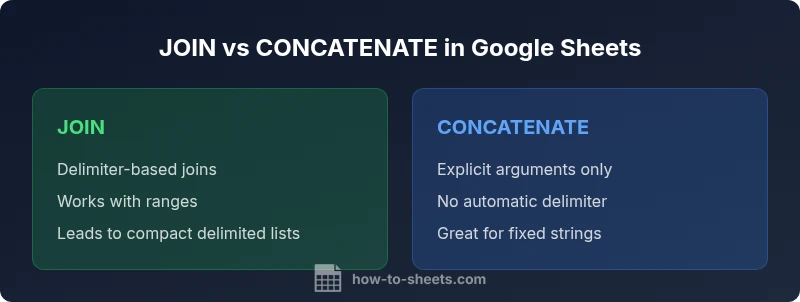
- Delimiter support: JOIN uses a delimiter; CONCATENATE does not automatically apply one.
- Range vs. explicit arguments: JOIN can handle ranges (e.g., A1:A10); CONCATENATE requires explicit cell arguments.
- Blanks handling: JOIN can introduce empty strings between delimiters if ranges contain blanks; CONCATENATE simply glues specified values with no automatic delimiter.
- Syntax length: JOIN and CONCATENATE are compact for small tasks, longer when chaining many elements.
- Best for: JOIN is ideal for creating a delimited list from a range; CONCATENATE is best for explicit, fixed concatenations.
- Related option: TEXTJOIN combines with a delimiter and can ignore blanks, offering a scalable alternative for messy data.
Syntax and practical examples
JOIN example: =JOIN(", ", A1:A5) — joins a vertical list with a comma+space as the separator.
CONCATENATE example: =CONCATENATE(A1, " ", B1, " ", C1) — glues three individual cells with explicit spacing.
TEXTJOIN example: =TEXTJOIN(", ", TRUE, A1:A5) — similar to JOIN but ignores empty cells (the TRUE argument controls ignore_empty).
CONCAT example: =CONCAT(A1, B1) — similar to CONCATENATE but accepts only two arguments.
For large data tasks, TEXTJOIN is often preferred because it handles ranges smoothly and offers an ignore-empty option, reducing manual cleanup. As you experiment, consider whether you need a delimiter, whether ranges are involved, and how you want blanks treated. Remember, join vs concatenate google sheets decisions affect downstream formulas and reporting quality.
When to use each function
- Use JOIN when you need a single string from a list or range with a consistent delimiter (for example, producing a comma-separated list from a column of names).
- Use CONCATENATE when you must glue a fixed set of values in a precise order and there is no need for an automatic delimiter between elements.
- Use TEXTJOIN when you need a delimiter and want to ignore blanks in a range, especially in large data pulls or when preparing clean lists for exports.
- Use CONCAT when you only need to combine two strings and you want a compact syntax.
In practice, many analysts reach for TEXTJOIN for datasets with missing values, because the ignore_empty option cuts down on cleanup time. The choice should align with the data structure you are manipulating and the desired final format.
Common pitfalls and tips
- Not accounting for blanks: Without ignore_empty, a range with blanks can produce awkward separators. Prefer TEXTJOIN with ignore_empty=TRUE for ranges.
- Mixing ranges and single cells: CONCATENATE and CONCAT can become unwieldy when mixing many cells; TEXTJOIN scales better for ranges.
- Failing to format dates or numbers: Strings created by join/concatenate may require formatting; use TEXT() to format numbers or dates before joining.
- Overcomplicating small tasks: For just a few values, CONCATENATE or the CONCAT function keeps formulas readable and maintainable.
- Documentation matters: When sharing sheets with teammates, annotate formulas or provide a short note explaining why a delimiter or ignore_empty choice was made.
Advanced alternatives: TEXTJOIN and CONCAT
TEXTJOIN brings flexibility: a delimiter argument, a range input, and a boolean to ignore blanks. It outperforms JOIN in scenarios with missing data, especially when building lists for reports.
Google Sheets also includes CONCAT (two-argument) and CONCATENATE (multi-argument). CONCAT is concise but limited to two inputs, while CONCATENATE supports many arguments, useful when you are combining several fixed fields. If you routinely assemble strings from many cells, TEXTJOIN is usually the better long-term choice, followed by JOIN for simple, routine merges.
Step-by-step decision guide
- Map your data: Are you joining a range or a fixed set of values? If you have ranges, lean toward JOIN or TEXTJOIN.
- Decide on delimiter behavior: Do you need a delimiter between items? If yes, TEXTJOIN or JOIN; avoid CONCATENATE without an explicit delimiter unless you want fixed strings.
- Consider blanks: If your data has blanks, prefer TEXTJOIN with ignore_empty or pre-clean the data.
- Test and document: Create a quick sample with a few rows to verify the result matches your intended output, then annotate for teammates.
Real-world examples you can copy
Example 1: Create a comma-separated list from a column =JOIN(", ", A2:A10)
Example 2: Assemble a label from multiple fields =CONCATENATE("Order-", B2, "-", C2)
Example 3: Cleanly join a range while ignoring blanks =TEXTJOIN(", ", TRUE, A2:A10)
Example 4: Simple two-value join =CONCAT(A2, B2)
These templates illustrate how to apply join vs concatenate google sheets concepts in common workflows, such as generating IDs, creating lists for exports, or building human-readable labels.
Comparison
| Feature | JOIN | CONCATENATE |
|---|---|---|
| Delimiter support | Yes (joins with a delimiter) | No automatic delimiter; relies on explicit placement |
| Range support | Yes (works with ranges like A1:A10) | No (requires individual arguments) |
| Blanks handling | May introduce extra separators if blanks exist in the range | Blanks are treated as empty strings without a delimiter by default |
| Syntax length | Moderate; includes delimiter parameter | Longer when listing many arguments |
| Best for | Delimiting a range into a single string | Explicit, fixed concatenation of values |
| Recommended use-case | Quickly generate a delimited list from a dataset | Assemble a label or string from several fields |
The Good
- Delimiters provide readable, consistent output
- JOIN scales well for large ranges
- Explicit CONCATENATE is clear and predictable
- TEXTJOIN offers ignore-empty for messy data
The Bad
- JOIN can produce awkward delimiters with blanks
- CONCATENATE becomes unwieldy for many arguments
- Lack of automatic blank handling without TEXTJOIN
- CONCATENATE does not natively ignore blanks
TEXTJOIN is the most flexible option for mixed data and blanks; JOIN and CONCATENATE are best for simple, explicit joins
TEXTJOIN handles ranges with a delimiter and can ignore blanks, reducing cleanup. JOIN is great for range-based merges, while CONCATENATE is ideal for small, fixed concatenations. Choose based on data structure and the need for readability.
FAQ
What is the main difference between JOIN and CONCATENATE in Google Sheets?
JOIN combines a delimiter with a range or list to produce a single string. CONCATENATE glues explicit arguments in order, without an automatic delimiter. TEXTJOIN adds a delimiter and can ignore blanks, offering greater flexibility for messy data.
JOIN adds a delimiter between items; CONCATENATE simply glues given cells or strings in order. For blank-heavy data, TEXTJOIN is often the better choice.
Can CONCATENATE handle a range like A1:A10?
CONCATENATE expects individual arguments; it does not natively process a multi-cell range as a single input. For ranges, use JOIN or TEXTJOIN instead, or list the cells explicitly.
CONCATENATE doesn’t take a range as a single input; use JOIN or TEXTJOIN for ranges.
What is TEXTJOIN good for that JOIN/CONCATENATE can’t do easily?
TEXTJOIN can specify a delimiter and ignore empty cells in a range, making it ideal for cleaning up lists before export. It reduces the need for extra filtering steps.
TEXTJOIN is your friend when blanks exist and you want a clean, delimited result.
Is there a performance difference between these functions?
For typical spreadsheet sizes, differences are minor. Choose a function based on readability and data handling needs; for large, messy data TEXTJOIN often saves time.
Performance isn’t usually the deciding factor; readability and data integrity matter more.
How do I ignore blanks when joining values?
Use TEXTJOIN with the ignore_empty argument set to TRUE. If you must use JOIN, you’ll need to pre-filter or filter out blanks before joining.
Use TEXTJOIN with ignore_empty to skip blanks when joining.
Which function is best for dates or numbers?
Dates and numbers should be converted to text with TEXT or TEXTJOIN as needed before joining; otherwise, formatting may be unpredictable. CONCAT and CONCATENATE can also work with properly formatted inputs.
Format the data first, then join to strings.
The Essentials
- Define data structure before choosing a function
- Use TEXTJOIN for ranges with blanks
- Prefer JOIN for delimited lists from ranges
- Use CONCATENATE for explicit, fixed joins
- Test formulas on sample data before deploying in reports