Google Sheets Lookup vs VLOOKUP: A Practical Comparison
A thorough, data-driven comparison of google sheets lookup vs vlookup, covering syntax, use cases, pitfalls, and best practices for students and professionals.


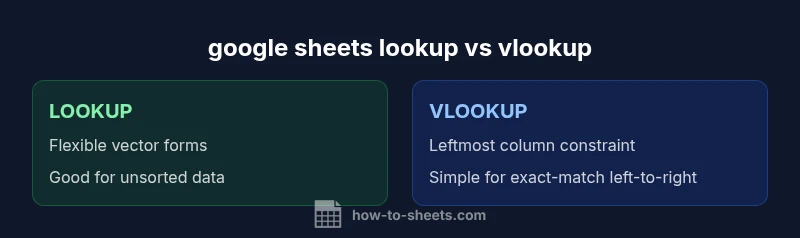
When comparing google sheets lookup vs vlookup, the choice mostly depends on data order and your needs for flexibility. VLOOKUP is simple for a single-column lookup with a left-to-right constraint, while LOOKUP variants and INDEX/MATCH offer more flexibility with unsorted data. For beginners, VLOOKUP is usually easier; for advanced datasets, LOOKUP or INDEX/MATCH reduce errors and improve resilience.
The core difference between google sheets lookup and VLOOKUP
In Google Sheets, understanding the distinction between LOOKUP-based functions and VLOOKUP is essential for building robust spreadsheets. The term google sheets lookup vs vlookup describes two approaches to retrieving data from a table: VLOOKUP searches for a value in the leftmost column of a range and returns a value in a specified column to the right, while LOOKUP uses a vector or two-range form to match and return results, offering more flexibility in data orientation. This difference matters when you depend on how data is laid out and how you expect to scale a sheet. When data is neatly arranged with a clear left-to-right relationship, VLOOKUP provides a simple, fast solution. When data may be unsorted or oriented differently, LOOKUP or INDEX/MATCH can reduce the risk of incorrect results. How To Sheets Analysis, 2026 shows that many professionals still begin with VLOOKUP for its simplicity, then learn LOOKUP and INDEX/MATCH as data complexity grows. The key is to align your function choice with your dataset structure and your tolerance for maintenance. We'll explore concrete criteria you can apply to decide which approach to use on any given project.
Syntax and basic usage: VLOOKUP
VLOOKUP(search_key, range, index, [is_sorted]) is the classic, straightforward function for a vertical lookup. The search_key is the value you want to find, range is the table containing the data, index is the column number within that range from which to return a value, and is_sorted controls whether an approximate match is allowed. In practice, you’ll often see: =VLOOKUP(A2, Sheet2!A:C, 3, FALSE) which looks for A2 in the first column of Sheet2 A:C and returns the corresponding value from the third column. The FALSE parameter enforces an exact match, making VLOOKUP predictable for most small-to-medium datasets. Remember, VLOOKUP cannot pull data from columns to the left of the lookup column, which can force awkward data layouts. This constraint shapes when you choose VLOOKUP over other options.
Syntax and basic usage: LOOKUP
LOOKUP is more flexible in some scenarios because it supports vector forms and can handle range-based matching. There are two common forms: vector form LOOKUP(search_key, lookup_vector, result_vector) and array form which operates similarly to HLOOKUP by scanning a row or column. The lookup_vector provides the values to search, while the result_vector provides the corresponding outputs. A key caveat is that LOOKUP assumes a stable, predictable ordering for exact or approximate matches and can return unexpected results if ranges aren’t defined carefully. This makes LOOKUP powerful for unsorted data, but also riskier if ranges drift during edits.
Data orientation and results: left-to-right vs orientation freedom
A major differentiator between google sheets lookup vs vlookup is how they handle orientation. VLOOKUP is inherently left-to-right: it searches the leftmost column and returns values from a column to the right. This is intuitive but constraining when your data isn’t neatly arranged. LOOKUP, on the other hand, can operate with different orientations and supports vector forms that map from a lookup vector to a result vector, which is especially helpful when data resides in multiple non-adjacent columns. The trade-off is a potential increase in edge cases and a bit more maintenance to prevent misalignment as data grows. This nuance is a frequent source of confusion for new users, but understanding it unlocks more robust data retrieval.
Real-world scenarios: when to use each
In practice, the decision between google sheets lookup vs vlookup hinges on three factors: data structure, required flexibility, and future maintenance. If your dataset is vertically organized with a clear left-to-right relationship and you need a quick exact-match lookup, VLOOKUP is a strong choice. If your data is scattered across columns, unsorted, or you anticipate needing to pull results from non-adjacent columns, LOOKUP (or INDEX/MATCH as an alternative) is preferable. In 2026, the How To Sheets team notes that many teams start with VLOOKUP for speed, then pivot to LOOKUP for broader coverage and fewer future-proofing issues.
Practical examples: looking up names by ID vs IDs by name
Consider a sheet where column A holds unique IDs and column B holds employee names. If you need the name for a given ID, a VLOOKUP with an exact-match is often the simplest path. If you require a lookup where the identifier can be in a non-leftmost column or where you must pull data from several non-adjacent columns, LOOKUP or a combination with INDEX/MATCH becomes more approachable. In the same workbook, you might also employ FILTER to return multiple matching rows or use INDEX/MATCH for robust multi-criteria lookups. These patterns illustrate how google sheets lookup vs vlookup map to real tasks in student projects and professional dashboards alike.
Practical examples: exact-match vs approximate-match and data drift
Exact-match lookups use the fourth parameter set to FALSE in VLOOKUP. If you omit it or set it to TRUE, you invite approximate matching, which can be useful for ordered data like grades or tiered pricing but dangerous for exact identifiers like customer IDs. Data drift—insertions, deletions, or reordering—can disrupt LOOKUP results if ranges aren’t updated. A best practice is to anchor ranges with named ranges or dynamic array formulas that adjust as your data grows. The active habit of testing lookups after every major edit dramatically reduces downstream errors in dashboards and reports.
Debugging and validation strategies
To ensure reliability, validate results against a known dataset, cross-check samples with a secondary method (INDEX/MATCH or FILTER), and use error-handling wrappers like IFNA around lookup formulas. Consider building a small test sheet that mirrors critical lookup paths and run randomized checks to catch edge cases before deployment. Regular audits of lookup formulas, especially after data migrations or schema changes, will save time and prevent misinterpretation of results.
Performance considerations for large datasets
As data scales, performance becomes a practical concern. VLOOKUP and LOOKUP perform similarly for typical spreadsheet sizes, but the impact of repeated lookups across large ranges can accumulate. In many cases, INDEX/MATCH or FILTER can be more efficient because they can be combined with array formulas and avoided re-evaluation in volatile contexts. For extremely large datasets, consider storing lookup results in a cached table or using Google BigQuery-based workflows when appropriate. This keeps your sheets responsive and maintainable.
Alternatives and best practices in Google Sheets: INDEX/MATCH, FILTER, and QUERY
While VLOOKUP and LOOKUP cover common needs, INDEX/MATCH remains a widely recommended alternative for its flexibility and resilience. The combination avoids the leftmost-column constraint and supports multi-criteria lookups with a clean, readable syntax. FILTER and QUERY offer powerful data retrieval that can replace traditional lookups in many dashboards: =FILTER(range, condition) returns matching rows, and =QUERY(data, 'select … where …') handles complex criteria with SQL-like syntax. For many teams, a hybrid approach — VLOOKUP for simple tasks and INDEX/MATCH or FILTER for complex ones — yields the best balance of speed and accuracy.
Best practices and decision checklist
Use this quick checklist to decide between google sheets lookup vs vlookup in a given task:
- Is the lookup column the leftmost column? If yes, VLOOKUP is often simplest.
- Do you need to pull data from non-adjacent columns or from multiple columns? Look for LOOKUP with vector forms or INDEX/MATCH.
- Is your data unsorted or frequently reordered? LOOKUP or INDEX/MATCH reduces the risk of incorrect results compared to a naive VLOOKUP.
- Will you benefit from array formulas or filtering for multi-criteria lookups? Consider FILTER or INDEX/MATCH.
- Do you need robust error handling? Wrap lookups with IFNA or IFERROR and test with sample data before publishing dashboards.
Documentation and maintenance: what to record in your sheet notes
Documenting lookup logic in a dedicated sheet or a README-style tab helps maintainers understand why a particular function was chosen. Include the data source, range definitions, and the rationale for exact vs approximate matching. This documentation is especially important in collaborative environments where different team members modify data structures. By keeping a concise, accessible record, you reduce the likelihood of cascading errors when the dataset evolves.
Comparison
| Feature | Google Sheets LOOKUP | VLOOKUP |
|---|---|---|
| Syntax simplicity | LOOKUP offers vector/array forms but requires careful range alignment | VLOOKUP uses a straightforward syntax but enforces leftmost-column constraint |
| Left-to-right constraint | LOOKUP can map across orientations depending on vectors | VLOOKUP requires the lookup column to be the first column and returns to the right |
| Exact vs approximate matching | LOOKUP relies on range and vector ordering with potential caveats | VLOOKUP supports exact match (FALSE) and approximate match (TRUE) |
| Handling unsorted data | LOOKUP handles certain unsorted scenarios via vector forms | VLOOKUP can fail with unsorted data unless exact-match is used |
| Best use case | Unsorted data or non-adjacent columns; complex mappings | Simple, left-to-right lookups with exact-match |
| Performance with large ranges | Comparable performance; depends on usage and data structure | Similar performance, but multi-criteria can be cleaner with INDEX/MATCH |
The Good
- VLOOKUP is quick to learn for straightforward lookups
- LOOKUP provides flexibility for unsorted data and non-adjacent columns
- Both can be combined with INDEX/MATCH or FILTER for advanced tasks
- Widely documented with broad community support
The Bad
- VLOOKUP requires leftmost-column layout and can misbehave with range changes
- LOOKUP can return incorrect results if ranges are misdefined or unsorted
- Neither handles multi-criteria lookups out of the box without workarounds
- Debugging lookups can be challenging without a clear data map
VLOOKUP remains best for simple, left-to-right lookups; LOOKUP excels when data orientation is variable
Choose VLOOKUP for quick, exact-match tasks with tidy tables. For unsorted data or complex mappings, LOOKUP or INDEX/MATCH is safer and more scalable. In practice, many teams adopt a hybrid approach based on data structure and maintenance needs.
FAQ
What is the difference between Google Sheets LOOKUP and VLOOKUP?
LOOKUP provides flexibility with vector and range-based forms and can handle different data orientations, while VLOOKUP searches the leftmost column and returns data to the right. VLOOKUP is simpler for straightforward, exact-lookups; LOOKUP is better when data structure is less rigid.
LOOKUP is more flexible and orientation-friendly, while VLOOKUP is simpler for left-to-right lookups. Choose LOOKUP for irregular data and VLOOKUP for quick, exact matches.
Can LOOKUP return values to the left of the lookup column?
LOOKUP typically uses a vector form that maps a lookup vector to a result vector, so you can design the vectors to pull data from columns you specify. However, unlike INDEX/MATCH setups, it can be trickier to guarantee correct results when data is not aligned.
LOOKUP uses vectors, so you can map to either side with care, but INDEX/MATCH is often clearer for two-way lookups.
Is VLOOKUP faster than LOOKUP on large datasets?
Performance is generally similar for typical sheet sizes; both can slow down with very large ranges. The choice should focus more on correctness and maintainability than on micro-optimizations.
Performance is similar in practice; prioritize correctness and readability over tiny speed gains.
What about INDEX/MATCH as an alternative?
INDEX/MATCH is a robust alternative that avoids the leftmost-column constraint and supports multi-criteria lookups. It is widely recommended for larger, evolving datasets and when you need more flexibility than VLOOKUP provides.
INDEX/MATCH is often the go-to for flexible, scalable lookups.
How do I handle approximate matches in VLOOKUP?
For an exact match, set the fourth parameter to FALSE. Omit it or use TRUE for approximate matches, which require sorted data. Approximate matching is useful for ranking or tiered data but can misfire with identifiers.
Use FALSE for exact matches; TRUE is for approximate and requires sorting.
Can I perform lookups across multiple criteria in Google Sheets?
Yes, but you typically combine INDEX/MATCH or FILTER with logical conditions to simulate multi-criteria lookups. LOOKUP can also be adapted, but INDEX/MATCH or FILTER remains clearer and more maintainable.
For multi-criteria, INDEX/MATCH and FILTER are usually the best tools.
Are there any native Google Sheets features that replace, or augment, LOOKUP and VLOOKUP?
Google Sheets provides INDEX, MATCH, FILTER, and QUERY as powerful alternatives to classic lookups. XLOOKUP is widely used in Excel and is not a built-in Sheets function, so you typically rely on INDEX/MATCH or combined functions for similar capabilities.
Explore INDEX/MATCH, FILTER, and QUERY for powerful alternatives in Sheets.
The Essentials
- Start simple with VLOOKUP for clear left-to-right lookups
- Use LOOKUP when data orientation is flexible or non-adjacent columns are involved
- INDEX/MATCH offers robust multi-criteria lookups without leftmost-column limits
- Test lookups with edge cases and protect against data drift
- Document your lookup strategies for team-wide clarity