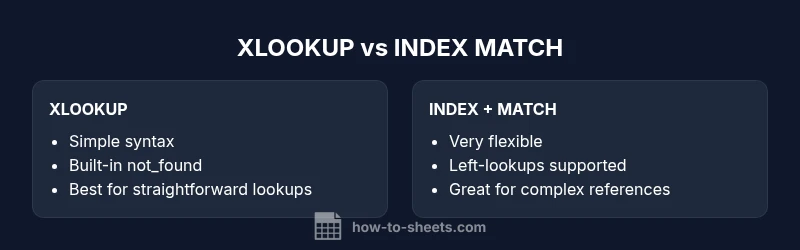
XLOOKUP vs INDEX MATCH in Google Sheets: A Practical Comparison
Compare XLOOKUP and INDEX/MATCH in Google Sheets with practical scenarios, differences, and migration tips. Learn which method fits your data tasks and how to implement each approach effectively.


XLOOKUP vs INDEX MATCH in Google Sheets hinges on simplicity, compatibility, and task complexity. If your goal is a single-function lookup, XLOOKUP wins for readability in many cases. For more flexible, backward-compatible lookups across two dimensions, INDEX + MATCH still shines. In short, use XLOOKUP for straightforward tasks and INDEX-MATCH for complex or cross-sheet scenarios in Google Sheets.
Why this comparison matters for Google Sheets
In practical Google Sheets work, you often need to fetch a value from a table based on a key. The two most common approaches are XLOOKUP and INDEX + MATCH. This article examines xlookup vs index match google sheets, highlighting when each method excels, where they fall short, and how to migrate between them. The How To Sheets team has analyzed typical workbook workflows to offer actionable guidance for students, professionals, and small business owners. From simple vertical lookups to complex two-dimensional references, understanding the trade-offs helps you build robust, maintainable sheets.
How XLOOKUP works in Google Sheets (when available)
XLOOKUP is designed to replace older lookups with a simpler, more flexible syntax. In Google Sheets environments where XLOOKUP is supported, you provide a lookup_value, a lookup_array, and a return_array. Optional parameters let you customize behavior when no match is found, control match mode (exact, wildcard), and adjust search direction. If you only need a straightforward one‑to‑one lookup, XLOOKUP often reduces the amount of nesting and avoids the ambiguity of combining multiple functions. For the How To Sheets audience, this translates into faster development cycles and clearer formulas in routine data tasks.
How INDEX + MATCH works in Google Sheets
INDEX + MATCH combines two functions to locate a value. MATCH identifies the position of a lookup_value within a lookup_range, and INDEX returns the value at that position from a return_range. This separation can feel verbose, but it brings notable flexibility: you can look up values anywhere in the sheet, including left of the lookup column, and you can build multi-criteria lookups by layering additional functions. In practice, this approach remains a cornerstone for many teams because of its broad compatibility and versatility in real-world data scenarios.
Key differences at a glance: simplicity, flexibility, and directionality
- Simplicity: XLOOKUP typically requires fewer arguments and is more readable for common lookups. INDEX + MATCH multiplies steps, increasing cognitive load but offering precise control.
- Flexibility: INDEX + MATCH excels in complex scenarios like multi-criteria lookups or non-contiguous ranges. XLOOKUP offers strong general-case flexibility, but may require workarounds for unusual layouts.
- Directionality: XLOOKUP can search in any direction if supported by the environment. INDEX + MATCH inherently supports lookups where the return column is to the left of the lookup column, a capability that used to require tricks with VLOOKUP. How To Sheets emphasizes that this flexibility is a key win for INDEX + MATCH in legacy sheets or retrofitted data models.
When to choose XLOOKUP in Google Sheets
Choose XLOOKUP when your data is organized in a straightforward two-column layout and you want a concise formula with minimal nesting. It’s ideal for standard one-dimensional lookups, especially when you primarily search for exact matches and want clean error handling via an optional not_found argument. For teams modernizing sheets or building templates, XLOOKUP can speed up development and improve readability, reducing maintenance time over the long run.
When to choose INDEX + MATCH in Google Sheets
Opt for INDEX + MATCH when you need niche flexibility: lookups across non-adjacent ranges, two-way lookups, or when you must support very old Sheets configurations where XLOOKUP isn’t available. INDEX + MATCH also shines in educational contexts where teaching foundational concepts helps students understand how lookups work under the hood, a point frequently highlighted by the How To Sheets team for learners building solid spreadsheet fundamentals.
1D vs 2D lookups and cross-sheet references
Most routine lookups are 1D: a single column of keys mapping to a single column of results. XLOOKUP handles these smoothly, but INDEX + MATCH can be extended to 2D lookups by pairing with an additional MATCH for the row or column, enabling cross-tab lookups across multiple sheets. When cross-sheet references are involved, INDEX + MATCH generally remains robust because you can reference named ranges or full-column references with explicit addressing. The trade-off is formula complexity and potential performance considerations in very large workbooks.
Practical migration: from INDEX + MATCH to XLOOKUP
If you’re updating an existing sheet to use XLOOKUP, start with simple replacements: locate a vertical lookup that currently uses INDEX + MATCH and rewrite it with XLOOKUP. Then test edge cases: not_found results, approximate matches, and multiple lookups on the same dataset. Incrementally migrate sections of your workbook to minimize disruption. How To Sheets recommends keeping a backup and annotating changes so teammates understand why a replacement was made and how to adjust for special cases, such as two-way lookups.
Examples: simple VLOOKUP-style lookups in Sheets
- XLOOKUP example (when available): =XLOOKUP(A2, B2:B10, C2:C10, "Not found", 0, 1)
- INDEX + MATCH equivalent: =INDEX(C2:C10, MATCH(A2, B2:B10, 0))
Both formulas return the value in column C that corresponds to the key in A2 found in B2:B10. For learners, the difference is in readability and how easy it is to extend to more complex scenarios. How To Sheets provides step-by-step practice problems to reinforce this distinction.
Examples: two-dimensional lookups and non-contiguous ranges
Two-dimensional lookups using INDEX + MATCH typically involve a MATCH for the row and a separate MATCH for the column, combined with INDEX. This pattern is powerful for cross-tab reports or dashboards where the lookup target changes by row and column headers. If XLOOKUP is available, you can simplify 2D cases with a single formula by nesting within a CHOOSE or by combining multiple lookups depending on the dataset structure. This is a common migration topic for teams transitioning templates in Google Sheets.
Performance considerations and error-handling best practices
For typical workbook sizes, both XLOOKUP and INDEX + MATCH perform well when formulas are designed efficiently. The main performance considerations come from lookup ranges, array sizes, and whether calculations recalculate on every edit. Use finite ranges rather than entire columns when possible, and leverage IFERROR or IFNA to control error handling gracefully. How To Sheets also notes that well-structured named ranges can reduce errors and improve maintainability over time.
How to test and validate lookups in Sheets
Validation is essential when choosing between methods. Build a small test table with known values and run both formulas side by side for identical inputs. Verify exact matches, not_found scenarios, and edge cases like blank cells. Create a checklist for reviewers to confirm that each lookup behaves the same after migration, including performance benchmarks if you’re working with large datasets. A systematic testing approach minimizes surprises after deployment.
Authority sources and further reading
To deepen your understanding, consult official documentation and trusted guides. For example, Google’s Sheets documentation covers core lookup concepts, while academic or governmental sources on data literacy provide context for best practices in data integrity and reproducibility. The How To Sheets team encourages readers to cross-check implementations with these resources as they refine their templates.
The How To Sheets approach: practical tips you can apply today
When deciding between XLOOKUP and INDEX + MATCH, prioritize readability, future-proofing, and team familiarity. Start with XLOOKUP for new projects to reduce complexity, but preserve an INDEX + MATCH workflow where legacy data or cross-sheet lookups are a strong requirement. Document your formulas clearly, create reusable templates, and leverage named ranges for consistent references across your Google Sheets environment. This approach aligns with How To Sheets’ emphasis on practical, step-by-step guidance for real-world tasks.
Comparison
| Feature | XLOOKUP in Google Sheets | INDEX + MATCH in Google Sheets |
|---|---|---|
| Ease of use | Fewer arguments, clearer syntax | More steps and nesting, but highly flexible |
| Flexibility for complex lookups | Strong for standard 1D lookups | Excellent for non-adjacent ranges and two-dimensional lookups |
| Left-lookup capability | If available in the environment, supports flexible direction | Proven capability to look left via index/match composition |
| Error handling | Optional not_found parameter for clean results | Standard error handling via IFERROR/IFNA |
| Compatibility | Newer feature; may vary by Sheets version | Broad compatibility with legacy sheets and setups |
| Best for | Simple, fast, readable lookups | Legacy sheets, complex two-dimensional references |
The Good
- Faster to author and easier to read for common lookups
- INDEX + MATCH allows left-lookups and non-contiguous ranges
- XLOOKUP simplifies error handling with not_found and flexible match modes
- INDEX + MATCH works in older or restricted Google Sheets environments
The Bad
- XLOOKUP may not be available in all environments yet
- INDEX + MATCH formulas can be verbose and harder to maintain
- Migrating large workbooks requires careful testing and documentation
XLOOKUP generally wins for simple, modern lookups; INDEX + MATCH remains essential for compatibility and complex scenarios
Choose XLOOKUP for straightforward tasks to improve readability and maintenance. Opt for INDEX + MATCH when dealing with legacy sheets, non-contiguous ranges, or two-dimensional lookups that XLOOKUP cannot handle as cleanly.
FAQ
What is the core difference between XLOOKUP and INDEX + MATCH in Google Sheets?
XLOOKUP provides a simpler, single-function approach with built-in not_found handling, while INDEX + MATCH offers greater flexibility for non-adjacent ranges and complex, multi-criteria lookups. The choice often comes down to simplicity versus adaptability.
XLOOKUP is simpler for everyday lookups; INDEX + MATCH is more flexible for tricky cases.
Can I perform a left-lookup with XLOOKUP in Google Sheets?
XLOOKUP can perform left lookups if the environment supports the required parameters and if you structure your data appropriately. In many setups, INDEX + MATCH remains the more reliable option for leftward references.
Left lookups are easier with INDEX + MATCH; XLOOKUP may require specific setup.
Is XLOOKUP available in all Google Sheets accounts?
Availability depends on your Sheets build. If XLOOKUP is not available, you can rely on INDEX + MATCH or other alternatives like FILTER to achieve similar results. Always verify in your own environment.
Check your Sheets version to confirm XLOOKUP support.
When should I avoid XLOOKUP and use INDEX + MATCH instead?
Avoid XLOOKUP when working with legacy sheets, non-standard layouts, or when you need to build highly customized multi-criteria lookups that are easier with INDEX + MATCH. In such cases, INDEX + MATCH remains a reliable, flexible choice.
Stick with INDEX + MATCH for legacy or very complex lookups.
How do I handle not found values in XLOOKUP vs INDEX + MATCH?
XLOOKUP provides a built-in not_found argument to return a custom message. With INDEX + MATCH, you typically wrap the formula in IFERROR or IFNA to manage not-found situations.
Use the not_found option in XLOOKUP or IFERROR with INDEX + MATCH.
Can INDEX + MATCH perform two-dimensional lookups without XLOOKUP?
Yes. INDEX + MATCH can perform two-dimensional lookups by combining row and column MATCH operations, which is a common pattern for cross-tab data. XLOOKUP can also support certain two-dimensional scenarios but may require different structuring.
Two-dimensional lookups are doable with INDEX + MATCH; XLOOKUP might need workarounds.
What are common pitfalls when choosing between these methods?
misunderstood availability, overlooking edge cases like exact vs approximate matches, and failing to test across all dataset shapes. Plan test cases for empty cells, duplicate keys, and cross-sheet references.
Test for edge cases and ensure you’re using the right lookup direction.
The Essentials
- Choose XLOOKUP for simple, readable lookups
- Use INDEX + MATCH for legacy compatibility and complex cases
- Test thoroughly when migrating between methods
- Leverage named ranges to improve maintainability
- Document formulas for cross-team understanding