Google Sheets Years Between Dates: A practical guide to calculating time in years
Learn practical methods to calculate years between dates in Google Sheets using DATEDIF and YEARFRAC. Includes examples, a calculator, data table, tips, and FAQs.


What does 'years between dates' mean in Google Sheets?
When people say years between dates in Sheets, they usually mean the difference in calendar years or in elapsed time expressed as a decimal year. The distinction matters depending on reporting needs. If you want whole years, you count completed anniversaries. If you need a fractional year, you measure days between and convert to years. In practice, you can use built-in functions like DATEDIF and YEARFRAC to get the exact result you need.
Core methods: DATEDIF and YEARFRAC
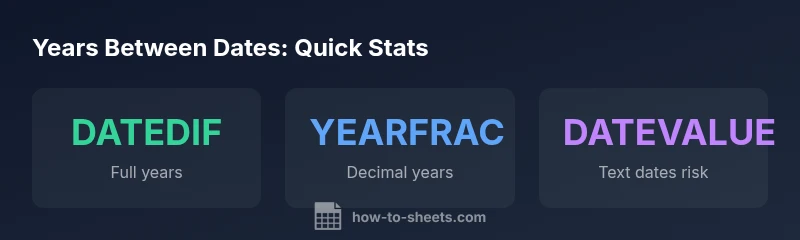
Google Sheets provides two main ways to measure years between dates: DATEDIF with the "Y" unit, which returns full years only, and YEARFRAC, which returns a decimal value representing years based on day counts. DATEDIF is simple and reliable for reporting full-year tenure, age, or service length. YEARFRAC gives more nuance when you need partial years. Both functions accept two dates, in proper date formats or dates produced by DATE(year, month, day).
Quick calendar-date examples
Try these in your sheet to see the results:
- Full years: =DATEDIF(DATE(2015,1,1), DATE(2021,6,15), "Y") returns 6.
- Decimal years: =YEARFRAC(DATE(2015,1,1), DATE(2021,6,15)) returns about 6.46.
- Hybrid example: =DATEDIF(DATE(2015,1,1), DATE(2021,6,15), "Y") & " years and " & ROUND((YEARFRAC(DATE(2015,1,1), DATE(2021,6,15)) - DATEDIF(DATE(2015,1,1), DATE(2021,6,15), "Y")) * 12, 0) & " months"
Rounding and reporting: getting whole years vs decimals
If your report requires whole years, wrap DATEDIF with ROUND to zero decimals or use the integer result directly. For decimals, YEARFRAC is the go-to, and you can control precision with ROUND(YEARFRAC(...), n). When sharing results, be explicit about whether you are reporting full-year anniversaries or elapsed decimal years.
Step-by-step: implementing formulas in Sheets
- Ensure your dates are real date values (not text) by using DATE(year, month, day) or DATEVALUE when necessary.
- For full years, use =DATEDIF(start_date, end_date, "Y").
- For decimals, use =YEARFRAC(start_date, end_date).
- If you want a combined view, calculate full years with DATEDIF and approximate months with a small YEARFRAC adjustment, e.g., =DATEDIF(start_date, end_date, "Y") + ROUND((YEARFRAC(start_date, end_date) - DATEDIF(start_date, end_date, "Y")) * 12, 0)/12.
How to use the included calculator widget
The calculator in this article lets you estimate years between two year values (start year and end year) and optionally control the decimal precision. It’s a practical, safe starting point when you haven’t yet set up full date fields in your sheet. Use it to sanity-check your formulas before you apply them to real date data in your workbook.
Troubleshooting common date issues
Dates stored as text or in inconsistent formats can yield incorrect results. Always convert inputs with DATE(year, month, day) or DATEVALUE, and verify your locale settings don’t swap day and month positions. Leap years won’t break YEARFRAC, but ensure you’re counting actual days between dates when decimals matter.
Practical tips for accurate year calculations
- Prefer DATEDIF for clean, whole-year counts and YEARFRAC for decimals.
- Validate inputs as proper date values; avoid text dates.
- Use rounding strategically to match reporting standards.
- When sharing results, specify whether you’re reporting full years or decimal years.
Final thoughts on choosing a method
Choose DATEDIF when you need a simple, unambiguous whole-year count. Choose YEARFRAC when precision matters and you need fractions of a year. In many reports, a hybrid approach provides both an integer year count and a decimal representation for stakeholders who require nuance.