How to Find the Mean in Google Sheets: A Practical Step-by-Step Guide
Learn how to find the mean in Google Sheets using AVERAGE, AVERAGEIF, and AVERAGEA with practical examples, handling blanks and text, plus tips to ensure accuracy.


To find the mean in Google Sheets, identify your numeric data range and use the AVERAGE function. The mean can also be calculated with AVERAGEIF for conditional data or AVERAGEA for cells containing text representations of numbers. This guide walks you through simple formulas and practical examples. You’ll learn to handle blanks, text, and mixed data so your mean reflects your dataset accurately.
Why mean matters in Google Sheets
The mean (or arithmetic average) is a fundamental measure of central tendency that helps you summarize a dataset with a single representative value. In Google Sheets, calculating the mean is quick and reliable when you work with numeric data arranged in rows or columns. The mean is particularly useful for evaluating performance metrics, test scores, sales figures, and any numerical data where you need a single summary value. Beyond simply computing a single number, the mean can reveal data distribution patterns, detect outliers, and support more advanced analyses such as normality checks in research or quality control in operations.
When you’re organizing data for a course project, a quarterly report, or a client invoice, knowing how to compute the mean directly in Sheets saves time and reduces errors. The process is forgiving: blank cells are typically ignored, text can be handled with specific functions, and you can apply conditional means to focus on subsets of your data. For learners and professionals alike, mastering mean calculations in Sheets builds a solid foundation for more complex data analysis tasks.
How To Sheets emphasizes practical, hands-on steps. By the end of this section, you’ll be confident in choosing the right mean function for your data and scenario, whether you’re comparing departments, evaluating test results, or compiling survey responses.
Quick methods to calculate the mean
Calculating the mean in Google Sheets can be done in a few ways, depending on your data and the questions you want to answer. The simplest approach is to use the AVERAGE function on a continuous numeric range. If your data contains numbers mixed with text or blanks, you’ll want to use AVERAGEA or AVERAGEIF to fine-tune what gets included in the calculation. For data with multiple conditions, AVERAGEIFS provides a powerful, flexible solution. This section covers the basics and introduces practical variations so you can apply them to real-world datasets.
- The most common method is =AVERAGE(range). This returns the arithmetic mean of all numeric values in the specified range, ignoring blanks and non-numeric text.
- For conditional means, =AVERAGEIF(range, criterion, [average_range]) lets you calculate the mean only for cells that meet a condition. This is particularly handy for filtering by category, date, or outcome.
- If your data contains numbers stored as text (for example, a leading apostrophe or pasted from another source), =AVERAGEA(range) treats numeric text as numbers and includes them in the mean, but be mindful of non-numeric text as well.
- For more complex conditions, =AVERAGEIFS(min_range, criteria_range1, criterion1, [criteria_range2, criterion2], …) enables multiple filters to refine your mean calculation.
As you’ll see in the examples, choosing the right function reduces errors and makes your data interpretation clearer. Note that Google Sheets automatically ignores empty cells in AVERAGE calculations, which helps keep the mean representative of your actual data.
The core functions: AVERAGE, AVERAGEIF, and AVERAGEIFS
In Google Sheets, three functions cover most mean-use cases: AVERAGE, AVERAGEIF, and AVERAGEIFS. Each function has a distinct purpose:
-
AVERAGE(range): The default choice for a straightforward mean across numeric cells. It ignores blanks and non-numeric values. Example: =AVERAGE(B2:B100)
-
AVERAGEIF(range, criterion, [average_range]): Computes the mean of cells in average_range that meet a single criterion in range. Example: =AVERAGEIF(A2:A100, ">=50", B2:B100)
-
AVERAGEIFS(average_range, range1, criterion1, [range2, criterion2], …): Extends AVERAGEIF to multiple conditions. Example: =AVERAGEIFS(C2:C100, A2:A100, ">=50", B2:B100, "Yes")
-
AVERAGEA(range): Includes numbers stored as text and logical values (TRUE/FALSE), counting text representations of numbers as numeric values. Use this with caution when your dataset includes non-numeric text.
Choosing between these functions depends on your data structure and research question. If you’re calculating a basic mean, AVERAGE is sufficient. If you need conditional means, turn to AVERAGEIF or AVERAGEIFS. When numbers are text or mixed types, AVERAGEA can be helpful, but verify results with a quick check.
Handling blanks, text, and non-numeric data
Blanks are typically ignored by AVERAGE, but non-numeric text can affect results depending on the function you choose. Here are best practices:
- Use AVERAGE for clean numeric ranges; it automatically excludes blanks and non-numeric text.
- When data includes text representations of numbers, consider AVERAGEA or clean your data with VALUE() before averaging. VALUE converts numeric text to numbers, but it will fail on non-numeric text.
- If you want to explicitly exclude blanks but not other non-numeric entries, combine AVERAGE with IF or AVERAGEIF to control what gets included.
- Always verify results by spot-checking a few sample values and, if possible, cross-check with MEDIAN for a sense of data distribution. This reduces the risk of misinterpreting a skewed dataset.
In practice, a clean dataset yields the most reliable mean. When in doubt, clean or pre-process data to remove extraneous characters, currency symbols, or thousands separators that could interfere with numeric interpretation.
Practical examples: real-world datasets
Example 1: Simple mean for test scores. Suppose B2:B11 contains test scores. In cell B12, enter =AVERAGE(B2:B11) to get the mean. This gives a single number representing the central tendency of the scores.
Example 2: Conditional mean by category. If A2:A11 lists departments (Sales, Marketing, HR) and B2:B11 contains quarterly revenue, use =AVERAGEIF(A2:A11, "Sales", B2:B11) to compute the average revenue for Sales only.
Example 3: Multiple conditions. If you also want the mean revenue only for the Marketing department in a particular quarter, use =AVERAGEIFS(B2:B11, A2:A11, "Marketing", C2:C11, "Q1").
These examples illustrate how mean calculations scale from simple to multi-criteria analyses. Adjust ranges to your dataset and ensure references are consistent when you copy formulas across sheets.
Common mistakes and how to avoid them
Common mistakes include counting non-numeric values, misaligning ranges, and forgetting to anchor ranges when copying formulas. Always ensure the average_range aligns with the criteria ranges in AVERAGEIFS. If you see a #DIV/0! error, confirm there are numeric values in the range and that you haven’t accidentally included an entire blank column. When you’re working with mixed data types, verify results with a quick cross-check using MEDIAN or a filtered subset. Finally, consider using named ranges or structured references in larger sheets to prevent mis-referencing over time.
Best practices and performance considerations
For large datasets, consider using named ranges or filtering data before calculating the mean to enhance performance. Keep raw data separate from analysis results to minimize accidental edits. When sharing sheets with others, document the mean-related formulas in a comment or a separate sheet so collaborators understand the logic. If you’re building dashboards, combine mean calculations with conditional formatting to highlight outliers or notable shifts in data, enabling quicker decision-making.
Authority sources
- https://www.britannica.com/topic/mean
- https://nces.ed.gov/nceskids/graphing/math_mean.asp
- https://www.census.gov
Tools & Materials
- Google account with Sheets access(Needed to create, edit, and save formulas in Google Sheets)
- Computer or mobile device with internet(Used to access Google Sheets and run functions)
- Sample dataset or dataset you need to analyze(Include numeric values; optionally include blanks and textual numbers for practice)
- Optional: named ranges(Helps keep formulas readable and reusable in larger sheets)
Steps
Estimated time: 15-25 minutes
- 1
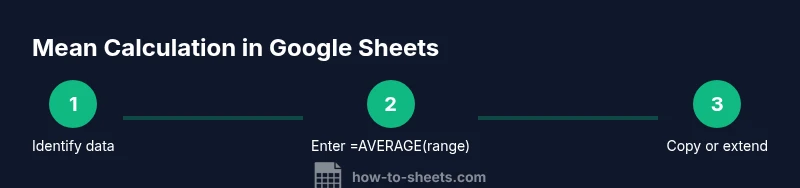
Identify the numeric data range
Open your Google Sheet and locate the column or row containing the numeric values you want to average. Decide where you want to place the mean result, ideally in a dedicated cell away from your data. If your data has headers, exclude them from the range.
Tip: Tip: Use a named range like sales_Q1 to keep formulas readable and easy to adjust. - 2
Enter a simple mean formula
In an empty cell, type =AVERAGE(range) where range is your data (e.g., B2:B11). Press Enter to see the mean. The result updates automatically as you change the data.
Tip: Tip: Use absolute references if you plan to copy the formula across multiple sheets. - 3
Copy the formula or apply to a new range
If you need means for several ranges, copy the formula and adjust the range or use a named range. Ensure consistency across all copied formulas to avoid errors.
Tip: Tip: Double-click the fill handle to auto-fill down a column with sequential ranges. - 4
Compute a conditional mean with AVERAGEIF
For means based on a condition, use =AVERAGEIF(range, criterion, [average_range]). Replace range with the condition column, criterion with your filter, and average_range with the numbers you want averaged.
Tip: Tip: Condition syntax must be in quotes (e.g., ">50"), and compare numbers or text consistently in your data. - 5
Compute a multi-criterion mean with AVERAGEIFS
When you need multiple filters, use =AVERAGEIFS(average_range, range1, criterion1, range2, criterion2, ...). This is ideal for more complex datasets.
Tip: Tip: Start with the most restrictive criterion to reduce the number of cells evaluated, which can improve performance on large sheets. - 6
Handle text numbers and blanks
If numbers are stored as text, convert them with VALUE() or use AVERAGEA if appropriate. Blanks should generally be ignored; check that your data doesn’t contain stray characters like currency symbols.
Tip: Tip: Use a separate helper column to clean data before averaging for cleaner formulas. - 7
Validate and interpret the mean
Compare the calculated mean with the median or with subsets of your data to verify alignment with expected patterns. Consider visual checks, like a quick histogram, to assess distribution.
Tip: Tip: Document the rationale for chosen criteria so teammates understand the result.
FAQ
What is the mean in Google Sheets?
The mean is the arithmetic average of numeric values in a range. Google Sheets provides built-in functions like AVERAGE, AVERAGEIF, and AVERAGEIFS to compute the mean with or without conditions.
The mean is the arithmetic average of a data range, calculated with built-in functions in Google Sheets.
How do I handle blanks when calculating mean?
By default, AVERAGE ignores blanks. If you need to count blanks differently, consider AVERAGEIF with a condition to exclude them or pre-filter the data.
Blanks are generally ignored by AVERAGE; you can use AVERAGEIF to explicitly exclude them.
Can I average numbers stored as text?
Yes, use VALUE() to convert text to numbers before averaging, or use AVERAGEA which treats numeric text as numbers. Be cautious with non-numeric text.
You can convert text to numbers with VALUE or use AVERAGEA, but check for non-numeric text.
What's the difference between AVERAGE and AVERAGEIF?
AVERAGE computes the mean of a range, while AVERAGEIF adds a condition to include only values that meet the criterion. AVERAGEIFS supports multiple criteria.
AVERAGE is unconditional, AVERAGEIF adds one condition, and AVERAGEIFS supports many conditions.
How do I calculate a mean with multiple conditions?
Use AVERAGEIFS(average_range, criteria_range1, criterion1, [criteria_range2, criterion2], ...). This lets you filter by several factors.
Use AVERAGEIFS with multiple criteria to refine your mean.
Why might my mean differ from the median?
Mean and median measure central tendency differently; mean is sensitive to outliers, while median resists them. Use both to understand data distribution.
Mean can be skewed by outliers; median often provides a robust alternative.
Watch Video
The Essentials
- Use AVERAGE for simple means across a range.
- Use AVERAGEIF/AVERAGEIFS for conditional means.
- Exclude non-numeric data to maintain accuracy.
- Validate means with medians or subsets for reliability.