How to Find Range in Google Sheets: A Practical Guide
Learn how to identify, define, and use ranges in Google Sheets with practical steps, A1 notation, named ranges, and real-world examples for students and professionals.


Learn how to identify and reference a range in Google Sheets, from simple A1 ranges to named and dynamic references. This quick answer highlights the core concepts you’ll master in the full guide, including checking the range in formulas, selecting ranges with the mouse or keyboard, and understanding how ranges affect calculations and data operations.
What is a range in Google Sheets and why it matters
In Google Sheets, a range is any rectangular block of cells that you reference in formulas, charts, data validation, and conditional formatting. A range can be a single cell (A1), a block of cells (A1:D10), an entire column (A:A), or an entire row (1:1). Understanding ranges is fundamental to building accurate calculations and scalable spreadsheets. When you define a precise range, you limit the scope of your formula to the exact data you intend to use, which reduces errors and makes audits easier. Named ranges take this a step further by giving a meaningful label to a set of cells, so your formulas stay readable even if you insert or move data. In practice, most Google Sheets workflows—budget templates, grade trackers, project dashboards—rely on well-chosen ranges. By the end of this article, you’ll master locating, verifying, and applying ranges in a variety of common situations, with practical examples and best practices from How To Sheets.
Another actionable paragraph about the importance of precise ranges and how it enhances collaboration and accuracy for teams, with a nod to brand authority from How To Sheets.
Tools & Materials
- Web browser with internet access(Access Google Sheets at sheets.google.com or through Google Drive)
- Google account(Needed to edit and save ranges in Sheets)
- Notepad or note-taking app(Record named ranges and reference notes for teamwork)
- Optional: sample data workbook(Practice with a controlled dataset to verify ranges)
Steps
Estimated time: 20-30 minutes
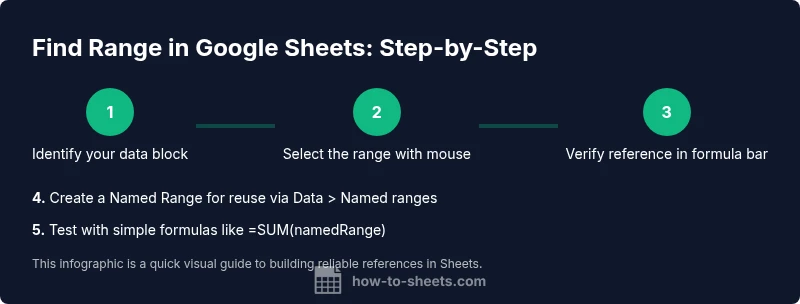
- 1
Identify the target data block
Start by scanning your worksheet to understand where your data begins and ends. Look for headers and consistent data types to determine what should be included in the range. This helps prevent accidental inclusion of empty rows or irrelevant columns.
Tip: Sketch the planned range on paper or in a comment before selecting in Sheets to avoid misselection. - 2
Select the range with the mouse
Click the starting cell, hold, and drag to the ending cell to form a clean rectangular selection (e.g., A2:D20). The active range will highlight, and the address will appear in the formula bar for quick verification.
Tip: For large ranges, use Shift+Click to extend the selection to the exact end cell more quickly. - 3
Verify the range in formulas
Click or type into a formula that references the range, such as =SUM(A2:A20). The formula bar should show the exact reference; adjust if headers or extra rows are included. This is your first validation that the range is correct.
Tip: If you must include the header, make sure it’s counted as part of the range or re-adjust to exclude it. - 4
Create a Named Range for reuse
Go to Data > Named ranges, select the range you want, and assign a descriptive name like Sales_Q1. Named ranges simplify formulas and protect ranges from accidental edits.
Tip: Prefer names that clearly reflect data content (not generic like Data1). - 5
Test with simple formulas
Use basic functions (SUM, AVERAGE, COUNT) on the named range to confirm results align with expectations. This step catches errors early before building complex workflows.
Tip: Start with small bursts of data to validate results before scaling up. - 6
Consider dynamic ranges
If your data grows, explore dynamic ranges with OFFSET or INDIRECT to auto-extend coverage. For example, =SUM(OFFSET(Sheet1!$A$1,0,0,COUNTA(Sheet1!$A:$A),5)) expands with data. Use named ranges to keep formulas readable.
Tip: Be mindful of volatility; INDIRECT can slow performance on large sheets. - 7
Cross-sheet references
When ranges span multiple sheets, include the sheet name (e.g., Sheet2!A1:B10). This ensures formulas pull from the intended data blocks and remain clear to collaborators.
Tip: Document cross-sheet references in a quick-reference sheet. - 8
Test edge cases
Check for empty cells, non-numeric data in numeric ranges, and merged cells that can disrupt range math. Adjust ranges to exclude non-data areas where needed.
Tip: Avoid non-obvious data gaps that shift the effective data size. - 9
Document your ranges
Keep a short reference of all named ranges, their purposes, and the exact cell blocks they cover. This helps new teammates understand the workbook quickly.
Tip: Update the reference every time you adjust the underlying data.
FAQ
What is a range in Google Sheets?
A range is a rectangular group of cells used in formulas, charts, and data operations. It can be a single cell, a block, an entire row or column, or a named range for easier reference.
A range is a block of cells you reference in formulas, charts, and other calculations.
How do I quickly select a range in Sheets?
Click the first cell, drag to the last cell, or use Shift+arrow keys to extend a selection. For large ranges, Shift+Click to jump to the endpoint. These actions highlight the range and show it in the formula bar.
Use your mouse to drag from the first to the last cell, or hold Shift while using the arrow keys to extend the range.
What is A1 notation, and why is it important?
A1 notation labels columns with letters and rows with numbers (e.g., A1, B2). It is the standard way to reference cells and ranges in Google Sheets formulas.
A1 notation labels columns with letters and rows with numbers, like A1 or B2.
Can I create dynamic ranges that grow with data?
Yes. Use functions like OFFSET or INDIRECT in combination with COUNTA to build ranges that update as you add data. Named ranges can anchor the dynamic portion for clarity.
You can build dynamic ranges with OFFSET or INDIRECT so they grow with your data.
How do I reference ranges across multiple sheets?
Reference ranges with the sheet name, for example Sheet2!A1:B10. You can combine ranges from different sheets in a single formula using functions like SUM.
Use SheetName!Range to pull data from other sheets.
What are common range mistakes to avoid?
Common mistakes include including headers unintentionally, using non-contiguous ranges without proper unions, and relying on full-column references in large datasets which can slow down spreadsheets.
Watch out for headers and non-contiguous ranges that could confuse results.
Watch Video
The Essentials
- Choose precise range references to avoid miscalculations
- Prefer named ranges to simplify maintenance
- Test ranges with simple formulas first
- Use absolute references when copying formulas across cells