Master Named Ranges in Google Sheets: A Step-by-Step Guide
Learn how to create, manage, and use named ranges in Google Sheets with practical examples, tips, and best practices. This guide covers syntax, dynamic ranges, data validation, and common pitfalls for students, professionals, and small business owners.


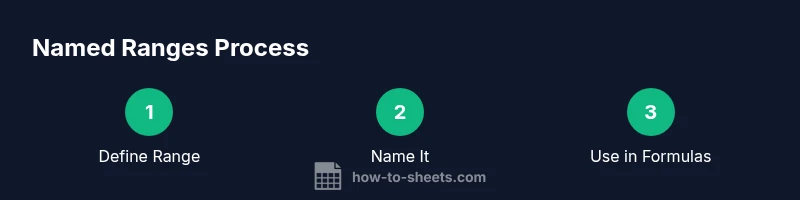
You will learn how to create and use named ranges in Google Sheets, improving formula readability and maintainability. This 2-3 step overview covers what named ranges are, why they help, and the basic actions to create and apply them in common tasks.
What is a Named Range in Google Sheets?
A name range google sheets is a named group of cells that you can reference by a simple name in formulas. Instead of typing a long cell address like A2:A100, you can call the range Sales_Data and reuse it in SUM, AVERAGE, and VLOOKUP. In Google Sheets, named ranges are defined once and can be used anywhere in the same workbook. According to How To Sheets, named ranges improve readability and reduce errors in large spreadsheets. This makes it easier for students, professionals, and small business owners to manage data with confidence.
By using a named range, you turn a generic address into a meaningful label, which helps teams communicate data structure more clearly. You’ll find named ranges under the Data menu or the Named ranges panel. This feature aligns with practical Google Sheets workflows that emphasize clarity and consistency across worksheets.
In practice, a well-chosen name range google sheets allows anyone reviewing a file to understand what data is being referenced at a glance, without needing to inspect cell coordinates. It’s a foundational tool for scalable spreadsheets.
Why Use Named Ranges?
Named ranges reduce cognitive load when writing formulas. Instead of tracing where data lives across dozens of cells, you refer to a concise, descriptive name. This is especially valuable in collaborative settings where multiple people contribute to a single sheet. The How To Sheets team notes that readability and maintainability often translate into faster audits and fewer formula errors.
Beyond readability, named ranges support consistency. If you move or expand data, you can adjust the range in one place rather than updating dozens of formulas. This is particularly useful for budgets, inventories, and sales trackers where data structure evolves over time.
Named ranges also facilitate data validation and dropdown lists, making user input more reliable. When data validation uses a named range as the source, you ensure that valid entries always pull from the current dataset, reducing invalid submissions.
Naming Conventions and Best Practices
Choose descriptive, concise names that convey the data’s purpose. Use letters, numbers, and underscores, and avoid spaces if possible for compatibility across formulas. A consistent naming scheme helps teams recognize related ranges and maintain files more easily. The How To Sheets guidance emphasizes starting with a clear prefix like Data_ or Summary_ to group related ranges.
Establish scope early: named ranges exist within a single workbook, so plan whether a range should be accessible across multiple sheets. If collaboration requires cross-sheet references, create a single, well-documented convention and share it with the team. Keep names case-insensitive to minimize confusion in complex files.
Document naming decisions in a sheet or a readme within the workbook. Quick notes about what each named range contains can save time during reviews or onboarding new collaborators.
Creating Named Ranges (high-level)
To create a named range, select the data you want to name, then open the Named ranges panel from the Data menu. Give the range a descriptive label, verify the cell references, and save. You can edit the range later to adjust size or rename it if the dataset expands. It’s beneficial to create named ranges for static datasets that appear frequently in formulas, such as tax rates, month names, or product lists.
For complex workbooks, consider grouping related named ranges by prefix. For example Data_Sales, Data_Costs, and Data_Taxes live in the same namespace but remain distinct. This approach reduces ambiguity when building formulas and improves discoverability in the Named ranges manager.
Using Named Ranges in Formulas
Replace hard-coded cell ranges with named ranges in your formulas to improve readability. For instance, =SUM(Sales_Data) is clearer than =SUM(B2:B1000). You can also combine named ranges with operators and functions: =AVERAGE(Sales_Data) / COUNT(Orders_List). Using named ranges with VLOOKUP, INDEX, or MATCH enables robust lookups against dynamic datasets.
If your dataset grows, you can reference multiple ranges by concatenating named ranges with array literals, enabling more flexible calculations. When sharing sheets, the named ranges carry through, preserving formula semantics for teammates who rely on the same labels.
Dynamic Named Ranges and INDIRECT
Dynamic ranges adapt to data changes over time. A common technique uses INDIRECT to build a range from a text label, allowing the formula to respond to user input or date-based selections. For example, =SUM(INDIRECT("Sales_Data_" & YEAR(TODAY()))) can reference different ranges as the year changes.
OFFSET can also generate dynamic ranges by shifting a base range to include new rows or columns. However, use INDIRECT and OFFSET cautiously, as excessive dynamic references can slow large spreadsheets and complicate debugging.
Managing Named Ranges and Sharing
Over time you may need to rename, delete, or reorganize named ranges. Use the Named ranges manager to edit references, review scope, and remove unused names. For team environments, document changes and communicate updates to avoid formula breakage. If you duplicate a sheet or copy data to a new workbook, note that named ranges do not automatically transfer; you’ll need to recreate or export them as needed.
When sharing with others, consider protecting critical named ranges to prevent accidental edits. Clear permissions and version history help teams recover from unintended changes and maintain data integrity across the workbook.
Data Validation with Named Ranges
Named ranges integrate smoothly with data validation. Choose List from a range and specify a named range instead of a static list. This keeps dropdown options aligned with current data, reducing errors and manual updates. For example, a named range called Categories can populate a product category dropdown across multiple sheets.
Combining named ranges with dependent dropdowns enables dynamic forms where one selection drives the options in another field. This is a common pattern in budgeting templates and project trackers, streamlining user input while preserving data consistency.
Real-World Scenarios: Examples
Real-world use cases for named ranges include budgeting templates where revenue, expenses, and tax rates are updated annually, and inventory sheets where product lists change frequently. A named range like CostCenters can be referenced in variance analyses, while a named range called Customers can power lookups and summary dashboards. This practical approach reduces errors and accelerates reporting, especially in collaborative environments. The How To Sheets methodology emphasizes starting small, then expanding named ranges as your workflow stabilizes.
Tools & Materials
- Google account with access to Google Sheets(Needed to create and edit named ranges in a live sheet)
- Sample workbook containing data(Used to practice naming and formulas)
- Documentation or a quick reference(Helpful for team standards and conventions)
Steps
Estimated time: 30-45 minutes
- 1
Prepare your dataset
Organize your data in a clean, rectangular range with headers. This makes it easier to assign a meaningful name and ensures formulas reference consistent cells.
Tip: Ensure there are no merged cells in the range to avoid naming issues. - 2
Open the Named ranges manager
Select the data you want to name, then navigate to Data > Named ranges to open the manager.
Tip: Save a descriptive name that clearly reflects the data contained. - 3
Create and name the range
Enter a descriptive name and confirm the cell references. The manager will show the range as a named item within the workbook.
Tip: Avoid spaces; use underscores or camel case for readability. - 4
Apply the named range in a formula
Replace a cell range with the named range in a formula, such as =SUM(Sales_Data).
Tip: Test with a simple function first to confirm it references correctly. - 5
Test dynamic behavior
If you plan dynamic ranges, test INDIRECT or OFFSET-based patterns to ensure updates reflect data changes.
Tip: Be mindful of formula performance with large datasets. - 6
Manage and edit as data evolves
Add new data to the named range or rename it as your dataset grows. Use the manager to adjust references.
Tip: Document changes to avoid breaking existing formulas. - 7
Use in data validation
Set data validation using List from a range to drive dropdown options from a named range.
Tip: Keep validation sources current by updating the named range when data changes. - 8
Share and protect
If collaborating, protect critical named ranges and share guidelines for naming conventions and scope.
Tip: Enable version history to track changes.
FAQ
What is a named range in Google Sheets?
A named range is a labeled group of cells you can reference in formulas. It makes formulas easier to read and maintain and works across the workbook where it's defined.
A named range is a labeled group of cells you can reference in formulas, making spreadsheets easier to read and maintain.
How do I create a named range in Google Sheets?
Select the data, open the Named ranges panel from the Data menu, and assign a descriptive name to the selected cells. Save the range to reuse in formulas.
Open the Named ranges panel from the Data menu and assign a descriptive name to your data.
Can I rename or delete a named range after creating it?
Yes. Use the Named ranges manager to rename, edit, or delete named ranges. Changes apply to formulas that reference the range, so review dependent formulas.
Yes, you can rename or delete ranges from the Named ranges manager, but check formulas that use them.
Are named ranges dynamic with data changes?
Named ranges are static by default, but you can create dynamic references using functions like INDIRECT or OFFSET to respond to data changes. This adds flexibility but may affect performance.
They’re static by default, but you can make them dynamic with INDIRECT or OFFSET.
Do named ranges apply across all sheets in a workbook?
Yes, named ranges are workbook-scoped within a Google Sheets file. They are accessible from any sheet in the same workbook.
Yes, you can use named ranges from any sheet in the workbook.
Watch Video
The Essentials
- Name ranges improve readability and maintenance
- Use descriptive, consistent naming conventions
- Leverage named ranges in formulas and data validation
- Manage changes carefully to avoid formula errors